Custom installation
Use a custom installation if you don't want to use the MSI. You prepare the database, extract the application files, create the IIS application pool, and configure the application settings yourself.
PingCastle Pro runs on any infrastructure that the ASP.NET Core 10.0 middleware supports. This page covers IIS on Windows. For Nginx or Apache on Linux, see the Microsoft procedures in Host ASP.NET Core on Linux with Nginx and Host ASP.NET Core on Linux with Apache.
Before you begin
- Install the .NET 10.0 runtime and, on IIS, the ASP.NET Core 10.0 Hosting Bundle. See Installation for the IIS and Hosting Bundle steps.
- Have the license key that Netwrix distributes with the PingCastle Pro files. If it's missing, contact PingCastle support.
- Have a SQL Server or PostgreSQL server available. See Database requirements.
Set up the database
PingCastle Pro creates its tables on first run and adds or changes tables when an update requires it. Create an empty database and a user for the application. Back up the database yourself, because PingCastle Pro doesn't.
By default, the database user must own the database so the application can change the schema. If you prefer limited privileges, the user needs only read, modify, and delete permissions. Netwrix then provides a SQL script that you run before each software update to apply the schema changes.
Choose the option that matches your database.
SQL Server with a Windows account
On IIS, the application runs in an application pool, so the pool's identity needs access to the database. The pool doesn't exist until you create it, but SQL Server accepts the login in advance. The following SQL creates the login for the default PingCastlePro application pool and makes it the database owner:
If not Exists (select loginname from master.dbo.syslogins
where loginname = 'IIS APPPOOL\PingCastlePro')
Begin
CREATE LOGIN [IIS APPPOOL\PingCastlePro] FROM WINDOWS;
End
use PingCastlePro;
exec sp_addrolemember 'db_owner', 'IIS APPPOOL\PingCastlePro';
Create the PingCastlePro database before you run this SQL.
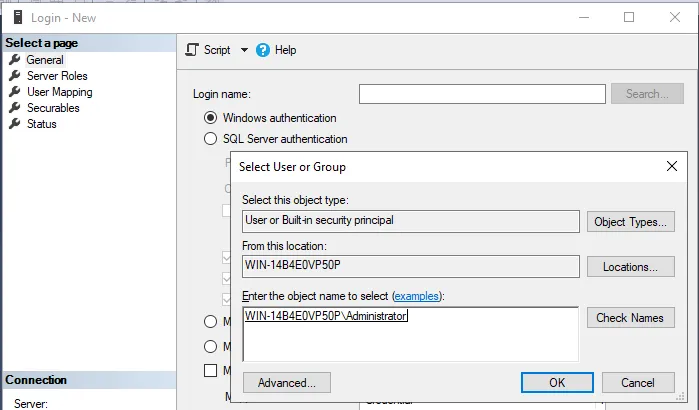
If the database is on another server, the default pool identity can't authenticate there. Create a Windows user, add a login for it in SQL Server, and make it the owner of the database. Then set the application pool identity to that user.
SQL Server with a SQL Server login
-
In SQL Server Management Studio, create a login and select SQL Server authentication.
-
Clear User must change password at next login. PingCastle Pro doesn't support password rotation. To change the password later, edit
appsettings.Production.json.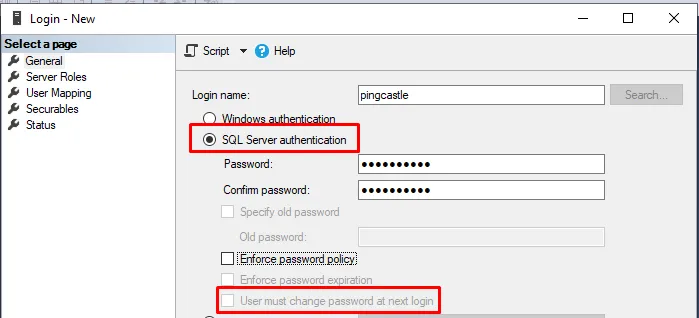
-
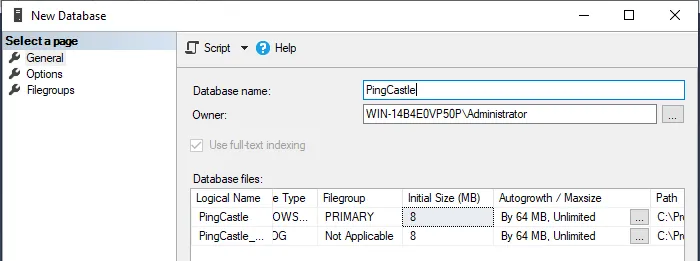
Create a database and set the login you created as its owner.
-
Verify that the credentials are correct and that the server is available.
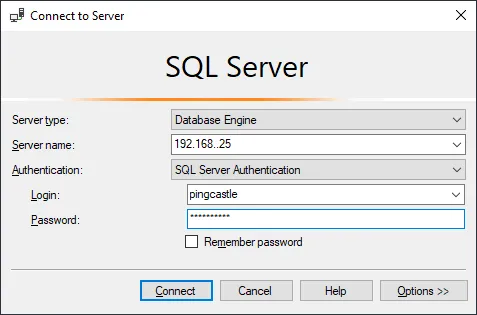
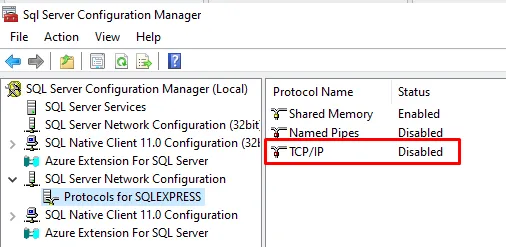
SQL Server disables TCP/IP by default. If the database is on another server, enable TCP/IP in SQL Server Configuration Manager.
PostgreSQL
The following commands install PostgreSQL on Ubuntu, create the pingcastle user and database, and set a password for the user. By default, the postgres user has no password.
sudo apt-get install postgresql postgresql-contrib
sudo /etc/init.d/postgresql start
sudo -u postgres createuser pingcastle
sudo -u postgres psql
alter user pingcastle with password 'pingcastle';
sudo -u postgres createdb -O pingcastle pingcastle
On PostgreSQL, the collation (sort order) doesn't account for some special characters, which puts the [Default] container in a different position than the start of the list of entities.
Extract the files
- Create the installation directory, for example
C:\inetpub\PingCastlePro. - Extract the PingCastle Pro zip files to the installation directory.
- Download the configuration zip file and extract it to the same directory.
Create the application pool
-
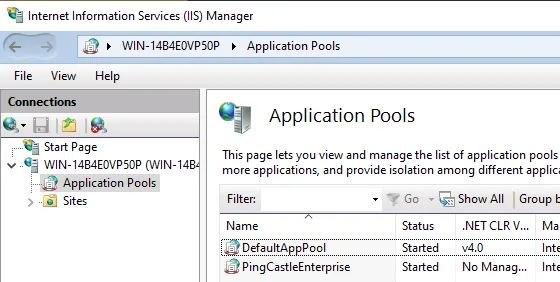
Open Internet Information Services (IIS) Manager.
-
Select Application Pools, then select Add Application Pool in the Actions pane.
-
In Name, enter
PingCastlePro. In .NET CLR version, select No Managed Code, then select OK. -
Create a website that uses the application pool and points to the installation directory.
-
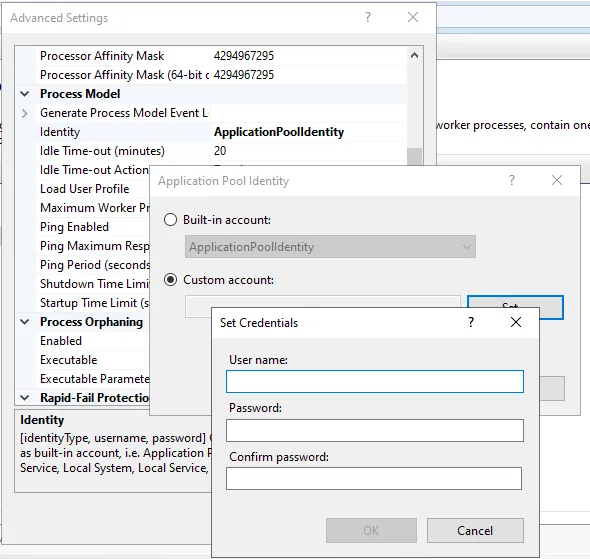
If you use a Windows account for the database, select the application pool, then select Advanced Settings.
-
Select Identity, then select Custom account and enter the Windows user.
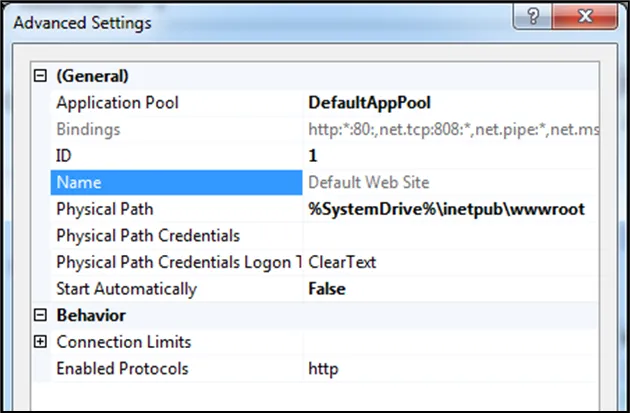
IIS creates a Default Web Site that can conflict with the PingCastle Pro website. Stop the Default Web Site and set it to not start automatically.
Configure appsettings.Production.json
The application settings are in appsettings.Production.json in the installation directory. The application needs the database settings and the license. Email settings are required to send notifications such as weekly reports.
appsettings.Production.json is JSON, so escape special characters in values. For example, \ becomes \\, and " becomes \".
Configure the database
Set database to sqlserver or postgres, then set ConnectionStrings.DefaultConnection to the connection string of the database you created.
SQL Server with a SQL Server login:
"database": "sqlserver",
"ConnectionStrings": {
  "DefaultConnection": "Server=tcp:server.fqdn.com;Database=PingCastle;User Id=pingcastle;password=pingcastle;MultipleActiveResultSets=true"
}
SQL Server with a Windows account:
"database": "sqlserver",
"ConnectionStrings": {
  "DefaultConnection": "Server=tcp:server.fqdn.com;Database=PingCastle;Trusted_Connection=True;MultipleActiveResultSets=true"
}
PostgreSQL:
"database": "postgres",
"ConnectionStrings": {
  "DefaultConnection": "Server=localhost;username=pingcastle;password=pingcastle;database=pingcastle"
}
Configure the license
Set License to the license key.
Configure email
Add an Email section. The email address, host, and port are required. The login and password are the credentials PingCastle Pro uses to connect to the SMTP server, and they're optional.
"Email": {
  "Email": "pingcastle@example.com",
  "Login": "smtp_login",
  "Password": "password",
  "Host": "smtp.example.com",
  "Port": "25"
}
| Setting | Description |
|---|---|
Email | The address PingCastle Pro sends email from. |
Login | The SMTP user name. Optional. |
Password | The SMTP password. Optional. |
Host | The SMTP server address. |
Port | The SMTP server port. |
Next steps
The server doesn't create the database during installation, so database problems appear on first run. If the website returns an error, check the Windows Event Log for the full message.