Post installation
After the installation, check that the PingCastle Pro website is running in IIS. If you use Entra ID authentication, also enable HTTPS, which Entra ID requires.
Check the website is running
-
Open Internet Information Services (IIS) Manager.
-
Check that IIS lists the PingCastlePro website.
-
Look for a black square icon to the right of the PingCastlePro website. The icon means the website is stopped.
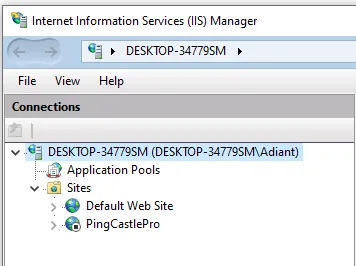
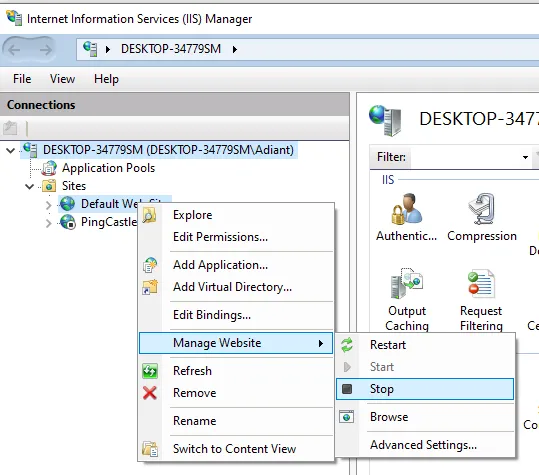
The PingCastlePro website sometimes doesn't start because the Default Web Site is running instead.
-
If the website is stopped, stop the Default Web Site and start the PingCastlePro website.
Enable HTTPS
Entra ID authentication requires HTTPS. If you use Windows authentication, HTTPS is optional.
Add an HTTPS binding
The server needs a certificate installed before you add the binding.
-
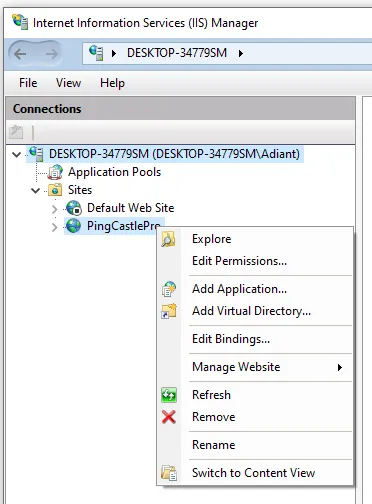
Select the PingCastlePro website, then select Bindings in the Actions pane.
-
Select Add.

-
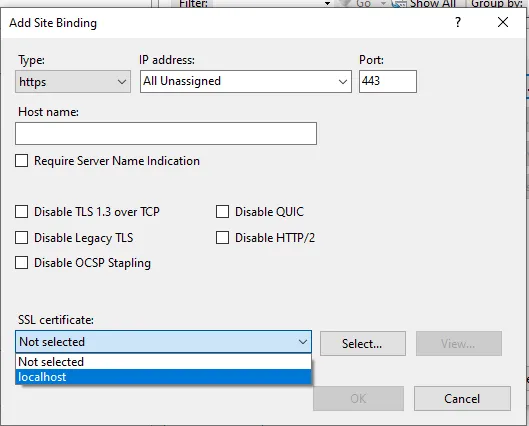
In Type, select https, and in SSL certificate, select the certificate.
-
Select OK.