Authentication requirements
PingCastle Pro signs users in with one of two authentication methods:
- Windows Authentication: Integrated Windows authentication using Active Directory credentials
- Microsoft Entra ID: Sign-in with a Microsoft Entra ID account through OpenID Connect
PingCastle Pro doesn't support other authentication systems. Scans don't use these methods; PingCastle.exe uses the Windows account that runs it.
Windows Authentication
Windows Authentication requires no extra configuration beyond enabling it in IIS. The server must be able to reach Active Directory to validate user accounts.
Microsoft Entra ID
If you use Entra ID, the application must be able to get a token from Entra ID, typically at login.microsoftonline.com.
Entra ID requires an app registration with a minimal configuration. At the end of this procedure, you have a Tenant ID and a Client ID.
Register the app
-
Sign in to the Azure portal.

-
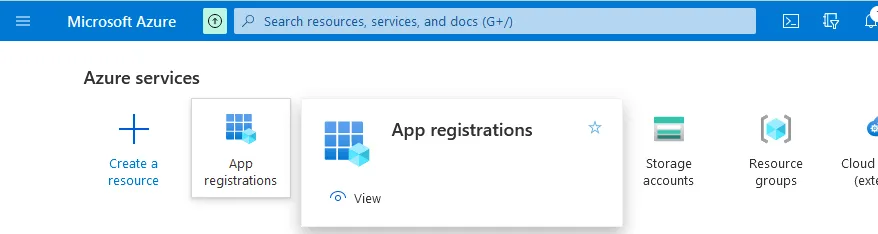
Open the App registrations pane.
-
Click New registration in the toolbar. The Register an app dialog opens.

-
Enter a name and the redirect URI.
noteThe redirect URI must point to the fully qualified domain name (FQDN) of the server you are accessing. It must start with HTTPS and end with
/signin-oidc.For example:
https://pingcastle.contoso.com/signin-oidc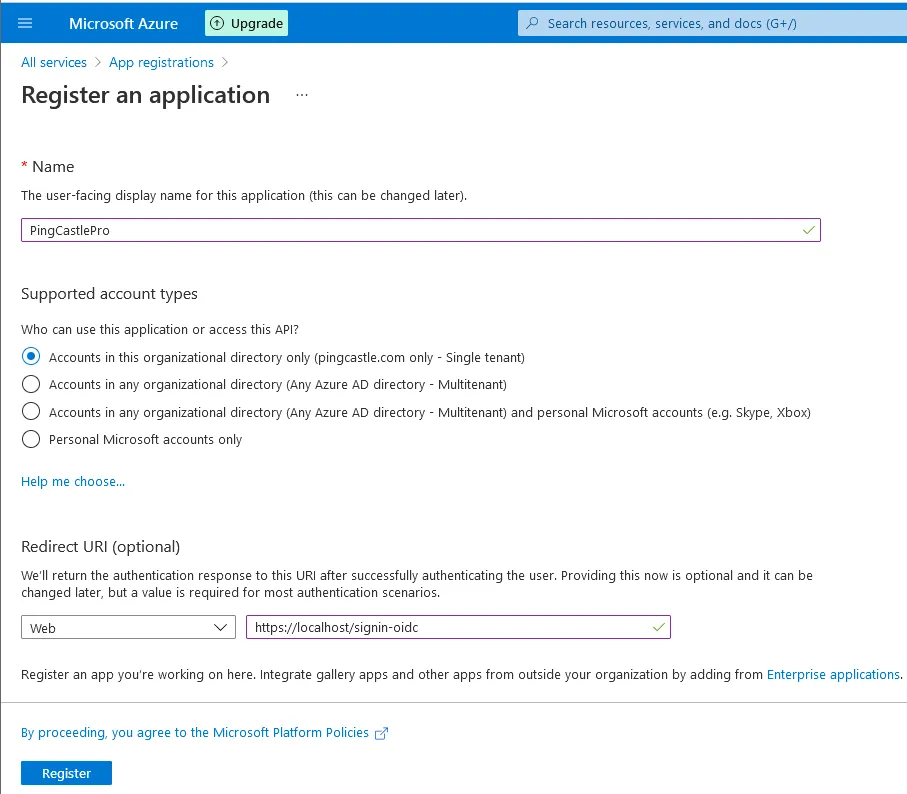
-
Click Register.
-
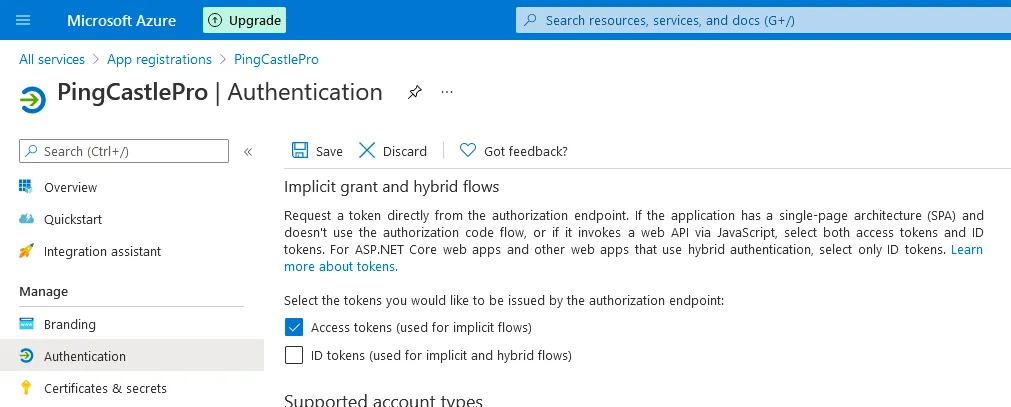
Go to Authentication and enable Access tokens (used for implicit flows).
-
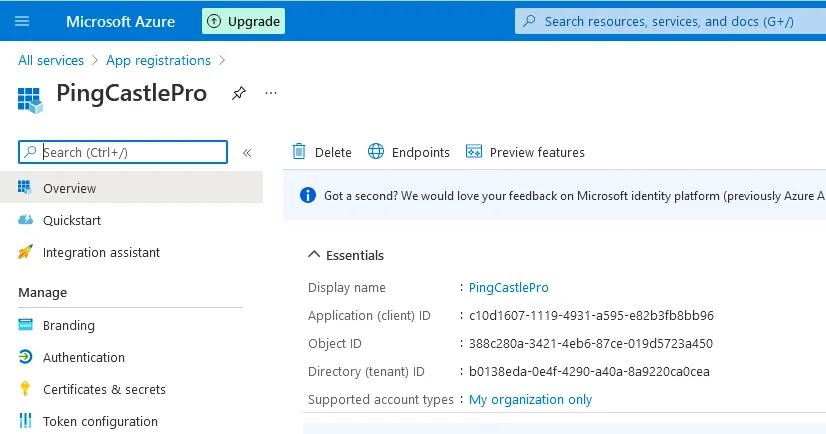
Open the app overview and copy the Client ID and Tenant ID. You need both values when you install PingCastle Pro.
The first user who connects to the application can grant the permission implicitly.