Troubleshooting
Viewing application logs and errors
When troubleshooting issues with PingCastle Pro, you need to view error messages and logs to diagnose problems.
- Debug logging
- Run the application manually
Enable persistent debug logging to capture detailed application behavior:
-
Log in to the PingCastle Pro server.
-
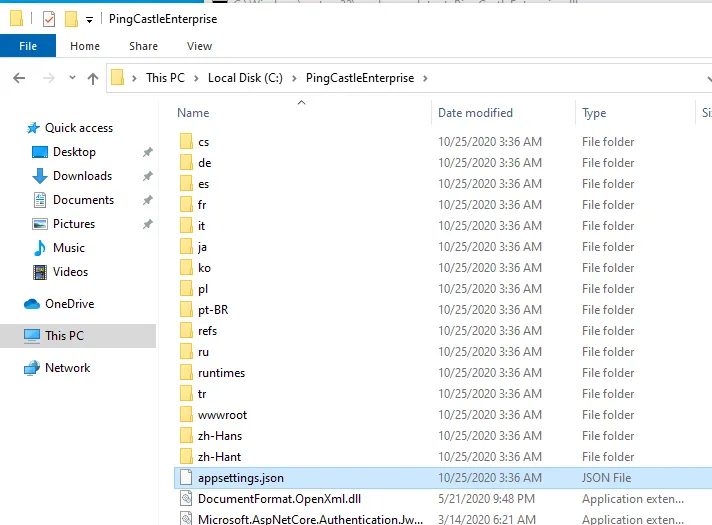
Locate the appsettings.json file (usually at
C:\PingCastlePro). -
Edit the appsettings.json file so the Logging section matches the following:
"Logging": {"IncludeScopes": false,"LogLevel": {"Default": "Debug","System": "Information","Microsoft": "Information"}} -
From the same directory, open the web.config file and edit the aspNetCore tag so stdoutLogEnabled is
true:<aspNetCore processPath="dotnet" arguments=".\PingCastlePro.dll" stdoutLogEnabled="true" stdoutLogFile=".\logs\stdout" hostingModel="InProcess" /> -
Open PowerShell as Administrator and run
IISRESETto restart the web services. -
Log in and perform actions in the PingCastle Pro web portal. Check
C:\PingCastlePro\logs\to confirm PingCastle Pro is writing logs.
Run the application manually from the command line to view error output immediately, such as a TCP port already in use or an invalid connection string:
dotnet.exe PingCastlePro.dll
By default, dotnet.exe is in C:\Program Files\dotnet.
To open the application on the network, use the --server.urls parameter:
dotnet.exe PingCastlePro.dll --server.urls=http://*:8080
Running manually has limitations. Database permission errors might not appear because the application runs under your user context rather than the IIS application pool identity (typically IIS APPPool\<app-name>). To grant rights to the application pool account on SQL Server, see How to add the ApplicationPoolIdentity to a SQL Server login.
Platform-specific logs
- Windows
- Linux
- Event Viewer stores application errors and warnings.
- PingCastle Pro writes debug logs to
C:\PingCastlePro\logs\when you enable them.
- Run
service <name-of-service> statusto check whether the service is running. - If an error prevents the service from starting, the command shows the log.
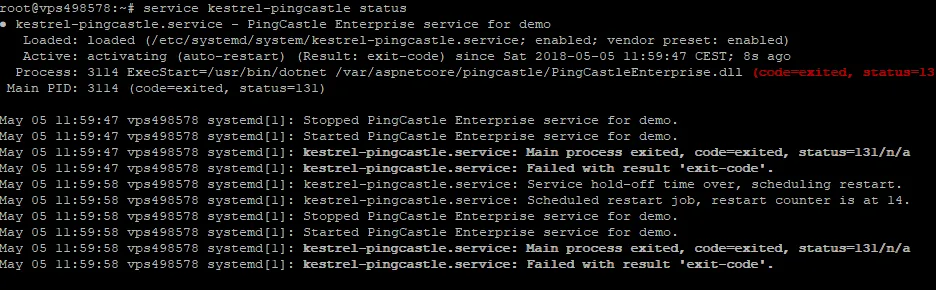
When no log is available, run the program manually outside of the service scope to get a more detailed error message.
Common errors and solutions
Here are common errors, their causes, and how to fix them.
Incorrect ASP.NET Core middleware version
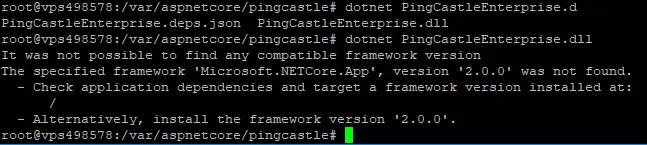
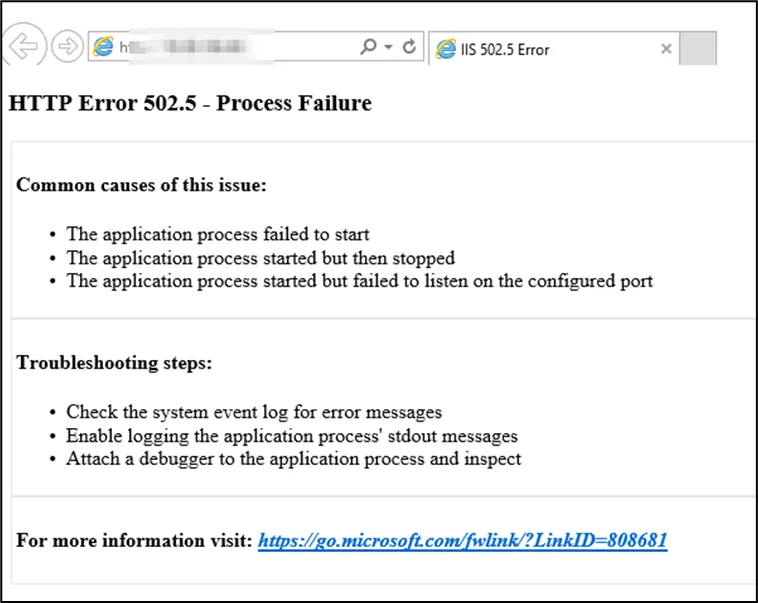
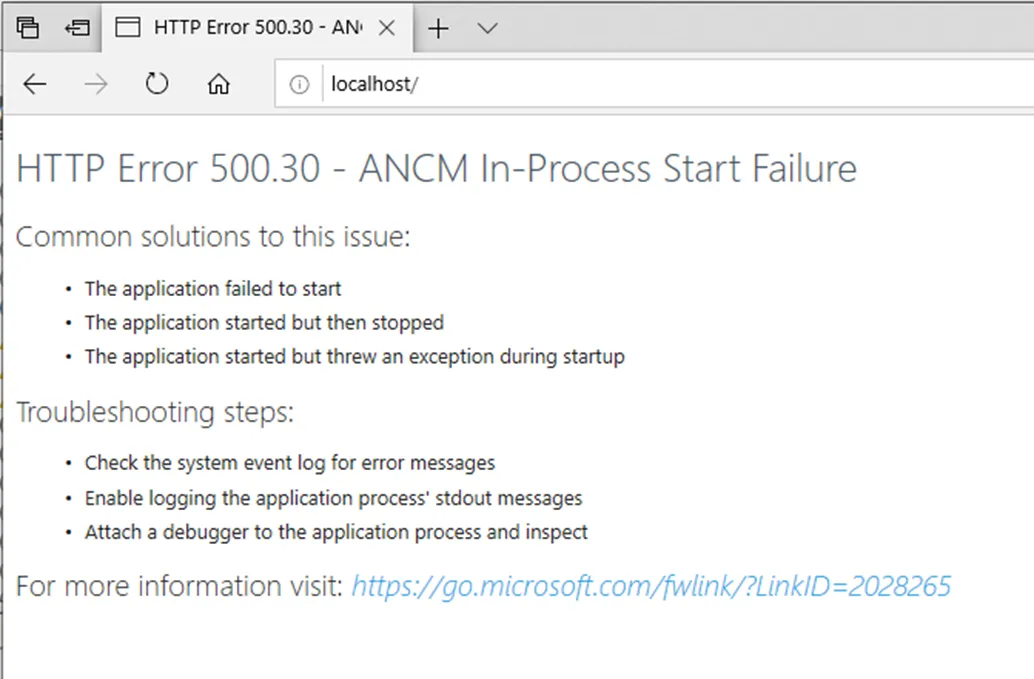
These error messages appear when the application runs under a service and the wrong version of ASP.NET Core is installed:

This message appears when running on the command line:
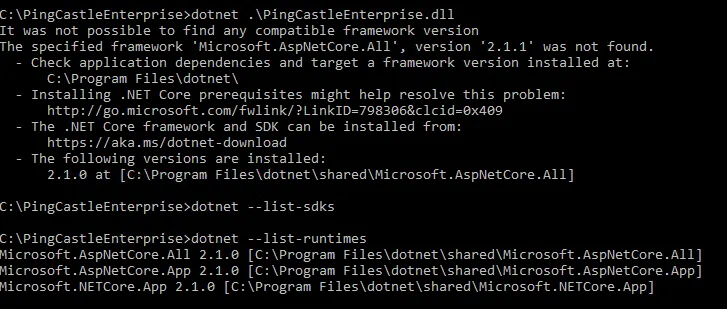

Solution:
Identify the correct version of the ASP.NET Core framework and install it. If you're installing on IIS, install the ASP.NET Core Hosting Bundle.
The last error was related to the missing KB KB2533623.
Missing web.config
If the web.config file is missing or doesn't load the .NET module correctly, the web server treats the application as a static file and returns a 404 error.
Solution:
Download the correct web.config file from the PingCastle website and replace the existing one.
Application startup errors
When the application can't start, generic error messages appear in the browser and event log:

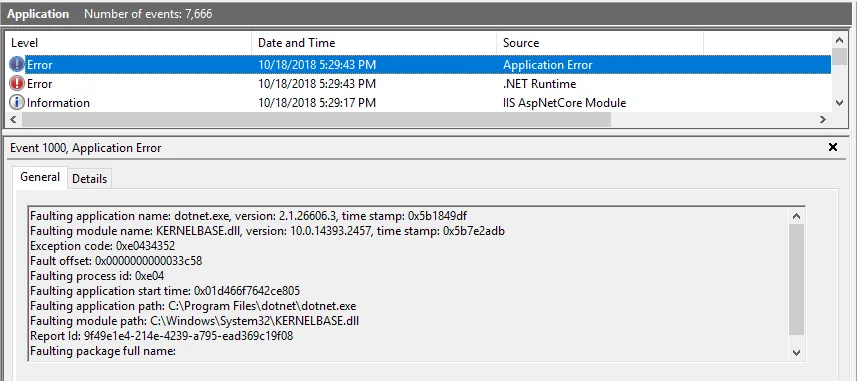
A more detailed message appears in the event log or when you run the application manually:
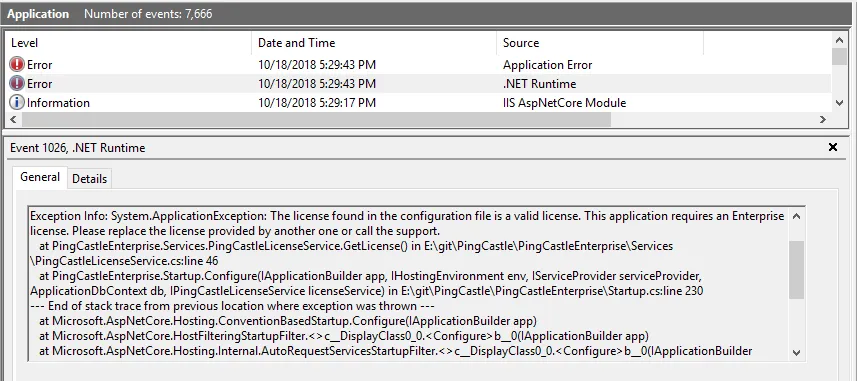
Common causes:
- Invalid license in appsettings.Production.json
- Missing or misconfigured application settings
- Runtime dependencies not installed
Solution:
Check the detailed error message and correct the issue. If you see a license error, replace the license in appsettings.Production.json.
Database permissions
When the database doesn't contain the tables the application needs, the application tries to create them. If you haven't granted the permissions, PingCastle Pro generates a message and the application can't start.
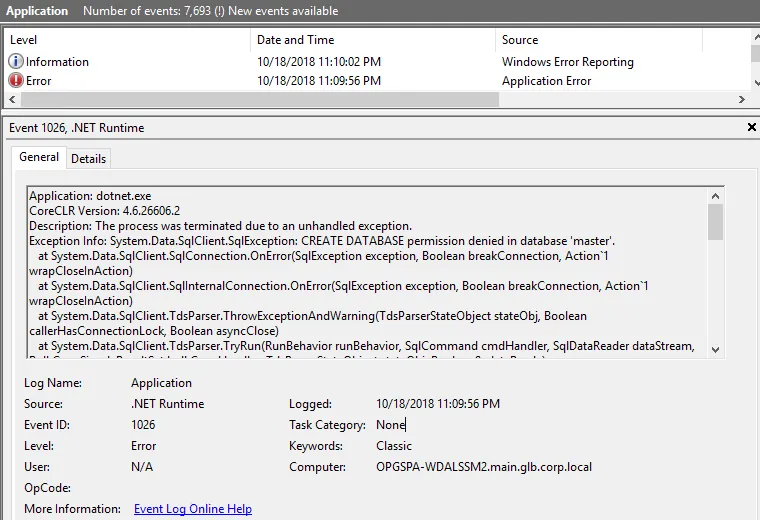
Requirements:
- Permission to create tables (required on first run)
- Permission to add, change, and remove records
- TCP/IP enabled on SQL Server
- A firewall that allows remote connections, if SQL Server is on a different computer
The application pool identity needs these permissions, not your user account. When the application runs under IIS, the identity is typically IIS APPPool\<app-name>. If you're running PingCastle Pro against another SQL Server, the default identity the application pool uses doesn't have access.
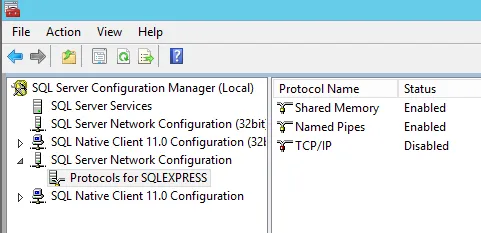
Confirm you can connect from a computer other than the SQL Server host. By default, a firewall can block remote connections and the database might not be exposed over TCP. In the following example, remote access is blocked because TCP/IP is disabled:
Solution 1: Change the application pool identity
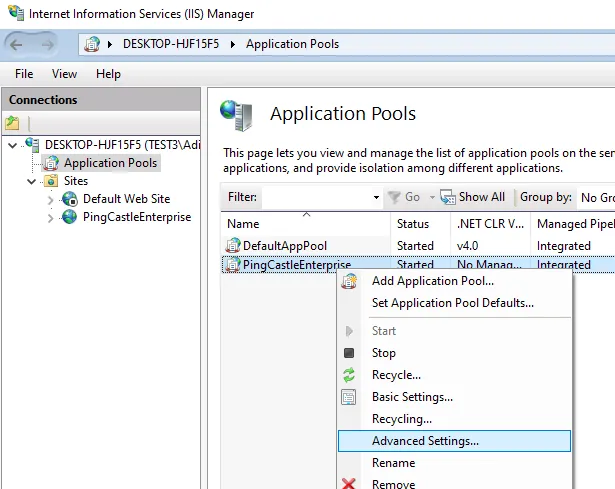
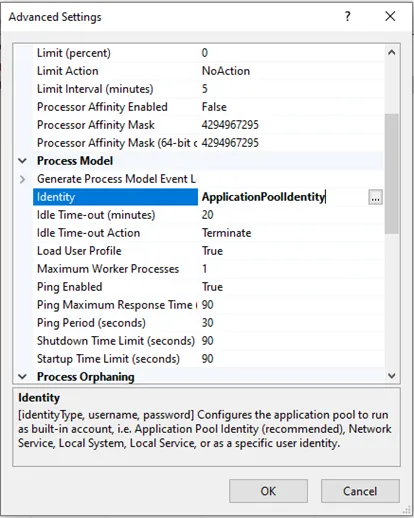
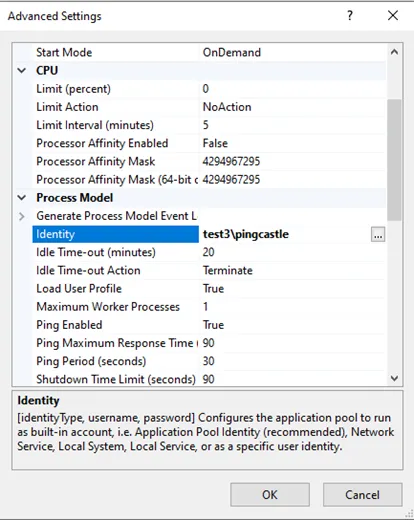
Configure the IIS application pool to run as an Active Directory user that has database permissions:
Solution 2: Use SQL Server authentication
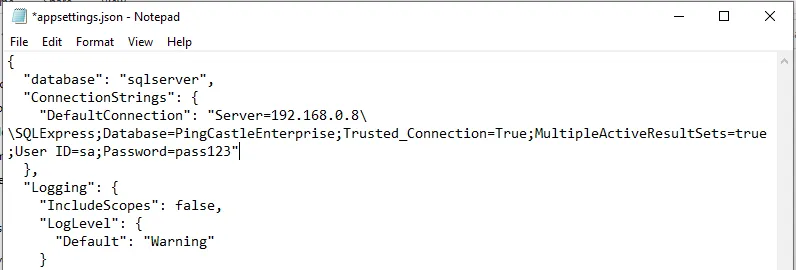
Add SQL Server credentials to the connection string in appsettings.Production.json:
;User ID=sa;Password=pass123
Alternative: If you prefer not to grant table creation permissions, contact support to obtain a SQL script that creates the required tables manually.