Overview - Data Tracking
Data Tracking allows Netwrix Platform Governance to track changes and generate Change Logs for any data changes in selected objects.
It is commonly used for Salesforce CPQ and other sensitive records that require additional visibility or governance.
When Data Tracking is enabled for an object, Netwrix Platform Governance automatically:
- Monitors updates to records in that object.
- Creates Change Logs whenever a record is created or updated.
- Helps administrators review and audit data changes by using reports.
This helps organizations maintain better control, transparency, and compliance over important Salesforce data.
When Data Tracking is enabled for an object, all changes to records within that object can be tracked.
Because of this, it is recommended to review which objects should be monitored before enabling Data Tracking. Work with your security, compliance, or audit teams to define a list of sensitive objects before enabling Data Tracking.
Prerequisites
Here are the requirements to set up Data Tracking:
-
Enterprise Compliance license.
-
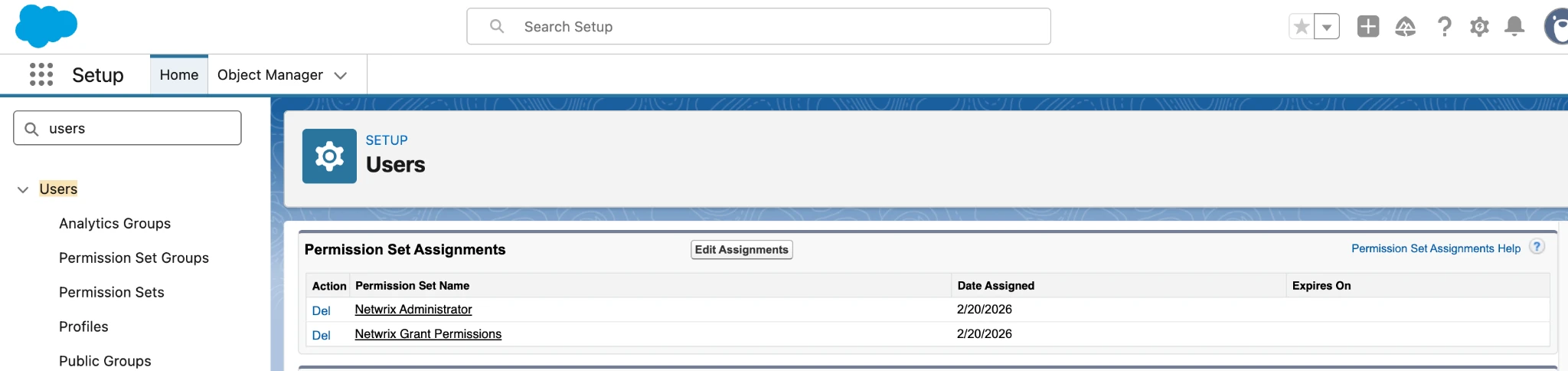
Access to the Netwrix Configuration app. You must have the Netwrix Administrator and Netwrix Grant Permissions permission sets to access the app. You can grant access through the following path: Setup > Users > Permission Sets Assignments > Edit Assignments
Set Up Data Tracking
-
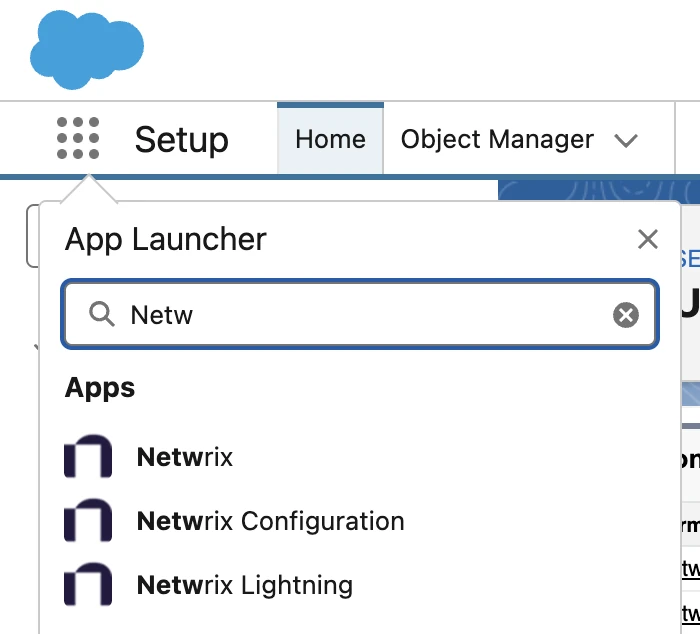
Open the Salesforce App Launcher.
-
Search Netwrix Configuration app and open it.
Select Objects to Track
In this section, you can apply tracking recommendations to one or more objects in the list. To do this, select the objects you want and click Apply Recommendations.
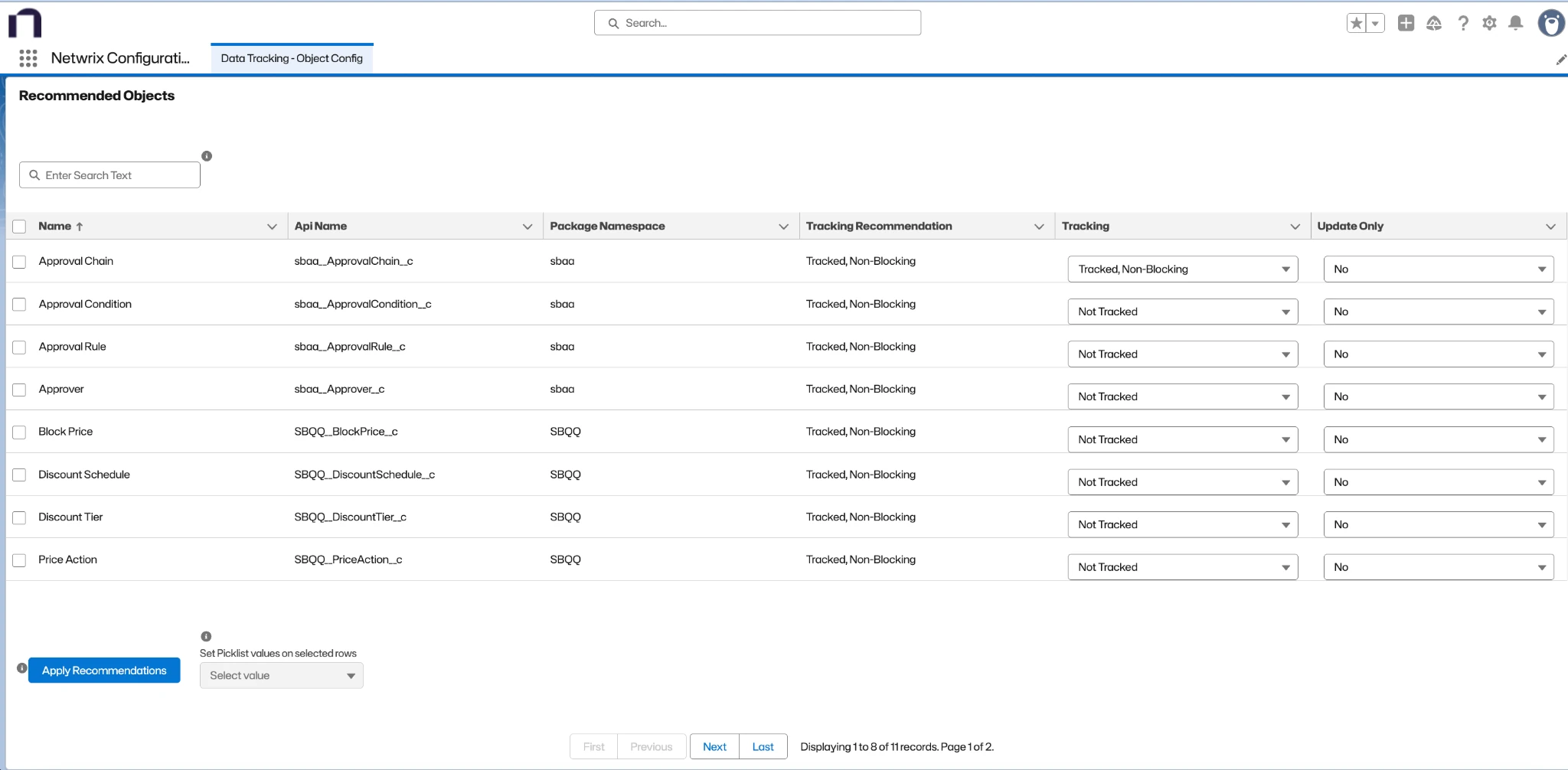
The available tracking options for objects are:
- Not Tracked: Changes to data records aren't monitored.
- Tracked, Blocking: Changes to data records are blocked if there is no approved Change Request.
- Tracked, Non-Blocking: Changes to data records are logged. If there is no approved Change Request, the Change Log marks the change as non-compliant.
While metadata changes in Salesforce can be tracked but not blocked, with Data Tracking you can block most data record changes that aren't pre-approved.
Changes to records in Non-Triggerable objects can't be blocked. See Non-Triggerable Objects to understand which objects can't be blocked and how they are handled.
You can also choose whether tracking should apply to Updates Only for each object.
- No: Tracks changes to both new and existing records.
- Yes: Tracks changes to existing records only. Changes to new records aren't tracked.
To enable tracking for objects not included in the recommended list:
-
Click Show Additional Objects for Tracking (Advanced). The Additional Objects list appears.
-
Search for the object by typing its name.
-
Set the Tracking and Update Only values for each object you want to configure.
-
Click Save All Records.
-
Wait until the Deployment Status is complete, then click Done.

To track objects that support triggers, Netwrix Platform Governance automatically creates and deploys a trigger and a test class for each selected object.
For Salesforce objects that don't support triggers, see the Non-Triggerable Objects section.
Some Salesforce standard objects can cause issues when enabling Data Tracking.
If you experience problems while attempting to track certain objects, see Troubleshooting for known limitations and possible solutions.
Use Data Tracking only for critical configuration objects.
Data Tracking isn't designed for high-volume objects such as Opportunities or Quotes. For these types of objects, Salesforce’s standard Field History Tracking feature is a better option for monitoring changes.
Select Fields to Track
In some cases, you might need to monitor only specific sensitive fields within a tracked object, rather than tracking all changes to the object.
To support this, you can configure which fields should have additional tracking control.
-
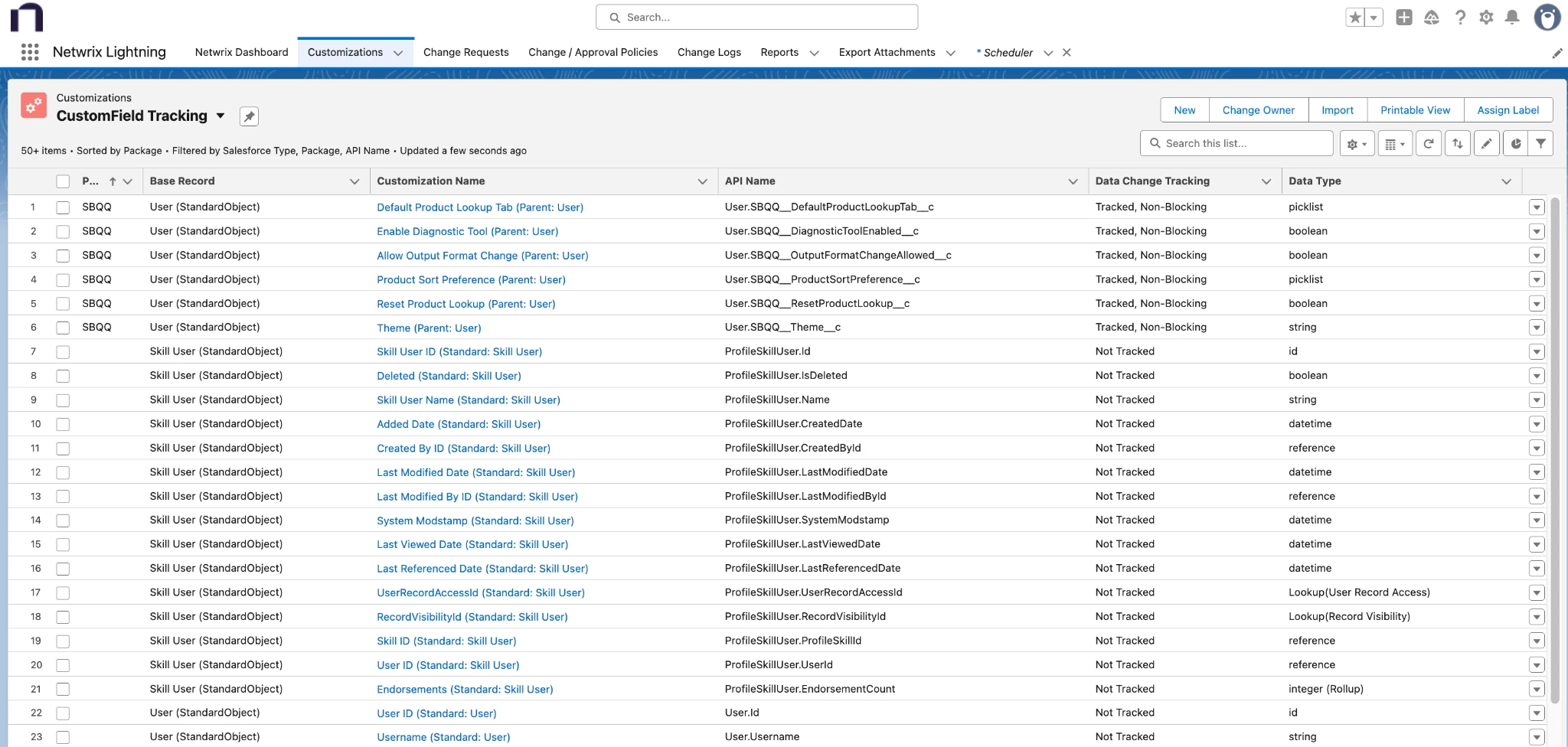
Open Netwrix Lightning app.
-
Open Customizations tab.
-
Select the CustomField Tracking list view.
-
Select a customization and edit the Data Change Tracking field.
-
Click Save at the bottom of the form to apply your changes.
Fields Excluded from Tracking (Default)
By default, Netwrix Platform Governance doesn't track changes in certain field types or standard system fields.
Field Types Not Tracked
Changes to the following field types aren't tracked:
- ADDRESS
- BASE64
- JSON
- LOCATION
- PHONE
- TIME
- URL
Standard Fields Not Tracked
Changes to the following standard Salesforce fields are also not tracked:
- CreatedDate
- CreatedById
- LastModifiedDate
- LastModifiedById
- SystemModStamp
- IsDeleted
- LastActivityDate
- LastViewedDate
- LastReferencedDate
- Name
- Description
- OwnerId
Add Tracked Objects to a Policy
By adding the tracked object to a policy, you can define the appropriate change level for it.
For Data Records, select the change level in the Application Configuration Changes (Data) field.
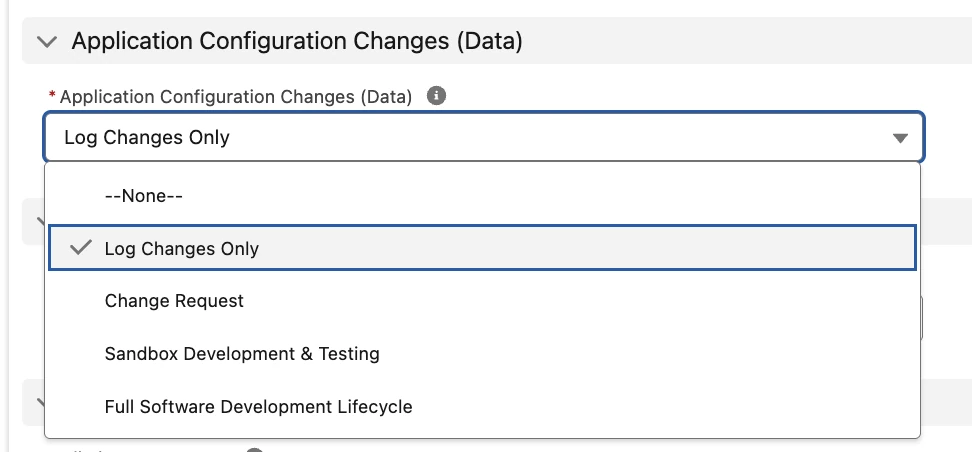
- Open Change / Approval Policies and select the All Policies list view.
- Select the policy where you want to track the object.
- Open the Related tab.
- Click Add Customizations.
- In the Search Customization box, type (Data Records).
- Select the customization for the tracked object that includes "(Data Records)" in its name.
- Click Add to move the selection to the Selected Customizations pane.
- Click Save to finish.
Adding Data Records to Change Requests
When creating a Change Request, you can add Existing Data Records and Proposed Data Records, similar to how metadata components are added.
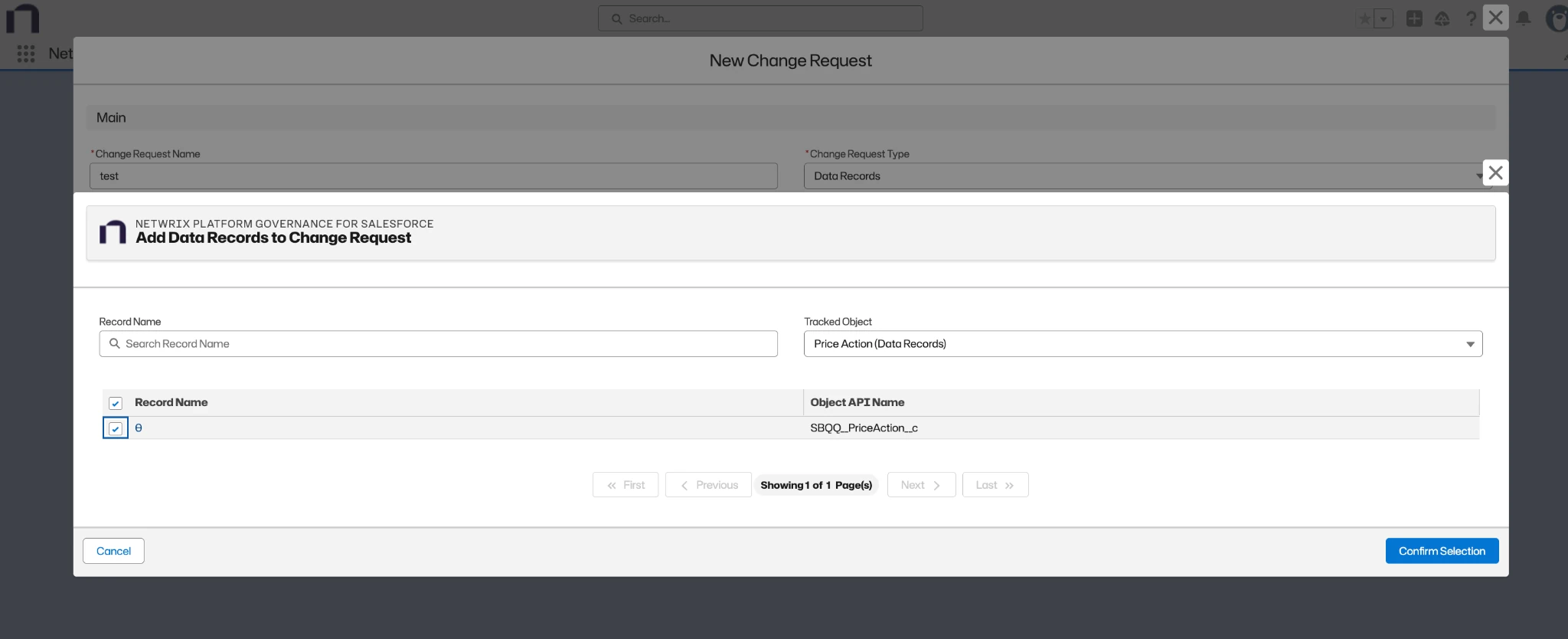
- Click Add from the panel.
- Select the tracked object.
- Optionally filter by the record name.
- Select one or more records.
- Click Confirm Selection button.
To add Proposed Data Records (for example, new records that will be created), select the object (data record customization). In the Name field, enter "TBD". Create one proposed entry for each new record that will be added.