Cleaning Up Customizations
Use these processes to Clean up Individual Customization or Clean Up Multiple Customizations.
Clean up Individual Customization
-
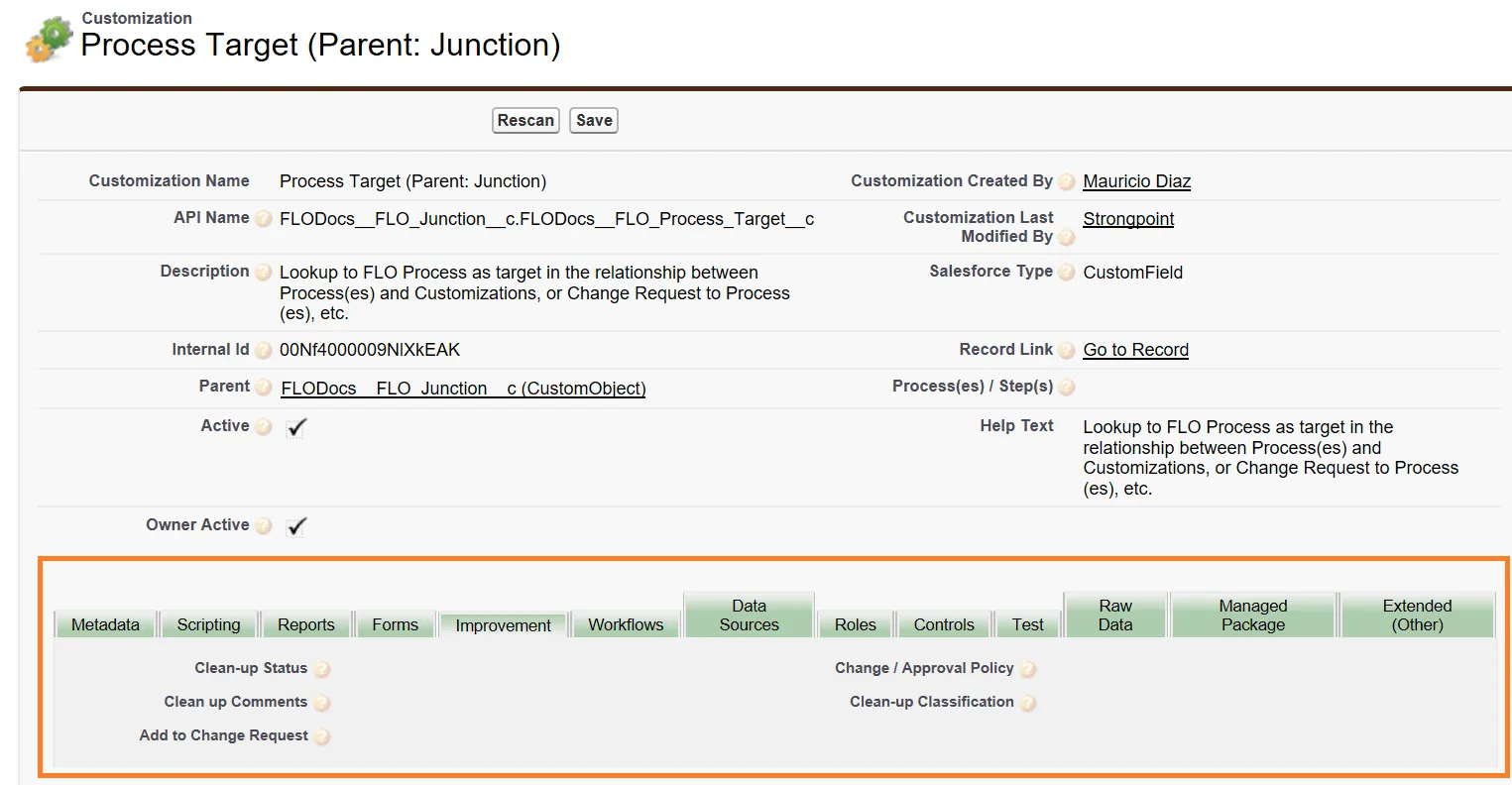
Open the customization.
-
Open the Improvement tab.
-
Under Clean Up Status, select a status:
- To Be Cleaned Up
- Send Request Info Emails
- Under Investigation
- Disabled / Hidden
- Archived
- Deleted
- Ignore
- Fix ScriptID
- Reassign Owner
- Closed
-
Under Clean Up Comments, add notes to help with clean up.
-
Attach to a Change Request associated with the customization (optional).
-
Assign a Change/Approval Policy if there is an object specific policy (optional).
-
Under Clean-Up Classification, add an overview of the clean up.
Clean Up Multiple Customizations
-
Go to the Customizations tab.
-
Create a new list view for clean up by clicking on Create New View.
-
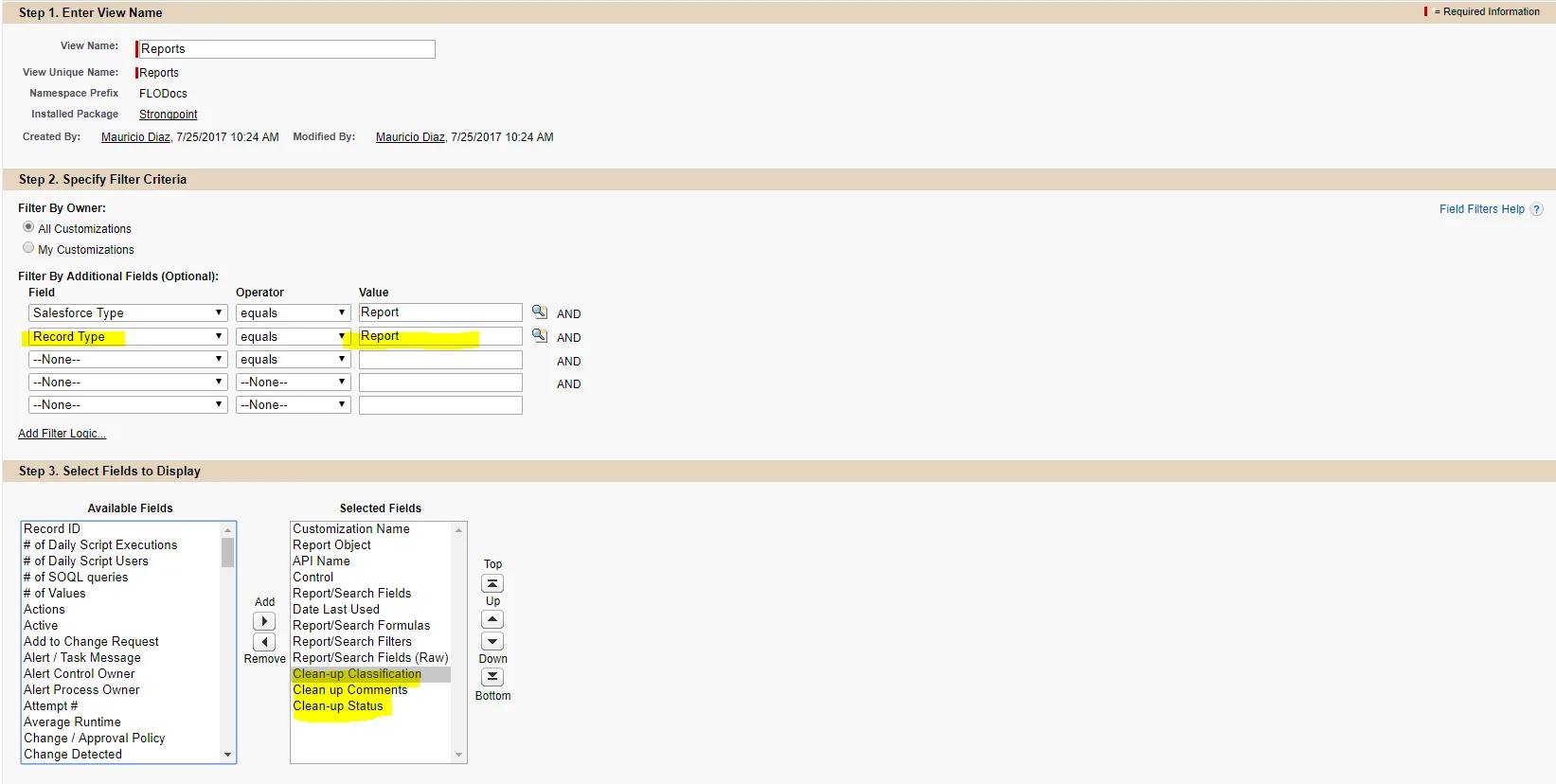
Enter a View Name and a View Unique Name.
-
Specify the filter criteria:
- Filter By Owner: choose All Customizations or My Customizations.
- Filter By Additional Fields: choose Salesforce Type equals Report and Record Type equals Report.
-
Select fields to display:
- Clean Up Classification
- Clean Up Comments
- Clean Up Status
-
Restrict Visibility. You can choose to have the list view:
- Only visible to you,
- Visible to all users or
- Visible to certain groups of users.
-
Click Save.
-
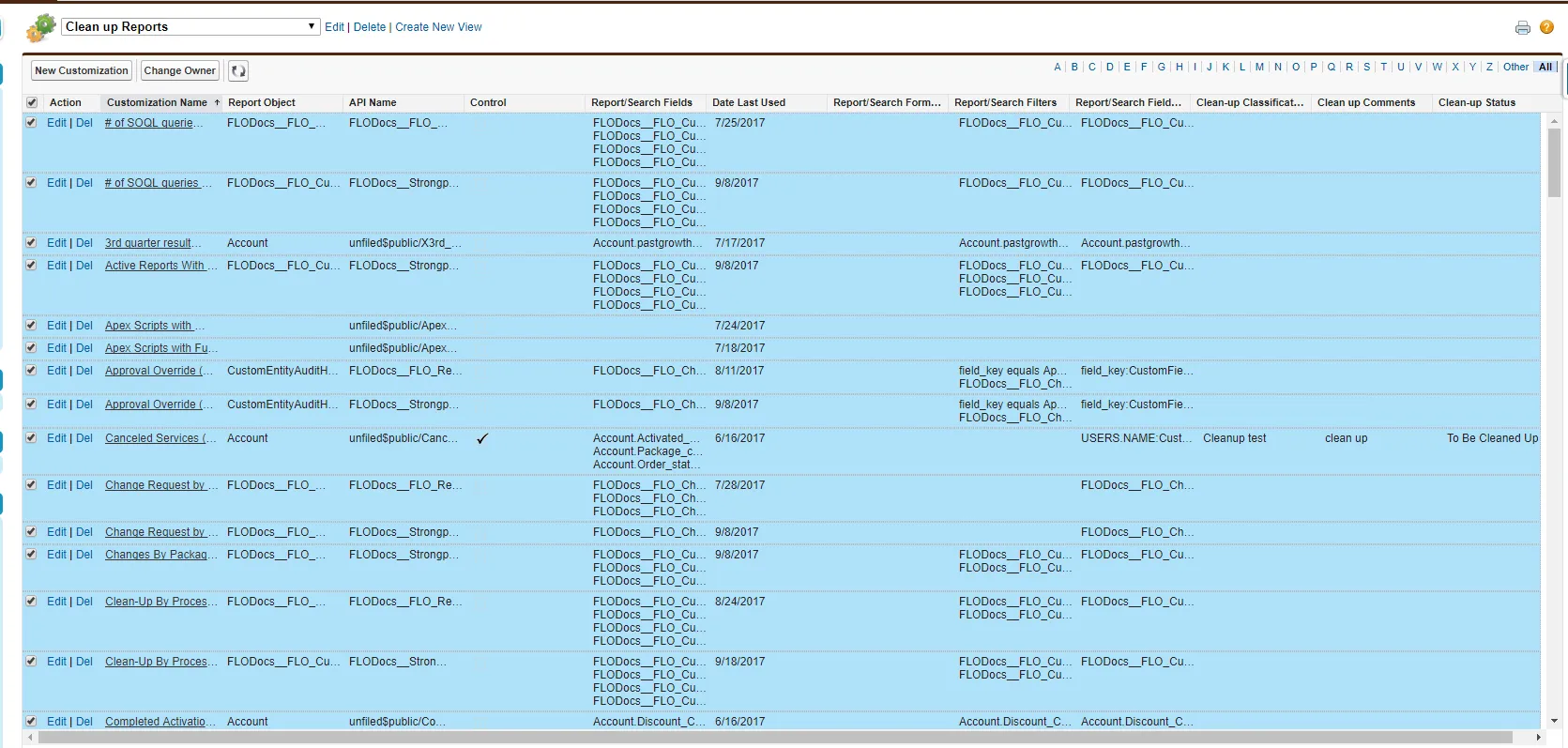
Once your list view has been created, you can multi-select customizations for clean up by checking the box beside Action.
-
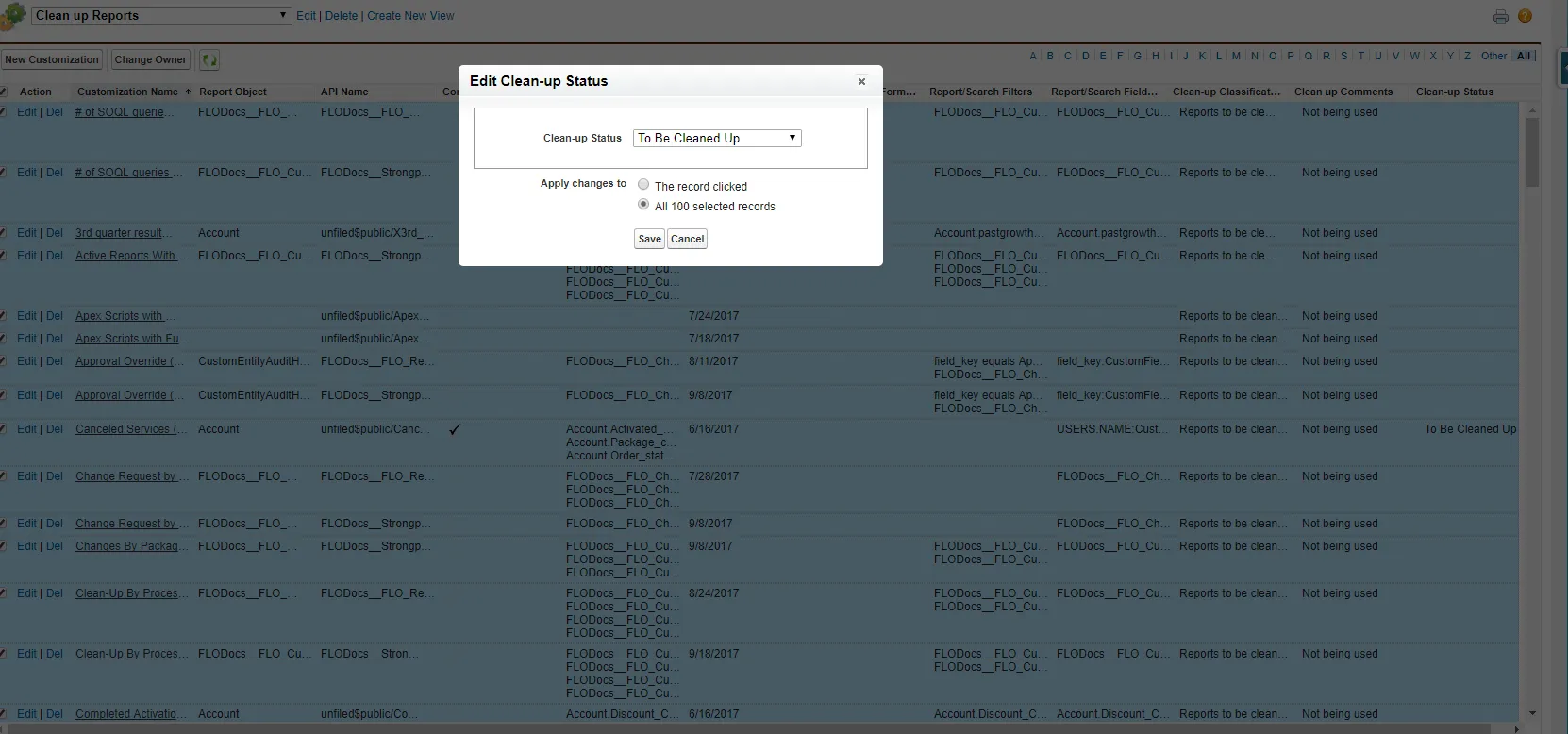
Choose what to edit for the multiple customizations selected. For example, to change the clean up status:
-
Go to Edit Clean Up Status.
-
Select a status such as To Be Cleaned Up.
-
Choose to Apply changes to: All the selected records.
-
Click Save.