Set Up the Initial Scan
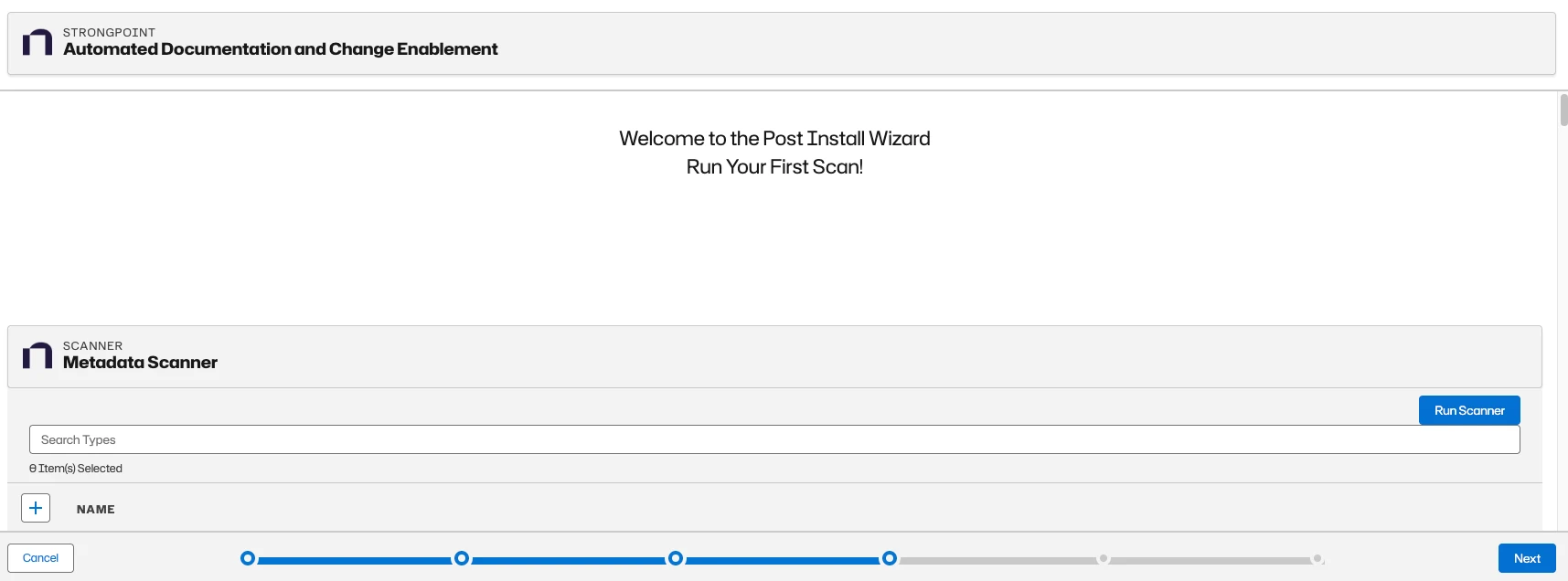
The Metadata Scanner form is displayed.
Sandbox Options
If you are installing in a sandbox, there is an option for Change Log Creation. When Enabled, the sandbox creates change logs. Due to Salesforce space limits on different sandbox accounts, consider disabling change logs to save space. This option is also available on the Configuration and Stats page for the sandbox.
Here are the options for a Sandbox installation. Be sure to Save each setting you change. Scroll down to find the Scanner options.

Start Initial Scan
Scroll down to the Metadata Scanner section.
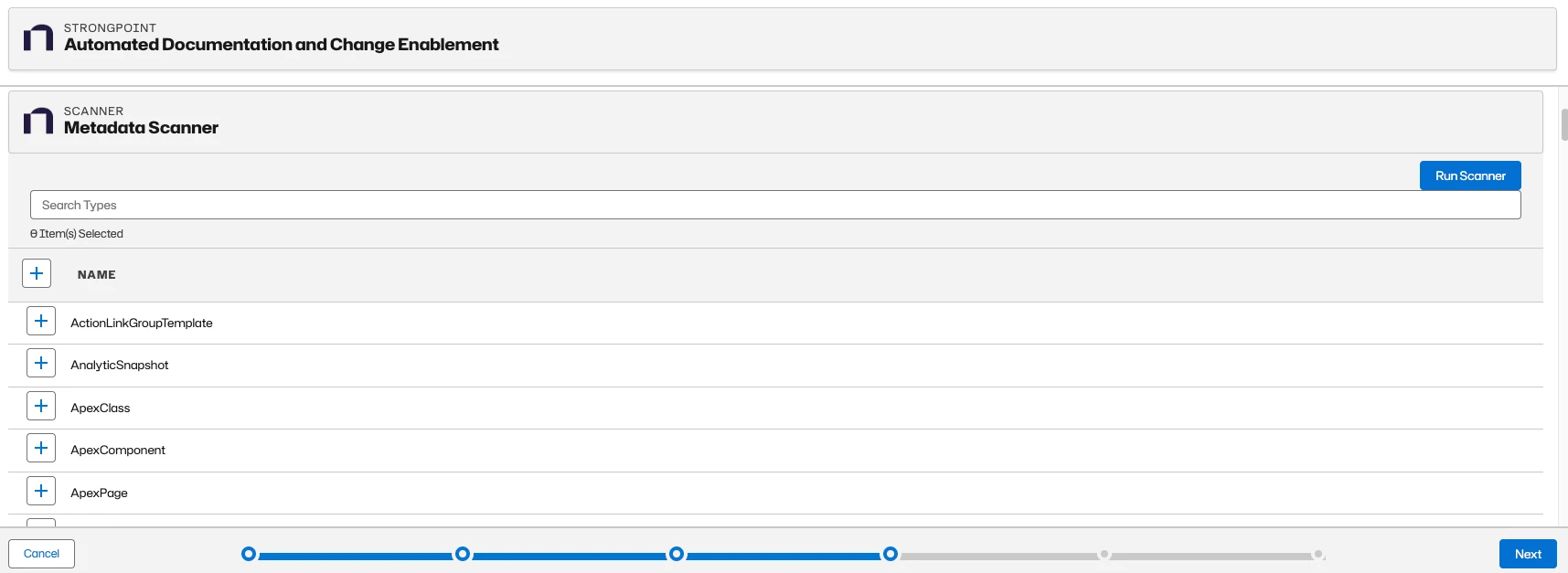
- Click the + by Name to select all types for the initial scan.
- Click Run Scanner. A notification message displays when the scan starts.
- Click Next.
Schedule Automatic Scans
You can schedule the scanners to auto-scan your environment:
-
Toggle Enabled to activate a scan. Hover over the ? for details on the scan.
-
Select the Frequency and Day. Without a specified time, Platform Governance for Salesforce rescans at midnight.
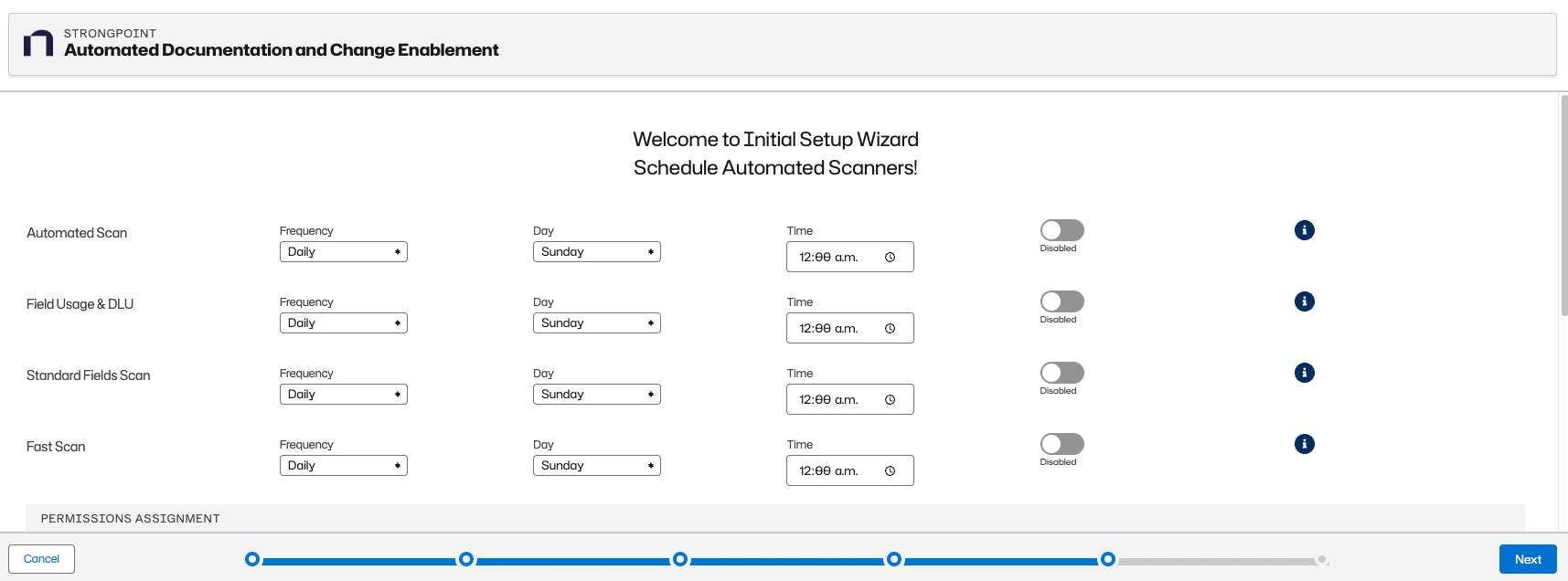
Change the day or time of your Scanner run to prevent overlap which may cause failures and/or execution delays. Times need to be set 2 hours apart at a minimum.

Netwrix recommends you schedule at least the following items:
- Automated Scan: Daily
- Field Usage & DLU: Weekly
- Standard Fields Scan: Weekly
- PermissionSet Assignment: Weekly (Production orgs)
- Subscriber Users Scan: Weekly (Production orgs)
- Click Next.
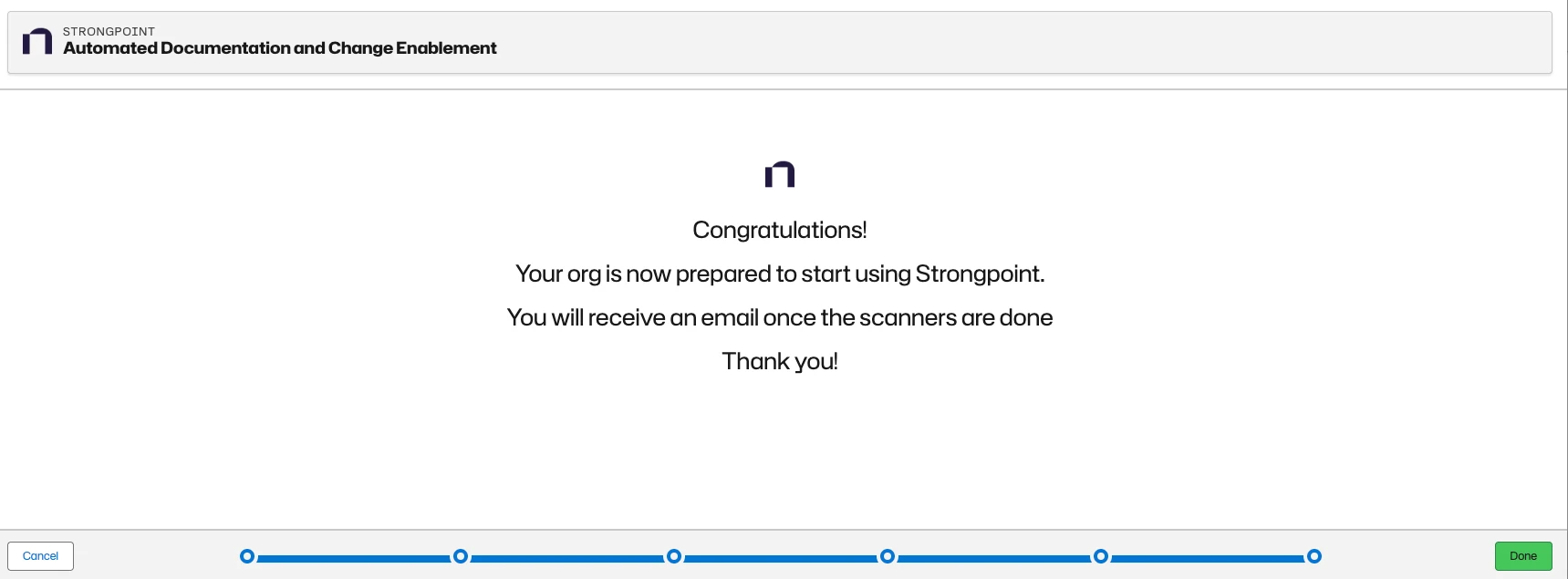
The final screen appears. Click Done to close the wizard.
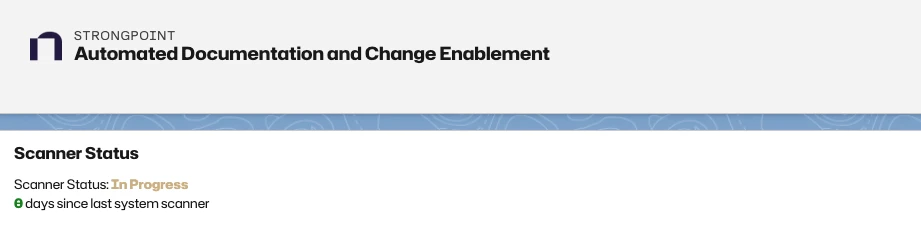
Open the Home page and verify that the Scanner Status shows In Progress.
Next Step: Run the Scanner