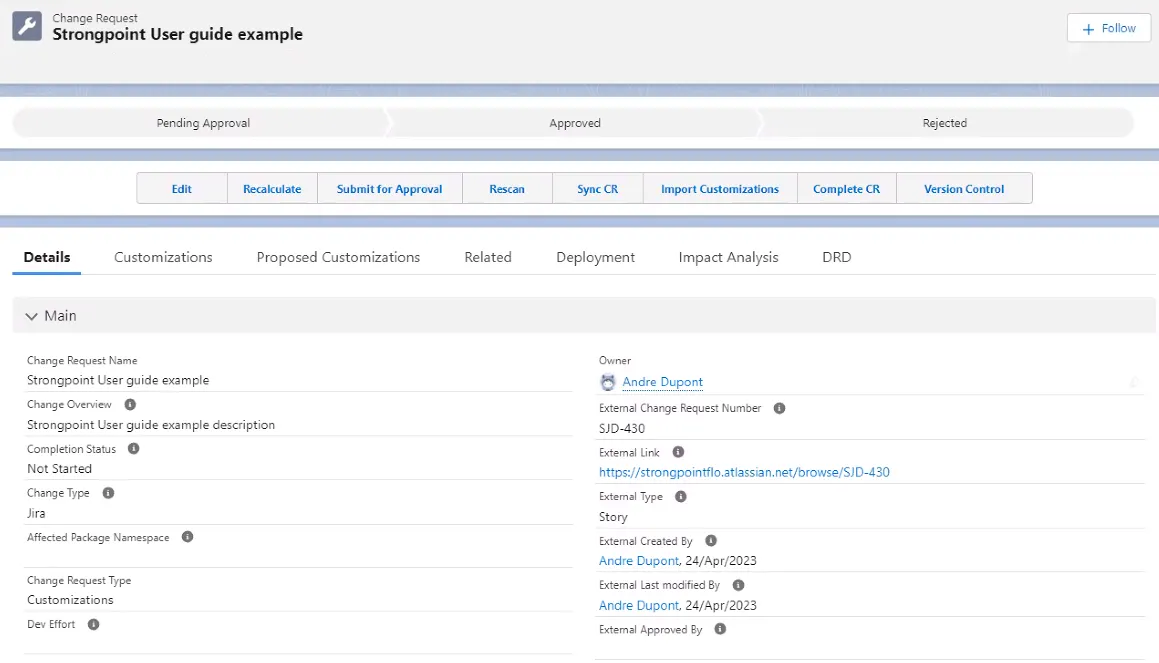
Jira Walkthrough Example
This walkthrough is one example based on a test account. You must install and configure the Platform Governance for Salesforce Jira integration, including setting up the Jira Statuses before using this walkthrough.
The walkthrough demonstrates these steps:
- Create a Jira Ticket
- Connect to the App
- Add Customizations
- Perform Risk Assessment
- Ready for Development
- Deploy Changes and Complete the Ticket
Create a Jira Ticket
-
Login in to your Jira account.
-
Open a Project.
-
Click Create (+).
-
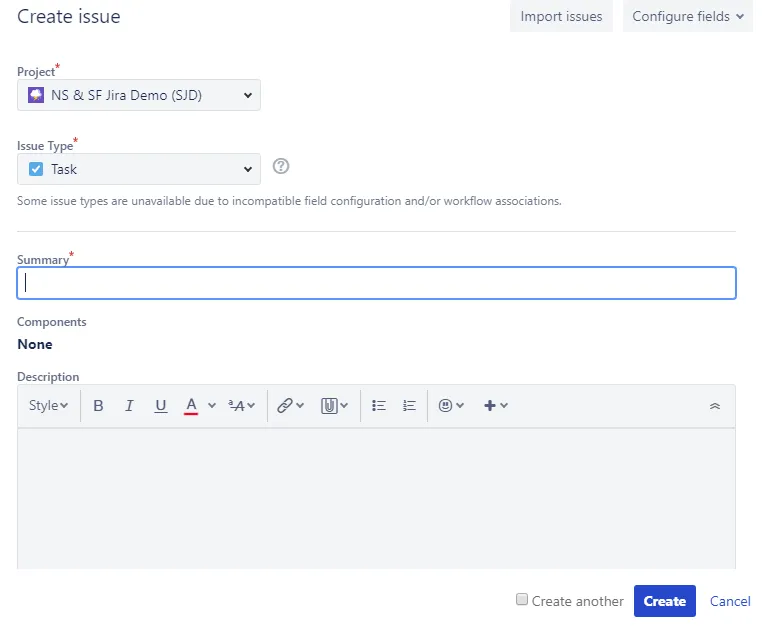
Enter your information on the Create issue form:
- Project: Select your Project. NS & SF Jira Demo (SJD) is selected for this example.
- Issue Type: Select your Jira type. Task is selected for this example.
- Summary: Add a name
- Description (optional)
-
Click Create.
Alerts and notifications may occur during this walkthrough, and aren't included in these steps. For example, override alert, notifications for approvers, and notification for the change request.
Connect to the App
-
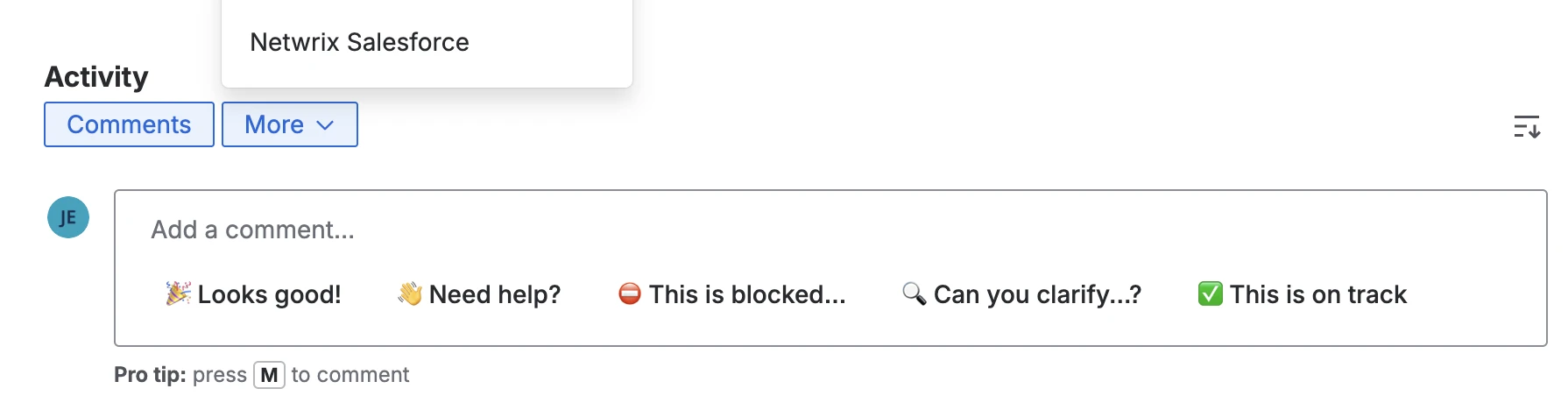
Open the Comments tab and select Netwrix Salesforce.
-
There are two ways to connect: Login User or Connected App tabs.

Connected App
Use the Connected App tab if you set up the connected app using the procedure: Access Data with API Integration
-
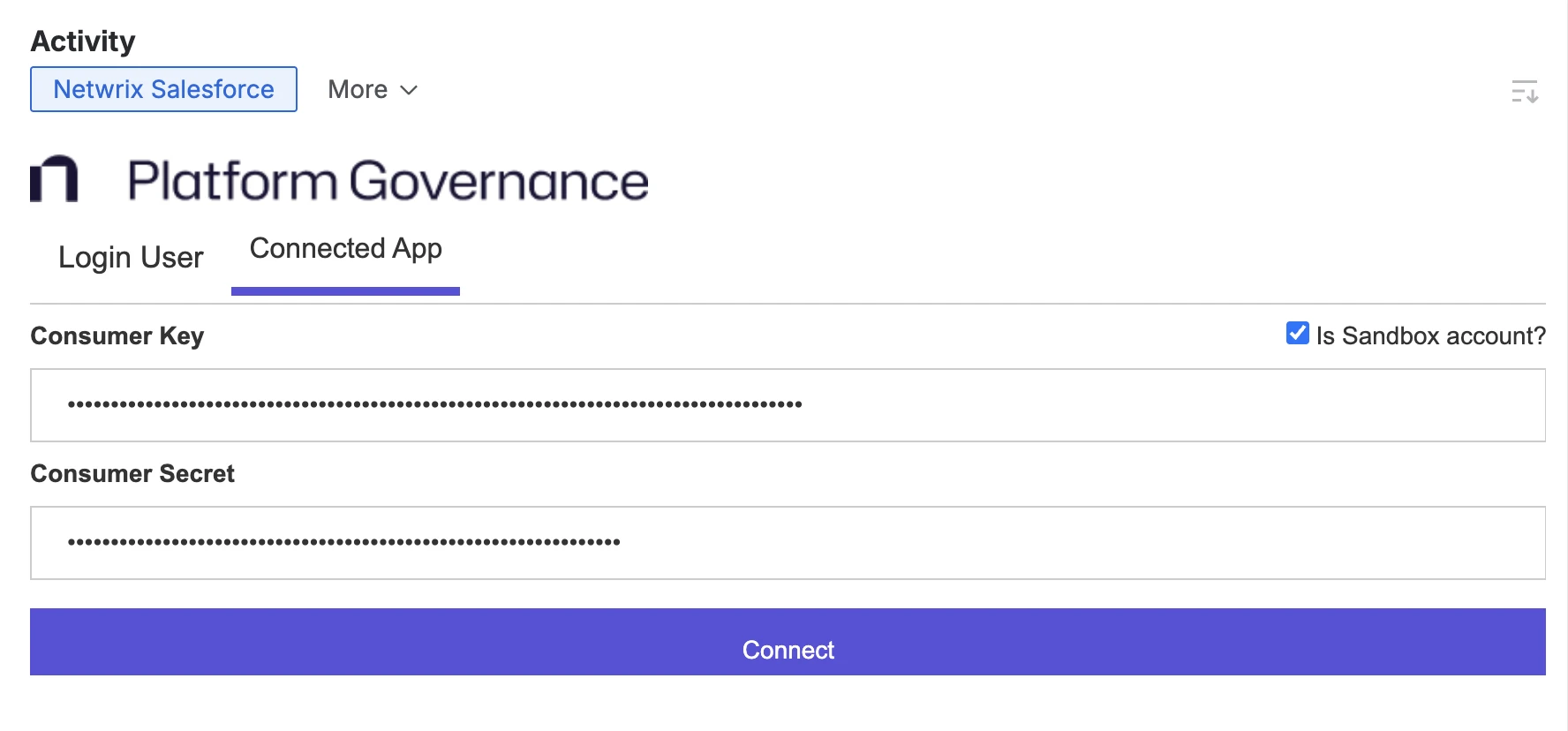
Open the Connected App tab.
-
Enter the Consumer Key and Consumer Secret.
-
Click Is Sandbox account? if you are logging in to a sandbox.
-
Click Connect. If this is the first time you are using the connected app, you are prompted to select your username. The connected app configures itself automatically. Once finished, click Close on the confirmation screen. The Netwrix form appears. Your connection persists unless you click Change Account on the integration page.
If the configuration fails, the app displays an error message. For example,
error=redirect_uri_mismatch
The 10 minutes timing slot from Salesforce isn't completed yet. Wait for completion.
If the error persists, check the Callback URL.
- Check for a space between the two Callback URLs.
- Check the newly added Callback URL. It should be: https://spjira.my.salesforce-sites.com/SpHandleJiraAuth
Login User
Enter your Salesforce Username, Password, and Security Token. If you are using MFA or SSO: use your SSO Password. The Security token is the changing 6 digit code from your SSO or MFA app.
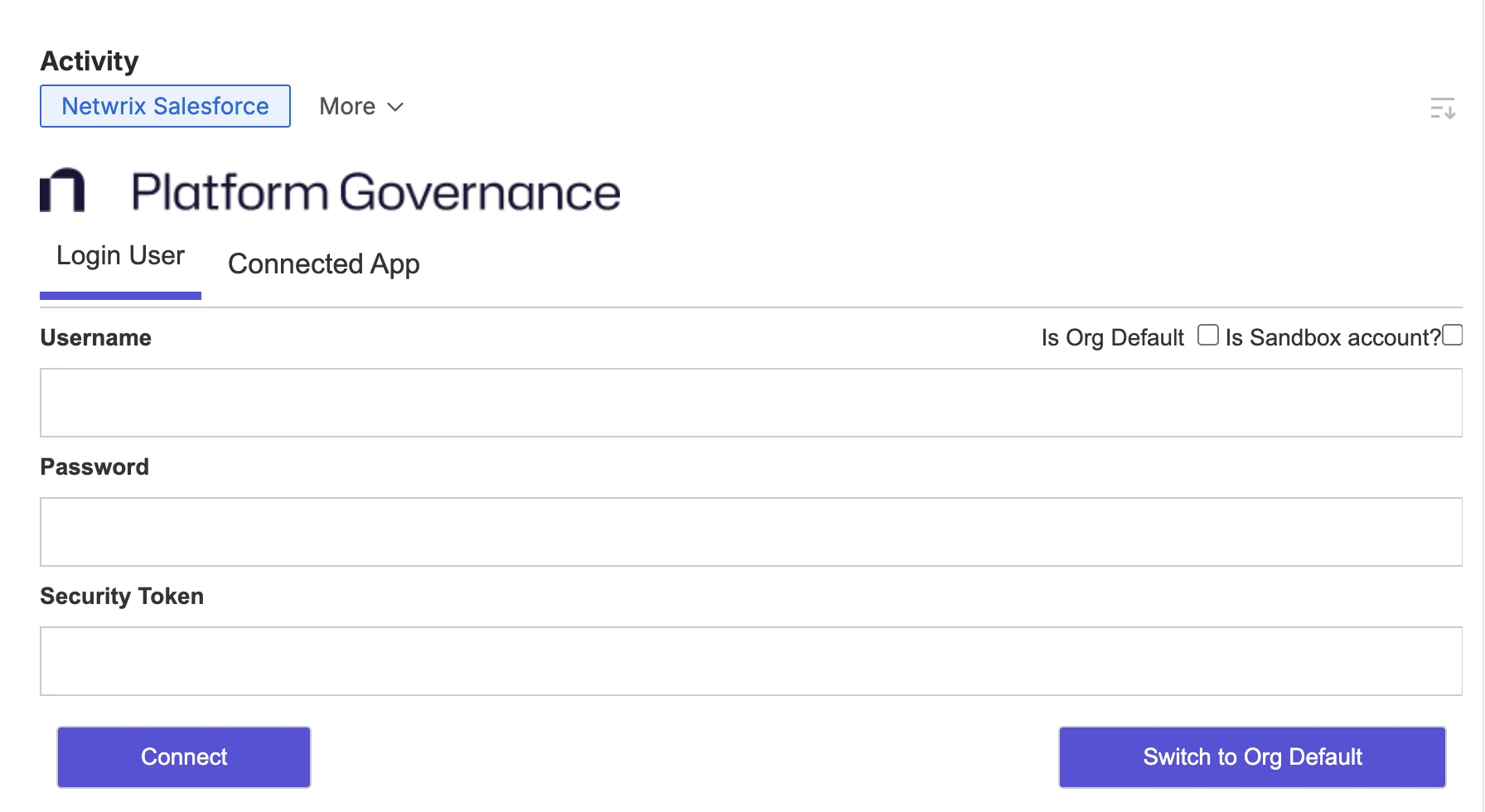
If you don't have your security token, you can use these steps to reset your token:
- Log in to your Salesforce account.
- Open View Profile > Settings.

- Select Reset My Security Token from the menu.
- Click Reset Security Token. Check your email for your new token.
- Click Sandbox Account? if you are using your sandbox.
- Click Connect. If the connection is successful, the form appears (see Add Customizations section). The Synchronized with status displays the org you are logged into for Salesforce.
You can't login if you don't have the appropriate role permissions to create a change request.
If you don't enter the correct credentials, an error appears. After six unsuccessful consecutive attempts to log in, your account is suspended for 30 minutes.
Add Customizations
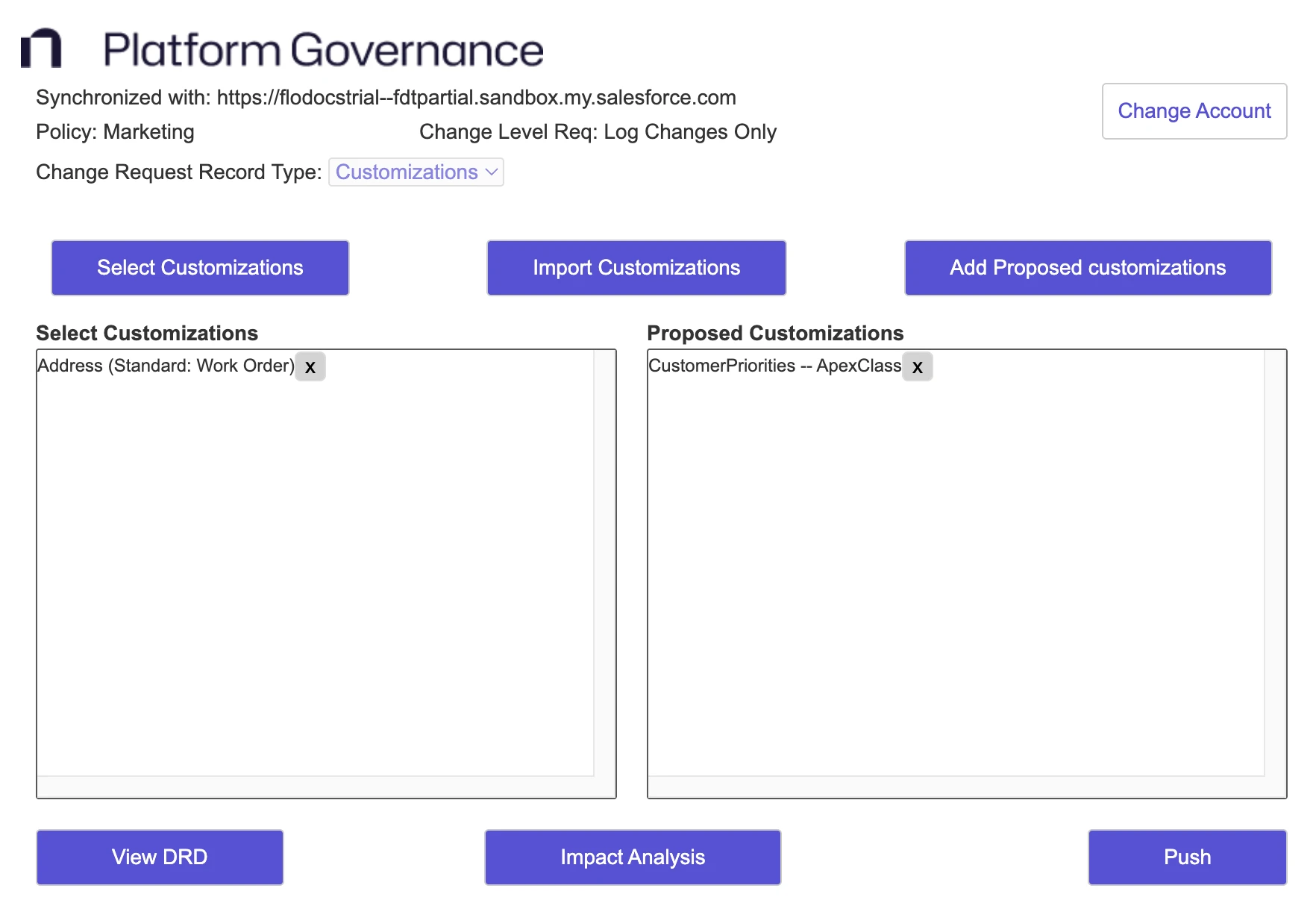
After you have logged in, the form appears.
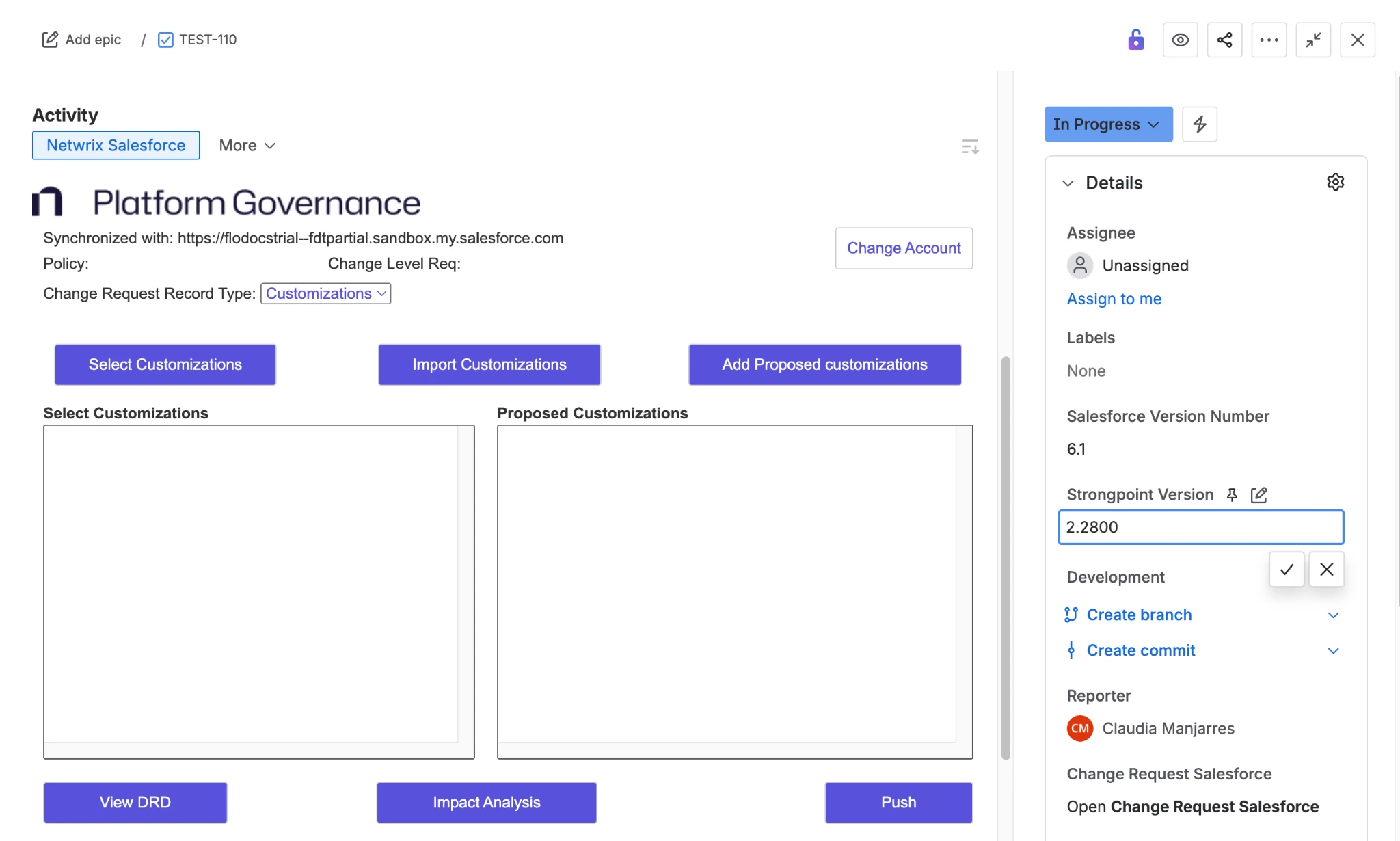
- Synchronized with displays the connected Org. Click Change Account if you need to switch Orgs.
- Policy is blank until Customizations have been added. The Policy is determined by the Customization with the strictest policy.
- Change Level Req is blank until Customizations have been added. If there are multiple change levels, the most stringent one is applied.
- Select Customizations is where you specify the Customizations you are changing or adding. If
the Customization exists in your account, the integration adds it to the Select Customizations list. Add
Proposed Customizations adds entries to the Proposed Customizations list. You can delete added
Customizations with the
 icon.
icon. - View DRD and Impact Analysis are tools to perform risk assessment. View DRD opens the Dependency Relationship Diagram (DRD).
- Push creates the Change Request in Salesforce. Push is also used to manually update your Change Request if you aren't using the Automatic Synchronization feature.
Add Existing Customizations by Name or API Name
-
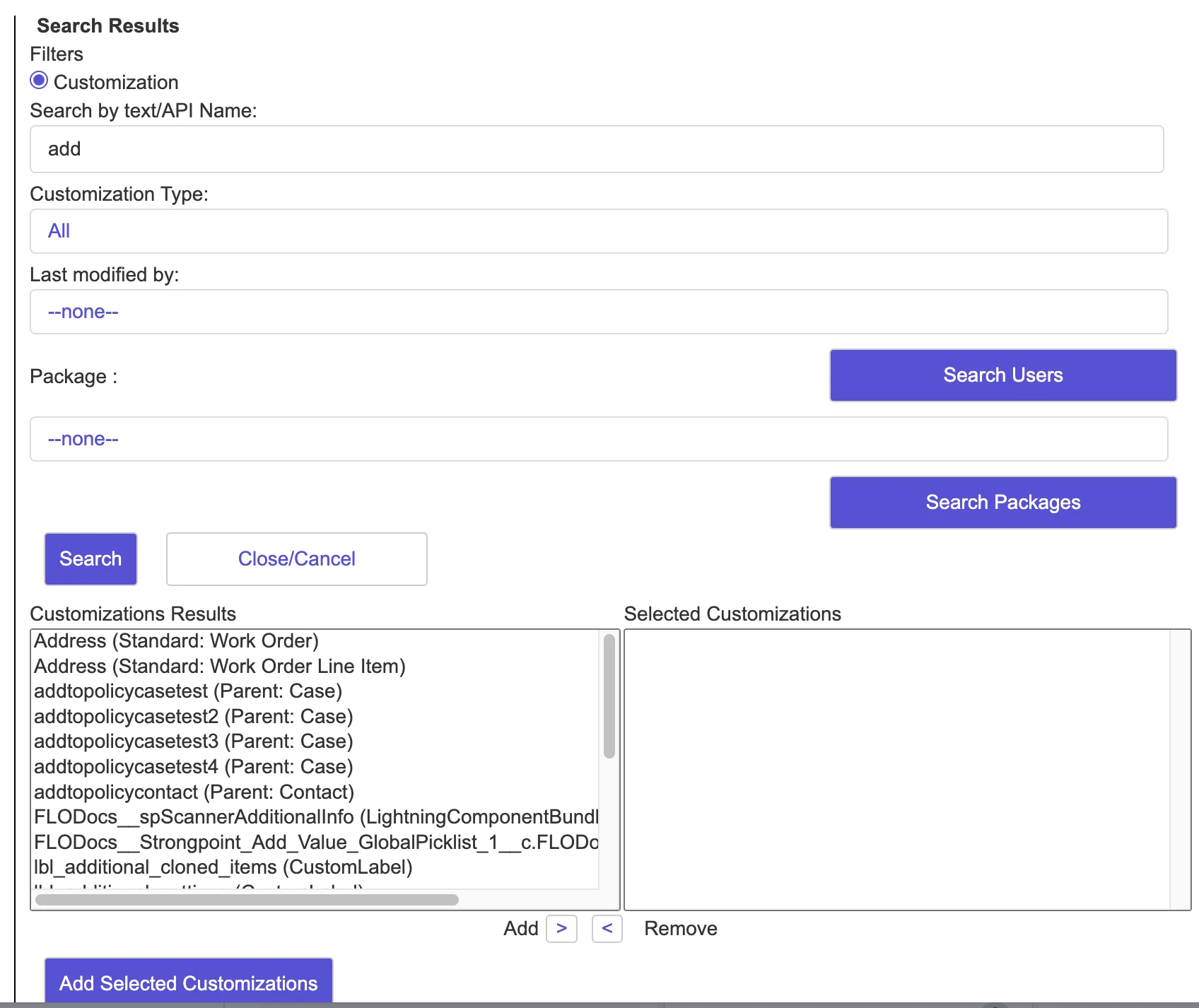
Enter all or part of a Name in Add customization for Existing Customizations. This example uses add as the search string.
-
Click Search to search for matching Customizations.
-
Select one or more Customizations (With Add or Remove buttons).
-
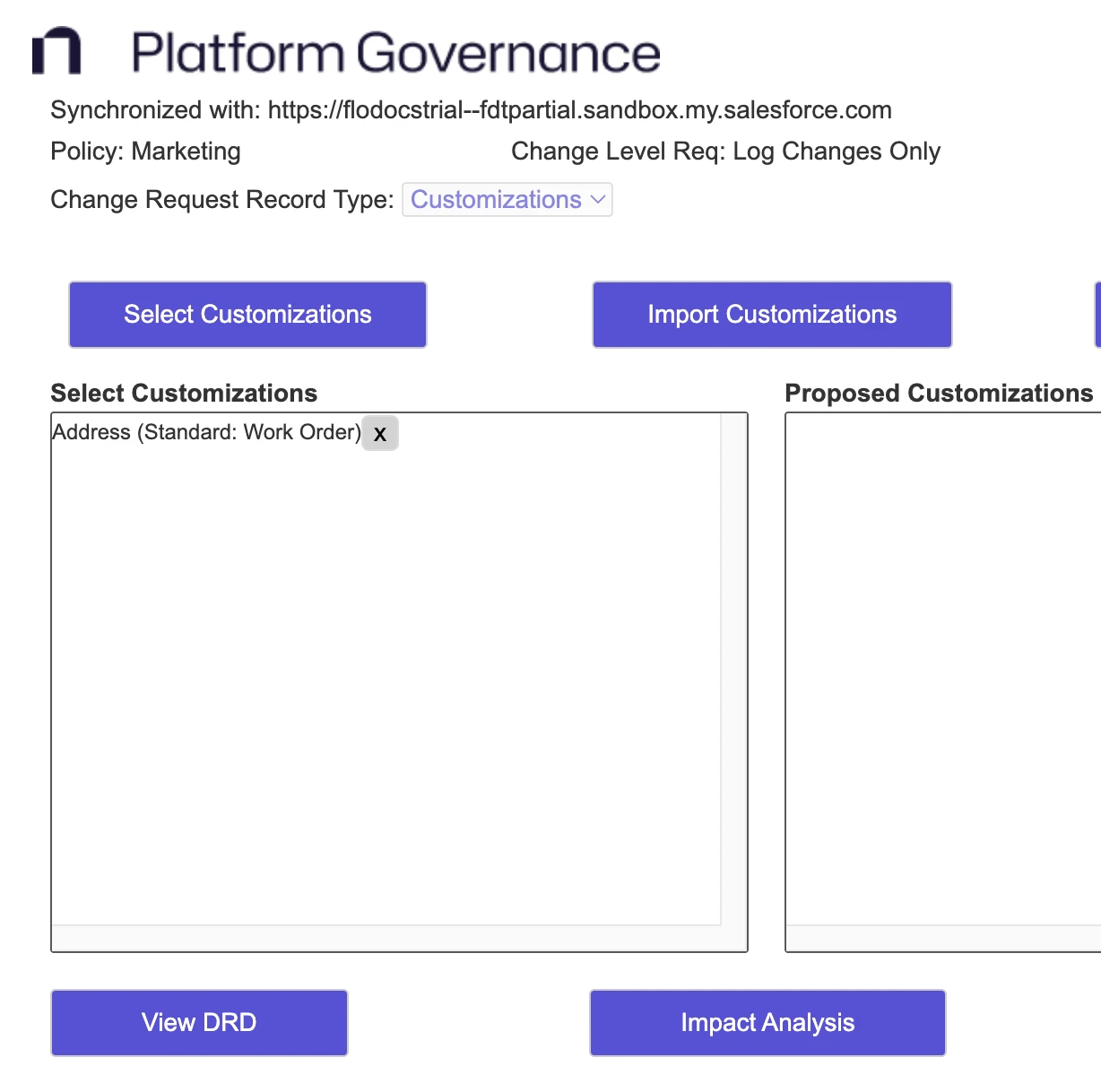
Click Add Selected Customizations. The integration adds the selected Customization to the Existing Customizations list.
Add Proposed Customizations
This procedure adds a new Customization.
-
Enter a new, valid API Name in the Add Customization for Proposed Customizations field. For this example, enter CustomerPriorities.
-
Click (Add Proposed customizations) to add it. If the API Name is valid and doesn't match an existing API Name, the integration adds the new Customization to the Proposed Customizations list.
Create the Change Request
The Platform Governance for Salesforce Jira integration automatically creates your Change Requests when you add a Customization. To set up or update the status mapping, refer to setting up the Jira Statuses procedure.
-
Change the Jira status of your ticket to match the status set up for CR In Progress. For example, In Progress. Refer to setting up the Jira Statuses procedure.
-
Click Push to create the Change Request if you aren't using the Automatic Synchronization feature. Salesforce creates the change request with the In Progress status.
-
Expand the Change Request field on the right. The status is now None/In Progress. There is a link to open the Change Request in Salesforce.

Note the Policy and Change Level Req reflect the most stringent requirement for your selected customizations, in this example, Marketing and Log Changes Only.
Perform Risk Assessment
Impact Analysis
The impact analysis tool reviews your customizations for dependencies or risks. Click Impact Analysis to run the tool. Here is an example report showing the Customizations that Can't be Safely Deleted or Modified tab:
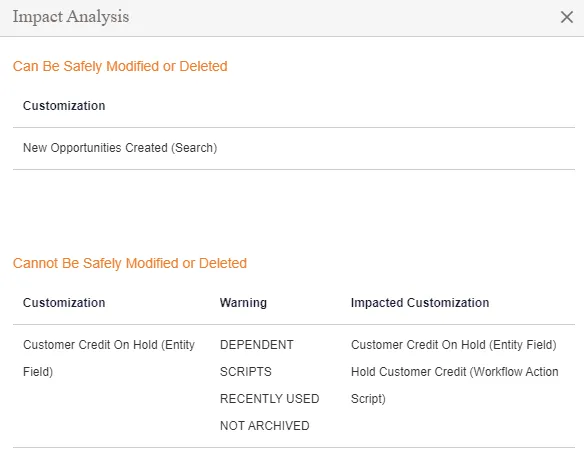
Before proceeding with your changes, review each warning to ensure your change doesn't break something. Dependencies can be reviewed with the DRD tool.
View DRD
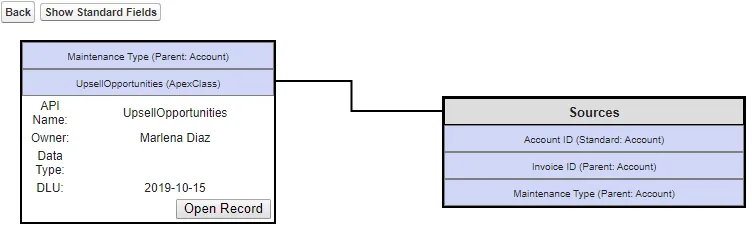
The DRD tool graphically displays your Customizations and all dependencies.
- Click View DRD.
- When the diagram opens, you can explore the dependencies to evaluate the effect of your intended changes.
Ready for Development
After you have resolved any risk or conflicts, your changes are ready for development:
-
Change the Jira status of your ticket to match the status set up for CR Pending Approval.
-
Click Push if you aren't using Automatic Synchronization to push status changes.
-
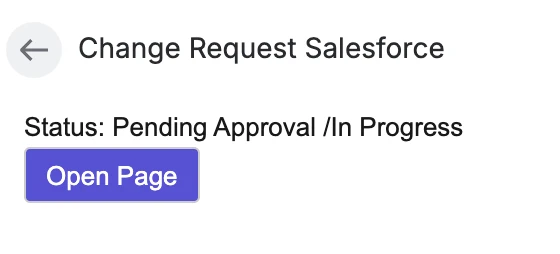
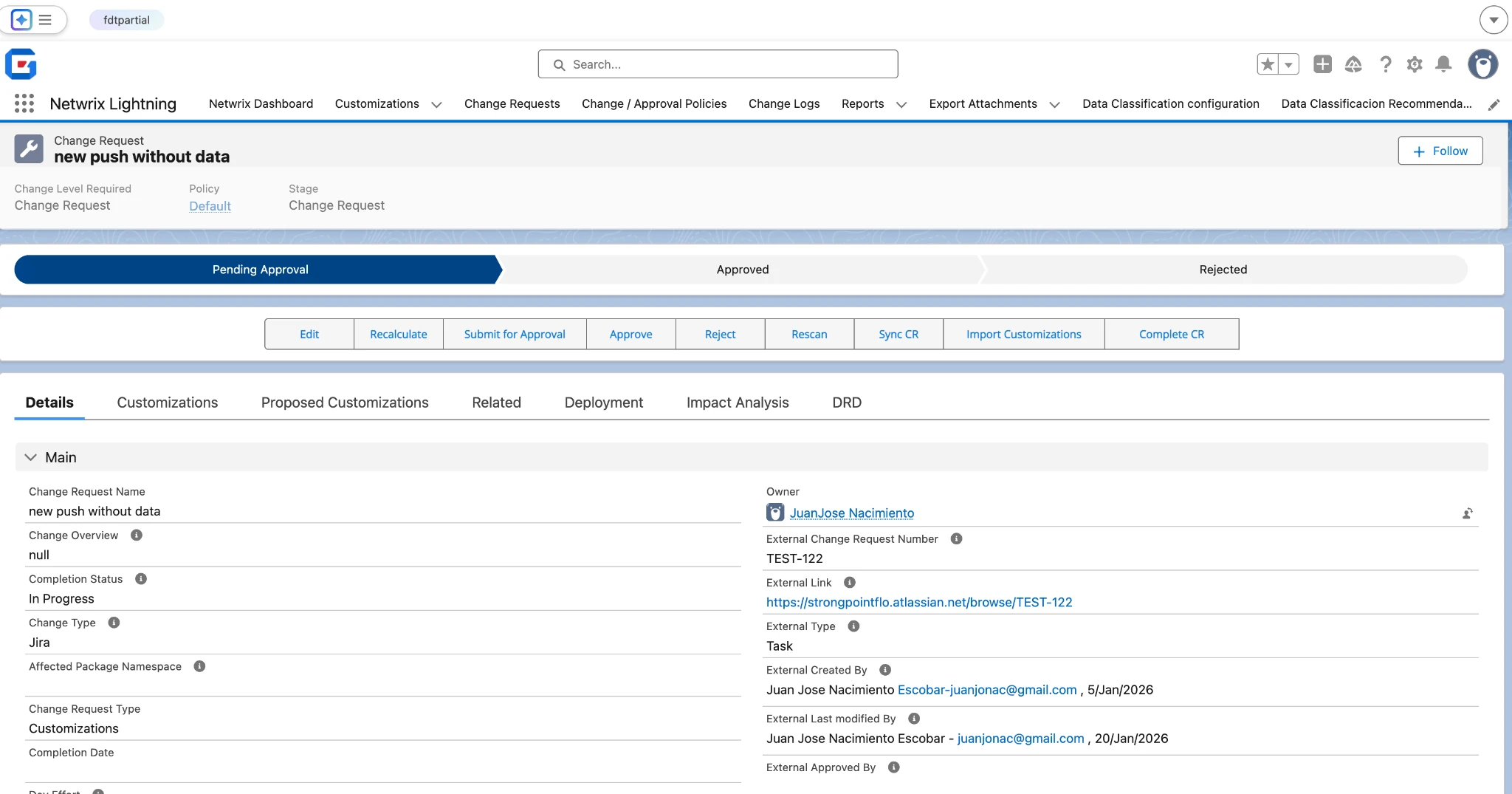
Expand the Change Request field on the right. The status is now Pending Approval / In Progress. There is a link to open the Change Request in Salesforce.
-
Click the Go To Record link to view the Change Request.
Deploy Changes and Complete the Ticket
When development is done, and the Change Request is approved according to your policy, the Jira ticket is ready to be updated.
-
Expand the Change Request field on the right. The status is Approved / In Progress.

-
Change the Jira status of your ticket to match the status set up for CR Approved.
-
Click Push if you aren't using Automatic Synchronization to push status changes.
-
After your deployment and verification activities are complete, change the Jira status of your ticket to match the status set up CR Complete. For example, Done.
If you open the Change Request in Salesforce:
-
All Customizations added from Jira are displayed.
-
Change Overview is set to the Jira ticket description.
-
Change Type is Jira, and External Change Request Number is the Ticket number.
-
Change Request shows as Completed.
-
External Created By: is the user that created the Jira ticket .
-
External last Modified by: is the last user who modified the Jira ticket.