Reports
The Netwrix Dashboard Reports tab has links to all of the predefined reports and log files.
- Access Reports
- Security Reports
- Data Classification
- Customizations
- Clean Up
- Change Enablement
- Release and Deployment
- Audit Reports
You can define and save your own reports.
- Customization objects have additional data to enable searching with complex queries. For example, search for all objects with script dependencies that have not been used for six months, or all objects used by workflows.
- You can filter test scripts from regular scripts. You can query test scripts to review test coverage and determine whether they're in use.
To access all reports, enable the following setting: Open Strongpoint Scanner Scheduler
Set PermissionSet Assignment and System Permission to Enabled, and set the Frequency to Daily.
If you have questions, contact your Customer Success Manager (CSM) or Salesforce Specialist.

Access Reports
These reports are available from Netwrix Dashboard Reports Access Reports.
You can use filters on this report. Use Save As for a new version following your company naming conventions. An elevated access example is to filter Permissionset/Profile by the name of the elevated access profile or permission set, such as Admin.
You can focus on sensitive objects by filtering by object name: use the contains keyword plus the name of the object as it appears in the object name. Separate each name with a comma.
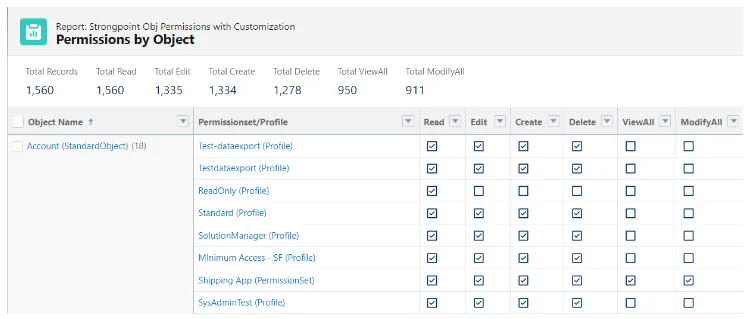
- Permissions by Object: Displays the permissions on each object for all Permission Sets and Profiles.
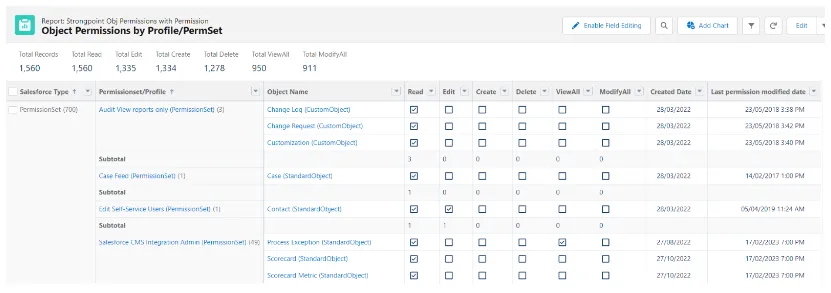
- Object Permission by Profile/PermSet: Displays the object permissions organized by Permission Set and Profile.
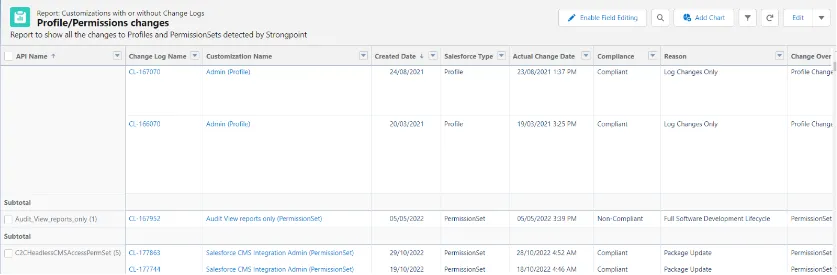
- Profiles to PermissionsSets Changes: Displays the changes made to your Profiles, PermissionSets,and PermissionSet Groups. If there is an active policy, the Compliance column displays whether the change was Compliant or Non-Compliant. If no policy, all changes are Compliant.
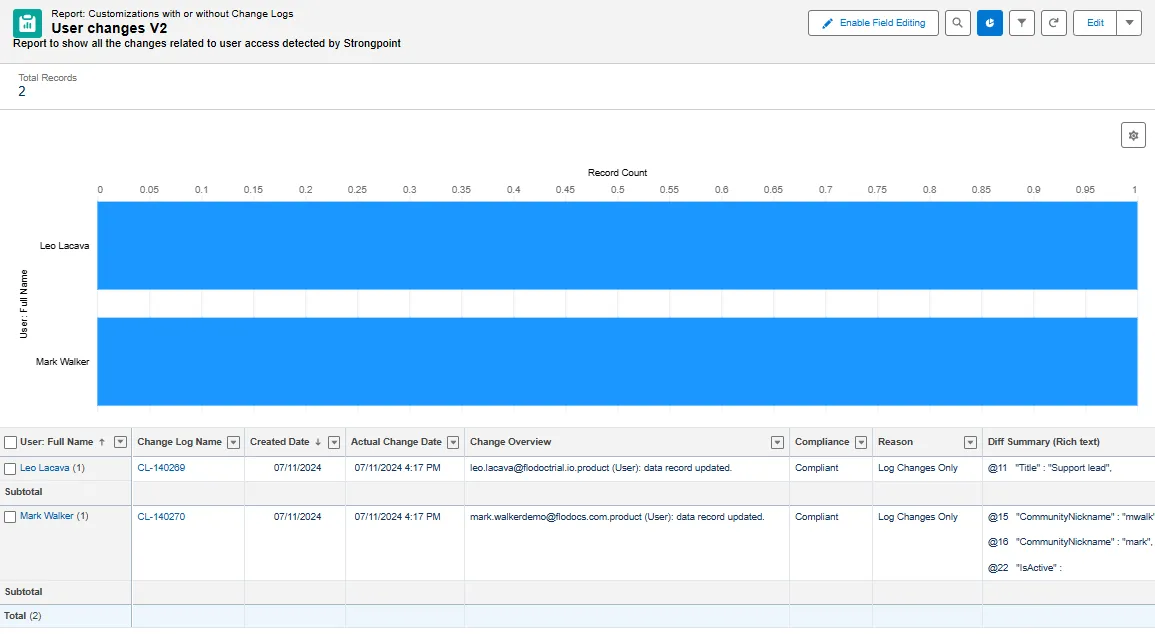
- Changes to Users: Displays the changes to tracked user data fields. See
Enhanced Configure, Price, Quote (CPQ) Support for instructions on
setting up tracking.
If you see the message --String too long - Skipped lines due to CPU limit reached--, you have reached the governor limits. Profiles and PermissionSets are very data heavy. Platform Governance for Salesforce skips the record and continues the scan the next day to ensure there is no impact to your org.
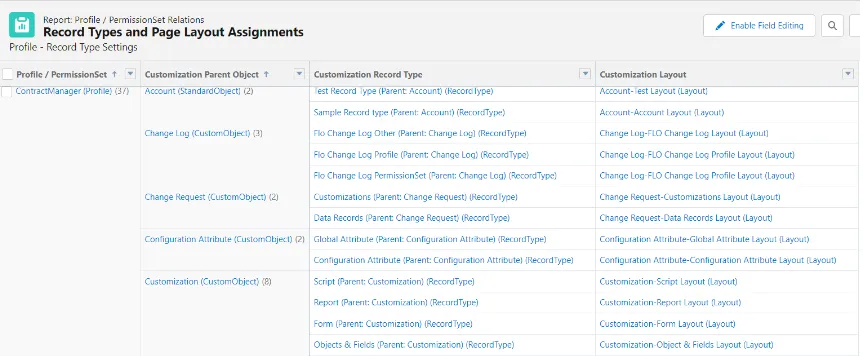
- Record Types and Page Layout Assignments: Displays the objects, record types and assigned layouts organized by profile.
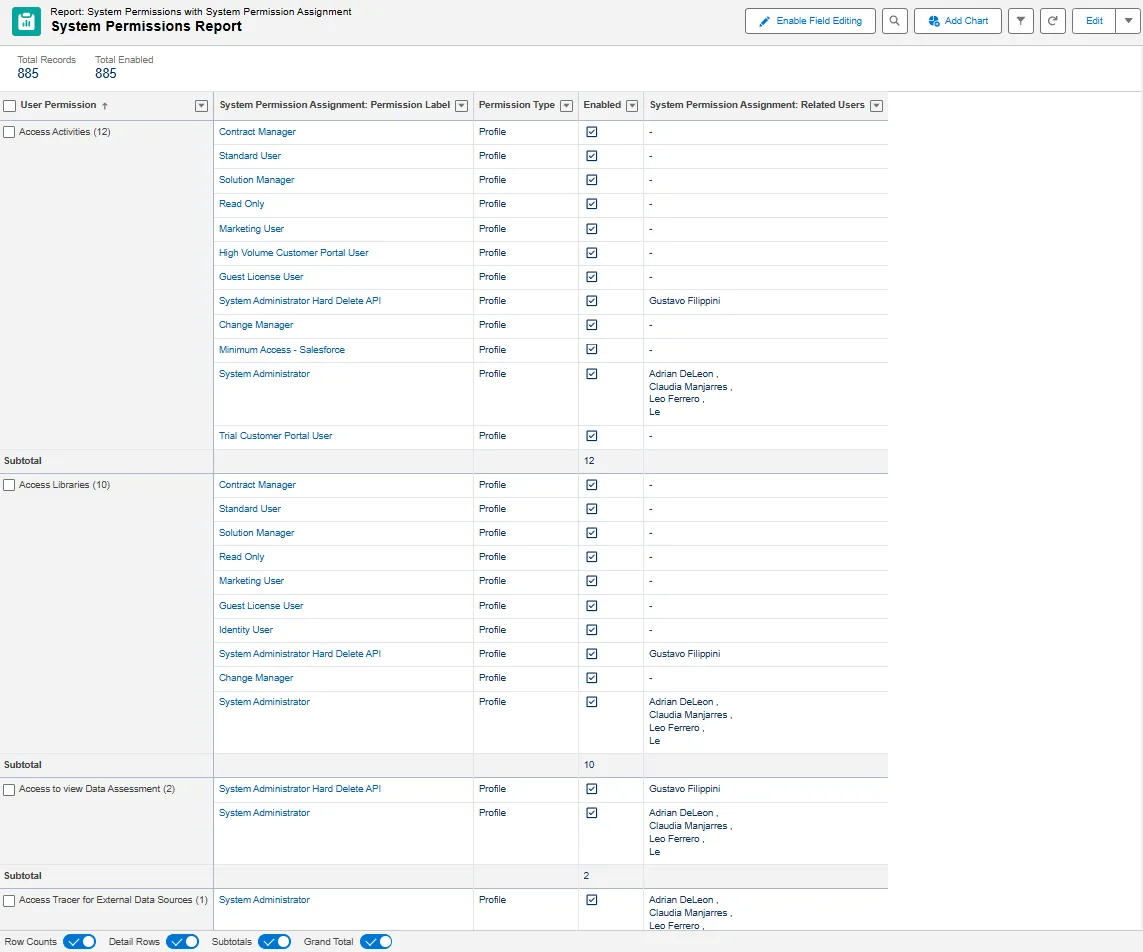
- System Permissions: displays the list of System Permissions, the Profile or Permission set that has access to it and the list of Users that have this system permission enabled.
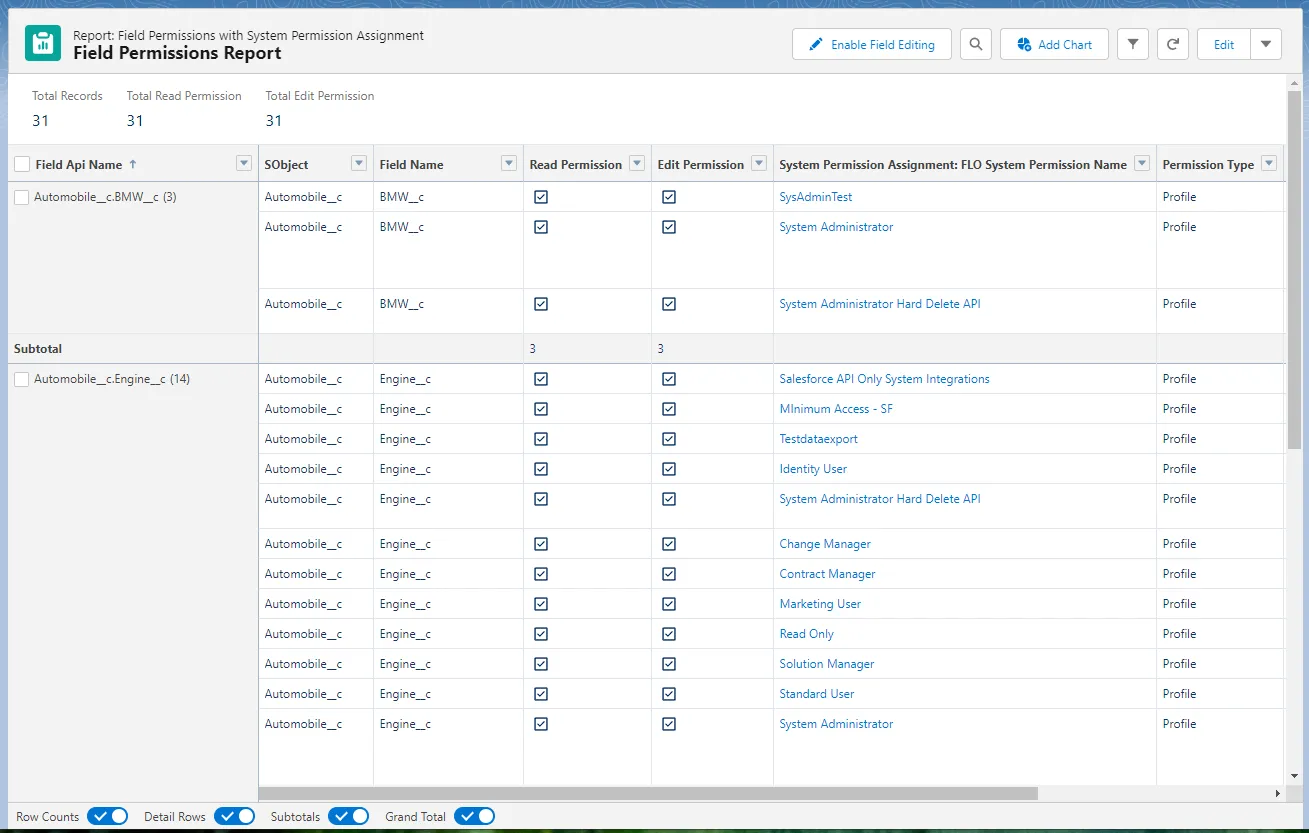
- Field Permissions: Displays the related objects, shows if there is a Read / Edit permission, the Profile or Permission set that give that field level access and the users related to those Profiles and permission sets.
To generate this report:
- Open Strongpoint Lightning Tools Field-Level security Scanner.
- Select the Salesforce object for the fields to add to the report.
- Click Search Fields.
- Change the checkbox to True next to the fields to add. You can add up to 50 fields.
- Click Scan.
This pushes the new list of fields to the report. If you select other fields and repeat the process, the system overwrites the previous report. Export any reports you want to keep.
Security Reports
These reports are related to the Salesforce Health Check. The reports track whether each health check feature is Enabled or Disabled for your Salesforce Organization. For full detail, compare the report to the health check section in Salesforce Setup.
These reports are available from Netwrix Dashboard Reports Security Reports.
-
Health Check Remote Site Settings: displays any remote sites with the Disable Protocol security option selected.
-
Health Check Password Policies: displays password related Health check security settings.
-
Health Check Session Settings: displays session settings, including:
- Require HttpOnly attribute.
- Lock sessions to the domain in which they were first used.
- Let users verify their identity by text (SMS)
- Enable clickjack protection for Setup pages
- Enable clickjack protection for non-Setup Salesforce pages
- Enable clickjack protection for customer Visualforce pages with standard headers
- Enable clickjack protection for customer Visualforce pages with headers disabled
- Enable CSRF protection on GET requests on non-setup pages
- Enable CSRF protection on POST requests on non-setup pages
- Force relogin after Login-As-User
- Enforce login IP ranges on every request
- Enable Content Security Policy protection for email templates
- Enable XSS protection
- Enable Content Sniffing protection
- Force logout on session timeout
- Require identity verification for email address changes
- Session Timeout
- Require identity verification during multi-factor authentication (MFA) registration
- Allow redirection to untrusted external URLs without warning
-
Health Check Certificates: tracks CKM Certificate name, Expiration date, expiration status, CKM Key Size and related Policy if applicable.
-
Health Check Changes: tracks the changes to the items related to the health check settings.
Data Classification
These reports are available from Strongpoint Reports Data Classification.
-
Changes related to Data Classification: displays any changes that have occurred.
-
Fields with Data Classification: displays fields with data classification attributes, including:
- GDPR
- PII
- HIPAA
- PCI
- CCPA
Customizations
These reports are available from Netwrix Dashboard Reports Customizations.
- All Customizations: Use Salesforce functionality to filter searches quickly for specific customizations.
- Customization Impact: This report shows your customizations and how they impact other objects.
Clean Up
These reports are available from Netwrix Dashboard Reports Clean Up.
- Default Clean Up List View
- Open Clean Up Status
- Clean Up Waiting for Info
- Customizations Excluded from Clean Up
- Unused Fields
- Unused Apex Code
- Unused Reports
- Customizations with Inactive Owners
- Customizations without Related Processes
- Custom Fields without Help Text
- Custom Fields without Description
Change Enablement
These reports are available from Netwrix Dashboard Reports Change Enablement.
- Approval Override: shows all changes approved with an approval override.
- What Changed?: shows all changes that have occurred.
- Unresolved Non-Compliant Changes: displays open non-compliant changes. A non-compliant change indicates that a change occurred without the required approvals. Use this report to investigate changes, understand their impacts, and determine whether additional changes are necessary. Use this report to track changes that require action.
- Managed Package Updates: displays managed package update details for auditing.
- Resolved Non-Compliant Changes: displays resolved non-compliant changes with the change overview and the difference summary.
- Compliant Changes: displays all compliant changes. The system automatically marks compliant changes as closed. Use this report to review the changes the system automatically cleared.
- Consolidated Change By Type: displays changes summarized and grouped by Salesforce Type.
- Deployed Changes: displays an end to end summary of deployed changes to enable tracking and reporting of changes to the system.
- Data Tracking Change Logs: displays changes on objects set for data tracking.
- Change/Approval Policy Changes: this report is based on Field History Tracking. You can track up to 20 fields from the Policy Record. Salesforce tracks field history from the date and time you enable it on a field.
- Fast Scan for Permissions Changes: displays all changes the Fast Scan detects in PermissionSet, PermissionSetGroup, and Profiles.
Release and Deployment
These reports are available from Netwrix Dashboard Reports Release and Deployment.
Audit Reports
- Unresolved Non-Compliant Changes: displays open non-compliant changes. A non-compliant change indicates that a change occurred without the required approvals. Use this report to investigate changes, understand their impacts, and determine whether additional changes are necessary. Use this report to track changes that require action.
- Managed Package Updates: displays managed package update details for auditing.
- Resolved Non-Compliant Changes: displays managed package update details for auditing.
- Compliant Changes: displays all compliant changes. The system automatically marks compliant changes as closed. Use this report to review the changes the system automatically cleared.
- Platform Changes: displays any platform changes that have occurred.
- Consolidated Changes By Type: displays changes summarized and grouped by Salesforce Type.
- Deployed Changes: displays an end to end summary of deployed changes to enable tracking and reporting of changes to the system.
- Unresolved Control Incidents: Deprecated item
- Resolved Control Incidents: Deprecated item
- Pre-Approved Control Incidents: Deprecated item