Automated Report Clean Up
Reports are powerful tools used throughout Salesforce and interconnected to other customizations. As user-created Reports proliferate, Salesforce accounts become inefficient and overall performance degrades. This rules-based tool lets administrators identify and archive Reports and keep Salesforce accounts organized, efficient, and high-performing. You can restore archived reports.
The Automated Report Clean Up tool has two operating modes:
- Automatic - scheduled automated report clean up that runs based on the configured schedule for rules marked Automatic.
- Run Now - starts report clean up immediately using the current clean up rule.
Menu options are available to access the rules and lists:
- New Rule
- Report Clean Up Rules
- Report Clean Up Status
- Archived Reports
- Retained Reports
- Reports to be Archived
- Reports to Restore
Report Clean Up Rules
Administrators create Report Clean Up rules to locate Reports matching the rule criteria. Report Clean Up rules apply to both Automatic and Run Now modes.
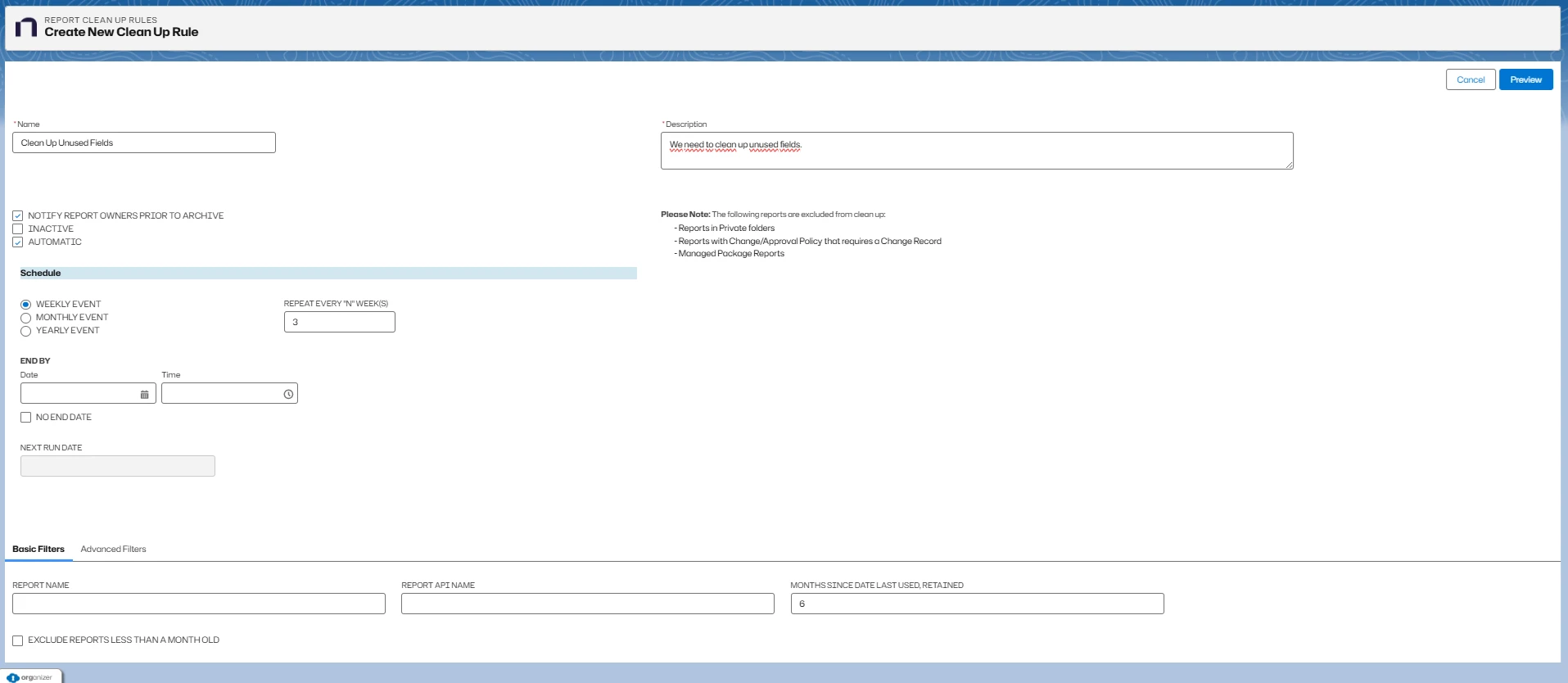
To create or edit rules, access Netwrix Dashboard > Tools > Automated Report Clean Up Tool and select New Rule or Report Clean Up Rules.
Rule Details
- Name is the assigned name for the Report Clean Up Rule.
- Description is the purpose of the rule record. An informative description helps administrators maintain and identify rules.
- Notify Report Owners Before Archive check to send email to report owners before archive. Default is checked.
- Automatic check to include the rule in the automated report clean up.
- Inactive check to disable this Report Clean Up Rule.
The tool excludes the following reports from clean up:
- Reports in private folders
- Reports with Change/Approval Policy that requires a Change Record
- Managed Package Reports
Schedule
When you enable Automatic, configure the schedule for the rule.
- Weekly Event
- Monthly Event
- Yearly Event
- Repeat Every "N" Weeks (weekly schedule)
- End By:
- Date
- Time
- No End Date
- Next Run Date displays the next scheduled execution date/time (system calculated).
Filters
Basic Filters
- Report Name filters reports to clean-up by name. Filter operator is startswith, and you can use the wildcard %. Default is blank. Example: Custom % Report% returns all reports with a name starting with 'Custom' followed by any character and containing 'Report'.
- Report API Name filters reports to clean-up by API Name. Filter operator is startswith, and you can use the wildcard %. Default is blank. Example: %testing returns all reports with an API Name containing 'testing'.
- Months Since Date Last Used, Retained filters reports by the most recent activity date (last run date, retained, or restored). The rule excludes reports used within the specified timeframe. Default is 6 months.
- Exclude Reports Less Than A Month Old excludes new reports that have never run. Default is checked.
Advanced Filters
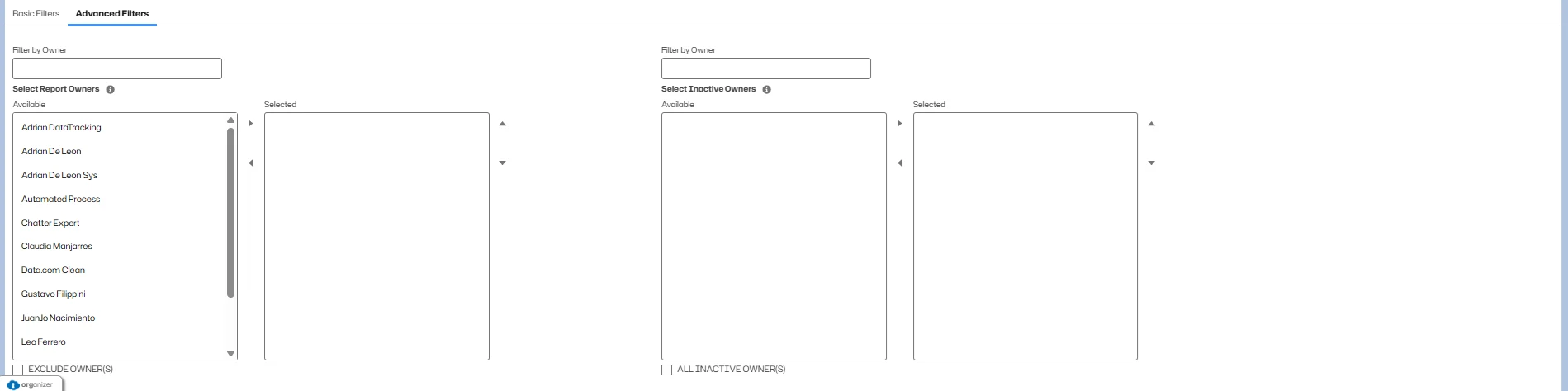
- Select/Selected Report Owners filters reports by matching selected owners for the rule or, if you check Exclude Owners, excludes matching owners.
- Select/Selected Inactive Owners filters reports by matching selected inactive owners. All Inactive Owners includes all inactive owners.
Rule Preview
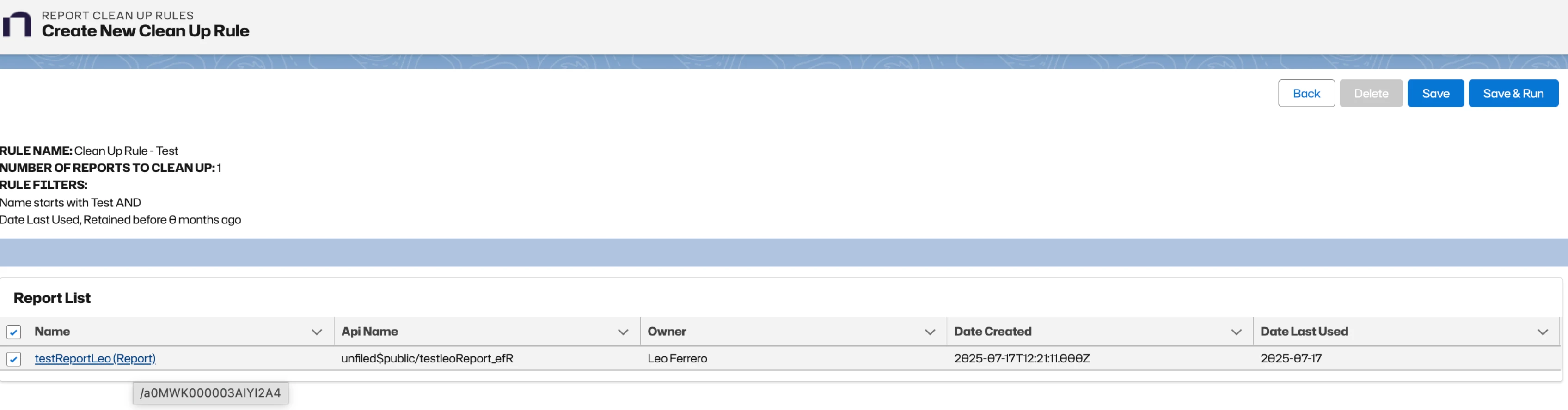
The Preview function lets you validate the rule and review the list of matching reports.
- Click Preview on a Report Clean Up Rule.
- Review the rule summary including Rule Name, Number of Reports to Clean Up, and Rule Filters.
- Review the Report List, which includes:
- Name
- API Name
- Owner
- Date Created
- Date Last Used
- Available actions:
- Back
- Save
- Save & Run
- Delete
The Rule Name in the preview is a link. Click it to open the Report Clean Up Rule record directly.
Run Now
The Save & Run option immediately begins a Report Clean Up using the current rule.
If a Report matches the Clean Up Rule:
- The system sends a summary notification of all matching reports to the rule owner.
- The system sends an immediate notice to all report owners. Notifications include a Retain this Report link and a Preview link.
- If no one retains or uses the report, the system sends a final notification before the archive date.
- If no one retains or uses the report by the archive date:
- The system archives the report.
- The system sends archive notifications to the rule owner and report owners.
- The system adds the report to Archived Reports.
- The system sends a summary notification to the rule owner.
Automated Run Workflow
Automated Report Clean Up runs based on the schedule of rules marked Automatic.
- When a Report matches a Clean Up Rule:
- The system emails a notification to the rule owner.
- The system emails a notification to report owners unless you disable the notification.
- All notifications include a Retain this Report link.
- The system adds the report to Reports to be Archived.
- If no one retains or uses the report:
- The system sends final notifications.
- If no one retains or uses the report by the archive date:
- The system archives the report.
- The system sends notifications.
- The system adds the report to Archived Reports.
Report Clean Up Status
Open Netwrix Dashboard > Tools > Automated Report Clean Up Tool > Report Clean Up Status to view current status.
- Status:
- Pending
- Pending Notification
- In Notice Period
- Processing
- Completed
- Canceled
- Automatic indicates whether the rule is scheduled.
Retaining a Report
Notification emails contain a Retain this Report link.
- Updates Date Last Used, Retained/Restored.
- Adds the report to Retained Reports.
- Prevents archiving.
Auto Archiving a Report
If no one retains a report:
- The system archives the report.
- The system marks the customization record Inactive.
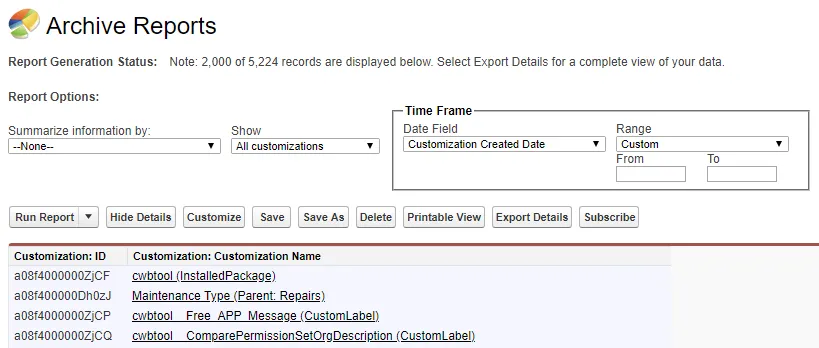
- The system adds the report to Archived Reports.
- A Restore option becomes available.
- The system sends notifications to the rule owner and administrators.
Restoring an Auto Archived Report
A Salesforce Administrator can restore an archived report from Archived Reports, Reports to Restore, or using the Restore link in notification emails.
- Salesforce restores the report with a new internal ID.
- The system updates Date Last Used, Retained/Restored.
- The system adds the report to Retained Reports.
Report Clean Up Reports
The Automated Report Clean Up tool includes Salesforce reports for monitoring the clean up process.
Reports to Restore
Filters used:
- Archive equals True
- Clean-up Status not equal to Restored
Visible Columns:
- Customization: ID
- Customization: Customization Name
- API Name
- Archive
- Clean Up Rule Name
- Clean Up Archived Date
- Restore Url
Reports to be Archived
Filters used:
- To be Archived equals True
Visible Columns:
- Customization: ID
- Customization: Customization Name
- Archive
Retained Reports
Filters used:
- Retain equals True
Visible Columns:
- Customization: Created By
- Customization: Customization Name
- API Name
- Date Last Used
- Active
- Archive
Archived Reports
Filters used:
- Archive equals True
- Clean-up Status equals Archived
Visible Columns:
- Customization: ID
- Customization: Customization Name
- Clean-up Status
Report Clean Up Status (Report)
Filters used:
- Automated equals True
Visible Columns:
- Search Clean-up Rule: ID
- Status
- Search Clean-up Rule: Name
- Description
- Report API Name
- Report Name
- Months Since Last Used, Retained/Restored
- Automatic
Report Clean Up Rules (Report)
Visible Columns:
- Search Clean-up Rule: Name
- Description
- Archive Date
- Search Clean-up Rule: Created Date
- Report API Name
- Report Name
- Months Since Last Used, Retained/Restored
- Automatic