Environment Comparison
Administrators use this tool to compare environments and generate an Excel report file with the results. Use this report to troubleshoot processes or data causing errors in a particular account, compare preferences between accounts, or determine if data needs to migrate between accounts. The tool generates an Environment Compare Log. The comparison can handle up to 10,000 items. You receive an email with a link to the Export Object Attachment record, where you can download your file. The basic process is:
Open Netwrix Dashboard > Tools > Environment Comparison
- Select the Environments to Compare
- Add Filters for the Comparison
- Select Export Options
- Run the Comparison
- View the Report
Select the Environments to Compare

For both the Source and Target Environments:
Select your credentials from the dropdown lists. Create credentials with the Credentials Handler.
Select the Credentials Handler link to open it and add, edit, and sync your credentials.
Add Filters for the Comparison
Filters determine what is included in the comparison. There are four options to add filters:
- Option 1: Select All Customizations of the Specified Metadata Type
- Option 2: Import All Customizations from a Selected Change Request
- Option 3: Select Specific Customizations
- Option 4: Packages to Exclude (All Options)
Filters are cumulative. Use a single filter (1 through 3) to avoid overlapping selections. Packages to Exclude can be used in conjunction with options 1 through 3.
Set a Metadata Type
Metadata Type
Select a All or a specific metadata type to compare from the list. If you select Report, only tabular and summary reports are compared. Metric and joined reports aren't compared.

Import Customizations from a Change Request
Change Request
Enter a Change Request ID, or use the dropdown to scroll through a list of available Change Requests.

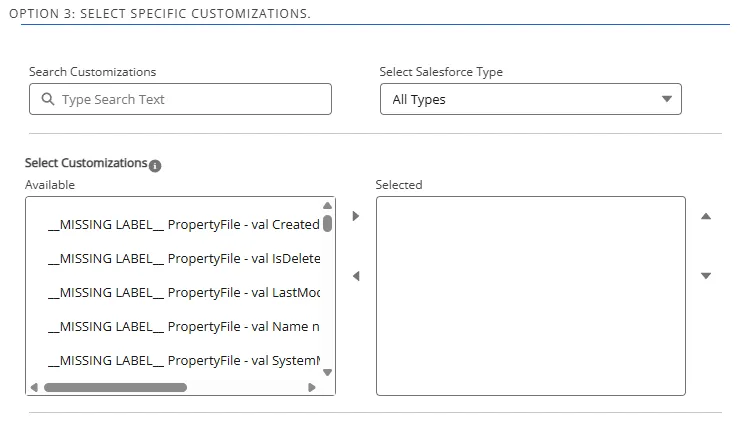
Select Specific Customizations
- Scroll through the Search Customizations, or enter all or part of a name to filter the list. You can Select a Salesforce Type to limit this list. If you select Report, only tabular and summary reports are compared. Metric and joined reports aren't compared.
- Select one or more customizations in the Select Customizations scroll box. Use Shift or Ctrl to select multiple customizations .
- Click the right arrow to move the items to the Selected Customizations list. To remove an item from the Selected Customizations list, select it and click the left arrow.
Packages to Exclude
- Enter the package name in Search Packages.
- Select one or more Packages in the Select Packages to exclude scroll box.
- Click the right arrow to move the items to the Selected list. To remove an item from the Selected list, select it and click the left arrow.

Select Export Options
To view the report in Excel, click Export to Excel. You receive an email when the Excel file is complete.
Run the Comparison
Click Compare. The process runs in the background. You receive an email when the compare is complete.
View the Report
- Open the Export Attachments tab. Change the Export Attachments from Recently Viewed to All if necessary to see your report. See Export Object Attachment for details on adding the tab to your tool bar if needed.
- Click the Environment Comparison report in the list. The Export Attachment Details are displayed, and your Excel report is downloaded by your browser.
- Open the Environment_Compare_export.xls file. When you open an exported file, this message may
be displayed, as the exported file is in XML instead of the Excel format. Click Yes to load
the file.

Environment_Compare_export.xls
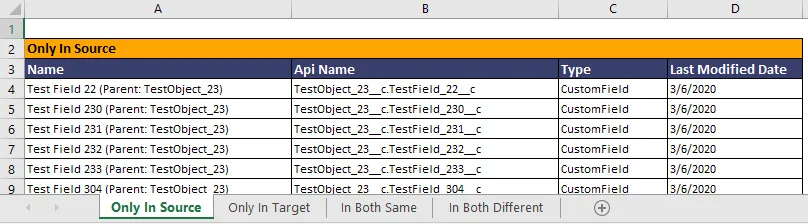
The Environment_Compare_export.xls file contains a Summary tab and individual tabs for each comparison type:
Summary: details about this Environment Comparison
Only in Source: items only present in the Source Environment
Only in Target: items only present in the Target Environment
In Both Same: items present in both Environments without differences
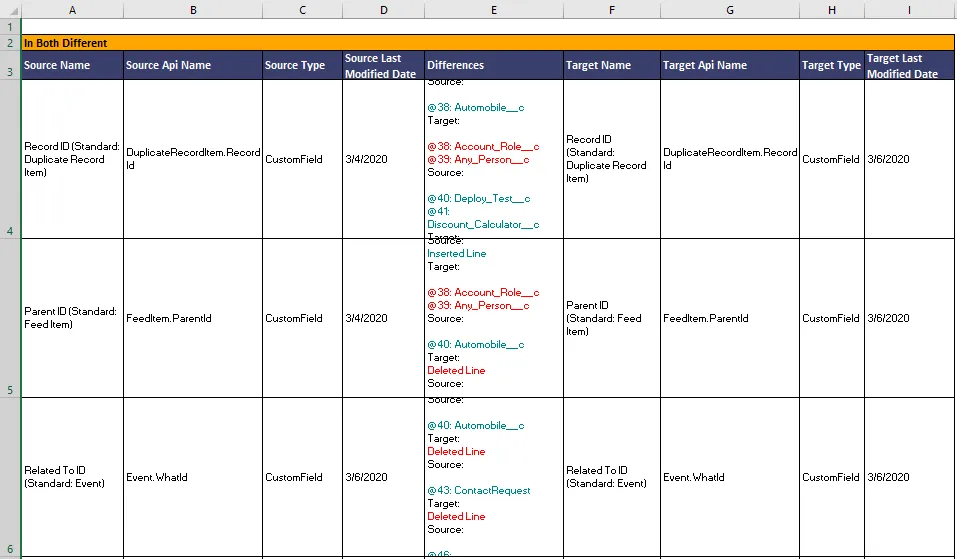
In Both Different: items present in both Environments with differences. The following example shows differences:
Create a Change Request
You can use the link in your Environment Compare complete email to directly open a Salesforce form and create a Change Request based on the differences.
-
Open Netwrix Dashboard > Tools > Environment Comparison
-
Select Customizations contains all of the Customizations with Differences. Select one or more and click Add to move them to the Selected Customizations pane.

-
Click Create Change Request to continue.