How do I use passwords with Group Policy Preferences items within PolicyPak Cloud?
Neither the Microsoft MMC nor Netwrix PolicyPak Cloud enables you to enter in passwords. This is because when the GPOs are housed in the domain, it can be used by attackers to reverse engineer passwords stored in the GPOs.
In PolicyPak Cloud this is less of a concern, because those fields are not readable by everyone, only admins who log on to the console. That being said, this procedure is not guaranteed to be safe, because the final cPassword values are transmitted to the endpoint and could be reverse engineered there. So you will have to use your judgment to see if this procedure is worth it for you.
Step 1 – If you want to use a Group Policy Preferences item along with a password field, start by populating your Preferences item (on-prem recommended) with as much data as you can, noting that the Connect as (or other fields) are not changeable in the MMC editor. Below are two examples.
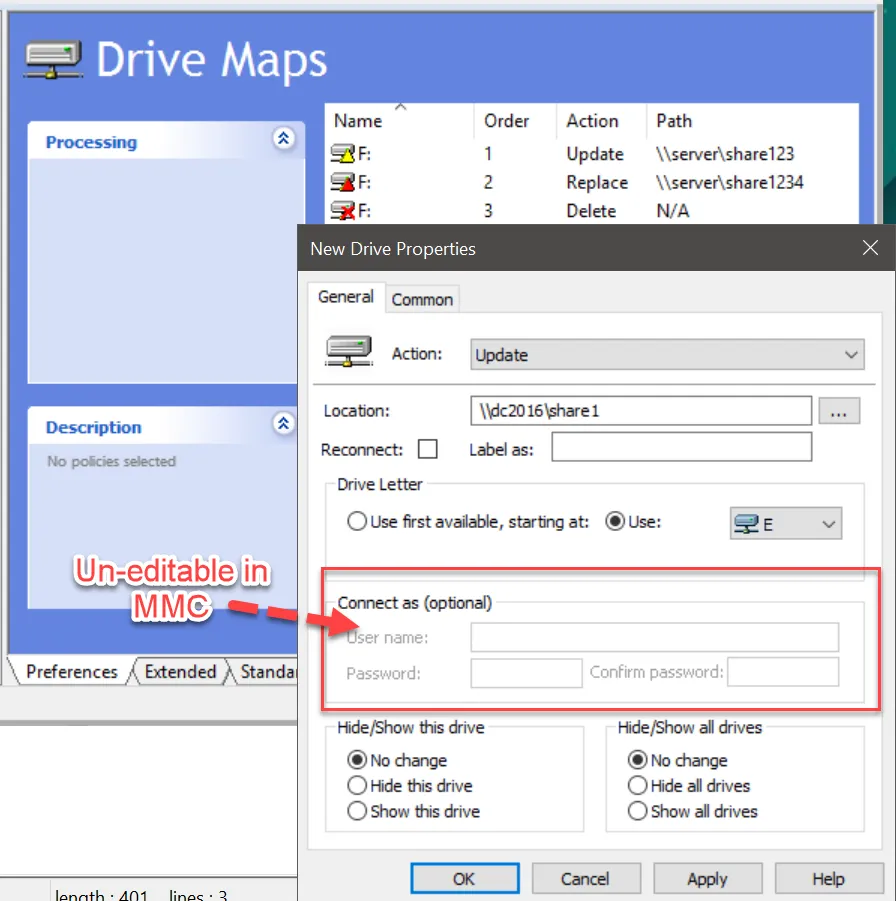
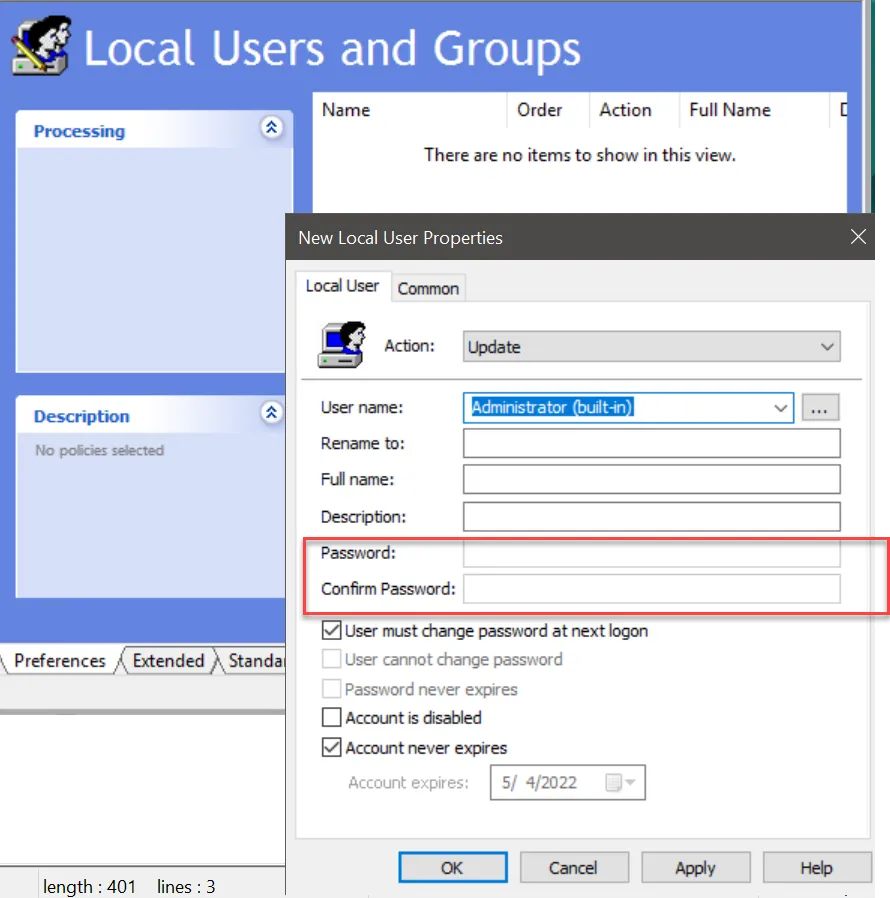
Step 2 – Once you have the item, drag it to the desktop and open it for editing. The goal is to enter the missing details by hand, typically the cPassword field.
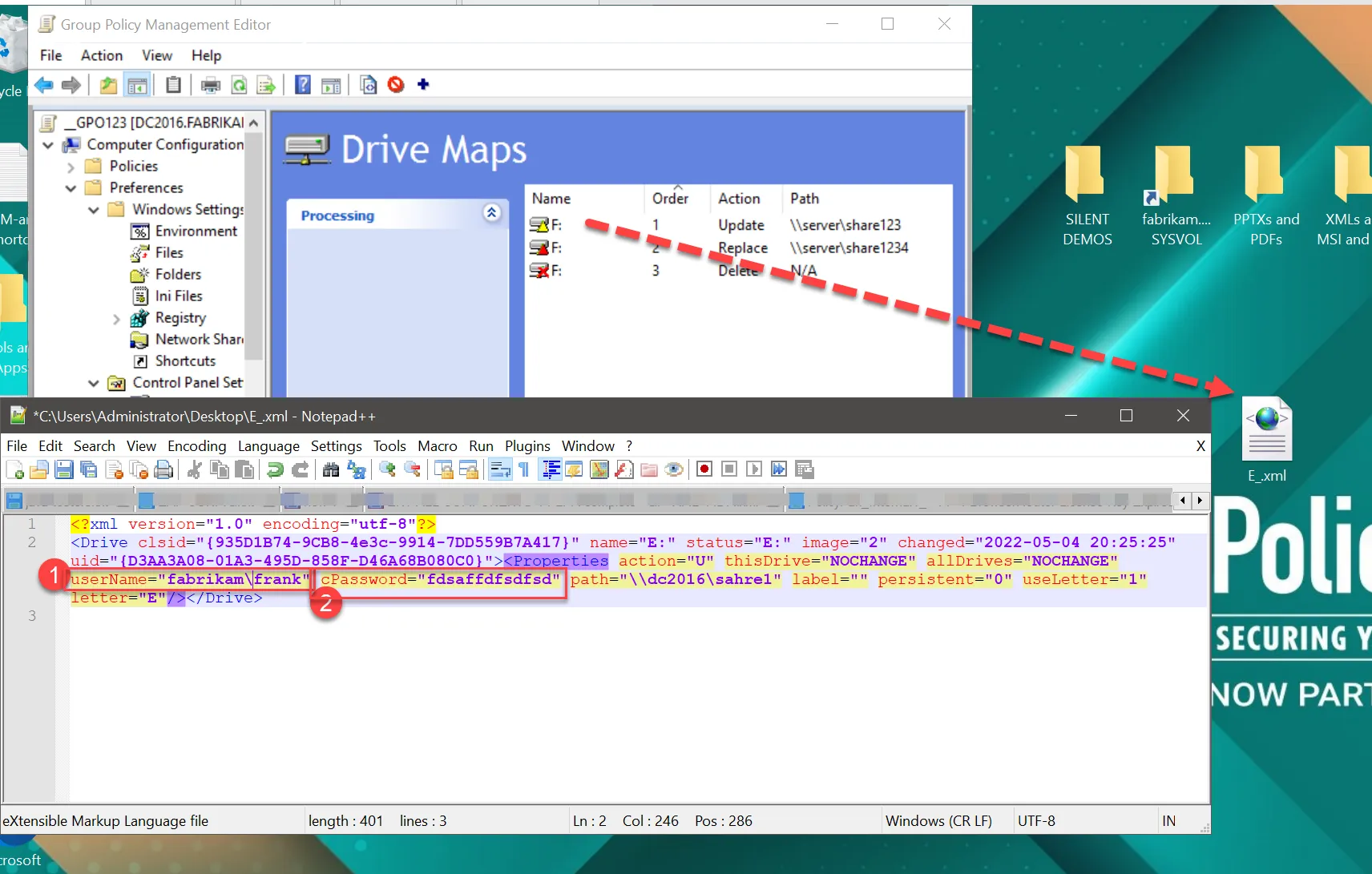
Step 3 – To do get a cPassword, you need to provide an encrypted value in quotes.
Step 4 – Utilize this code and replace the data string with your intended password.
require 'rubygems'
require 'openssl'
require 'base64'
data = " abc123"
def encrypt(data)
  key = "\x4e\x99\x06\xe8\xfc\xb6\x6c\xc9\xfa\xf4\x93\x10\x62\x0f\xfe\xe8\xf4\x96\xe8\x06\xcc\x05\x79\x90\x20\x9b\x09\xa4\x33\xb6\x6c\x1b"
  cipher = OpenSSL::Cipher::Cipher.new("AES-256-CBC")
  cipher.encrypt
  cipher.key = key
  repacked = data.unpack('C*').pack('v*')
  encrypted_data = cipher.update(repacked) + cipher.final
  encrypted_data = Base64.encode64(encrypted_data)
  encrypted_data = encrypted_data[0, encrypted_data.index('=')]
end
encrypted_data = encrypt(data)
puts encrypted_data
You can test ithere: https://onecompiler.com/ruby/3y33cr579
Examples:
- Encrypting
Local*P4ssword!providesj1Uyj3Vx8TY9LtLZil2uAuZkFQA/4latT76ZwgdHdhw - Encrypting
abc123givesUz2Lr4XKoAyUj1HhrWbTLA
Step 5 – Once you have the well-formed XML you should be able to drag it back into the MMC editor and test it (if you want).
Or you can upload the XML to PolicyPak Cloud.
All well-formed XML will be accepted and should process on the endpoint.
PolicyPak Preferences will need to be licensed for PolicyPak Cloud. In domain-joined scenarios that component is automatically disabled until expressly enabled.
See Why is PolicyPak Preferences (original version) "forced disabled" by default?