Version Numbers
Because PolicyPak Application Settings Manager is updated regularly, it's possible you're not using the latest version. The most important things you can do before working with tech support would be to take the following steps:
Step 1 – Download the latest version of the PolicyPak Application Settings Manager ISO from the Customer Portal. (The Customer Portal always has the latest version of PolicyPak Application Settings Manager.)
Step 2 – Install the latest PolicyPak DesignStudio tools on your PolicyPak Creation Station.
Step 3 – Recompile your pXML into a PolicyPak DLL file.
Step 4 – Ensure that you are running the latest version of the PolicyPak CSE on every system (or at least a test system where you want to perform troubleshooting).
If those steps fail, and your problem reoccurs, please be prepared with the version information from the following areas, shown In the figure shown, Figure 99, and The figure shown.
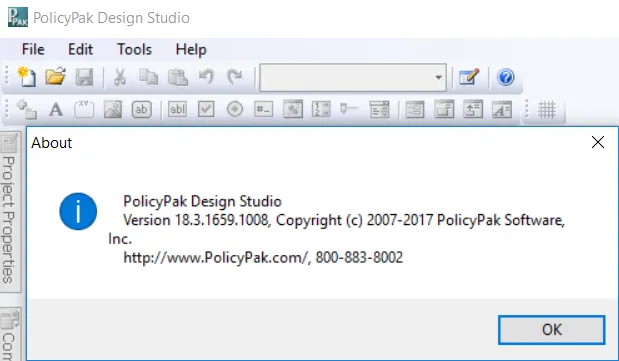
The figure shown. PolicyPak DesignStudio: Help | About.
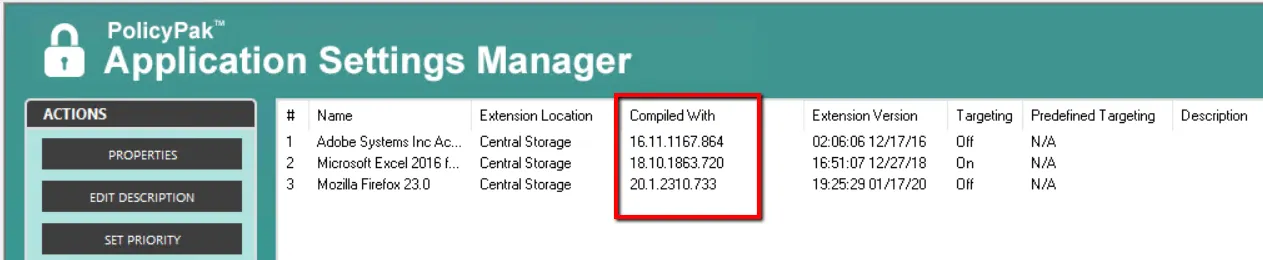
The figure shown. Pak compiled version. With any Pak, open in the Group Policy Editor, and click PolicyPak and then About. The About dialog shows the version number used to compile your Pak.
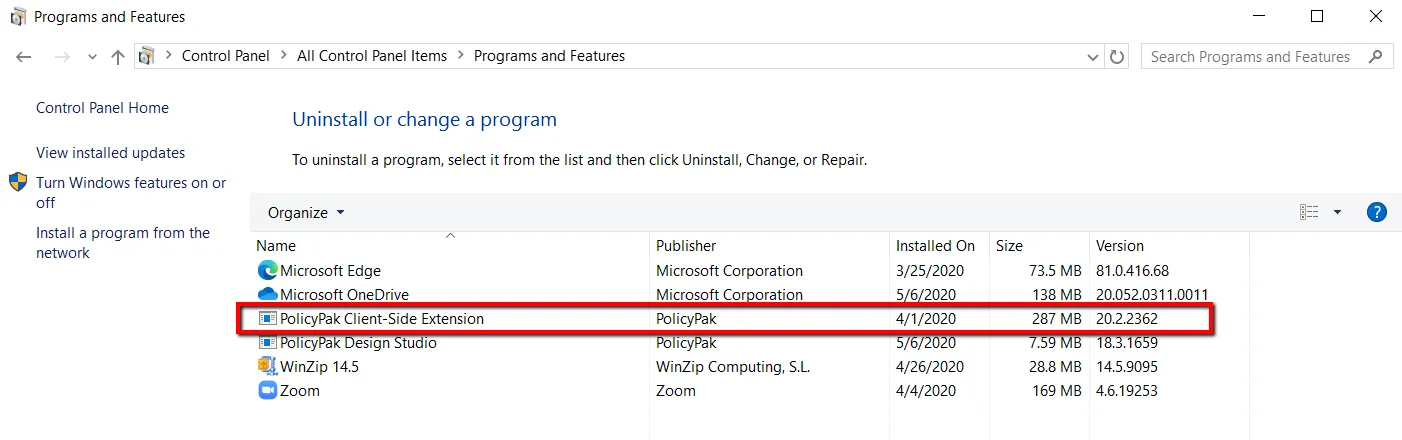
The figure shown. On Windows 7, you can see the version number of the CSE in the "Uninstall or change a program" applet in Control Panel.
Note that these screenshots do NOT necessarily represent the latest versions of PolicyPak Application Settings Manager and are only shown here for the purposes of our example.