Central Storage for PolicyPak Extension DLLs
As you've just learned in the previous section, there is no way to edit an existing GPO with PolicyPak Application Settings Manager directives or create new PolicyPak Application Settings Manager directives inside a new GPO if a PolicyPak extension DLL is not available on the local administrator's management station.
With that in mind, PolicyPak Application Settings Manager can utilize a central storage for PolicyPak extension DLLs.
The Central Storage is a very simple idea: house the PolicyPak extension DLLs within the Active Directory's SYSVOL (which is replicated to all domain controllers). Then, whenever they're needed, the PolicyPak MMC will utilize the DLL contained within the Central Storage—automatically.
If you are familiar with Group Policy's ADMX Central Storage, this feature is identical and accomplishes a similar task. For information on Microsoft's implementation of central storage, please read Understanding and fixing PolicyPak DLL Orphans.
Creating the PolicyPak Central Storage is easy and only needs to be performed one time. The actions that a domain administrator needs to perform are:
- On any domain controller (preferably the PDC emulator), use Explorer to locate the SYSVOL folder.
On most domain controllers, the SYSVOL folder is located in
c:\windows\sysvol\sysvol. (Note there are actually two directories named SYSVOL, one within the other, as seen In the figure shown). - The name of your domain will be inside the SYSVOL folder. In this example, the domain name is corp.com. Inside the directory, there will be a folder named Policies, as seen In the figure shown.
- Inside the Policies folder, create a directory named PolicyPak, as also seen In the figure shown.
- Finally, copy (or move) your local PolicyPak extension DLLs from your local
administrator's machine's
c:\Program Files\PolicyPak\Extensionsto the newly created PolicyPak folder atc:\windows\SYSVOL\SYSVOL\policies\PolicyPak. An example of this can be seen In the figure shown.
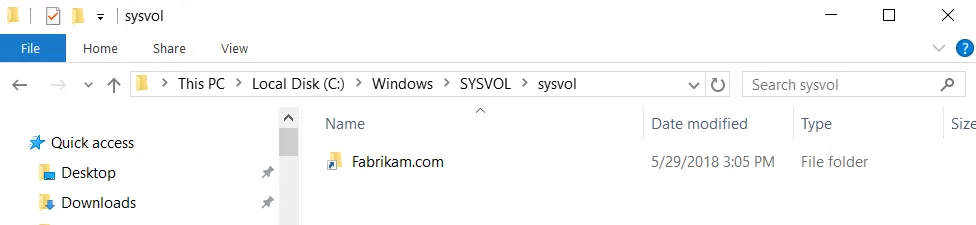
The figure shown. The location of the SYSVOL folders.
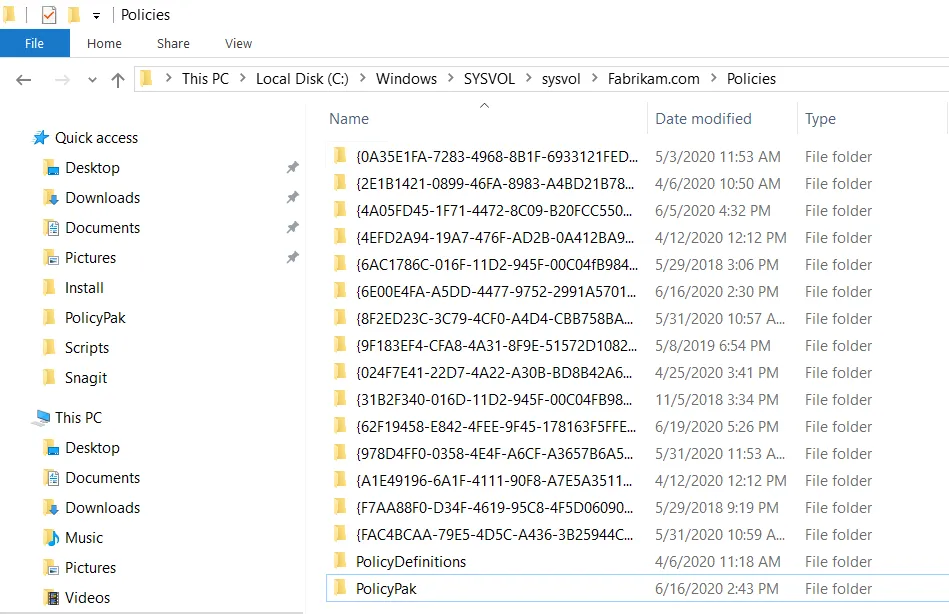
The figure shown. The newly created folder called "PolicyPak."
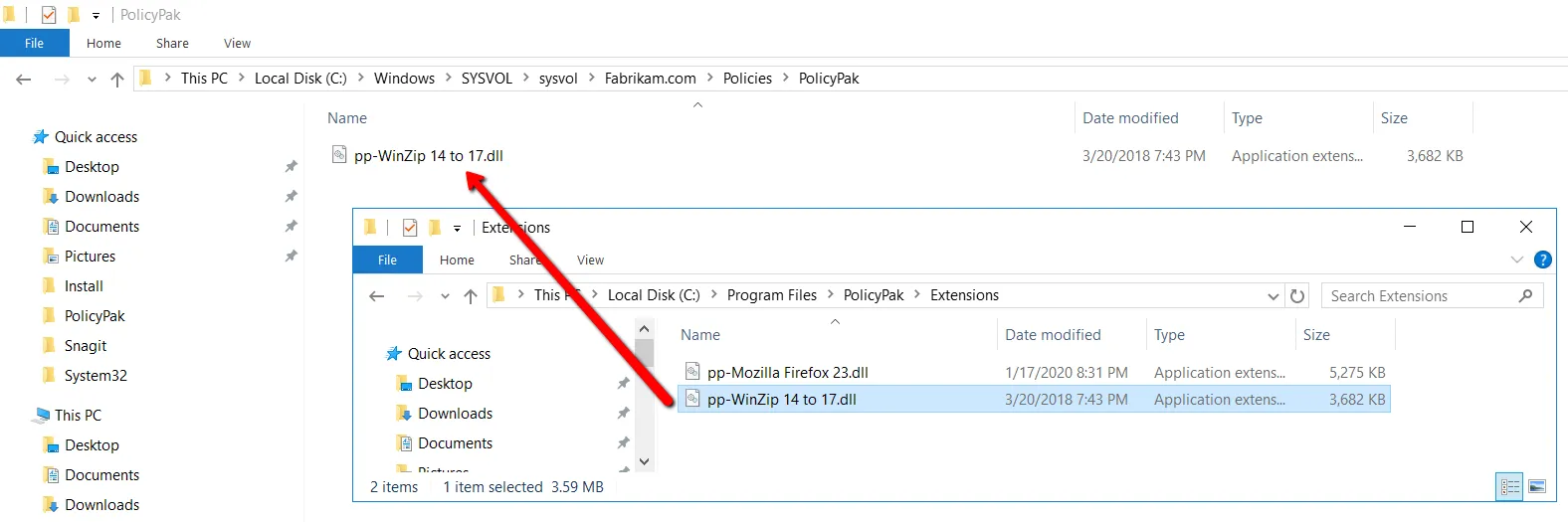
The figure shown. The PolicyPak extension DLLs being moved to the newly created PolicyPak folder.
When you place all PolicyPak extension DLLs in the Central Storage, the PolicyPak MMC console will automatically utilize it. That is, once the PolicyPak Central Storage is available, there is nothing else to configure.
Simply edit the existing GPO with PolicyPak Application Settings Manager directives or create a new GPO. You should immediately see your PolicyPak extensions available in the PolicyPak | Applications flyout menu (as seen In the figure shown) and, when they're utilized, you'll see the Extension Location change to Central Storage, as seen In the figure shown.
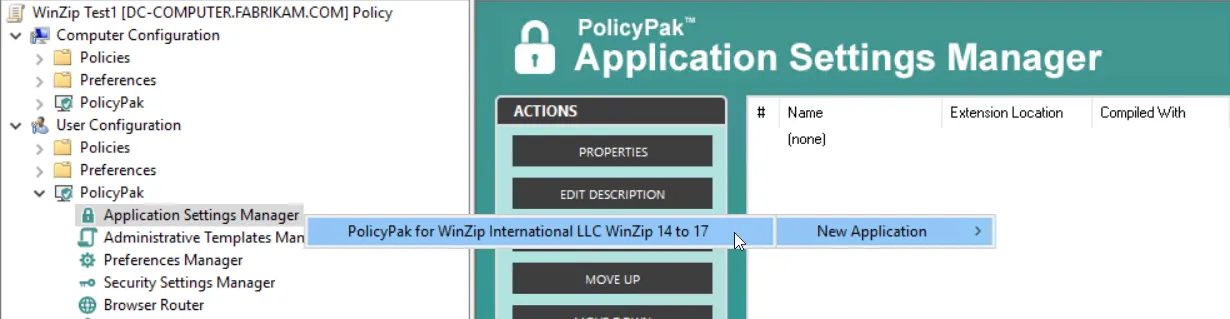
The figure shown. PolicyPak extensions available in the flyout menu.
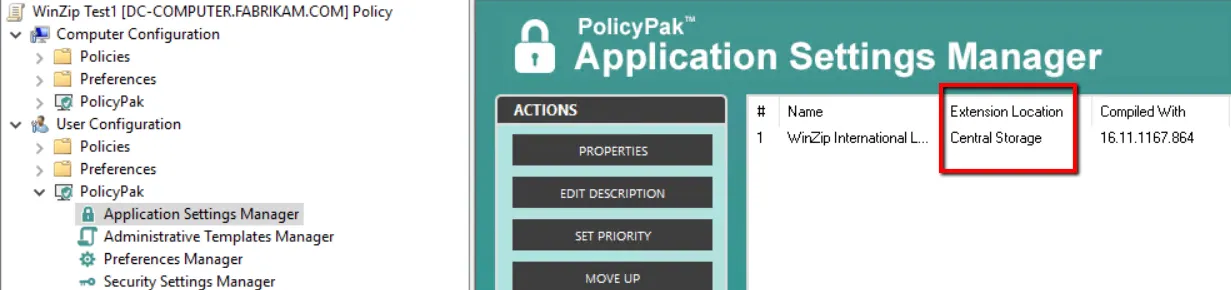
The figure shown. The extension location has been changed to Central Storage.
You may need to close the Group Policy Editor and then reopen it to see PolicyPak Application Settings Manager utilizing the Central Storage.
Note that only a domain administrator may place PolicyPak extension DLLs into the Central Storage. If an AppSet is later updated, only domain administrators will be able to perform the update. For more information on updating AppSets, see the section "Version Control of PolicyPak Extension DLLs."
You're never "installing" these DLLs on the server. Nor are they copied inside each and every GPO. They're simply placed, one time, into the Central Storage so that administrators can roam from machine to machine and always have access to their PolicyPak extension DLLs whenever they run the GPMC. (You won't see the PolicyPak node until the PolicyPak Admin Console.msi is installed alongside the GPMC.)