Local Storage for PolicyPak Extension DLLs
When you compiled your AppSet, the output (the extension DLL) was placed in one of three directories.
%ProgramFiles%\PolicyPak\Extensions%ProgramFiles%\PolicyPak\Design Studio\Extensions%appdata%\PolicyPak\Extensions
In the figure shown, you can see the%ProgramFiles%\PolicyPak\Extensionsdirectory and the compiled AppSets
within it.
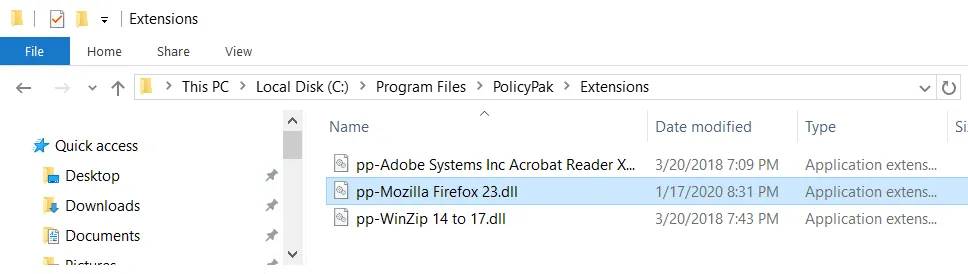
The figure shown. The files that are contained in the %ProgramFiles%\PolicyPak\Extensions directory.
Note that each compiled AppSet has a specific name: PP-{name of file that you saved}.dll.
In our Quickstart guide, we used PolicyPak DesignStudio and saved the file
as Winzip 14 to 17.XML. When the AppSet was compiled, the resulting file became
PP-WinZip 14 to 17.dll (or something similar).
All compiled AppSets must have a name starting with "PP-". This is to prevent errant DLLs from being placed into the Extensions directory and, consequently, the PolicyPak MMC snap-in trying to load them, which could cause an error.
In the figure shown, you can see the extension DLL is being leveraged from Local Storage.
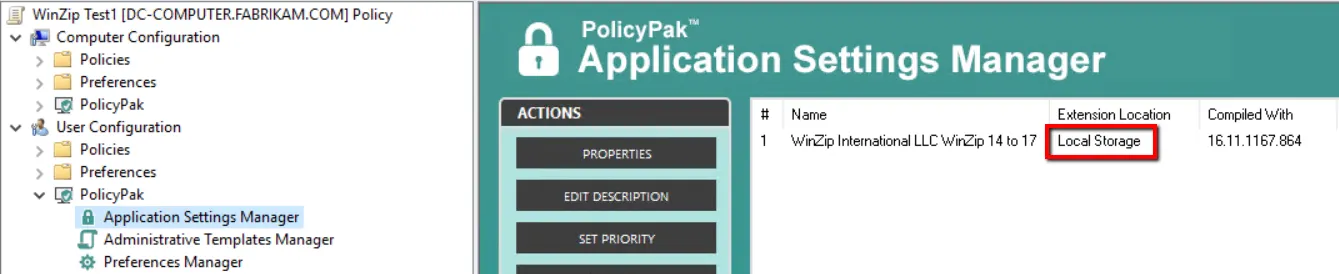
The figure shown. The Local Storage is being leveraged by the extension DLL.
Local Storage is fine if you only have one administrator in the domain. However, you should always make backup copies of your original pXML files (XML files) and your compiled extension DLLs. This is because, if you followed the Quickstart guide, these files are likely only stored in one place right now—your PolicyPak management station/PolicyPak Creation Station (which is likely the same computer).
In practice, however, you would
- create your pXML file on your PolicyPak Creation Station,
- compile the pXML file on your PolicyPak Creation Station into an extension DLL, and
- copy your compiled extension DLL from your PolicyPak Creation Station to your PolicyPak management station (where you use the GPMC).
In this case, you would have created a copy of the extension DLL in the process. But if you're a solo administrator, be sure to keep both the original pXML files and the compiled DLL files in a handy backed-up place.
Solo administrators might choose to leverage another option, which we'll discuss next, called PolicyPak Central Storage. It can help you maintain your extension DLLs centrally and easily.
The biggest issue with using Local Storage for the DLL occurs when you decide to use another PolicyPak management station to deploy new GPOs or manage existing GPOs. Below is a common example of this issue.
On Computer Admin1, an administrator creates a GPO that deploys PolicyPak directives
for WinZip. The PolicyPak WinZip extension DLL is located only on the Admin1 computer
in the c:\Program Files\PolicyPak\Extensions directory.
The administrator then roams to a new computer named Admin3. The Admin3 computer already has the
GPMC installed. The administrator knows that in order to see the PolicyPak node in the
Group Policy Editor, he or she must install the included PolicyPak Admin Console.msi
(32-bit or 64-bit) to extend the GPMC to provide the PolicyPak node.
Once he or she has done that, the administrator edits the existing GPO and PolicyPak directive that contains WinZip directives and receives a message similar to what is shown in The figure shown.
If you use the Group Policy Editor and don't see the PolicyPak node while editing a GPO, you need to install PolicyPak Admin Console.msi on machines that use the GPMC.
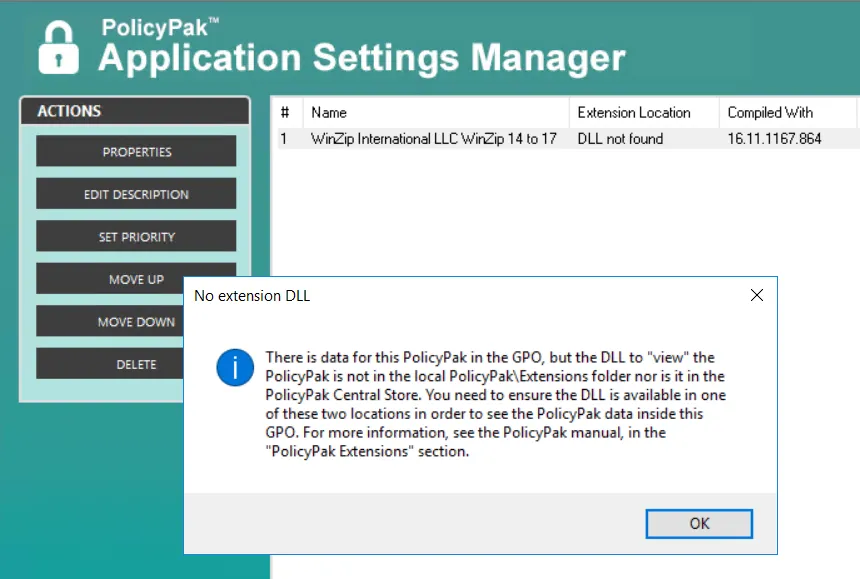
The figure shown. This message informs the adminstrator that they need to set up
c:\Program Files\PolicyPak\Extensions directory on this computer.
When the administrator is on the Admin3 machine, the PolicyPak MMC console simply
cannot find the DLL inside its ownc:\Program Files\PolicyPak\Extensionsdirectory. That's because
it only exists on the Admin1 computer.
In order for the administrator to be able to utilize PolicyPak for WinZip, he or she
needs to copy the extension DLL from the Admin1 computer's c:\Program Files\PolicyPak\Extensions
directory to the Admin3 computer's c:\Program Files\PolicyPak\Extensions directory.
Additionally, since the DLL isn't on the local machine, there is no way for that administrator to create a new GPO that contains PolicyPak directives, as seen In the figure shown. If there are no PolicyPak extension DLLs on the machine that is running the GPMC, then there is no way to define an AppSet item.
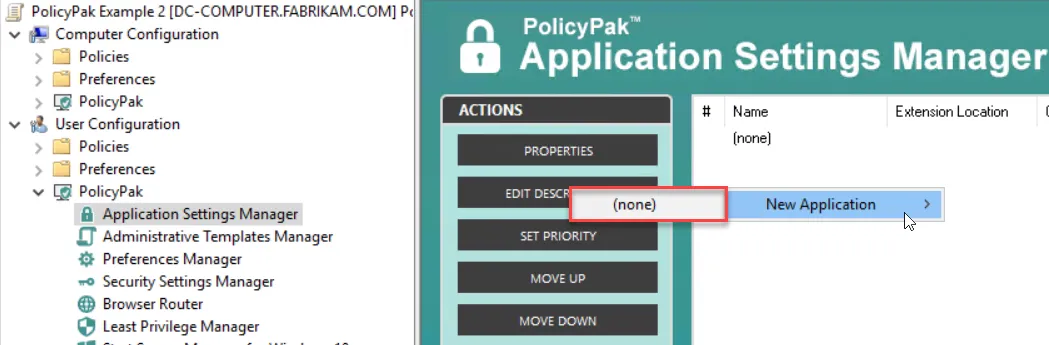
The figure shown. The application is unavailable because there is no way for the administrator to create a new GPO if the DLL isn't on the local machine.
Ensuring that these DLLs are always available wherever an administrator might roam can be a real nuisance. With that in mind, PolicyPak will honor PolicyPak Central Storage and PolicyPak Share-Based Storage, as explored in the next sections.