Share-Based Storage for PolicyPak Extension DLLs
For an overview of Share-Based Storage for PolicyPak extension DLLs, see this video: https://www.policypak.com/videos/endpointpolicymanager-using-shares-to-store-your-paks-share-based-storage.html.
Some organizations' administrators cannot (or don't want to) create a PolicyPak Central Storage to contain PolicyPak DLL files.
You can optionally use regular shares (or DFS shares) to store your DLL files. This gives the basic benefits of the PolicyPak Central Storage without having to use domain controllers to store the DLL files.
To use the Share-Based Storage for PolicyPak extension DLLs, simply copy the DLL file to a share of your choosing. In this example, the folder called Paks is shared on a server called DC.
Simply copy the PolicyPak extension DLLs into the shared folder (which must be readable by everyone).
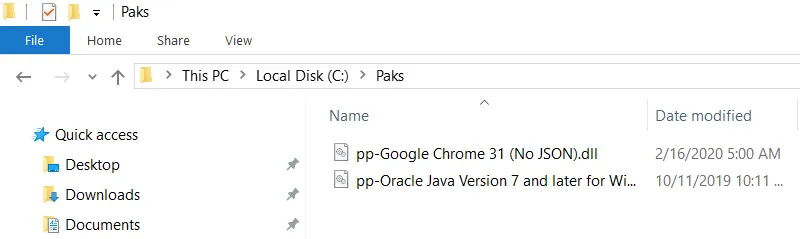
Locating the PAK123 folder.
Once you do this, the AppSets are ready to be used. However, these AppSets will not immediately display in the MMC. By default, only AppSets in the Local or Central Storage will show up automatically.
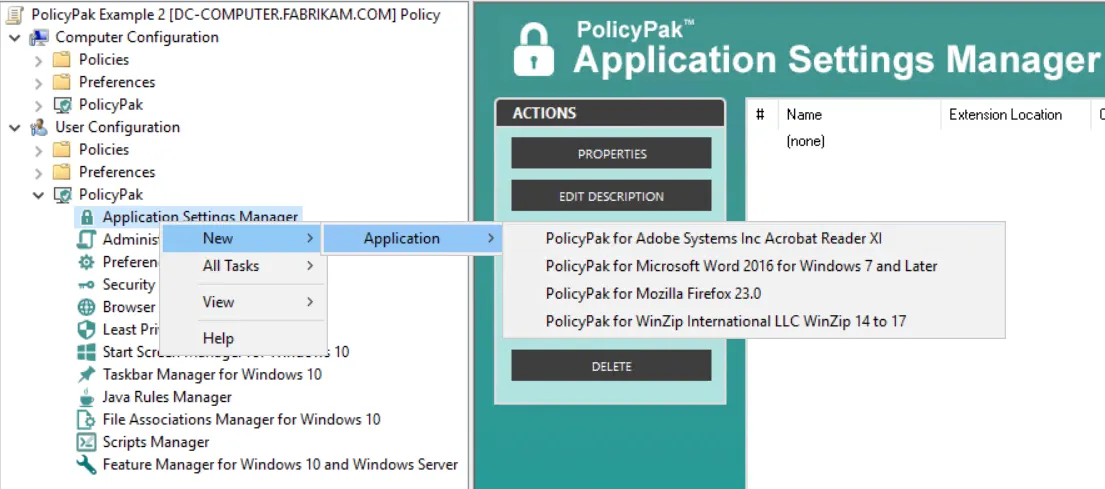
Paks in the Local and Central Storage are shown automatically.
To enable the AppSets in the share to be seen by the MMC snap-in, you must manually select "Manage Share-Based Central Stores".
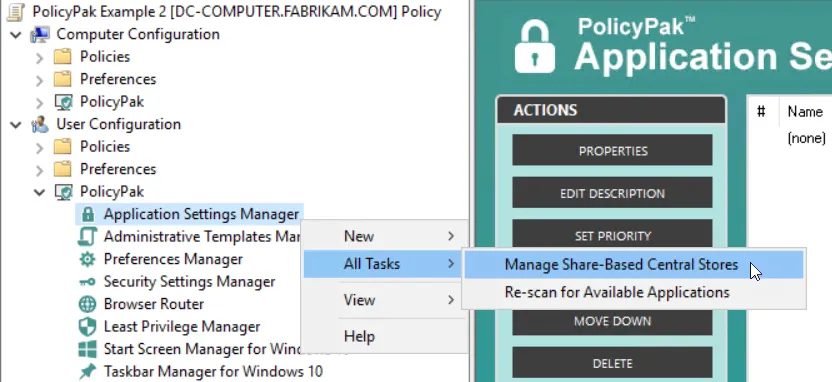
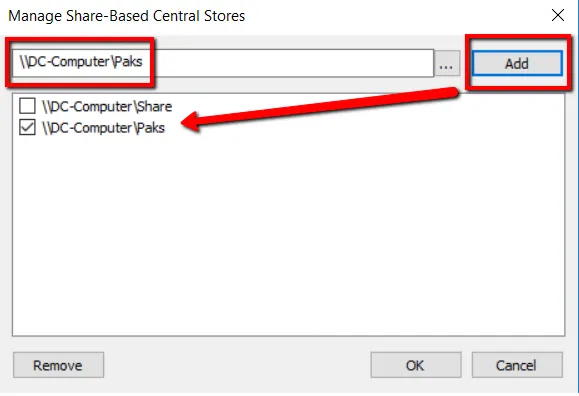
Step 1 (left) select "Manage Share-Based Central Stores." Step 2 (right) specify which shares hold PolicyPak DLL files.
Once you specify the share, you will see the AppSets added. When any Share-Based AppSet is used, you will see its Extension Location display as Share-Based Storage.
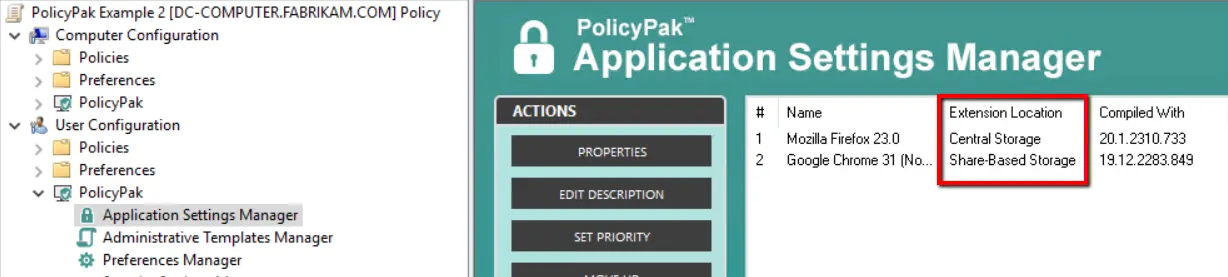
Any Share-Based Pak will show up in the Extension Location.
Note that the specific shares you are using are preserved only on your administrative machine.
However, you can mass-deliver Share-Based Storage locations to other PolicyPak
Application Settings Manager administrators quickly and automatically using the Group Policy
Preferences Registry Extension. Simply specify the locations as REG_MULTI_SZ in the Paths value
to HKEY_CURRENT_USER\Software\ PolicyPak\Config\MMC\CentralStores.
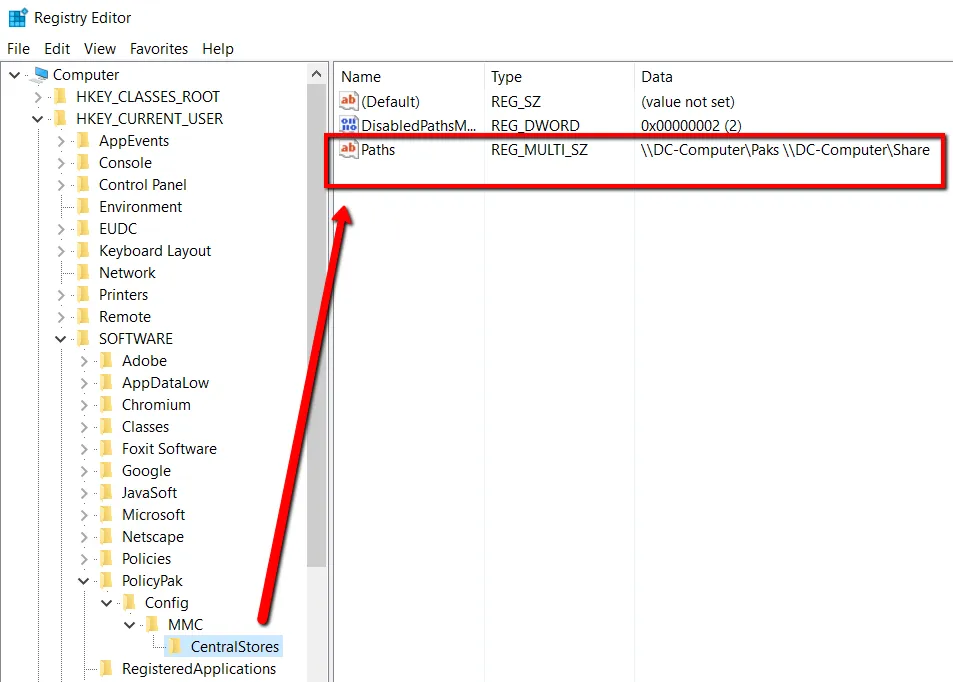
In the Registry editor you can mass-deliver Share-Based Storage locations to other PolicyPak administrators quickly and automatically.