Managed By PolicyPak
Because PolicyPak Application Settings Manager can perform user-interface (UI) lockout and ACL Lockdown, IT administrators might want to signal to their users, in a subtle way, that IT is in charge of the application.
You can accomplish this by selecting "Add ‘Managed by PolicyPak' to Windows under management," as seen In the figure shown.
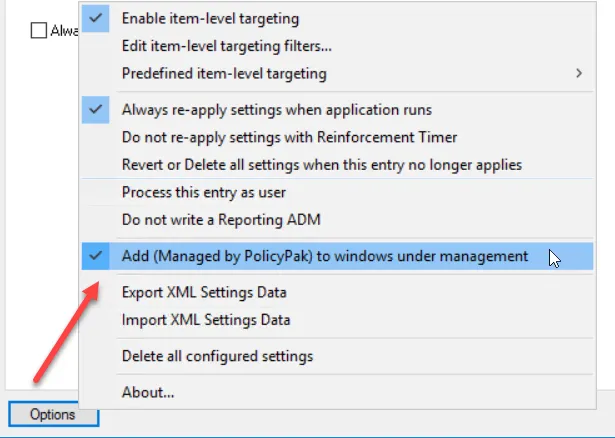
The figure shown. IT administrators can display to users that they are in control of the settings.
When you do this, a window will pop up, giving you options for the setting. For most applications, these windows will look similar to what is displayed In the figure shown and The figure shown.

The figure shown. An example of what you would see if you selected "Add ‘Managed by PolicyPak' to Windows under management."
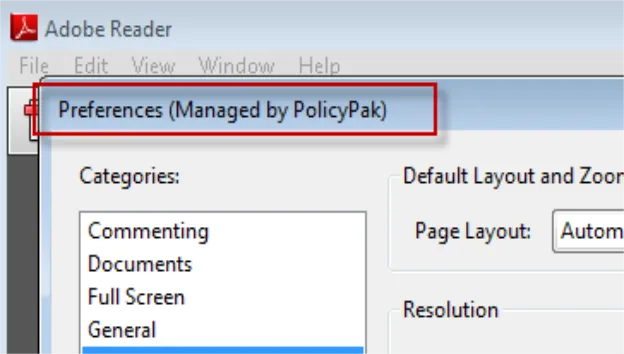
The figure shown. Another example of what you would see if you selected "Add ‘Managed by PolicyPak' to Windows under management."
Note that not every application will display "Managed by PolicyPak" in the window. Be sure to test with your specific application. Also, be aware that the GPMC reports will demonstrate if you have this feature enabled, as seen In the figure shown.
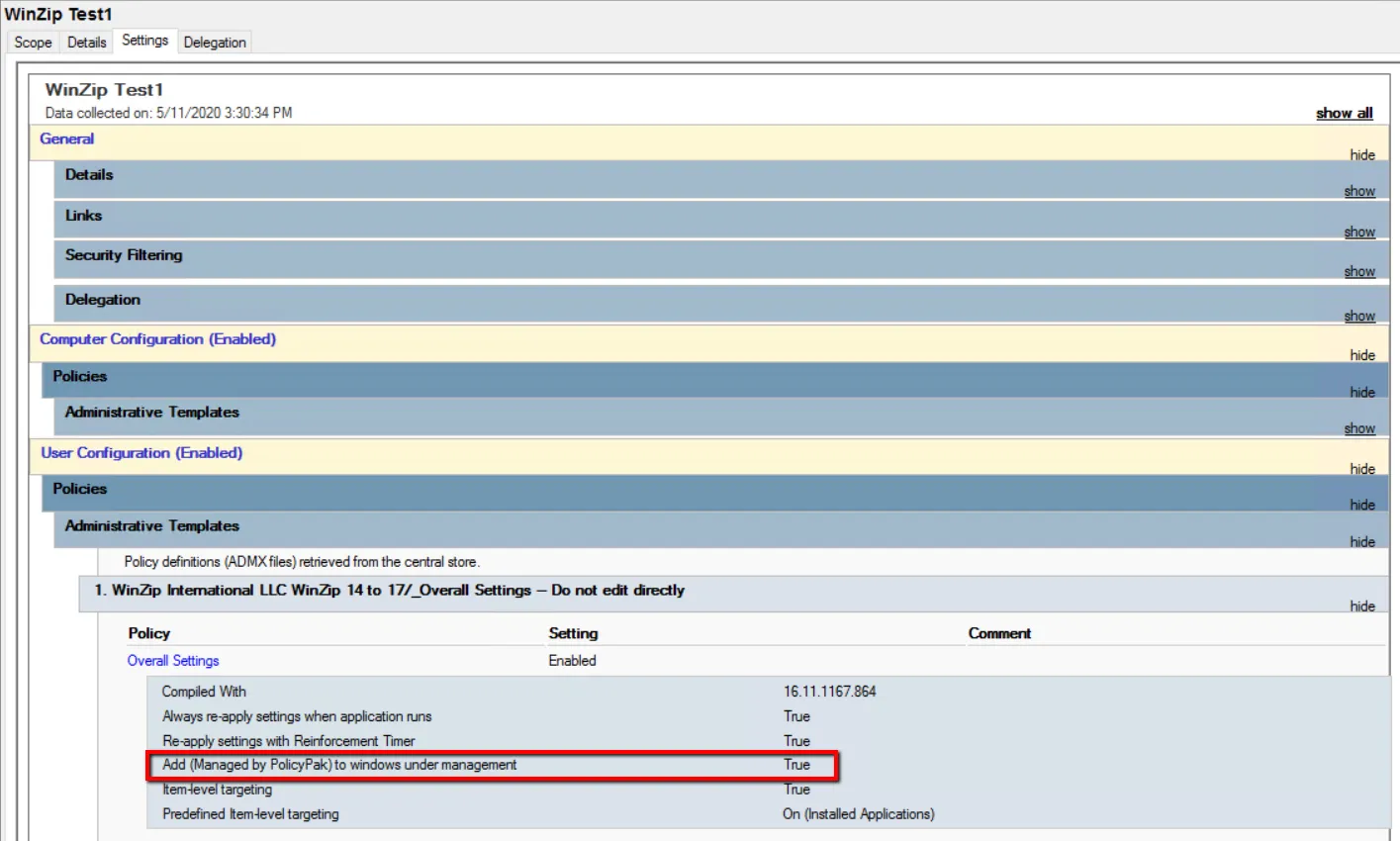
The figure shown. The GPMC report showing that "Add ‘Managed by PolicyPak' to windows under management" was enabled.