How-to gain access of a remote computer using built-in Windows Remote Assistance application?
Enable remote computers to accept the incoming remote connection with Netwrix PolicyPak's pre-configured PAK for Microsoft Remote Settings.
Setting up a GPO to allow remote assistance using PolicyPak Application Manager.
In these steps, we will show steps for IT Administrators so they can Enable Remote Assistance for end-users computers.
Step 1 – Launch Group Policy Management Console.
Step 2 – Right-click on a required OU and Create a new GPO.
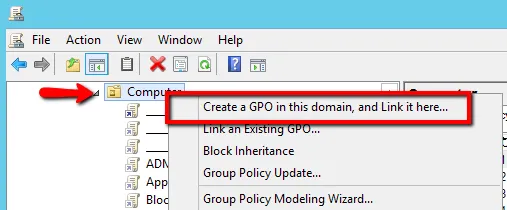
Step 3 – Give the GPO a descriptive Name then click the OK button.

Step 4 – Right-click on the new GPO you just created, and select Edit option.

Step 5 – Expand the PolicyPak node under Computer Configuration and select the pre-configured PAK named "PolicyPak for Microsoft Windows 7 and Later for System Properties"
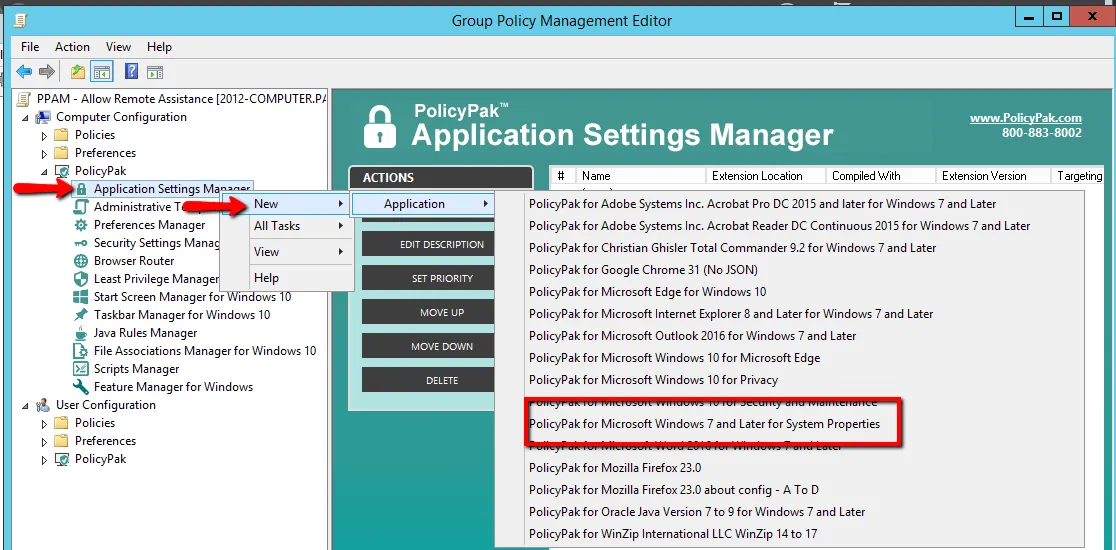
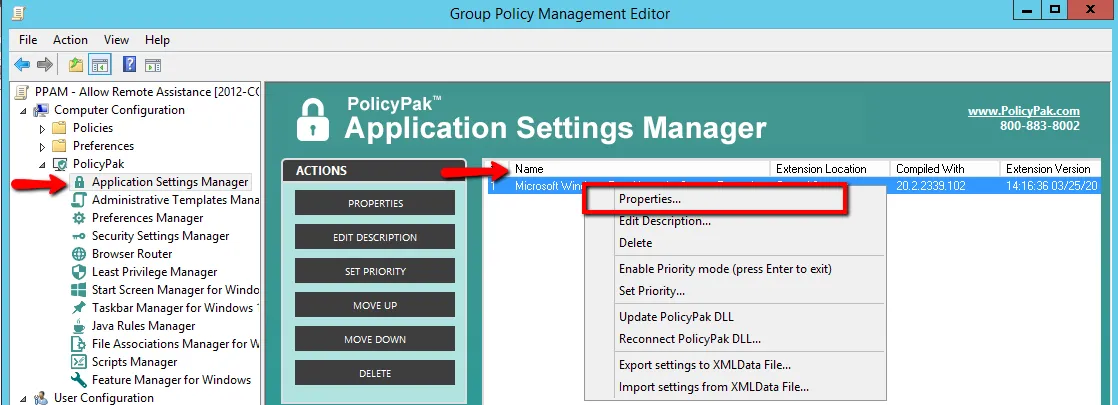
Step 6 – Right-click on the PAK entry and select the Properties option.
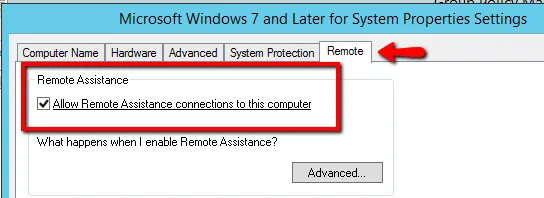
Step 7 – Select the Remote tab, and select the checkbox "Allow Remote Assistance connections to this computer" and then click the OK button.
Make sure that the selection is underlined as shown in the screenshot.
Step 8 – Lastly, run GPUPDATE on end-users computers to apply the policy immediately, or wait
for the policy to apply during the normal group policy refresh interval.
Additional Recommendations: Use PolicyPak Scripts Manager and create two additional computer side policy items.
Step 1 – Set Firewall to Allow Remote Assistance:
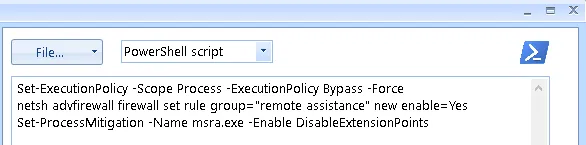
Using PolicyPak Scripts Manager you can execute the following script to open a Firewall for incoming remote assistance connections.
- netsh advfirewall firewall set rule group="remote assistance" new enable=Yes
Step 2 – Proactively address possible issue with MSRA.EXE and PPAppLockdr64.dll:
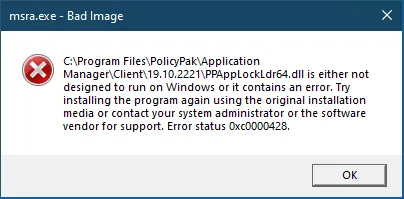
Using PolicyPak Scripts Manager you can execute the following script to configure
custom Exploit Protection settings for Microsoft Remote Assistance (MSRA.EXE).
Set-ProcessMitigation -Name msra.exe -Enable DisableExtensionPoints
You can create two separate policy items:

Or you can combine both policies in one if you prefer:
For more information on PolicyPak Scripts Manager please consult the below reference articles.
Reference Article
- How to use Scripts Manager to workaround the "PPAppLockdr64.dll is either not designed to run on Windows or it contains an error" message when running Microsoft Remote Assistance (MSRA.exe) and the PolicyPak CSE is installed on Windows 10 1903
- Deploy any script via the Cloud to domain joined and non-domain joined machines