Feature Manager for Windows
Before reading this section, please ensure you have read Installation Quick Start, which will help you with the following:
- Install the Admin MSI on your GPMC machine
- Install the CSE on a test Windows machine
- Set up a computer in Trial mode or Licensed mode
- Set up a common OU structure
Optionally, if you don't want to use Group Policy, read the section on MDM & UEM ToolsMDM & UEM Tools.
PolicyPak Feature Manager for Windows allows you to perform the following operations on Windows 10 or Windows Server (2016 and later):
- Add features to existing Windows machines
- Remove features from existing Windows machines
- Add optional features to existing Windows machines
- Remove optional features from existing Windows machines
- Limit which machines get policies via Item-Level Targeting
- Specify how to handle reboot requests when features need them
Watch this video for an overview of PolicyPak Feature Manager for Windows: https://www.policypak.com/video/endpointpolicymanager-feature-manager-for-windows.html
PolicyPak Feature Manager for Windows allows you to do the following:
-
Export the PolicyPak Feature Manager for Windows rules and deliver them in one of these four ways:
- Microsoft Endpoint Manager (SCCM and Intune)
- Your own systems management software
- A mobile device management (MDM) service
- PolicyPak Cloud service
-
Allow the client machine with the PolicyPak client-side extension (CSE) to embrace the directives and perform the work.
If you use the PolicyPak Cloud service, you can deliver Group Policy settings even to non-domain-joined machines over the Internet.
Moving Parts
- A management station: The PolicyPak Admin Console MSI must be installed on the
management station where you create group policy objects (GPOs). Once it is installed, you'll see
the
PolicyPak | PolicyPak Feature Managerfor Windows node. - The PolicyPak CSE: This runs on the client (target) machine and is the same CSE for all PolicyPak products. There isn't anything separate to install, and the PolicyPak CSE must be present in order to accept PolicyPak Feature Manager for Windows directives via Group Policy, or when using Microsoft Endpoint Manager (SCCM and Intune), KACE, MDM, or similar utilities.
- Endpoints: In order to use these, they must be licensed for PolicyPak Feature Manager for Windows using one of the licensing methods.
- PolicyPak Exporter (optional): A free utility that lets you take PolicyPak Admin Templates Manager and our other products' XML files and wrap them into a portable MSI file for deployment using Microsoft Endpoint Manager (SCCM and Intune), an MDM service, or your own systems management software.
Ins and Outs
PolicyPak Feature Manager for Windows solves several important Windows 10 issues. Its basic goal is to turn on and off Windows features and optional features. Many IT admins will preset the features and optional features they want into their workstation and server images, only to find out later they need to pull back from them, or add another feature or an optional feature. Once your systems are deployed, it is very difficult to change your mind later and add features, languages, or, starting with Windows 10 (build 1809), add tools from the Remote Server Admin Toolkit (RSAT). PolicyPak File Delivery Manager automates the process by allowing you to add or remove whatever features or optional features you want with a few clicks.
There is an in-box method of managing features and optional features on each machine, which requires you to address each feature one by one. On any given machine, you can manage features and optional features.
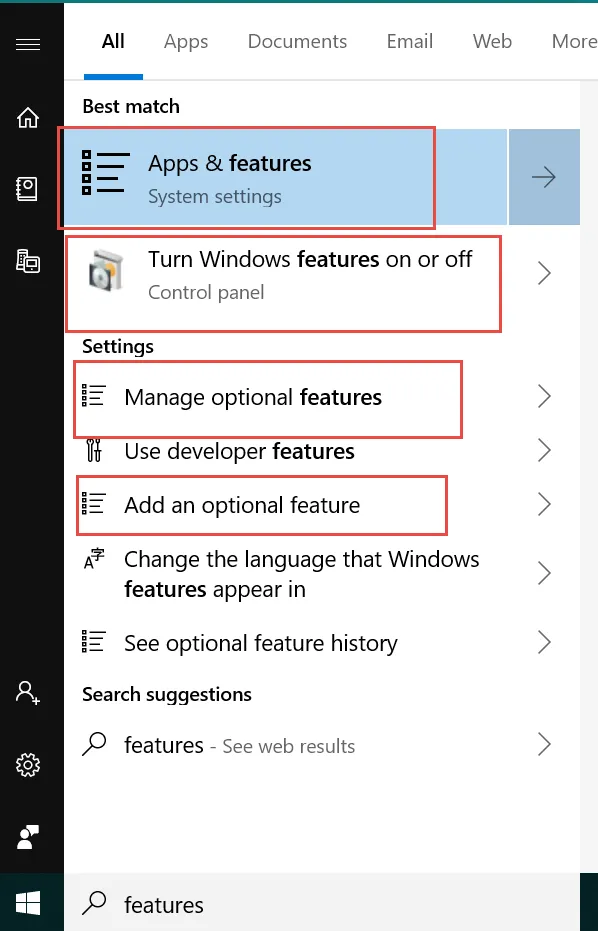
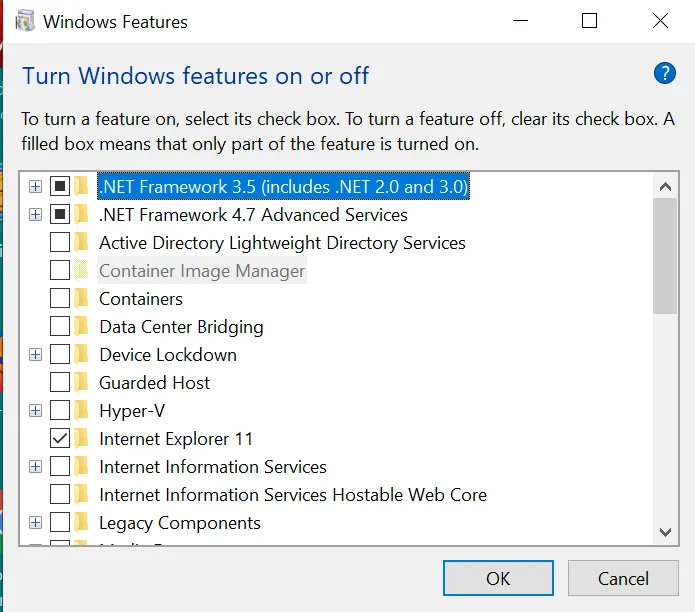
There are two ways to manage features: with the Windows Features Control Pane, or the Windows Settings page . These options can be accessed through the Start Menu.
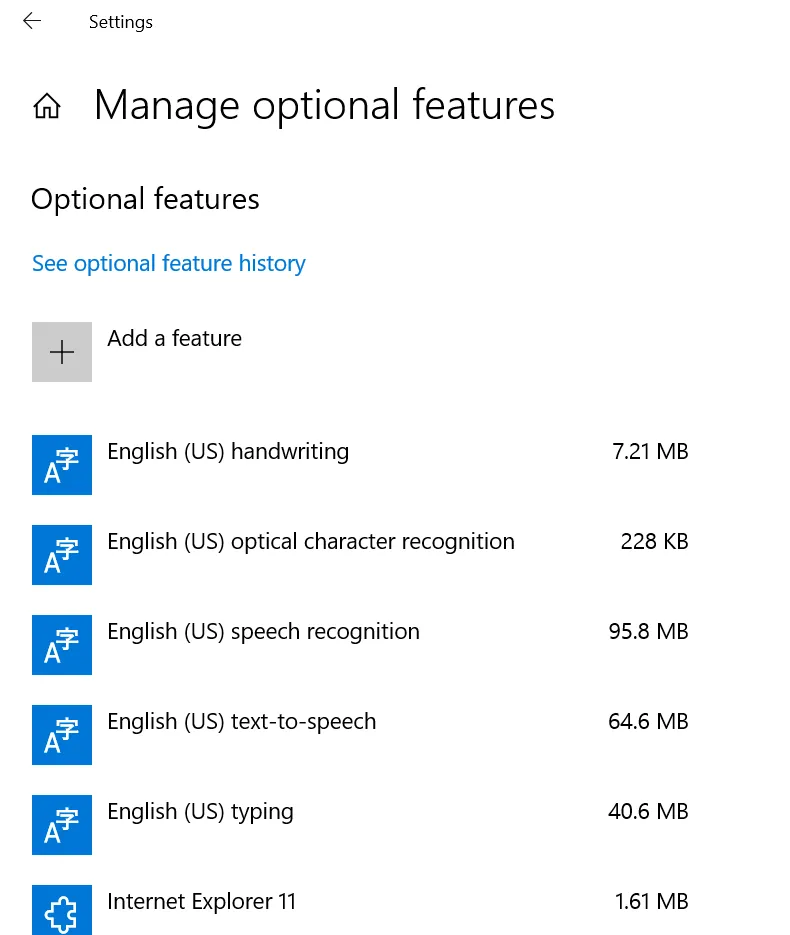
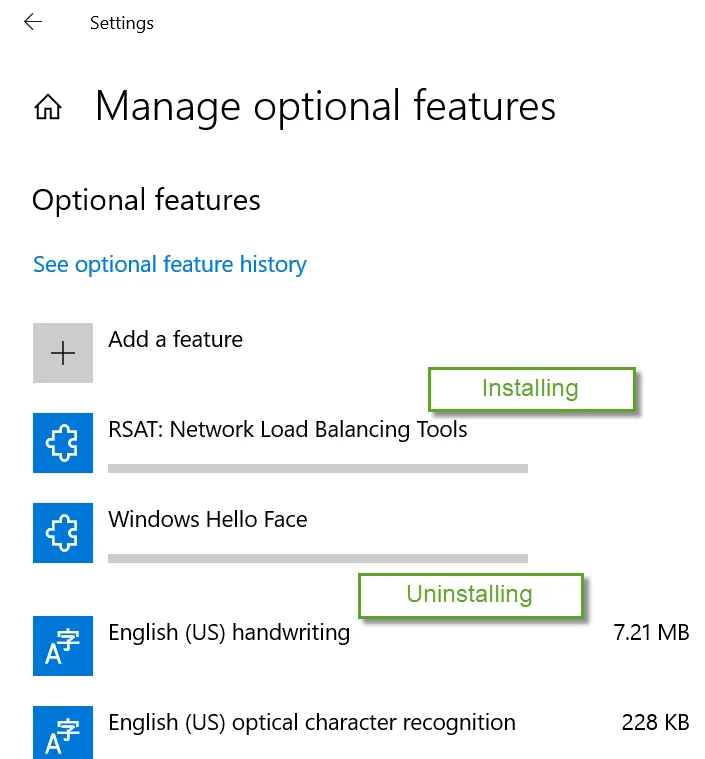
With optional features, you can add or subtract the feature you want. Below is an example of what this looks like.
An alternate way to perform similar functions is via the DISM command on the command line. For example, to install the Hyper-V feature on a machine, you would use the DISM command.
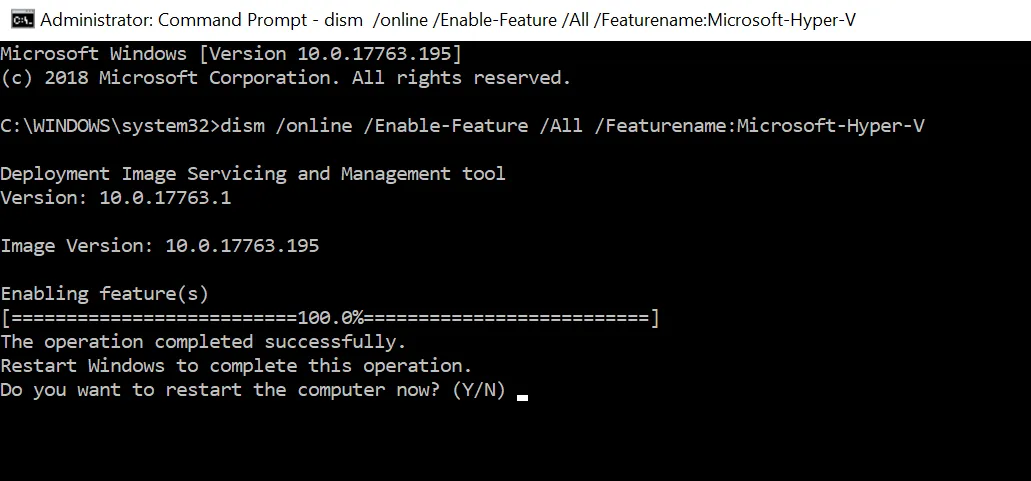
This process can be scripted, but the challenge is that the system will typically reboot when it wants to, perhaps during a user's session. Additionally, scripts will typically run over and over again, which is not great, and could cause undesired reboots. This is why PolicyPak Feature Manager for Windows eliminates the need to use scripts to add or remove features. Also, PolicyPak Feature Manager for Windows gives you time back, so you don't have to deal with adding or removing features and optional features from the build process. So, instead of presetting these into your image or just dealing with it later, PolicyPak Feature Manager for Windows enables you to manage these settings with policies.
Advantages of Using Feature Manager for Windows
With PolicyPak Feature Manager for Windows, the advantages you get are based upon the policy method you already employ.
-
For those using Group Policy:
- You can add or remove features for any number of computers (desktops or servers).
- You can use Item-Level Targeting to determine which computers should get which features.
-
For those using PolicyPak Cloud and PolicyPak MDM: Because your machines might be roaming, you can use PolicyPak to deliver a new policy to install or uninstall a required feature.