Quick Start
Watch this video for an overview of Java Rules Manager: See Use PolicyPak Cloud to choose which version of Java for what website Netwrix PolicyPak.
PolicyPak Java Rules Manager editor is within the PolicyPak node. PolicyPak Java Rules Manager enables you to create a new PolicyPak Java Rules Manager policy or collection.
You will only see the Java Rules Manager node when you have the latest PolicyPak Admin Console MSI installed on your management station.
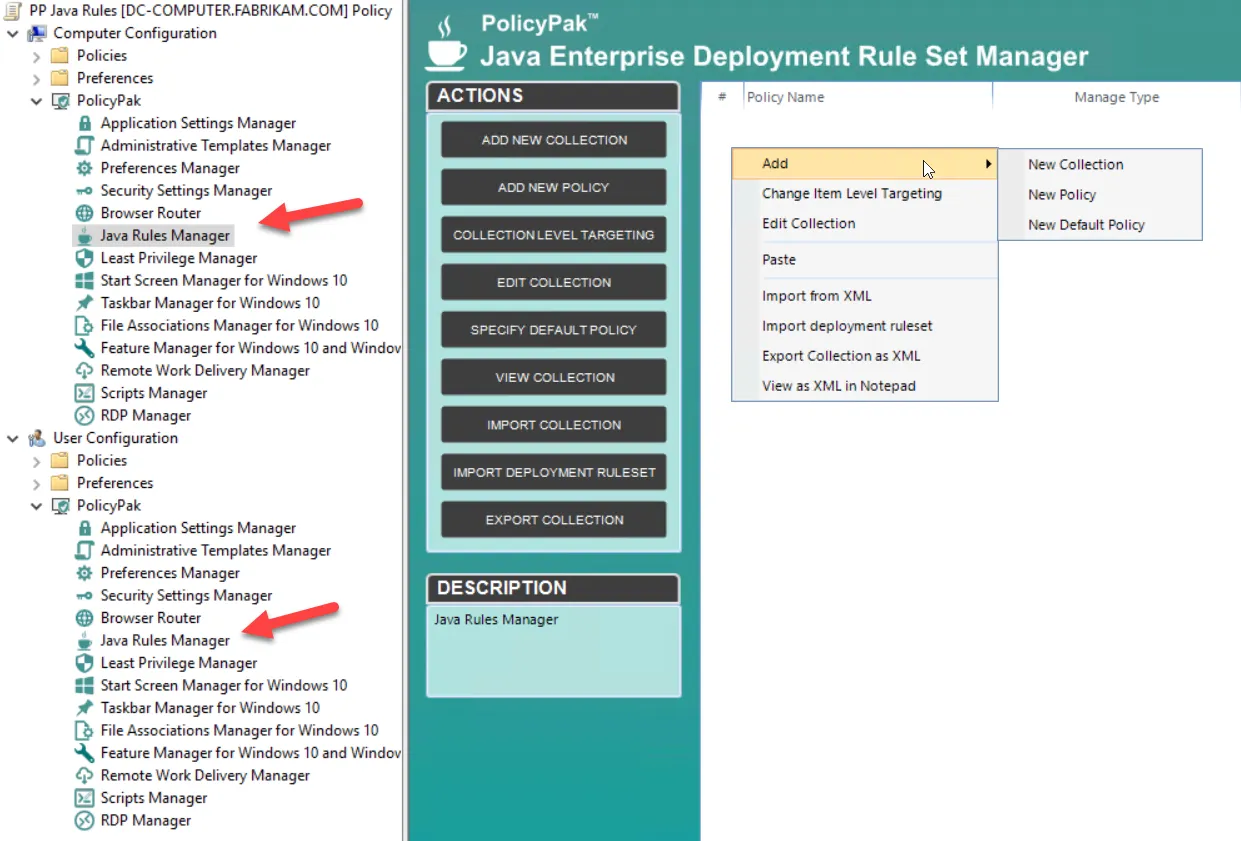
PolicyPak Java Rules Manager rules can only be created on the Computer side. If you attempt to use the user-side configuration node, you will receive a message explaining that you need to use the Computer side. This is because PolicyPak Java Rules Manager rules affect the system and all users on the machine. In other words, all users must honor the PolicyPak Java Rules Manager rule set, even though it can be filtered by using Item-Level Targeting (explained later).
PolicyPak Java Rules Manager policies can use collections. If you want to keep things organized, you can create a collectioni PolicyPak and then put Java Rules policies (or other collections) inside the collection.
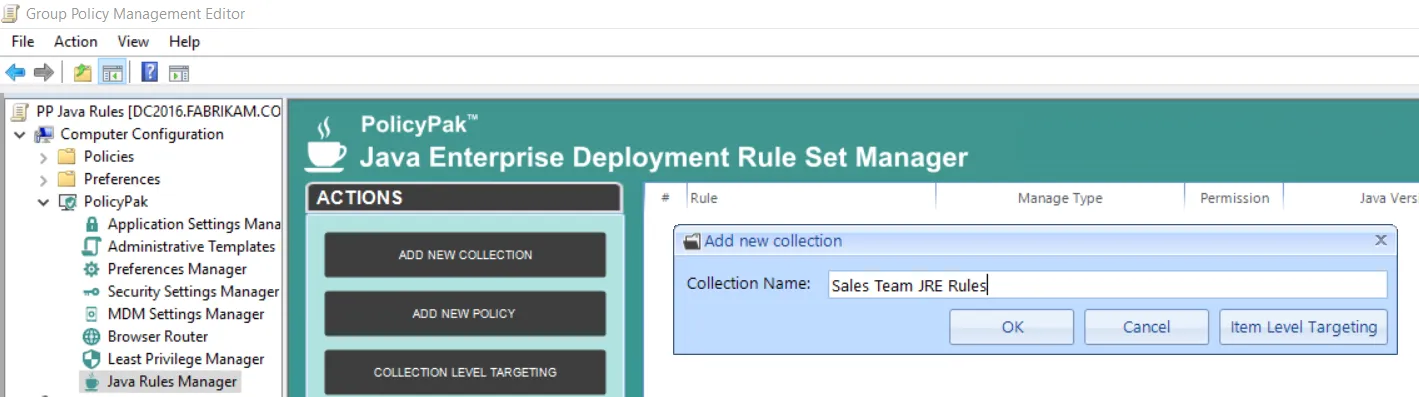
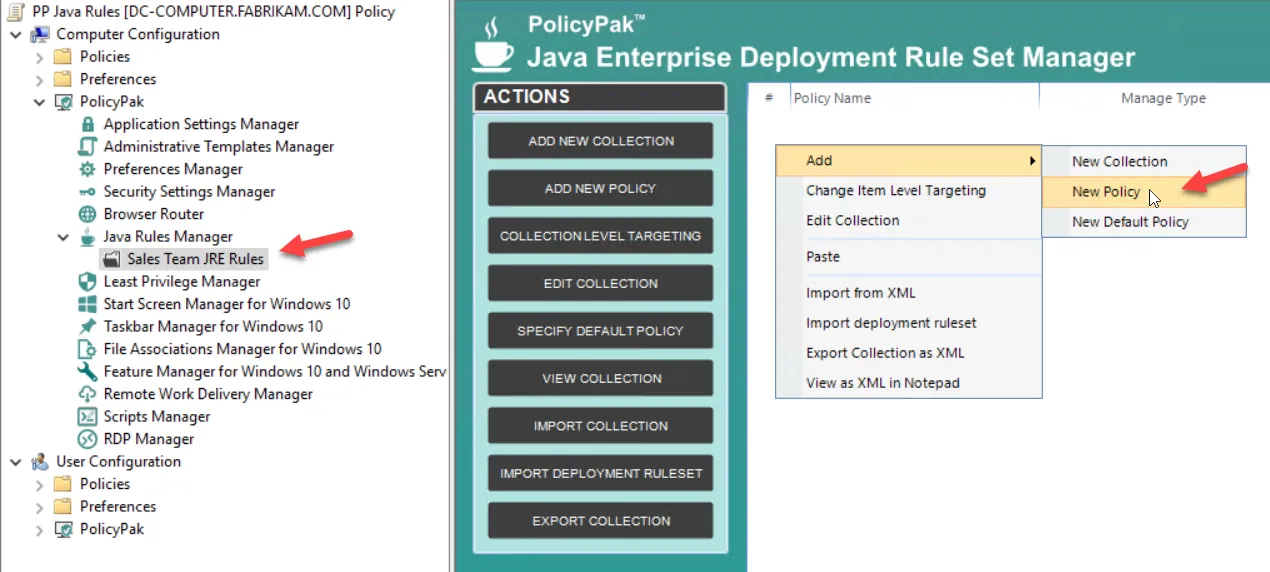
PolicyPak Java Rules Manager has a precedence order. This happens if you decide to have multiple policies, collections, and Group Policy Objects (GPOs), or if you choose to use something other than Group Policy to deliver settings.
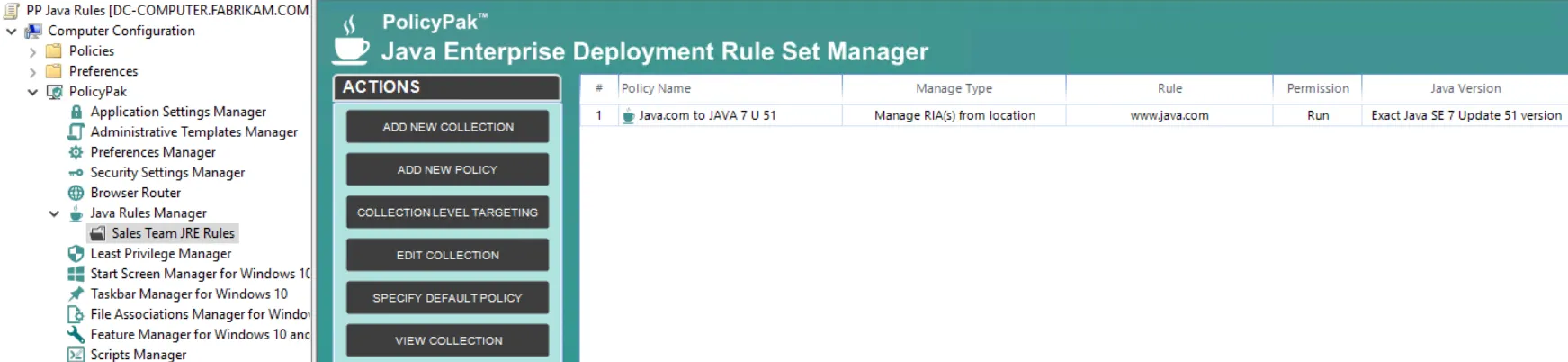
Step 1 – For the Quickstart, we recommend creating a collection on the Computer side. Within that collection, create a new PolicyPak Java Rules Manager policy, such as the one shown below. In this example, we are making a rule for https://java.com by using Java 7 U 51. (Note that this is https, notjust http).
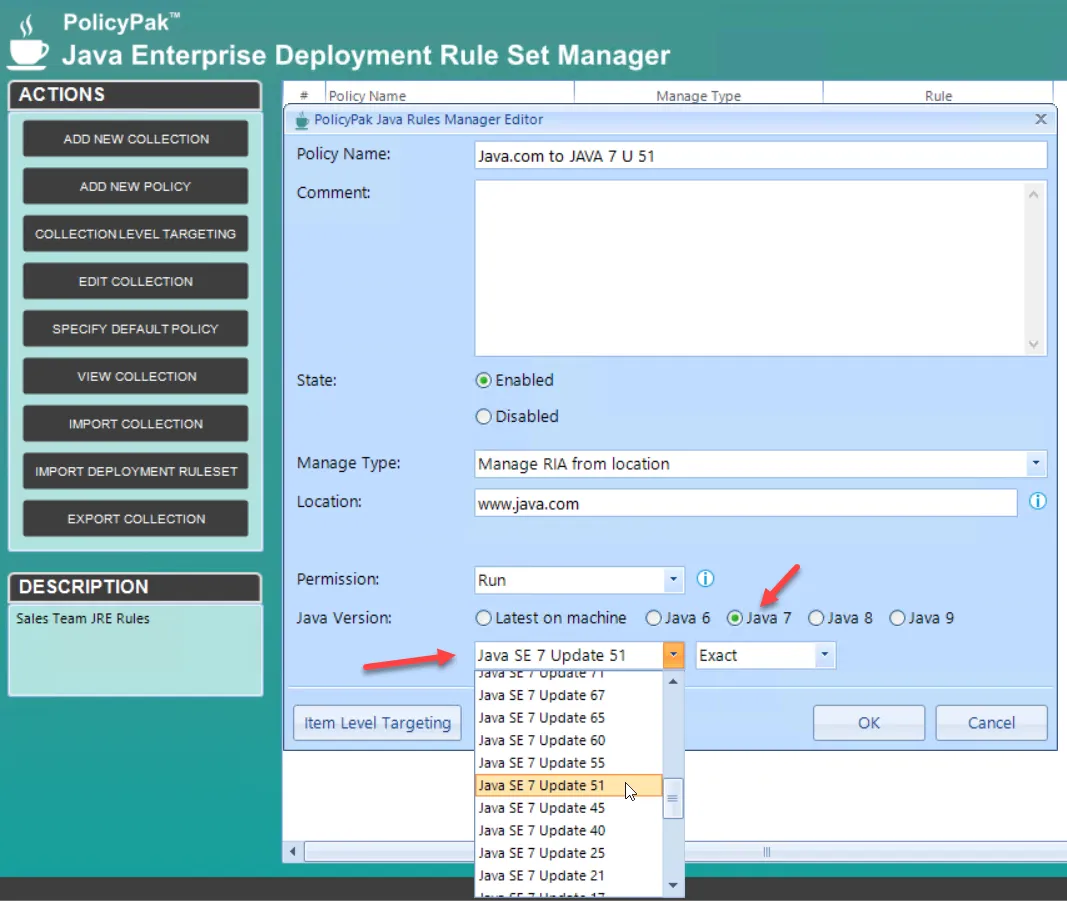
Step 2 – Once you click OK you will receive an entry similar to the one shown below.
Step 3 – If you would like to follow along with this Quickstart, create two more PolicyPak Java Rules Manager policies in the same collection. The next one will make a rule so that http://javatester.org will run with Java 8 U 25. (Note that this URL is http, nothttps).
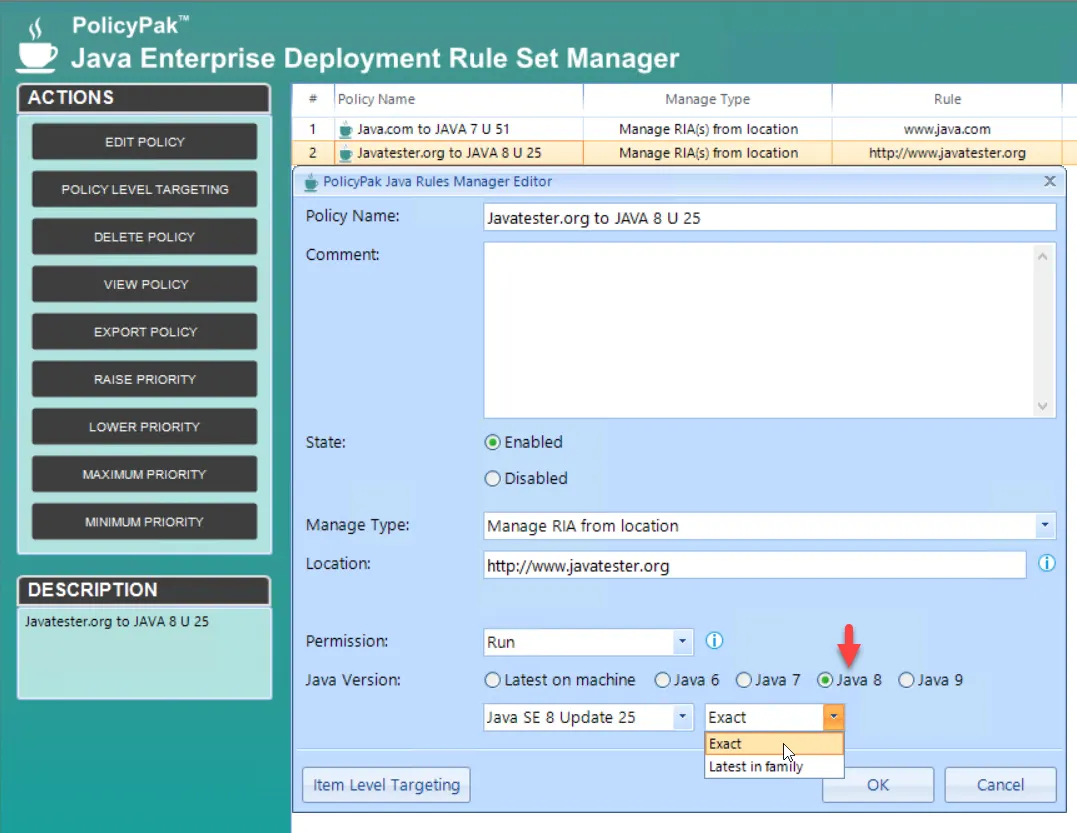
Step 4 – Click OK to save the entry..
Step 5 – Create another policy that will block https://*.nasa.gov/.Note that this URL is
https.
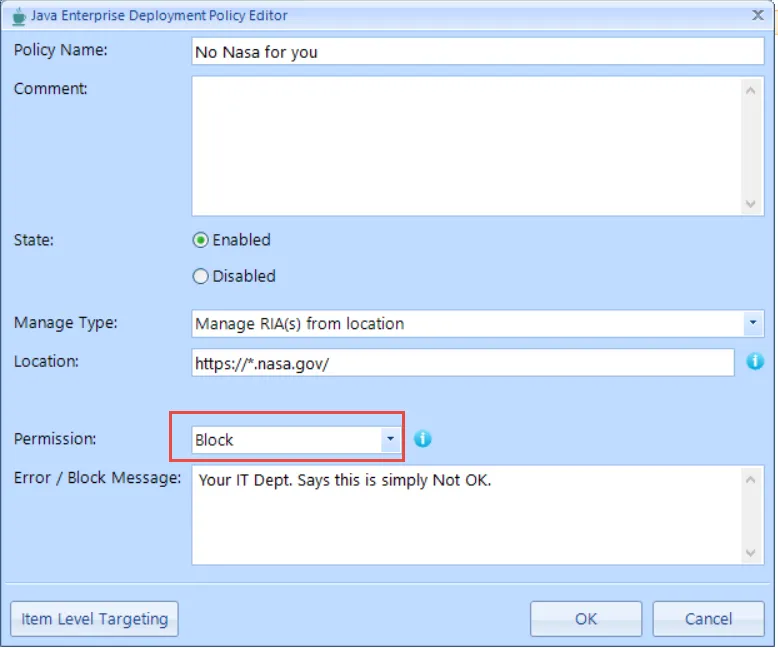
Step 6 – When complete, your entries will look like this:.
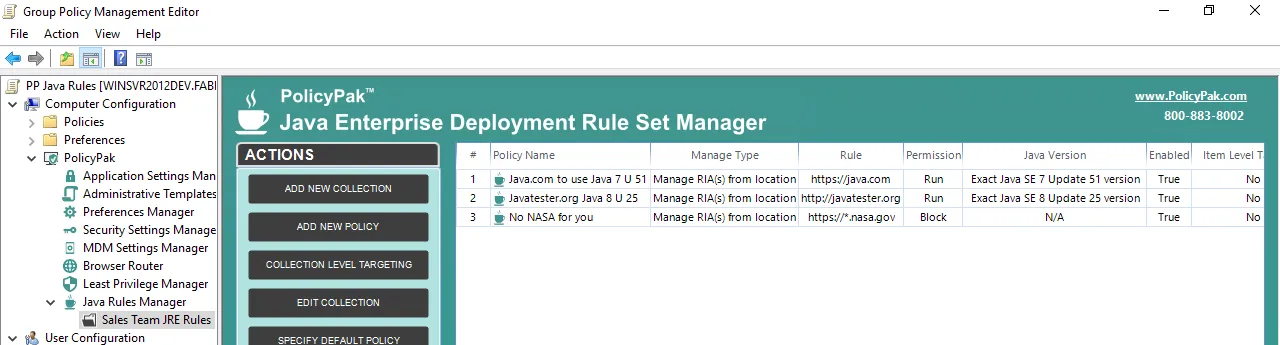
Here is what each column in the above figure means:
- Policy Name — This is the name you gave the policy. Default browser is always named Default Browser.
- Manage Type — The method to perform the mapping of the Java applet to the version of Java you want to use (explained in more detail later).
- Rule — In this example, this is the location/URL you chose to manage.
- Enabled (True/False) — A policy entry can be enabled, which means it will go to work. If you need to temporarily stop a policy entry from applying, you can disable it (set it to False).
- Item-Level Targeting (No/Yes) — We will describe this column later on in the section Using Item-Level Targeting with Collections and Policies.
- Comment — Any entry can have a comment option, which is used to explain why you made the decision.
Step 7 – On the endpoint, reboot the computer or run GPupdate so the GPO with the policies that affect the computer will apply.
Logging in as a test user will not work in this case since these PolicyPak entries are on the Computer side and are only processed when the computer is updated (at reboot or GPupdate).
Step 8 – Now try out PolicyPak Java Rules Manager by doing the following:
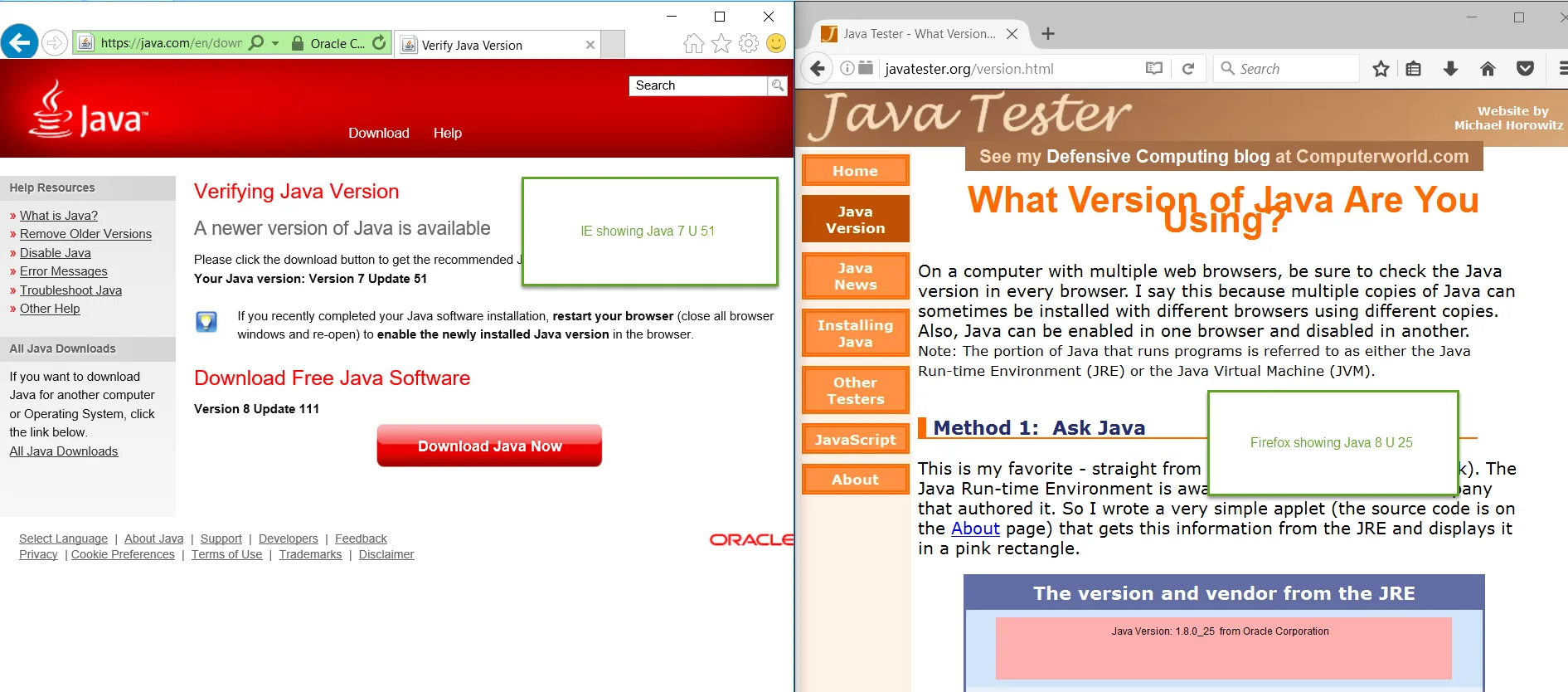
- Open Internet Explorer and visit java.com. Next, click Do I have Java? Instead of showing the latest version of Java installed on your machine, you should see that you have Java 7 U 51.
- Open Firefox and visit www.javatester.org. Then click Test this version of Java. You should see Java 1.8.0_25, that is, Java 8 U 25.
Step 9 – On either browser, visit https://atcsim.arc.nasa.gov/version/index.html. When you visit the NASA website, you will receive a prompt warning you that the web certificate is out of date and will be received (which is not related to Java). Continue to run the applet. The result is shown below.
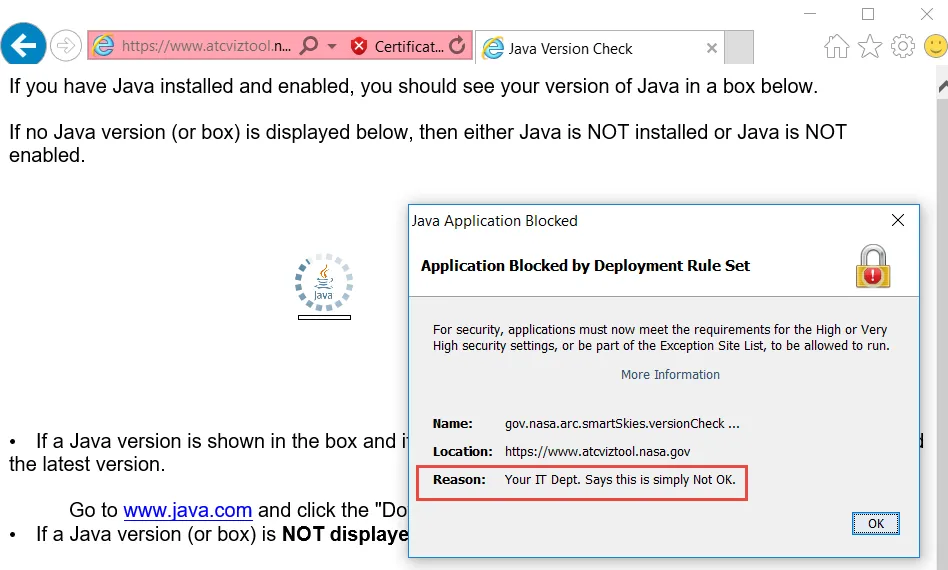
Step 10 – Click OK. Next, click the Error: Click for details message. When you do this, another message will pop-up.
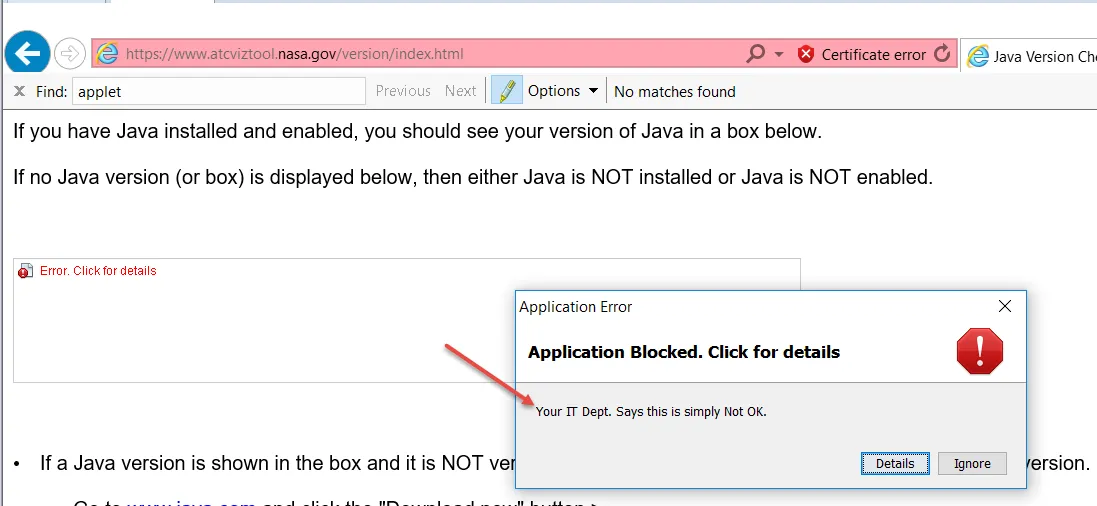
This ends the PolicyPak Java Rules Manager Quickstart, which demonstrated the power of PolicyPak Java Enterprise Rules Manager in the fastest amount of time. Note that prompts for various Java-related items might be received during your Quickstart. To overcome this, please see section on Overcoming Java Prompts.