Avoid Pop-ups with Admin Approval
You might find that end users report that the Admin Approval pop-up appears even if they do not click on anything.
See the Understand "Enforce Admin Approval for all installers" behavior video to learn how to avoid pop-ups with Admin Approval.
This will generally happen when two things are true:
- Enforce Admin Approval for all installers is set, as explained earlier.
- An application is already installed and attempting to perform an auto-update.
When an application is detected as an installer, even if a user doesn’t click on it, pop-ups may still come up.. Two examples of pop-ups that users might see, OneDrive and Java, are shown here.
There are two ways to overcome these messages:
Step 1 – Disable the product’s auto-update feature.
- Java: You can use PolicyPak Application Settings Manager to disable Java’s auto-update.
- OneDrive (shown on screen as "Windows Live"): You can stop its scheduled task updater service (see the [Core Technologies](https://www.coretechnologies.com/blog/miscellaneous/disable-onedrive- automatic-updates/) blog example).
Step 2 – Create a PolicyPak Least Privilege Manager rule to elevate the update program to permit the install to occur correctly.
There are two ways to determine which product and command line are triggering the Admin Approval, which we'll discuss in the next sections, along with how to make rules to bypass these pop-ups.
Using PolicyPak Operational Logs to Find and Overcome Unwanted Pop-ups
The first way to see which applications are causing unwanted pop-ups is via PolicyPak
operational logs, as seen here. To find this log, go to Users\<username>\AppData\Local\PolicyPak
Least Privilege Manager, and open ppUser_operational.log.
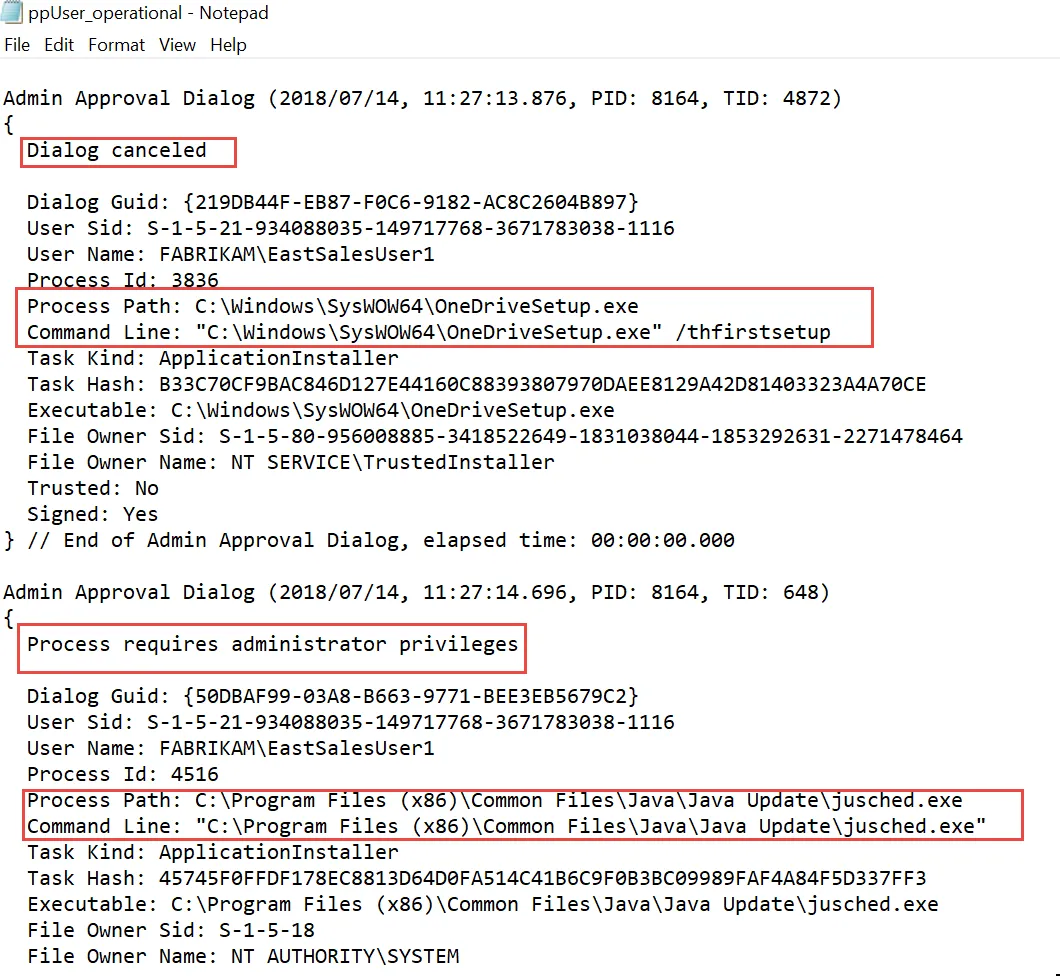
Some applications may have different ways to self-update, possibly calling more than one upgrade application. Thiscould result in more than one pop-up. Be sure you are noting them all before you proceed.
Using PolicyPak Event Logs to Find and Overcome Unwanted Pop-ups
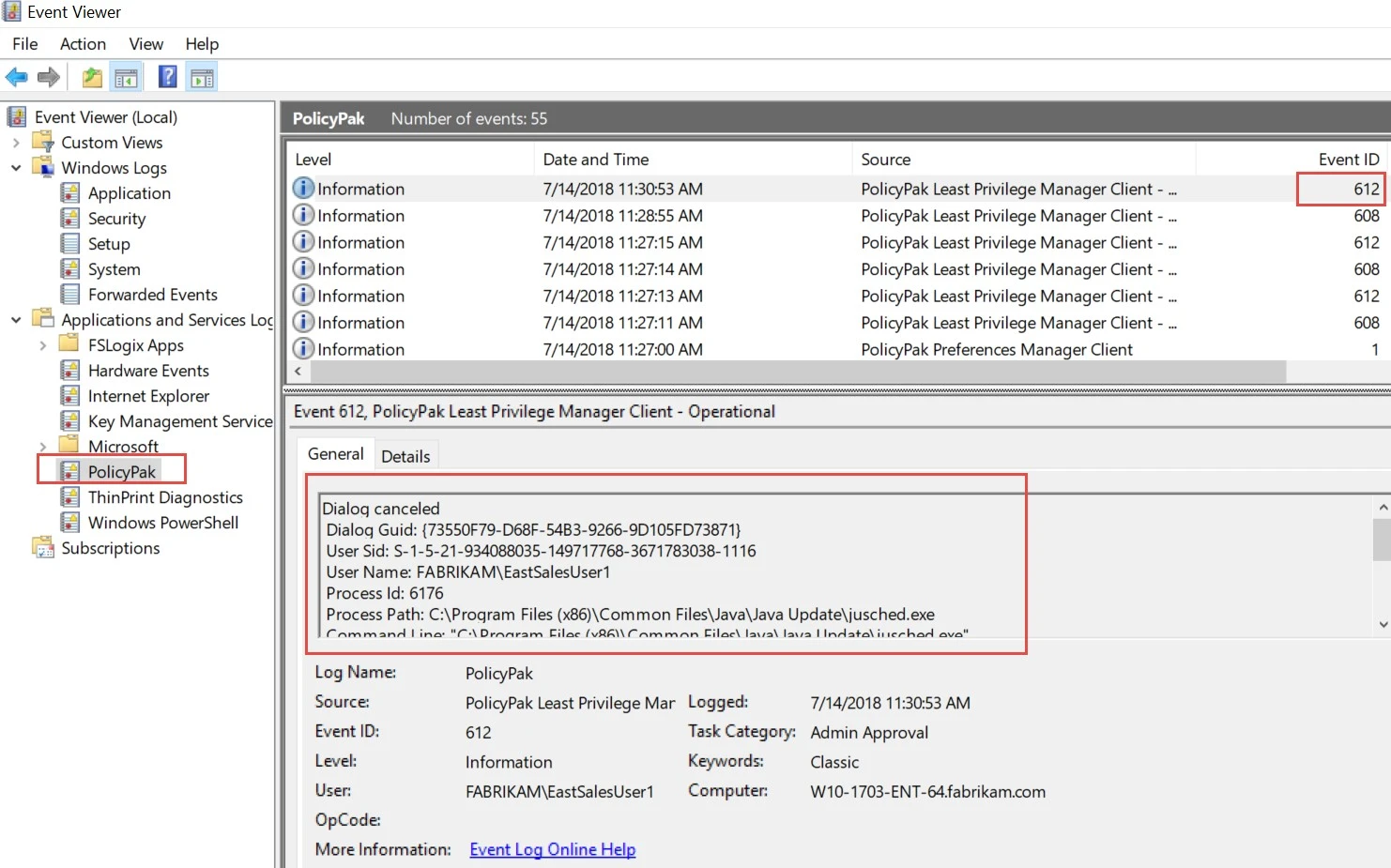
You can get similar information from the PolicyPak event logs, which are found in the Application and Services Logs > PolicyPak. An event will appear showing canceled dialogs, like the one shown here.
There is more information on using Event Viewer with PolicyPak at the end of this guide, with specific event IDs to search for.