Testing Admin Approval
Now log on as a Standard User and try to run an application that requires admin rights, like PowerPointViewer installer, provided there isn't a rule in place that will elevate this application. The user sees a Request Code (also called a Challenge Code), as shown here.
The user needs to present this Request Code, typically over the phone, to an Admin who can create a Response Code.
If you (the admin) are on the machine, you may use your credentials by clicking the Approve with alternate Admin Credentials.
You can run the Admin Approval Tool in three ways:
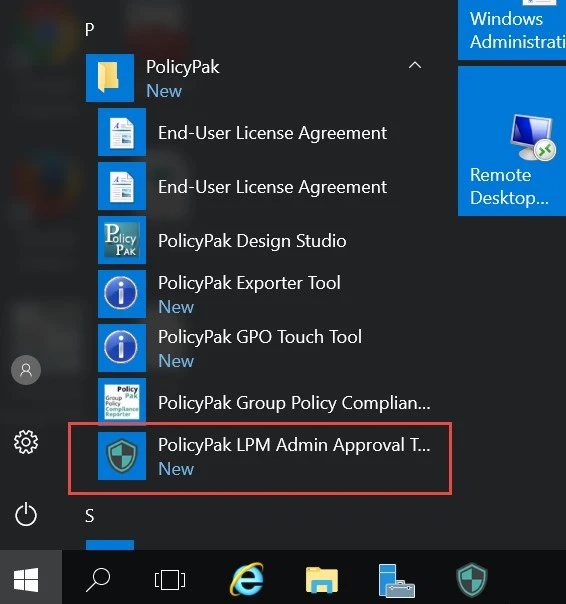
- As a standalone tool in the Extras folder from the PolicyPak download (shown here)
- Directly from a machine where the PolicyPak MMC Admin console is installed
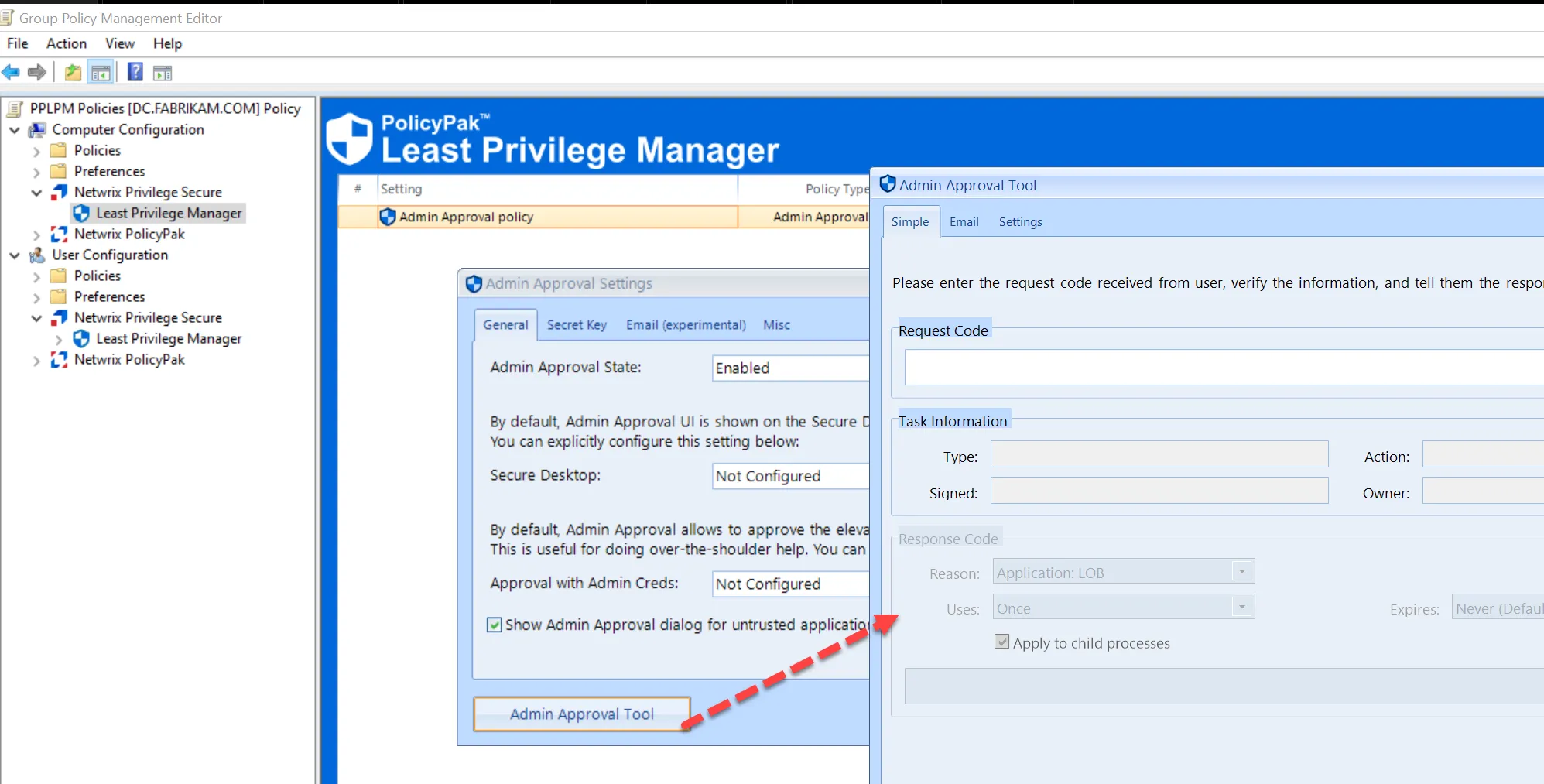
- Directly from within a GPO
Here, you can see the PolicyPak Least Privilege Manager Admin Approval Tool running from the PolicyPak Extras folder. Running it for the first time on any Admin’s machine requires you to enter the same secret key from the GPO you used earlier.
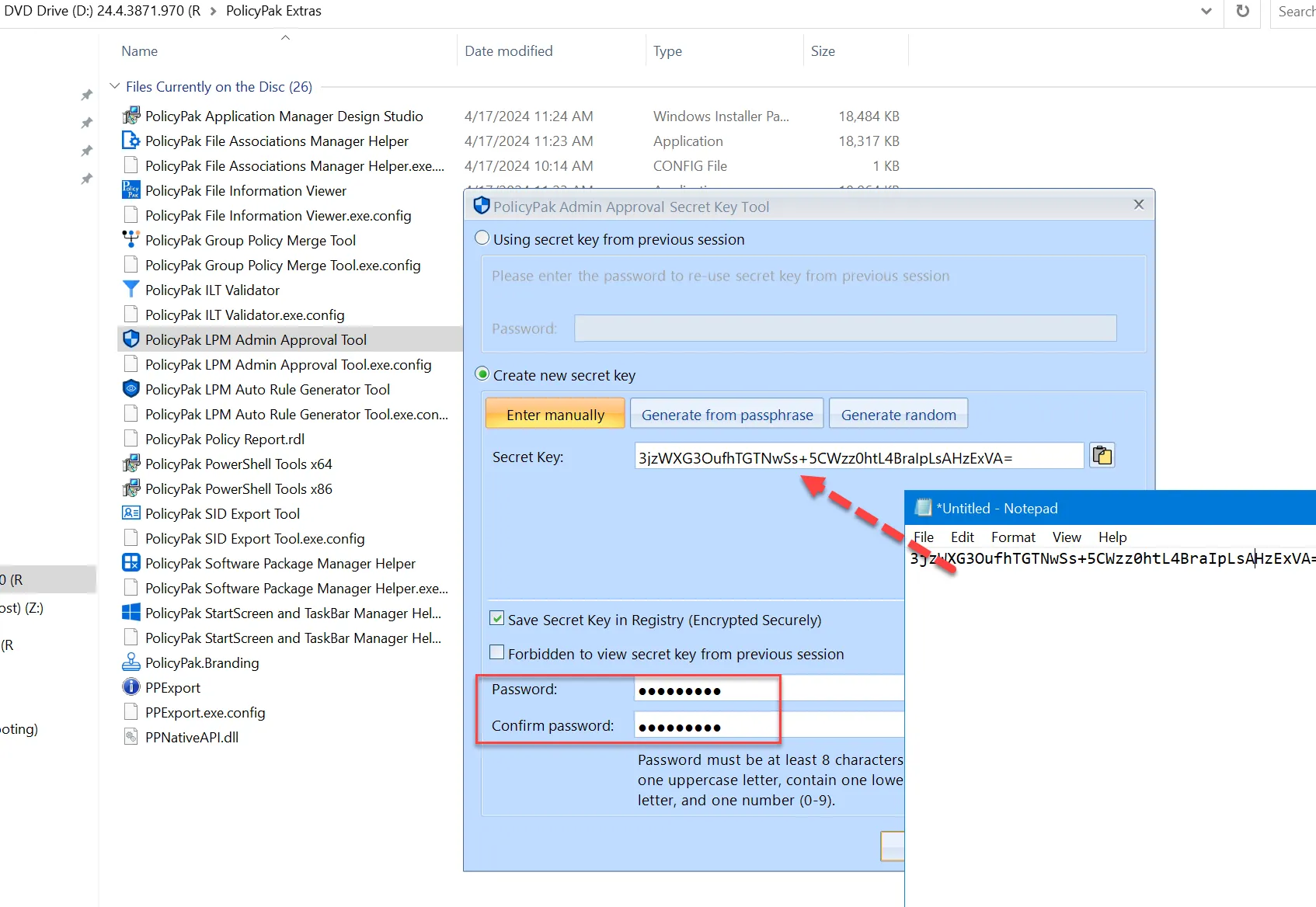
You can save the secret key in the Registry of this Admin’s machine, secured with his own encrypted password. You could also require that the key can't be viewed ever again when this tool is run by choosing Forbidden to view secret key from previous session.
If you ever need to fully reset the PolicyPak Admin Approval Tool,
open the Admin machine from which the tool was run and use regedit.exe to
remove the two keys located at HKEY_CURRENT_USER\SOFTWARE\PolicyPak named GlobalSecurityKey and
GlobalSecurityKeyChecksum.
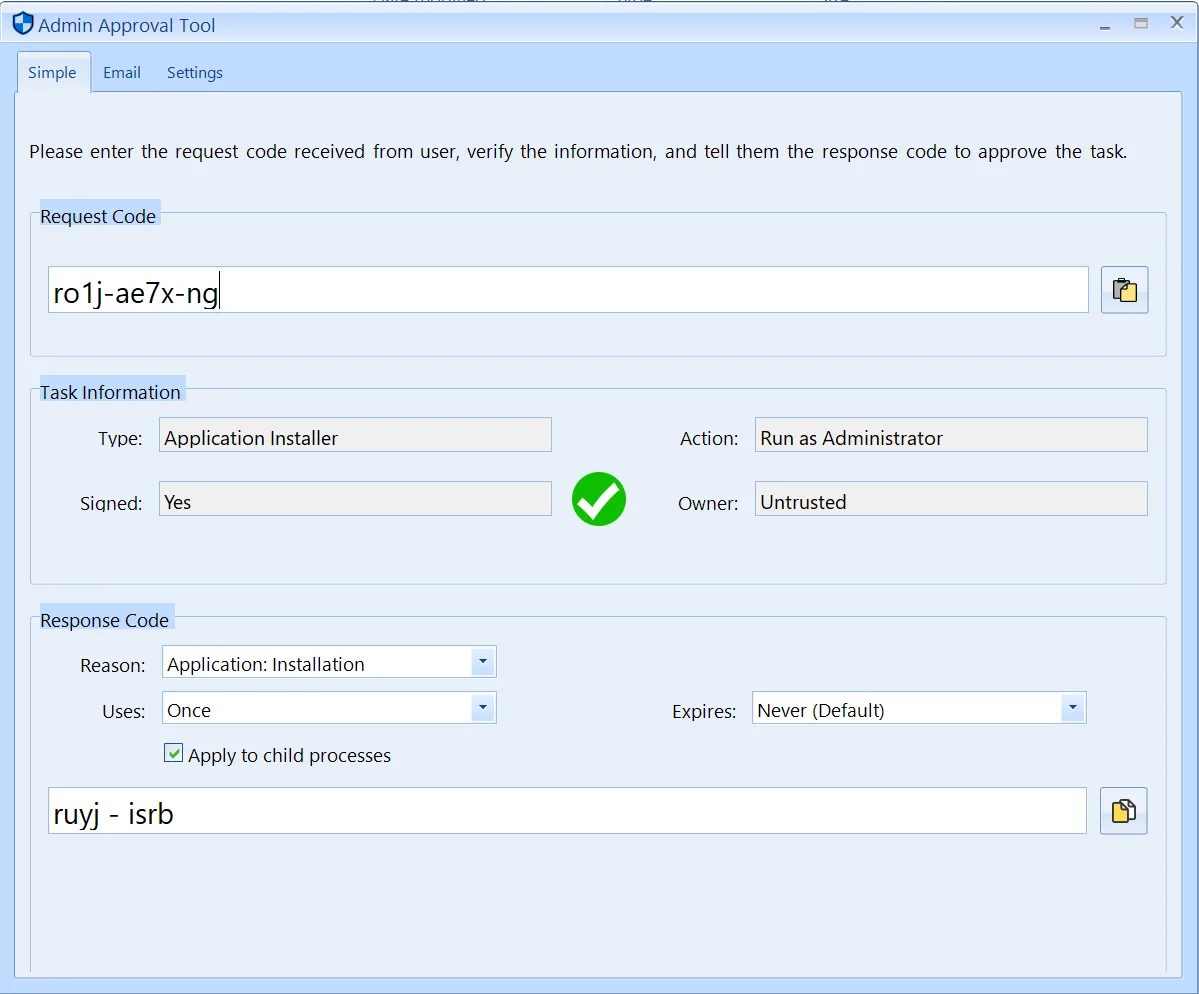
After you click OK, you’ll be in the main Admin Approval Tool, seen here. Here is where you can accept the Request (Challenge) Code from the user and return a Response Code. Type in the Request Code, then pick the option that makes sense. The items you can specify are:
- Reason - Select the reason code (of which several are hardcoded into PolicyPak).
- Uses - Decide if you want the code to be used once, 5 times, 10 times, or an unlimited number of times.
- Apply to child processes - Decide if you want the application to be able to launch child processes as Admin.
- Expires - Choose if this code will expire in 10 minutes, 1 hour, 12 hours, or never.
- Action - Choose how the approved application launches on the endpoint. See The Admin Approval Tool Action Dropdown.
The Admin Approval Tool may be branded. See the section Branding and Customization in this guide.
The Admin Approval Tool Action Dropdown
When an administrator uses the Admin Approval Tool to respond to a user's request code, the tool includes an Action dropdown that controls how the approved application launches on the endpoint.
The Action dropdown contains two options:
| Option | Behavior |
|---|---|
| Allow | The application launches without elevation, using its normal, unelevated security context. |
| Run as Administrator | The application launches elevated, regardless of whether a Least Privilege Manager elevation rule is in place. |
Default Behavior
The Action value isn't fixed to a single default. When you enter a valid request code, the Admin Approval Tool inspects the underlying task and pre-selects Run as Administrator if the task requires elevation or has enforced elevation, otherwise it pre-selects Allow. Review the pre-selected value before assigning the Response Code, and change it if you want a different outcome than what the tool suggests.
Compatibility
The Action dropdown is designed to be forward and backward compatible with the PolicyPak client-side extension (CSE), so administrators can use an updated Admin Approval Tool against endpoints running older CSE versions without breaking the approval workflow. Older CSE versions process the response code as a standard approval, equivalent to Allow.
After filling in these options, assign a value to the Response Code and the application will launch.
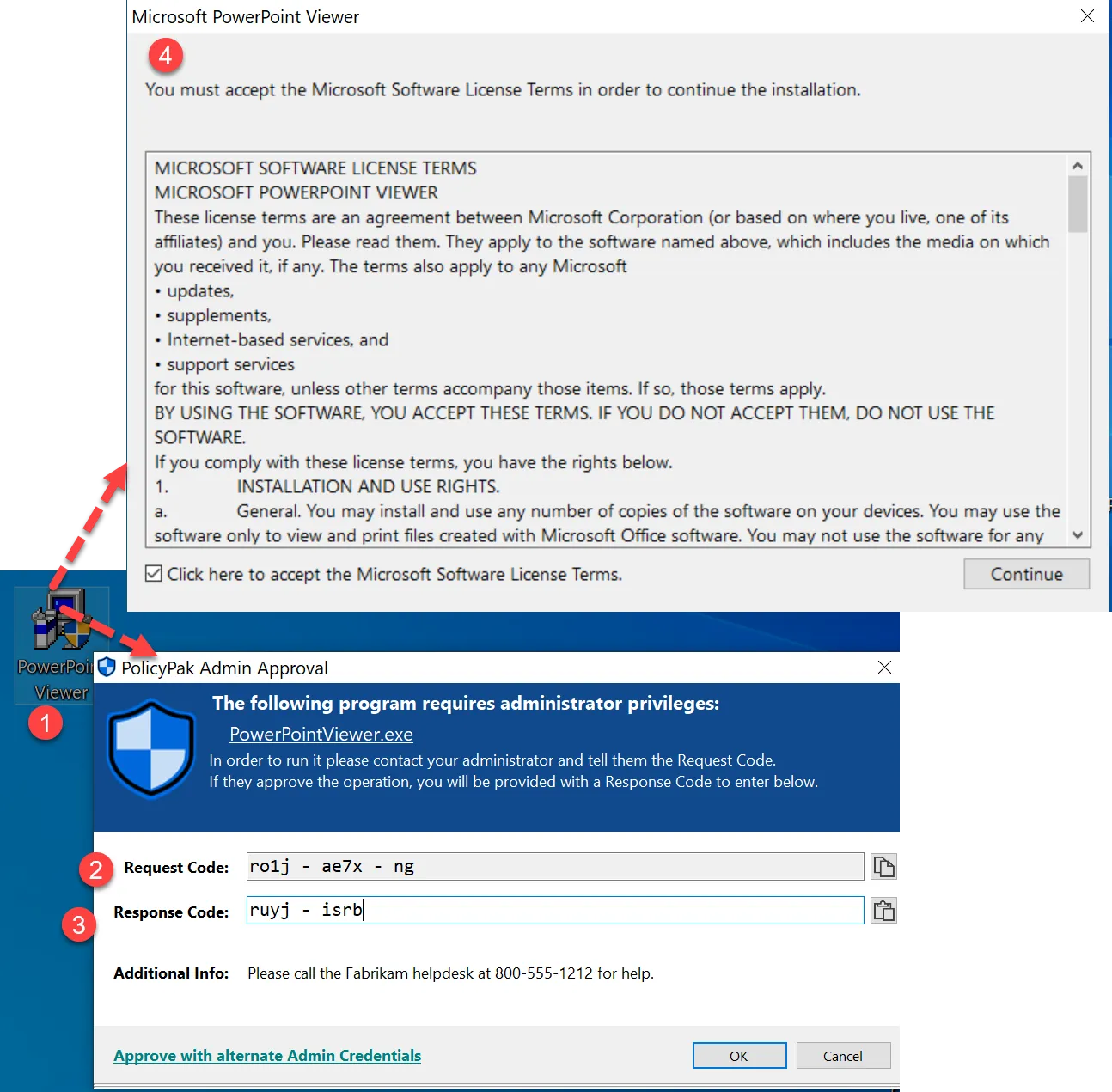
In this example, you set the code to be used one time, so if the user tries to rerun the same application, PolicyPak prompts them again.
Remember that an admin can run the Admin Approval Tool if the PolicyPak MMC snap-in is installed.
You can also see and launch the Admin Approval Tool from within a GPO, provided you have the secret key inside the GPO, as seen here.