Least Privilege Manager Implementation QuickStart Guide
Netwrix PolicyPak Least Privilege Manager can help you remove your local admin rights across your environment. And the tool has a lot to offer. In this PolicyPak Least Privilege Manager Implementation Quickstart guide we will give you a basic action plan to get started, learn what applications and concerns you need to overcome, then generate rules to overcome those concerns.
You can use this guide if you’re planning to use PolicyPak with On-Prem Active Directory and GPOs (Group Policy Objects), an MDM service like Intune or with PolicyPak Cloud.
Some customers will be starting from a point where many/most end-users are still running with Local Admin Rights. But others customers have already removed Local Admin Rights and working to overcome that scenario. This guide will work for either customer type.
Remember, as the phrase goes, “Rome wasn’t built in a day.” Your PolicyPak Least Privilege Manager project is expected to take a little bit of time to gather details, and be implemented in a steady manner that everyone can live with, both end-users and the IT team.
Installing PolicyPak MMC and PolicyPak CSE
Getting PolicyPak up and going is done quickly.
The PolicyPak Portal is where you download PolicyPak Bits and keys used for when using PolicyPak with On-Prem or MDM. You’ll even use the PolicyPak Portal a little for PolicyPak Cloud because you’ll need those downloads to make your perfect PolicyPak Cloud test lab (explained later.) That URL is Portal.policypak.com.
PolicyPak Cloud has its own URL, which is Cloud.policypak.com, and is considered the PolicyPak Cloud Service. Please see the Installation Quick Start for an overview of what is in the download, how to download, unpack, and get organized and quick licensed.
Here’s the PolicyPak QuickStart Guide with specific steps and ideas for PolicyPak with On-Prem Active Directory and GPOs, an MDM service like Intune or with PolicyPak Cloud: Netwrix PolicyPak Quick Start
When done you will have the PolicyPak MMC Console installed, your endpoints prepared and be ready to go.
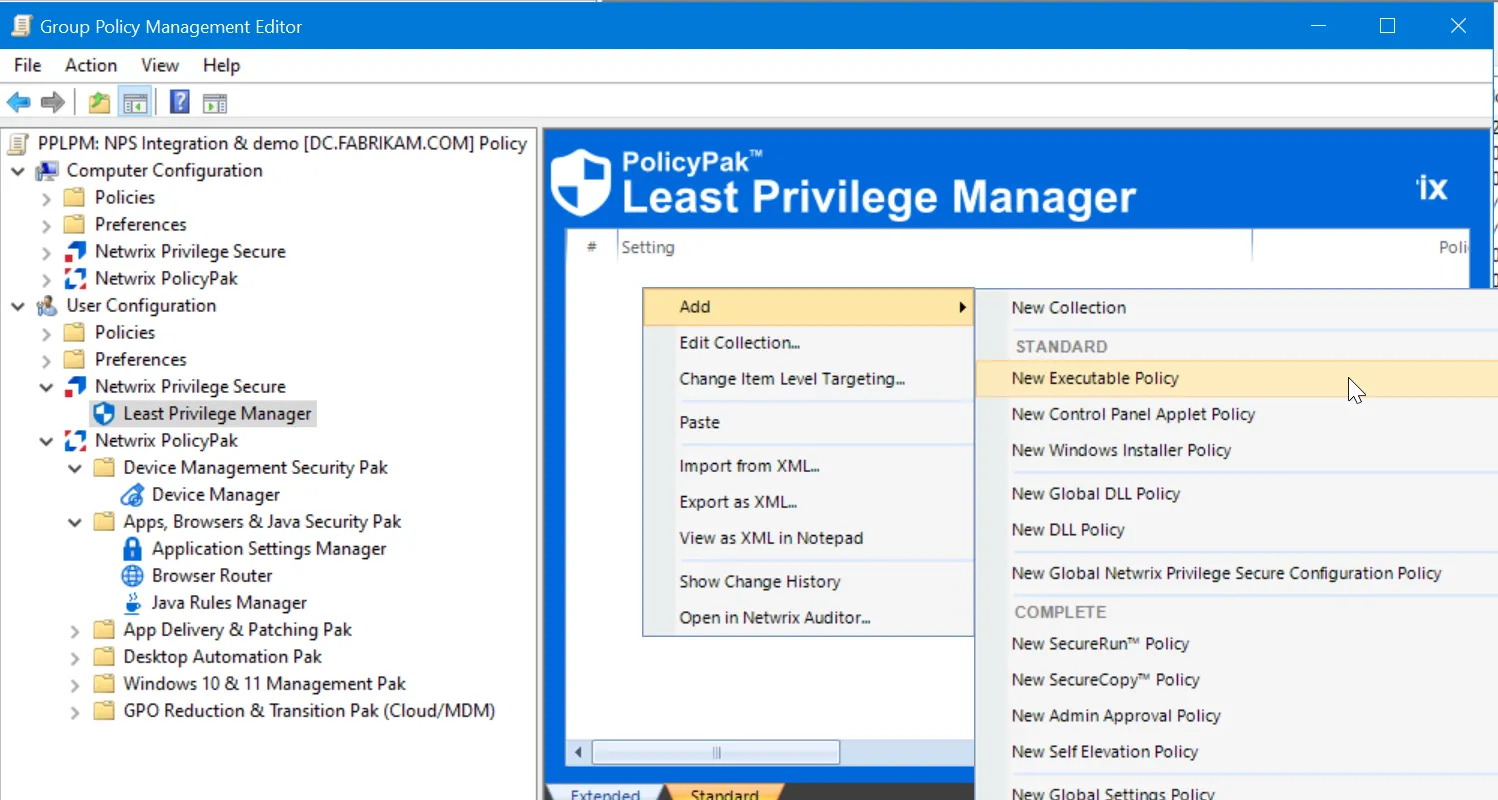
If you’re confused about which method you want to use to get PolicyPak policies deployed (GPO, MDM or Cloud) this video can help you make an informed decision: PolicyPakSolution Methods: Group Policy, MDM, UEM Tools, and PolicyPak Cloud compared.
Licensing some trial machines (or many machines) for Least Privilege Manager and other PolicyPak Components
The PolicyPak CSE on the endpoint only works when it is licensed. It is automatically licensed when a license from PolicyPak Cloud is issued. However, if you are using Active Directory&GPOs or an MDM service like Intune, you will need to enable PolicyPak licensing on those machines.
It’s easy to put one or a few machines into Trial mode with PolicyPak without a license. For more information on this, please see these steps: What is the fastest way to get started in an PolicyPak trial, without running the License Request Tool?
If you need to request a license, please follow the steps outlined in this video: How to Request Licenses fromPolicyPak by Creating a "License Request Key"
If you have a trial or full license for PolicyPak and you wish to deploy it to all your computers, please follow these steps: How to install UNIVERSAL licenses for NEW Customers (via GPO, SCCM or MDM)
(Optional, Recommended) PolicyPak Cloud or PolicyPak via MDM Test Lab Creation
Working within PolicyPak Cloud itself, you can generally create nearly all the policy types you will need with the in-cloud editors. However, there will always be some policy-creation areas that are only accessible using the MMC.
As such we recommend that if you’re using PolicyPak Cloud, that you create a small-scale on-prem test lab. This will accelerate your rule creation because you won’t need to create a rule and test in the cloud and then sync each time, which could be slower than creating them first in a small-scale on-prem test lab and then uploading those policies to PolicyPak Cloud.
Additionally, since there is no way to create policies for PolicyPak within an MDM service like Intune, having a small-scale on-prem test lab is required.
For a video review on how to get organized and create a small-scale on-prem test lab to use in conjunction with PolicyPak Cloud or PolicyPak alongside an MDM service like Intune, see: PolicyPak Cloud: What you need to get Started
(Optional, Recommended) PolicyPak with an MDM service like Intune “Walk before you run.”
If you’re using PolicyPak with an MDM service like Intune, you will also need some kind of management station and to pre-test your MDM license before you get going.
The best place to start for these instructions is here: Video Learning Center
Additionally, get to know the details of how to create PolicyPak Least Privilege Manager XMLs, export them, and wrap them up into MSIs for deployment with any MDM service with this video: Using Least Privilege Manager with your MDM service
Least Privilege Manager “Base Hits” / “Walk Before You Run”
You’ll want to make sure PolicyPak, and specifically PolicyPakLeast Privilege Manager is licensed, working, and accepting rules. To verify that PolicyPak Least Privilege Manager is licensed and accepting rules, watch the video below and perform a PolicyPak Least Privilege Manager Control Panel Rule for “Device Manager.” Again, you don’t need to perform the other steps in this video, you just want to verify that Device Manager can be overcome when PolicyPakLeast Privilege Manager is engaged. Remember to test this step as a proposed end-user who is running as a Standard User and doesn’t have Local Admin Rights.
Video: Kill Local Admin Rights (Run applications with Least Privilege)
Setting up Common Scenarios Most Customers need right away
If you are already running without Local Admin Rights, the top requests we get are to enable customers to perform:
- Printer installations
- Network Card Changes (DHCP vs. Static).
- Removing Installed Programs
As such we have some Helper Tools for these specific scenarios and pre-configured guidance to get them set up.
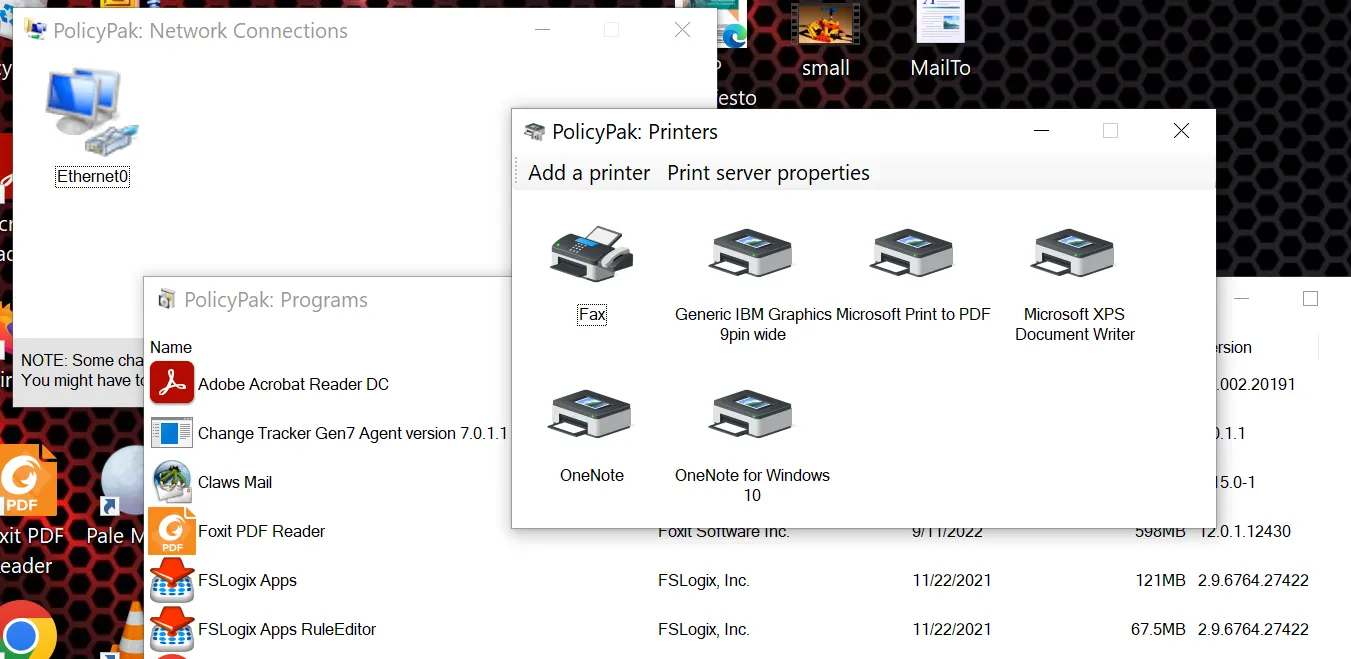
For an overview, please see Overcome Network Card, Printer, and Remove Programs UAC prompts and watch all videos in that section.
And because there’s an additional way to change Network Card Settings, you’ll want to also add an extra rule which you can learn how to do here: COM Support
(Optional, Recommended): Creating an “example machine” with applications you know you need to overcome and (Part 3B) using PolicyPak recommended rules
Of course, you have many machines out in the field where you want to remove local admin rights and use rules to replace them. However, if you also have the applications, you already know you need rules for, it is best to try these out in a test lab instead of relying on end-user machines and auditing events (explained later.)
So, on a test machineyou control, we recommend installing all the software you’d like to elevate and work around UAC prompts. Install the PolicyPak Client Side Extension on this machine. Because PolicyPak Least Privilege Manager doesn’t have any rules yet, the end-user software won’t work as expected and should present UAC prompts.
For more in formation on PolicyPak Least Privilege Manager Pre-Configured rules, and to to see how many you can use right away, without having to generate your own rules, please see Installing applications-and-Preconfigured-Rules
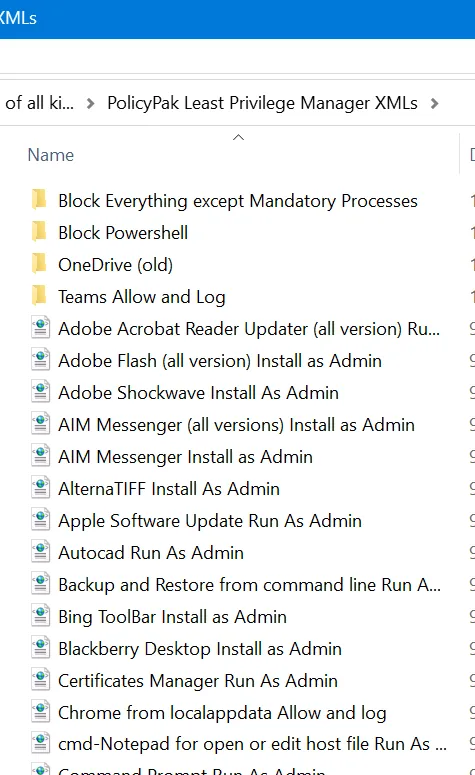
For the remaining applications where PolicyPak Least Privilege Manager doesn’t have pre-configured rules, you’ll have to create your own rules.
You need to get familiar with the Best Practices, so you don’t “over permission” your applications. Therefore, as you go to create rules for your remaining applications on your test machine, please be familiar with the following video content:
- Best Practices for Elevating User-Based Installs
- Security and Child Processes
- Increase security by reducing rights on Open/Save dialogs
- Least Privilege Manager and Wildcards
The more rules you can create to overcome your UAC prompts in these test machined, the easier it will be down the line, so users are only left with the UAC prompts you didn’t know about.
(Optional): Integration with Netwrix Privilege Secure
If you are already a Netwrix Privilege Secure customer, you might want to also tie in PolicyPak to Netwrix Privilege Secure. If you wish to perform these steps, please refer to this video: Netwrix Privilege Secure and the NPS/PolicyPak Client
Turn on Global Auditing & Discovery to generate Interesting Events
Now that you’ve got severalrules created, you should be down to only the items you don’t know about on endpoint machines. You can turn on Auditing & Discovery to generate interesting events when users run (or attempt to run) many applications with Local Admin Rights. The two items you should turn on for starters are below.
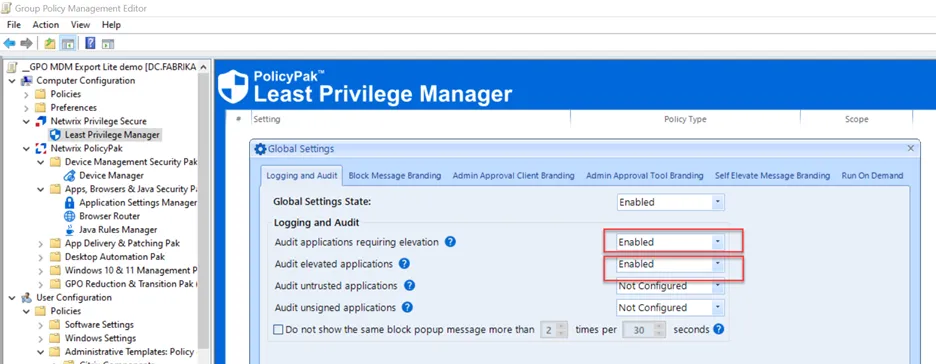
The way you do this is a little different from Group Policy vs. PolicyPak Cloud. We recommend getting familiar with Eventing in general, and then turning on Discovery. Additionally, you can Auto-Create Policy from Global Audit Events once you’ve learned which applications require elevation. For more information on this issue, please see: Events
Resulting events on endpoints look similar to an item like this:
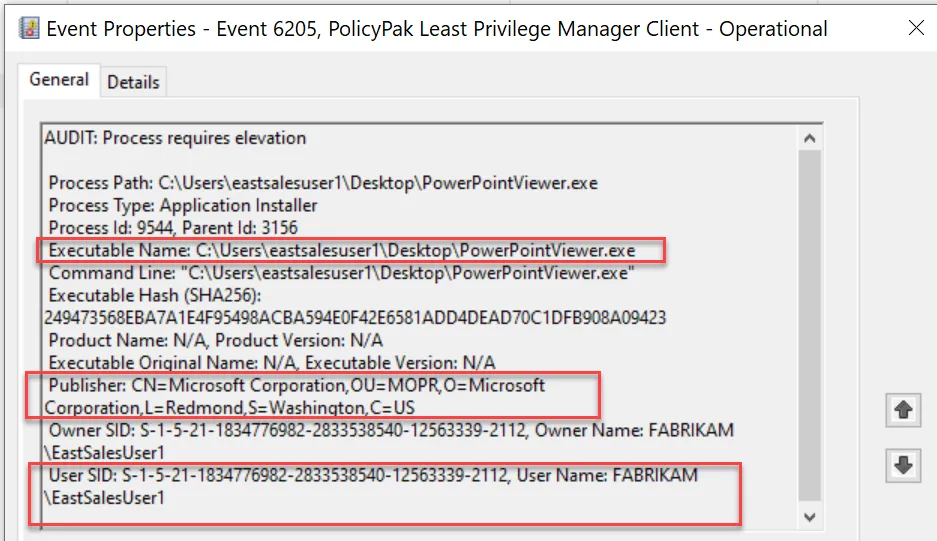
List of PolicyPak Event Categories and IDs:
- 6200 AUDIT - Process runs elevated. This event will show if the user has local admin rights
- 6205 AUDIT - Process requires elevation. This event will show if the User is a STANDARD USER (UAC Prompt)
- 6206 A COM object requires elevation - This event will show if the User is a STANDARD USER (UAC Prompt)
- 6207 An ActiveX installer requires elevation - This event will show if the User is a STANDARD USER (UAC Prompt)
(Optional, Recommended): Capture and Forward Events from Endpoints
If you are using PolicyPak Cloud, this is enabled automatically for you. However, you need to turn it on for each Cloud group. For more information on this issue, please see: PolicyPak Cloud + PPLPM + Events: Collect Events in the Cloud
PolicyPak Cloud Trailers and Customers get 24-hours of rolling logs stored. You can talk with PolicyPak Sales about how to increase the number of days stored in PolicyPak Cloud.
If you are already a Netwrix Auditor Customer, you can forward interesting PolicyPak Least Privilege Manager events from endpoint computers to Netwrix Auditor so you can take action. This is recommended if you already own Netwrix Auditor For more information on this, please see: How to use Netwrix Auditor to Report on PolicyPak events.
An example of the kind of data you get back can be seen here.
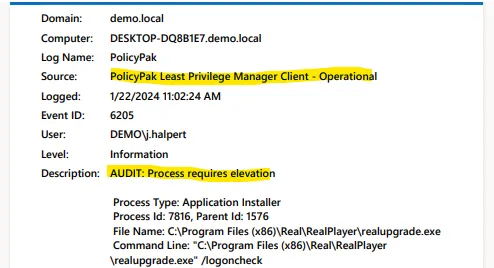
You may also use the in-box Windows Event System to forward interesting PolicyPak Least Privilege Manager events from endpoint computers to a central source. The steps to do this are found here: How to forward interesting events for Least Privilege Manager (or anything else) to a centralized location using Windows Event Forwarding.
You may also use Azure Log Analytics if you wish to store interesting PolicyPak Least Privilege Manager events from endpoints in Azure. For more information on this issue, please see: Windows 10 (and Server) Event Logs to Azure Log Analytics Walkthru.
Removing End-Users’ Local Admin Rights (if they still have them)
At this point, this guide has provided advice if you have already removed local admin rights and if your users are still running with Local Admin Rights. However, we often get the question of how to perform this as a bulk task to remove Local Admin Rights from end-users.
For information on how to perform this, please see Use Group Policy to remove local admin rights (then PolicyPak to enable Least Privilege). While you can remove end-users local admin rights all at once, we recommend you proceed gradually. This will avoid potential issues with an increase in requests for help as users may need access in some situations.
Generating Rules from Auditing Events
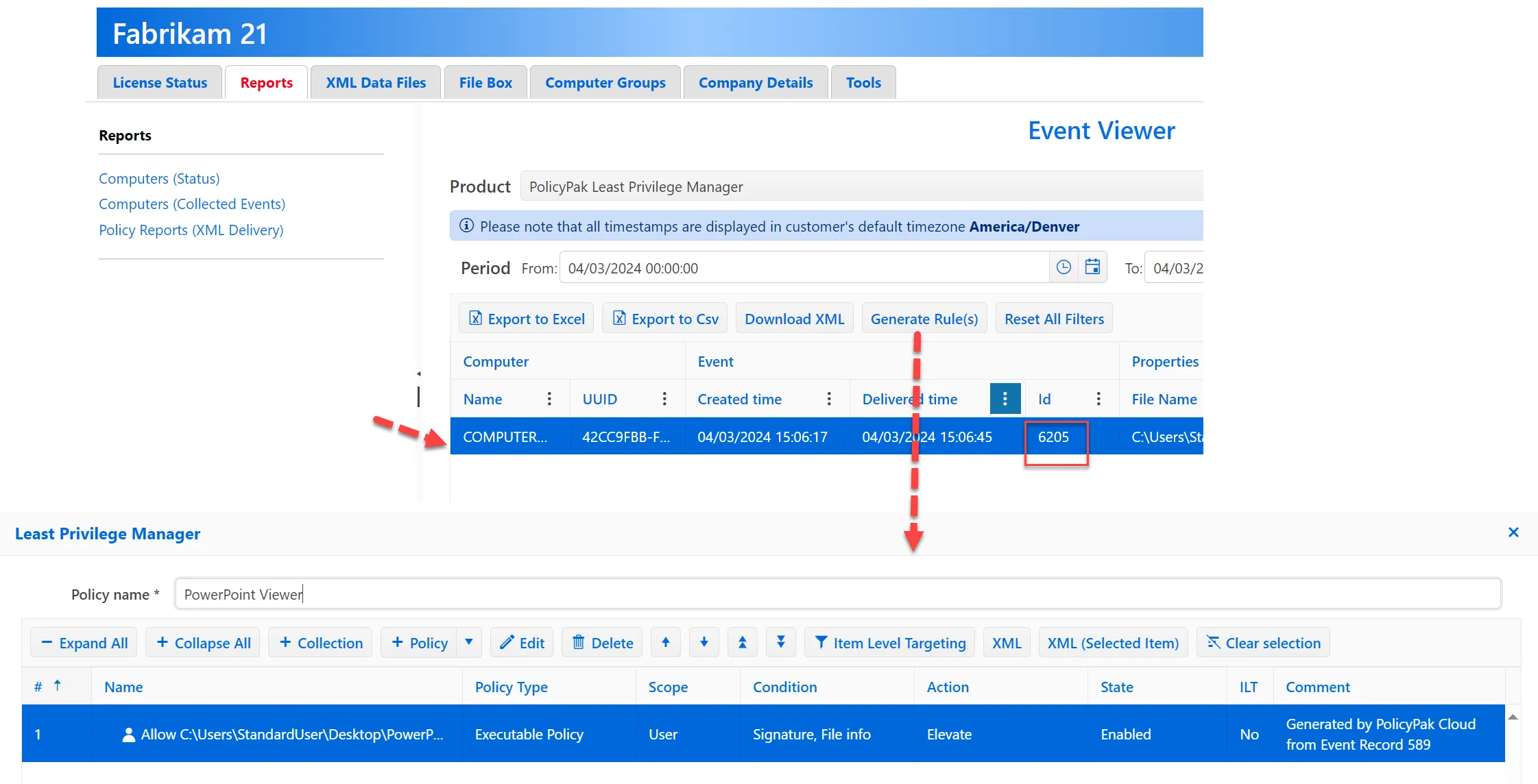
Once you have events generating on endpoints and you have access to those events (directly or via Event Forwarding, Netwrix Auditor, or another source), you can auto-create rules from those events.
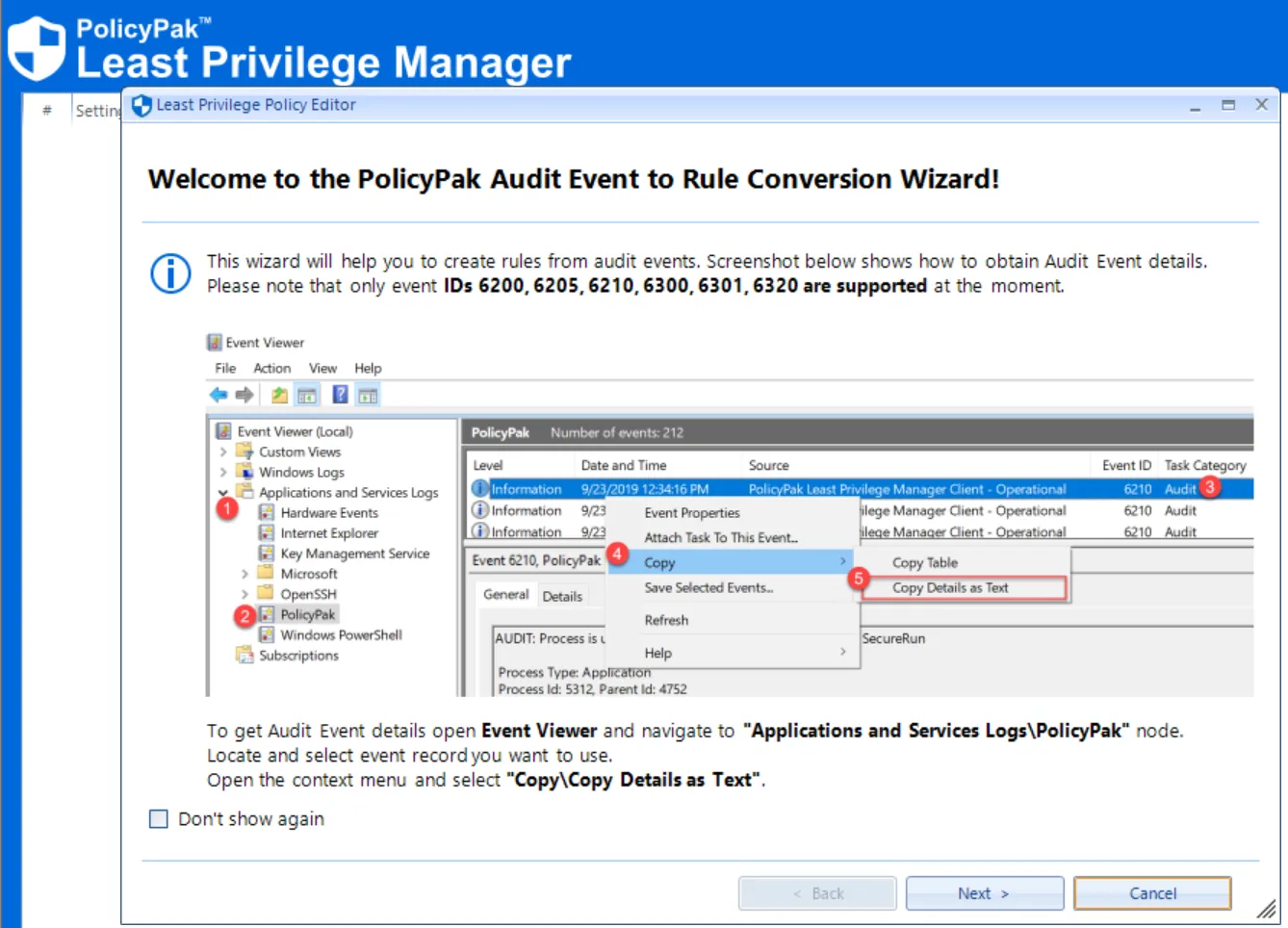
For details on how to do this on-prem, please see Auto-Create Policy from Global Audit eventAuto-Create Policy from Global Audit event
For details on how to do it with PolicyPak Cloud, please see PolicyPak Cloud + PPLPM + Events: Collect Events in the Cloud. Note there is a new (not shown in the video) Generate Rule(s) button in PolicyPak Cloud.
Turn on Admin Approval
You’ve already created the rules for the applications you know, and turned on Discovery Auditing for the applications you don’t know. However, you can also enable end users to be proactive and request one-time workarounds for UAC prompts without an automatic rule in place.
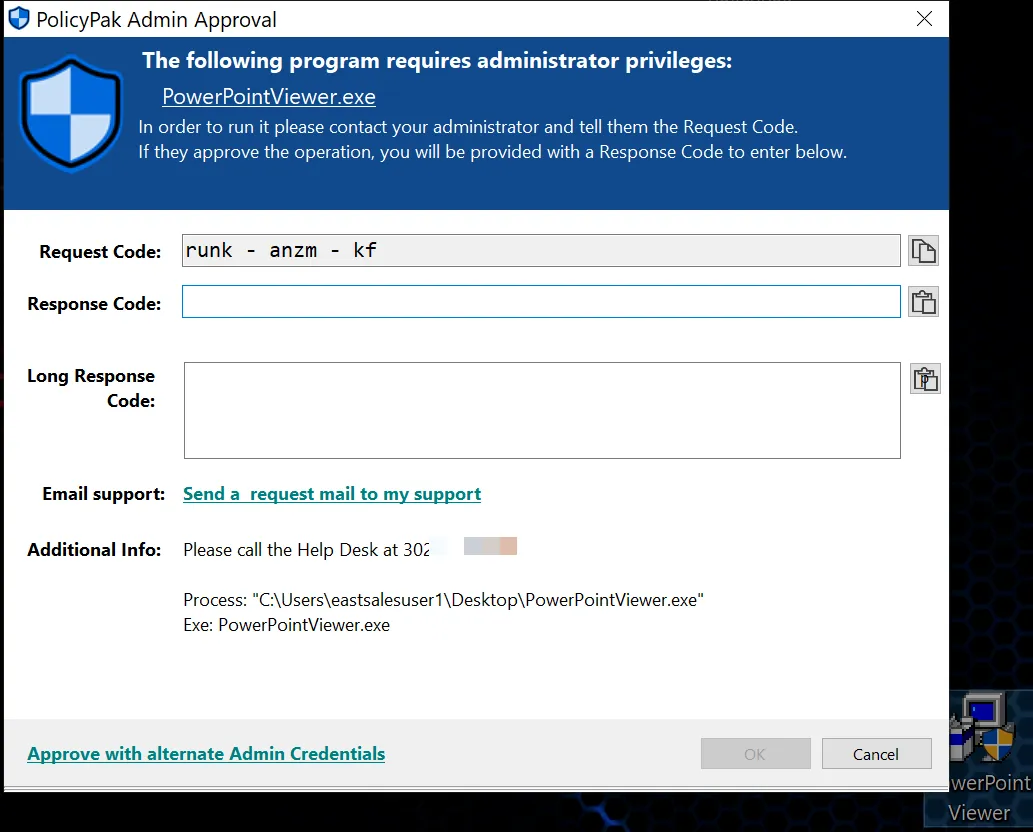
For more in formation on the PolicyPak Admin Approval feature, please see Admin Approval demo (all the videos in that section).
The goal is to minimize the times when users need one-off approval where you can implement automatic rules from the details you gather.
Set up Company Branding
Admin Approval and other PolicyPak Least Privilege Manager dialogs that appear to users can be branded with your company logo, colors, and text messages.
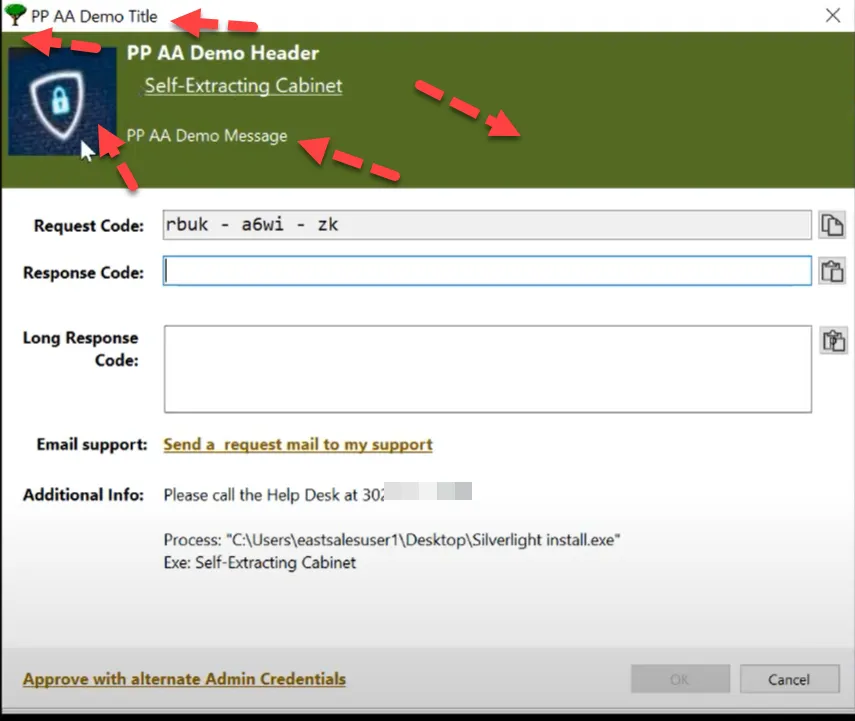
For more information on branding, please see Branding the UI and Dialogs.
(Optional): Turn on Self Elevate
Use PolicyPak Least Privilege Manager Self Elevate mode to overcome UAC prompts without requiring specific rules. This is useful if you want to take away local admin rights, but still give users the ability to "break the glass" if they have an emergency.
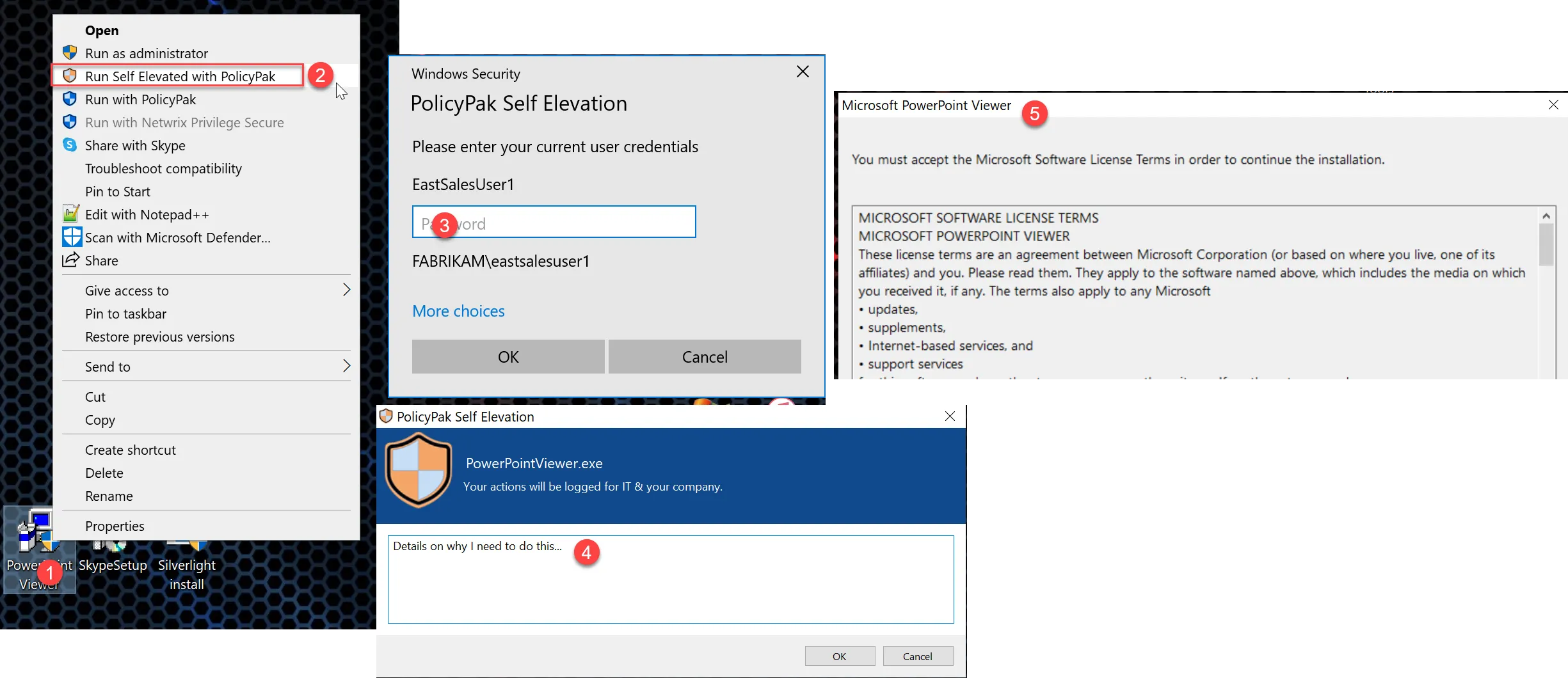
This technique isn't generally recommended due to a potential lowering of your security posture, but it can be especially useful in the right circumstances.
For more information see::
(Optional) Turning on PolicyPak SecureRun(TM)
PolicyPak Least Privilege Manager has built-in ransomware protection, blocking the user from downloading, and then running applications you didn’t sanction. When SecureRun™ is on, PolicyPak Least Privilege Manager checks to see who owns the file executable, MSI file, script, or Java JAR file. When users download files off the Internet or copy them from a USB flash drive, they own the file, and since they aren't on the SecureRun™ Members list, PolicyPak Least Privilege Manager will block all applications that you (the admin on the machine) didn’t install.
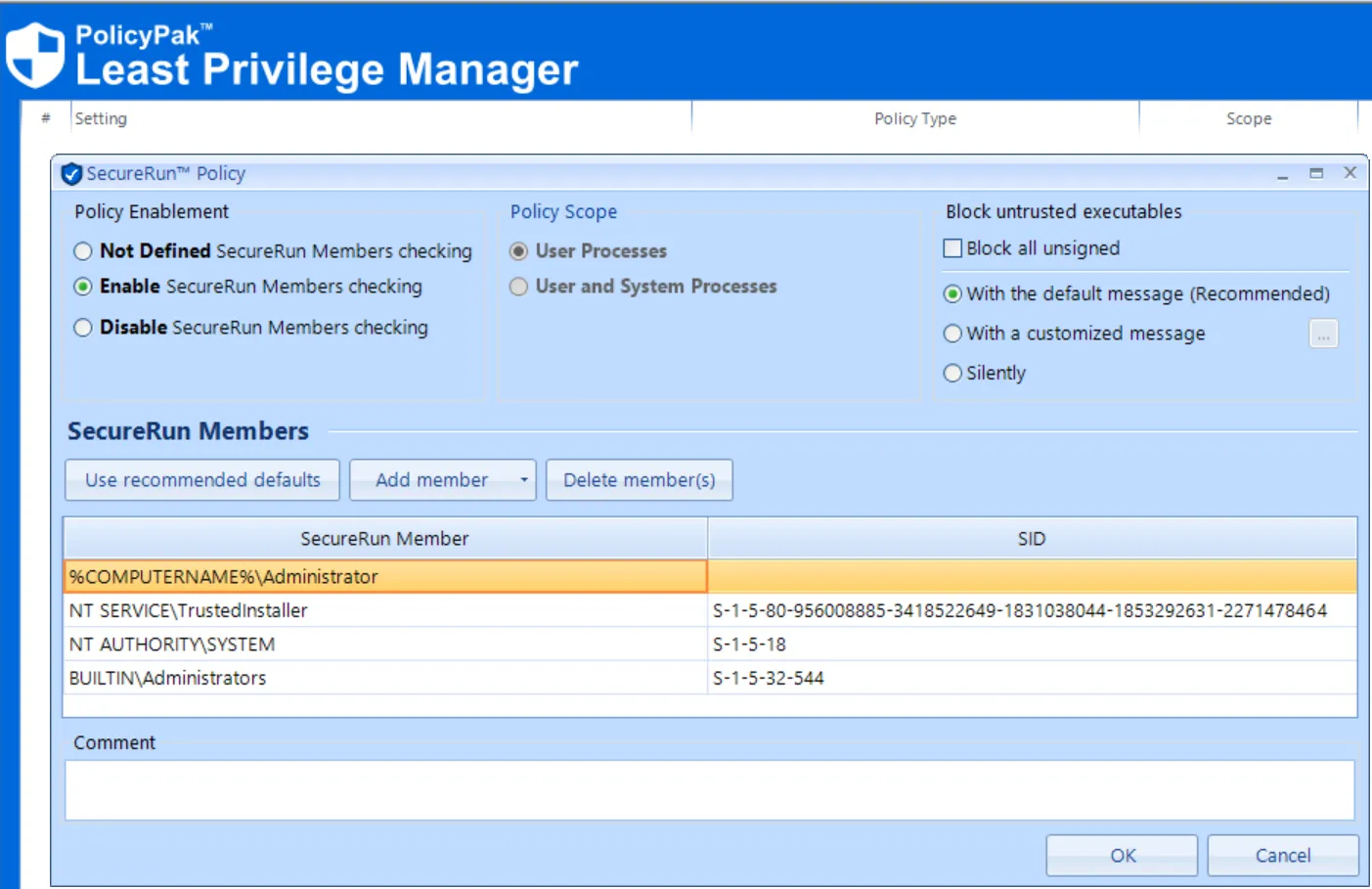
However, if users were accustomed to downloading their applications, when PolicyPak SecureRun is enabled you could get an increase in helpdesk calls from users unable to run applications they have installed.
In a previous step, you removed your users from the Local Administrators group if they were previously provided with full Local Admin Rights. But these unsanctioned, previously downloaded applications will still run (Until PolicyPak SecureRun is enabled.)
Before you fully enable PolicyPak SecureRun you can, once again, rely upon Global Audit Settings to alert you for untrusted applications. These are the ones not owned by the Computername\Administrator, the SYSTEM, TrustedInstaller, or other Administrators on the machine.
Refer to the Global Auditing step to re-enable these settings to turn on Events for Untrusted and optionally unsigned applications.
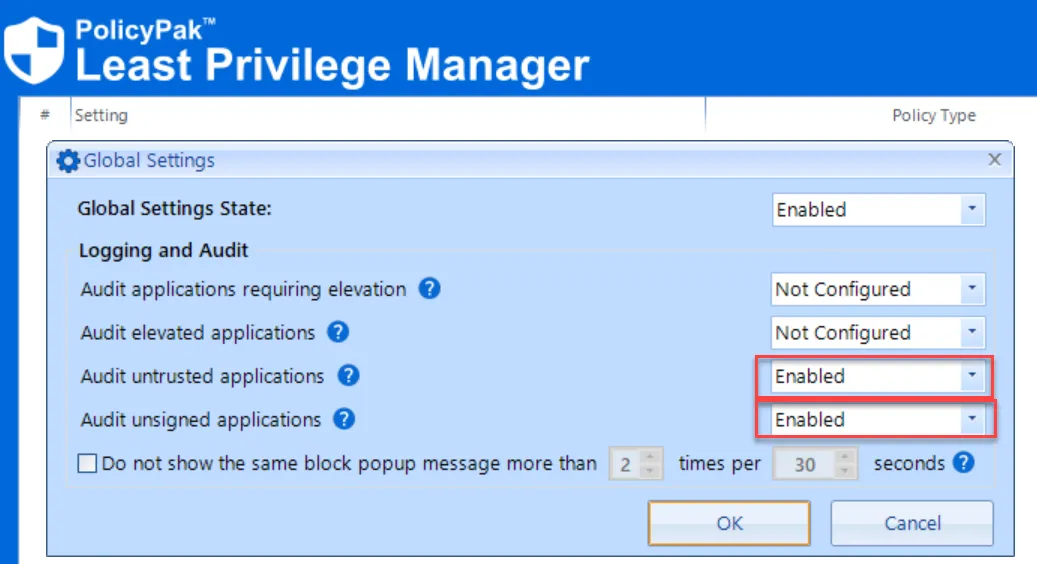
PolicyPak Least Privilege Manager Discovery Audit Policy Events Additional Notes
-
6210 AUDIT- Process is untrusted and would have been blocked by SecureRun. Helps with discovering user-based installs.
-
6215 - Executable is unsigned and would have been blocked by SecureRun Helps with discovering user-based installs.
Then you can investigate those Event IDs that come in and create Allow and Log actions. To learn more about how PolicyPak Least Privilege Manager SecureRun helps you keep ransomware and unknown applications at bay, but open up specific applications as needed with Allow and Log actions, please see Using Least Privilege Manager's SecureRun Feature
For general tips on how to use SecureRun™ please see How can I allow "Inline commands" blocked by SecureRun when a random path or filename is created each time?
Final Thoughts
This guide should give you the framework for getting your PolicyPakLeast Privilege Manager implementation up and rolling with PolicyPak.
The next sections have three appendices with project rollout steps (referring to videos and documentation we’ve mentioned here: one for Active Directory/Group Policy, one for PolicyPak Cloud, and one for PolicyPak with an MDM service like Intune.
If you need any help along the way, simply open a ticket at Netwrix Support and we’ll be happy to give you one-on-one attention to help you out.
Appendix A: Sample Least Privilege Manager Project POC Plan for PolicyPak with Active Directory / GPOs; removing local admin rights for 30 Developers
Estimated Milestone Details and Target Dates
| Milestone | Details & Tasks | |
|---|---|---|
| M1 Pre-Requisites |
| Day 1
|
| M2 Install PolicyPak CSE, common scenarios and known applications |
| Day 4 -6 |
| M3 Set up Event Forwarding |
| Day 7 -9 |
| M4 Begin Test |
| Day 10 |
| M5 Review Events |
| Day 11 |
| M6 Addition |
| Day 12 |
| M7 Review Events |
| Day 13 |
| M8 Make Rules | Make more Direct rules from 10 endpoints | Day 14 |
| M9 Addition | Add +5 endpoints to PolicyPak Active Directory OU and remove their local admin rights. | Day 15 |
| M10 Review Events | Look at EVENTS to determine the issues to make more direct rules. | Day 16 |
| M11 Addition | Add +5 endpoints PolicyPak Active Directory OU and remove their local admin rights. | Day 17 |
| M12 Review Events | Look at EVENTS to determine the issues to make more direct rules. | Day 18 |
| M13 Addition | Add +5 endpoints to PolicyPak Active Directory OU and remove their local admin rights. | Day 19 |
| M14 Review Events | Look at EVENTS to determine the issues to make more rules. | Day 20 |
| M15 Addition | Add +5 endpoints PolicyPak Active Directory OU and remove their local admin rights. | Day 21 |
| M16 Review Events | Look at EVENTS to determine the issues to make more rules. | Day 22 |
| M17 Remaining | Add Remaining endpoints to PolicyPak Active Directory OU and remove their local admin rights. | Day 23 |
| M18 SecureRun (Optional) | • Turn on Global Auditing for Untrusted and Unsigned applications. • Try turning on SecureRun for three developers. | Day 24 |
| M19 SecureRun Rollout (Optional) | Add +5 endpoints per day and triage incoming SecureRun blocks with “Allow and Log” rules. Repeat each day with +5 endpoints. | Day 25+ |
Appendix B: Sample Least Privilege Manager Project POC Plan for PolicyPak Cloud, removing local admin rights for 30 Developers.
Estimated Milestone Details and Target Dates
| Milestone | Details & Tasks | |
|---|---|---|
| M1 Pre-Requisites |
| Day 1-3 |
| M2 Install PPC |
| Day 4-6 |
| M3 Begin Test |
| Day 7-8 |
| M4 Review Events |
| Day 9 |
| M5 Addition | Add 7 more developer PCs to existing 3 and remove local admin rights using existing rules. (Don’t use Self elevate on new 7 endpoint, just the first three). | Day 10 |
| M6 Review Events |
| Day 11 |
| M7 Make Rules | Make more Direct rules from 10 endpoints. | Day 12 |
| M8 Addition | Add +5 endpoints to PolicyPak Cloud and remove their local admin rights. | Day 13 |
| M9 Review Events | Look at EVENTS to determine the issues to make more direct rules. | Day 14 |
| M10 Addition | Add +5 endpoints to PolicyPak Cloud and remove their local admin rights. | Day 15 |
| M11 Review Events | Look at EVENTS to determine the issues to make more direct rules. | Day 16 |
| M12 Addition | Add +5 endpoints to PolicyPak Cloud and remove their local admin rights. | Day 17 |
| M13 Review Events | Look at EVENTS to determine the issues to make more rules. | Day 18 |
| M14 Addition | Add +5 endpoints to PolicyPak Cloud and remove their local admin rights. | Day 19 |
| M15 Review Events | Look at EVENTS to determine the issues to make more rules. | Day 20 |
| M16 Remaining | Add Remaining endpoints to PolicyPak Cloud and remove their local admin rights. | Day 21 |
| M17 SecureRun Setup |
| Day 22 |
| M18+ SecureRun Rollout | Add +5 endpoints per day and triage incoming SecureRun blocks with “Allow and Log” rules. Repeat each day with +5 endpoints. | Day 23+ |
Appendix C: Sample Least Privilege Manager Project POC Plan for PolicyPak with an MDM service like Intune, removing local admin rights for 30 Developers.
Estimated Milestone Details and Target Dates
| Milestones | Details & Tasks | |
|---|---|---|
| M1 Pre-Requisites |
| Day 1-3 |
| M2 Install PolicyPak CSE, common scenarios and known applications |
| Day 4-6 |
| M3 Set up Event Forwarding |
| Day 7-9 |
| M4 Begin Test |
| Day 10 |
| M5 Review Events |
| Day 11 |
| M6 Addition | Add 7 more developer PCs to existing 3 and remove local admin rights using existing rules. (Don’t use Self elevate on new 7 endpoint, just the first three.) | Day 12 |
| M7 Review Events |
| Day 13 |
| M8 Make Rules | Make more Direct rules from 10 endpoints. | Day 14 |
| M9 Addition | Add +5 endpoints to PolicyPak group and remove their local admin rights. | Day 15 |
| M10 Review Events | Look at EVENTS to determine the issues to make more direct rules. | Day 16 |
| M11 Addition | Add +5 endpoints to PolicyPak group and remove their local admin rights. | Day 17 |
| M12 Review Events | Look at EVENTS to determine the issues to make more direct rules. | Day 18 |
| M13 Addition | Add +5 endpoints to PolicyPak group and remove their local admin rights. | Day 19 |
| M14 Review Events | Look at EVENTS to determine the issues to make more rules. | Day 20 |
| M15 Addition | Add +5 endpoints to PolicyPak group and remove their local admin rights. | Day 21 |
| M16 Review Events | Look at EVENTS to determine the issues to make more rules. | Day 22 |
| M17 Remaining | Add Remaining endpoints to PolicyPak group and remove their local admin rights. | Day 23 |
| M18 SecureRun Setup |
| Day 24 |
| M19 SecureRun Rollout | Add +5 endpoints per day and triage incoming SecureRun blocks with “Allow and Log” rules. Repeat each day with +5 endpoints. | Day 25+ |