DLL Hijack Protection
DLL Hijack Protection helps prevent attackers from exploiting how Windows loads dynamic link libraries (DLLs). Some applications load DLLs by name instead of full path. Windows then searches multiple locations — starting with the application's own folder. If that folder is writable by a standard user, a malicious DLL can be dropped in and executed by the application. DLL Hijack Protection detects and blocks these scenarios by inspecting DLL loads before they execute.
Enable DLL Hijack Protection
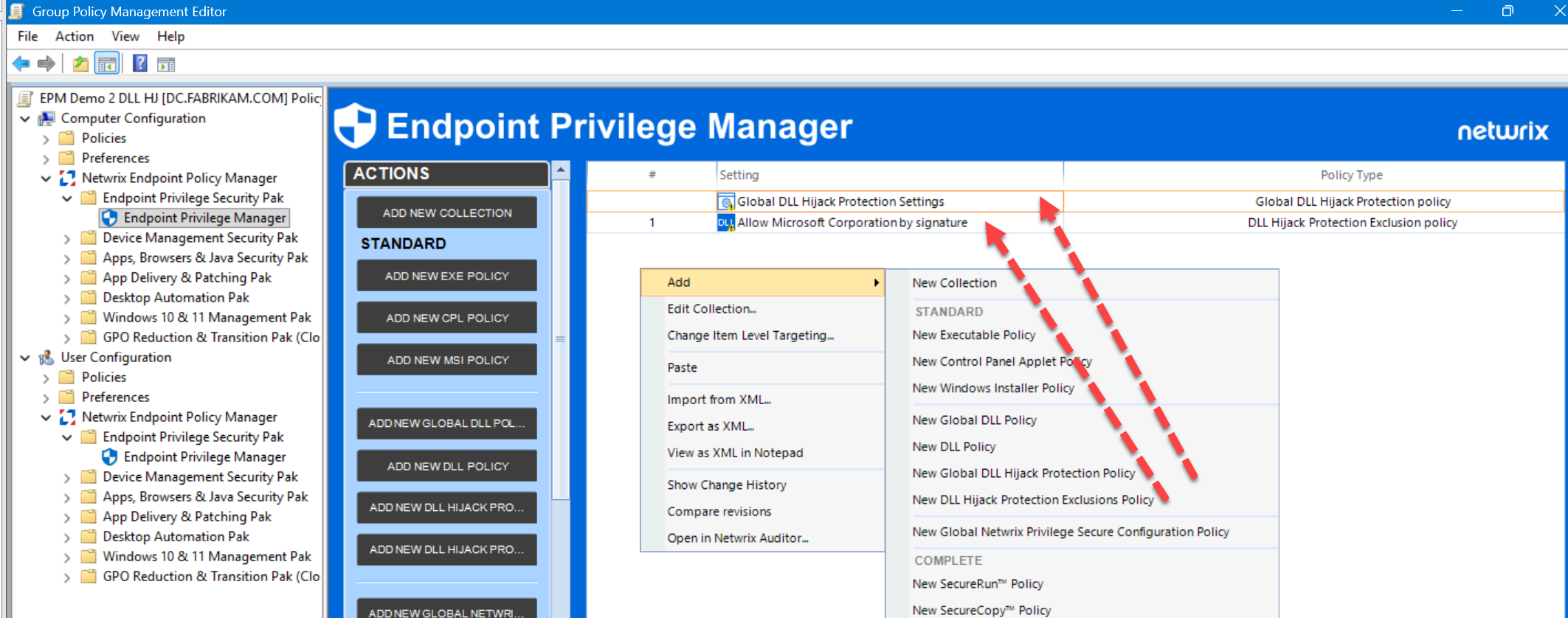
- Navigate to Group Policy Management Editor > Computer Configuration > Netwrix Endpoint Policy Manager > Endpoint Privilege Security Pak > Endpoint Privilege Manager.
- Right-click a collection and select Add > New Global DLL Hijack Protection Policy (or New DLL Hijack Protection Exclusions Policy).
- In the policy properties, select a Mode (see mode descriptions below) and add the appropriate identities to Approved Members.
How DLL Load Decisions Are Made
DLL Hijack Protection makes a decision based on three things:
- Does the policy apply to this process?
- Is the DLL load considered risky?
- Is there an exclusion that overrides the behavior?
Blocking occurs when the first two conditions are met and no exclusion applies.
When the Policy Applies
This depends on the selected mode:
Safe Elevated Mode
Applies only to elevated processes (running as administrator or SYSTEM).
Anti-Hijack Mode
Applies to:
- Elevated processes
- Standard processes running from trusted locations (e.g., Program Files)
What Makes a DLL Load Risky
A DLL load is considered unsafe when the DLL can be modified by a non-approved user — that is, a user not in the Approved Members list (described in the next section).
In practice, this means the DLL is located in a user-writable location. If this condition is met, the load is treated as suspicious and can be blocked.
Approved Members
The Approved Members list defines who is trusted to modify application files.
If a DLL can be modified by a user, and that user is not in the Approved Members list, the DLL load is blocked.
Purpose
Some identities are expected to modify files as part of normal operations:
- Administrators
- SYSTEM
- Trusted Installer
In production environments, you may also have:
- Software deployment tools
- Packaging accounts
- IT groups
The Approved Members list lets you explicitly trust those identities.
Default Behavior
| DLL writable by | Result |
|---|---|
| Only trusted/approved identities | Allowed |
| Any non-approved user | Blocked |
The Approved Members list directly controls what the system considers safe write access.
Exclusions
If a matching exclusion exists, the action is allowed — even if it would otherwise be blocked.
Exclusions can be based on:
- File path
- File hash
- Digital signature
Use Cases
- Legacy apps doing non-standard DLL loading
- Known safe behavior that doesn't conform to standard patterns
- Temporary exceptions during rollout
Actions
Deny Execution
Blocks the DLL load. Options:
- Default message (recommended)
- Custom message
- Silent (no user notification)
Allow and Log
Allows the behavior and logs the event. Primarily used during testing or phased rollout.
Audit Mode
Logs potential blocks without enforcing them. Use Audit Mode during initial rollout to assess impact before switching to an enforcement mode.
Logging Options
| Option | Description |
|---|---|
| Blocked & Allowed | Full visibility (recommended) |
| Do not generate events | No logging |
How It Works
When a DLL is about to load:
- Check if the policy applies (based on mode and process type).
- Check if the DLL is modifiable by a non-approved user.
- Check for any matching exclusion.
- Final decision:
- If risky and no exclusion → Blocked
- Otherwise → Allowed (and optionally logged)
Practical Examples
Example 1: Elevated app, unsafe DLL
- App runs elevated.
- DLL is in a user-writable folder.
- Folder is writable by standard users (not in Approved Members).
Result: Blocked
Example 2: Elevated app, IT-controlled folder
- DLL folder is writable only by the IT deployment group.
- Group is in Approved Members.
Result: Allowed
Example 3: Standard app from Program Files (Anti-Hijack Mode)
- App is launched from a trusted location.
- DLL is user-writable by non-approved users.
Result: Blocked
Example 4: Exclusion in place
- Same conditions as Example 3, but the DLL or EXE matches an exclusion.
Result: Allowed
Best Practices
- Start with Audit Mode (which logs potential blocks without enforcing them).
- Move to Safe Elevated Mode first (low risk, high value).
- Then enable Anti-Hijack Mode for broader protection.
- Carefully define Approved Members.
- Use exclusions sparingly — don't rely on them as a long-term fix.
- Keep logging enabled during rollout.
Known Considerations
- DLL Hijack Protection behavior depends on file permissions. Unexpected access control lists (ACLs) can cause blocks.
- Some legacy apps may require exclusions.
- If Endpoint Privilege Manager has not yet applied an elevation policy to a process, DLL Hijack Protection may treat that process as non-elevated. If you see unexpected blocks on elevated processes, confirm that the elevation policy for that application has been applied before DLL Hijack Protection evaluates it.