PolicyPak Network Security Manager
With Network Security Manager, you can restrict processes to communicate with specific IP addresses or DNS addresses. This increases the security of applications (or browsers) so end-users (or anonymous users) on the endpoints can't use programs to connect to unwanted network addresses.
Some examples of use are:
- Ensuring your Quickbooks client application only connects to your Quickbooks server (and not some rogue server)
- Ensuring specific browsers can only communicate with specifically named websites.
- Ensuring a networking app, like Telnet or WinSCP or FileZilla can only communicate and transfer files to specifically named servers.
Getting started with PolicyPak Network Security Manager
For an overview of this section, see this video: See PolicyPak Network Security Manager - The Basics topic for additional information.
Pick an application you want to restrict, like a browser (such as Edge, Firefox, PaleMoon, etc) or a networking application (like Telnet, WinSCP, etc.). Then pick the destinations you want to restrict that application to.
This example restricts the Edge browser to communicate only with www.Netwrix.com. Network Security Manager rejects all other communication.
Start by creating a GPO and linking it to where your computer objects are.
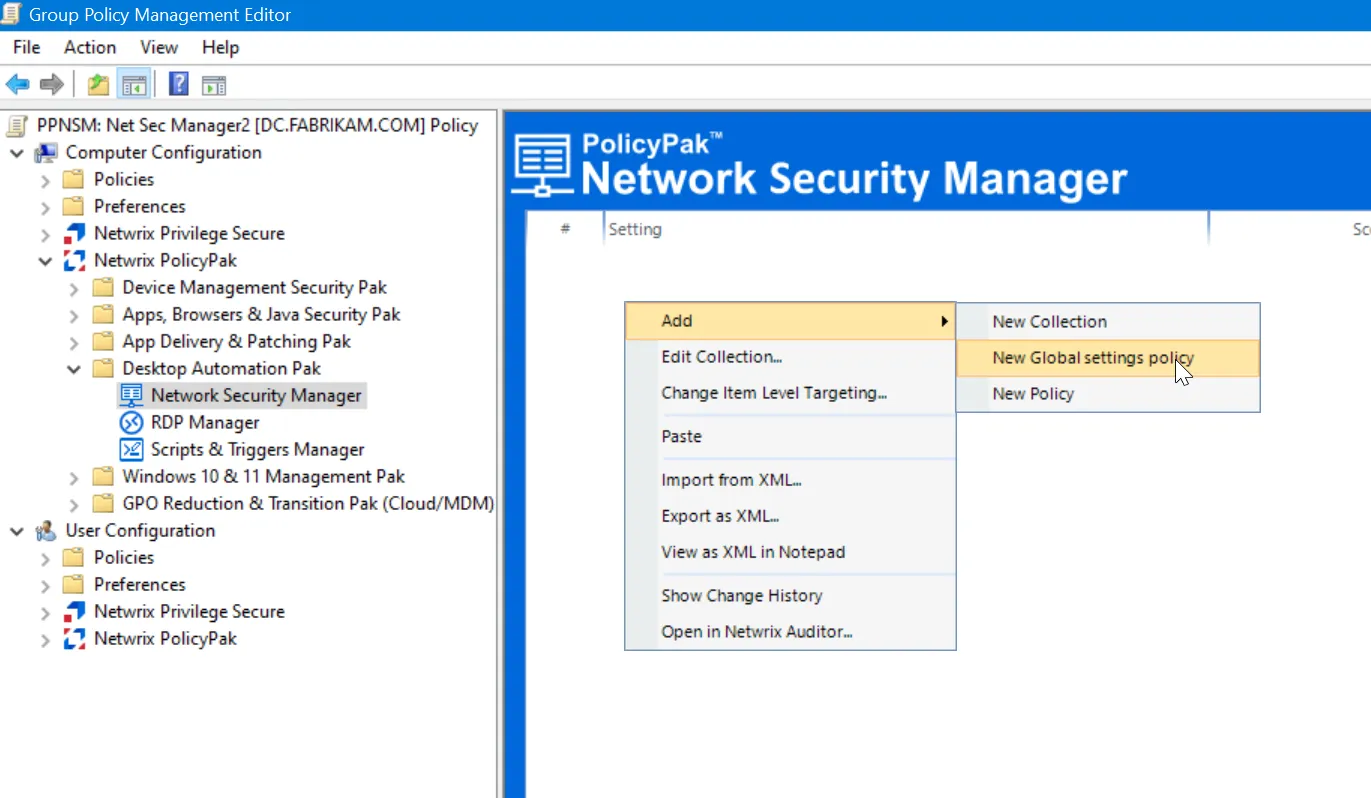
Then use Computer Configuration | Netwrix PolicyPak | Desktop Automation Pak | Network Security Manager.
Creating a Global Settings Policy
First, create a New Global settings policy, as shown here.
After you select it, you can see your configurable options for the machines.
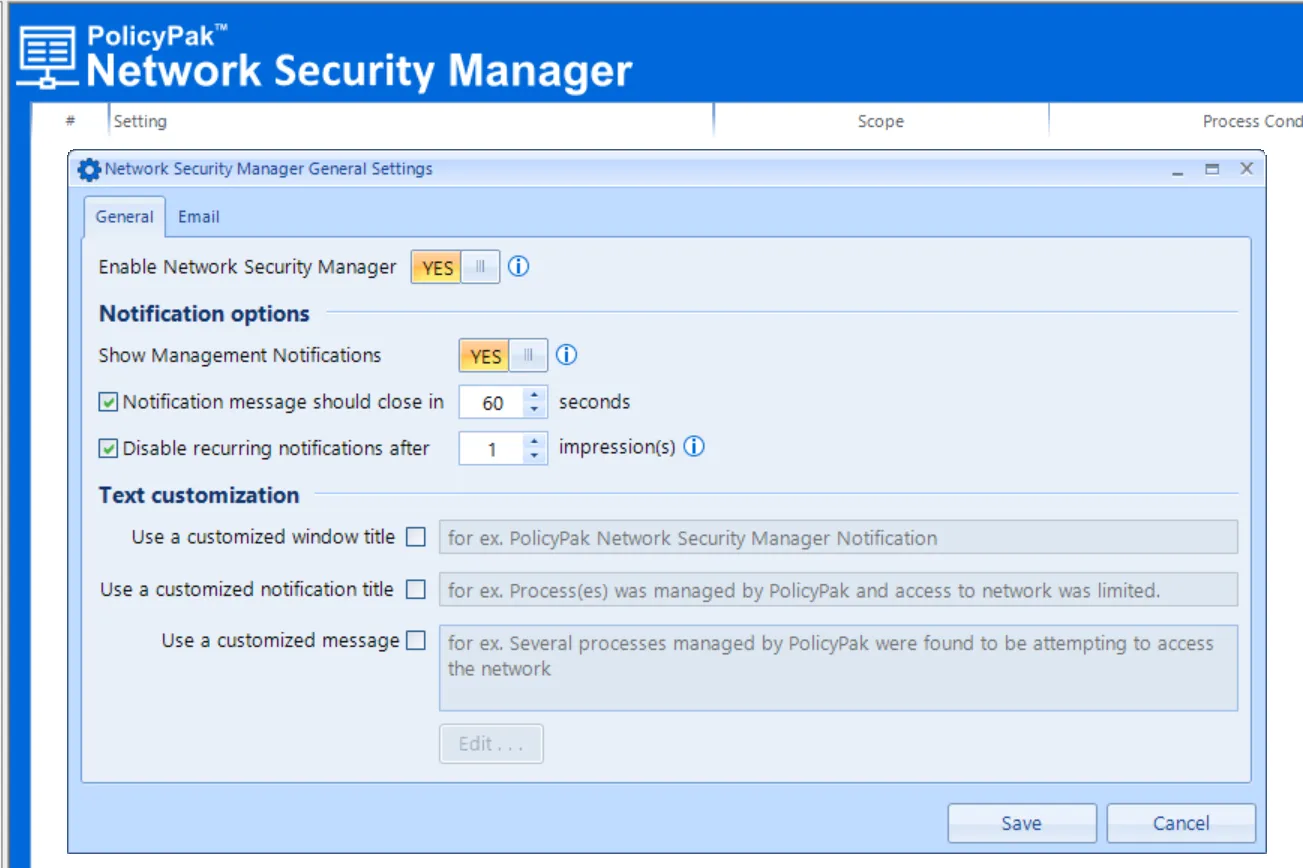
- Enable Network Security Manager – This is the master ON switch for the feature.
- Show Management Notifications – You can choose to show if the processes are being managed by PolicyPak Network Security Manager (or not)
- Notification message should close in X seconds – Provides a countdown in seconds before the message is removed.
- Disable recurring notifications after X impressions – Useful to set so the user understands there is control, but eventually you can reduce the number of pop-ups.
- Text Customization (Window Title, Notification Title, Customized Message) – Various settings to configure the dialog
Creating a Process Matching Policy
Next, create a process matching policy. Again, these examples match on Microsoft Edge.
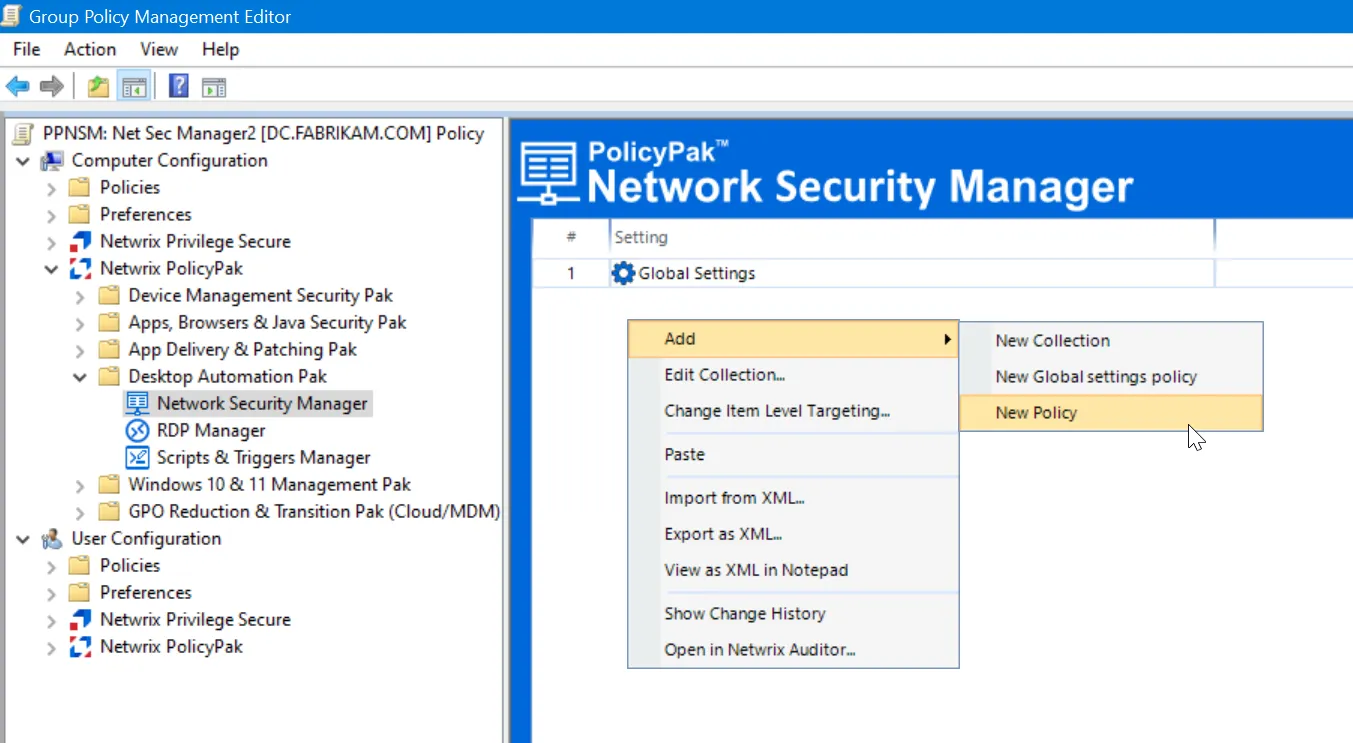
Create a New Policy, as shown here.
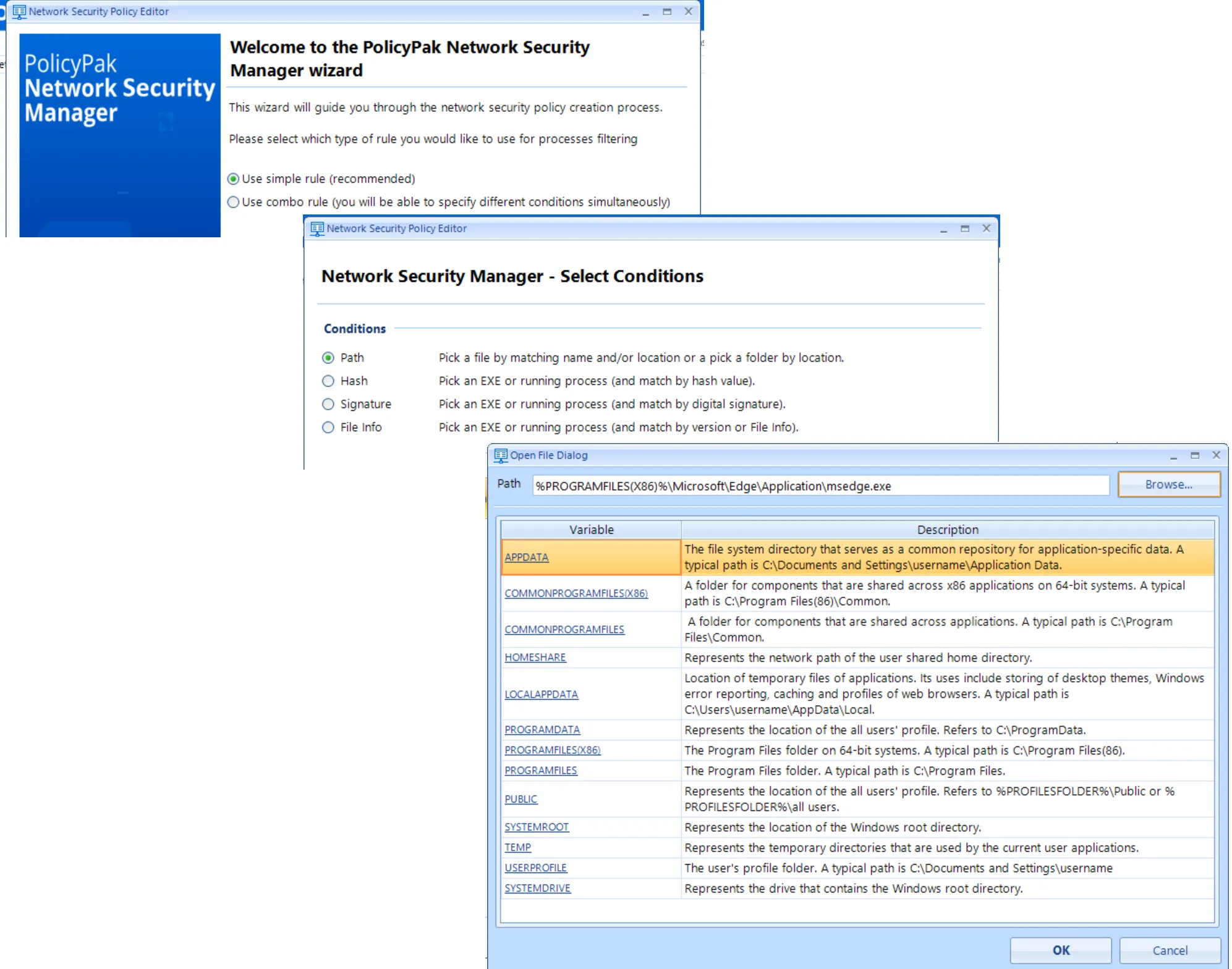
Next, match a specific application. You can do this via Simple or Combo rules. This example will use a Simple rule.
For details about Simple and Combo rules, refer to the PolicyPak Least Privilege Manager Manual (as they won't be repeated here).
Specify the location for Microsoft Edge via Path rule which is
C:\Program Files (x86)\Microsoft\Edge\Application\msedge.exe
Then in the Add Connections Conditions dialog, specify the following values to Allow Any activity to www.Netwrix.com by Domain Name.
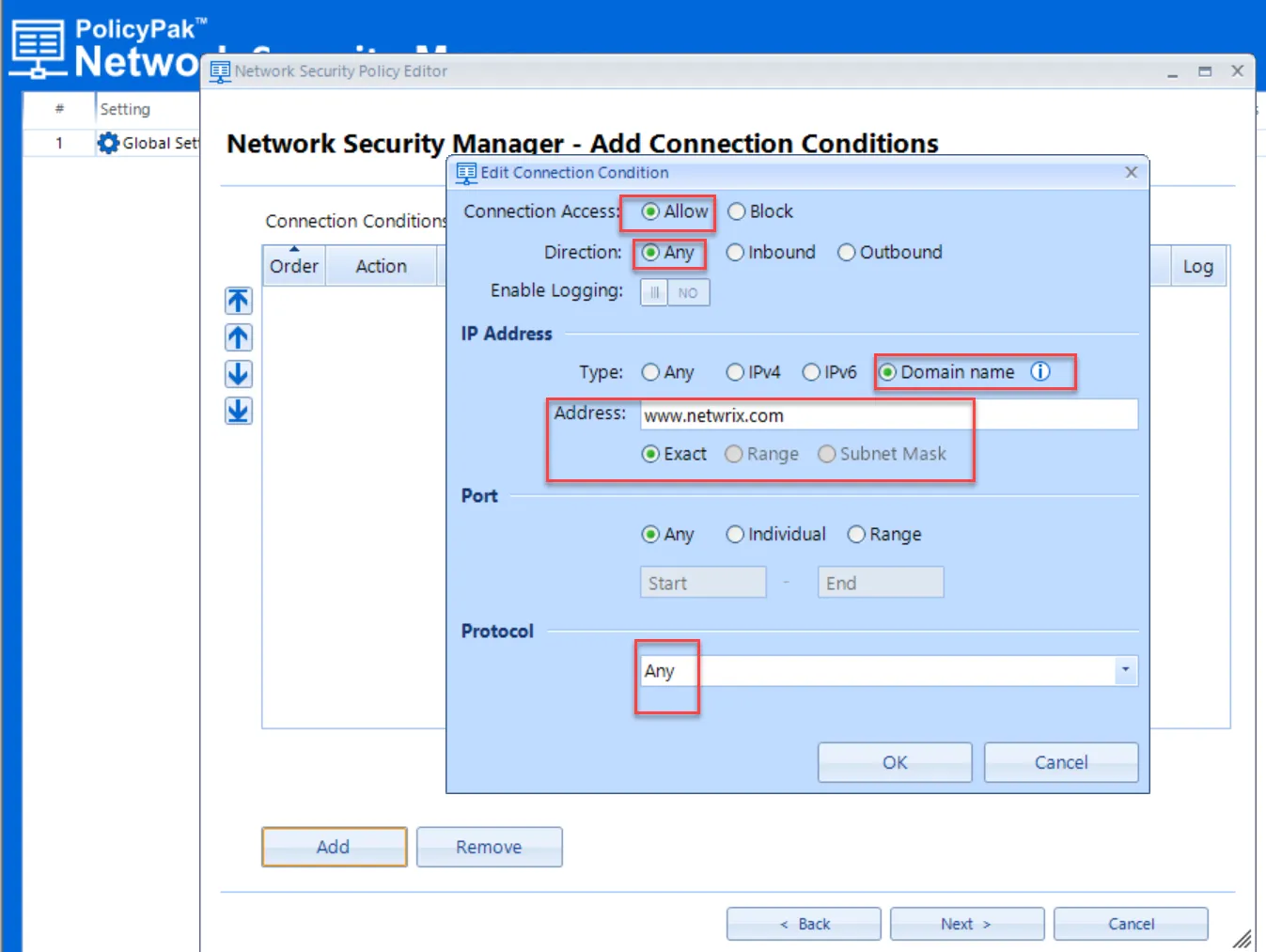
Then click Add and make policy #2 a Block policy which blocks everything else.
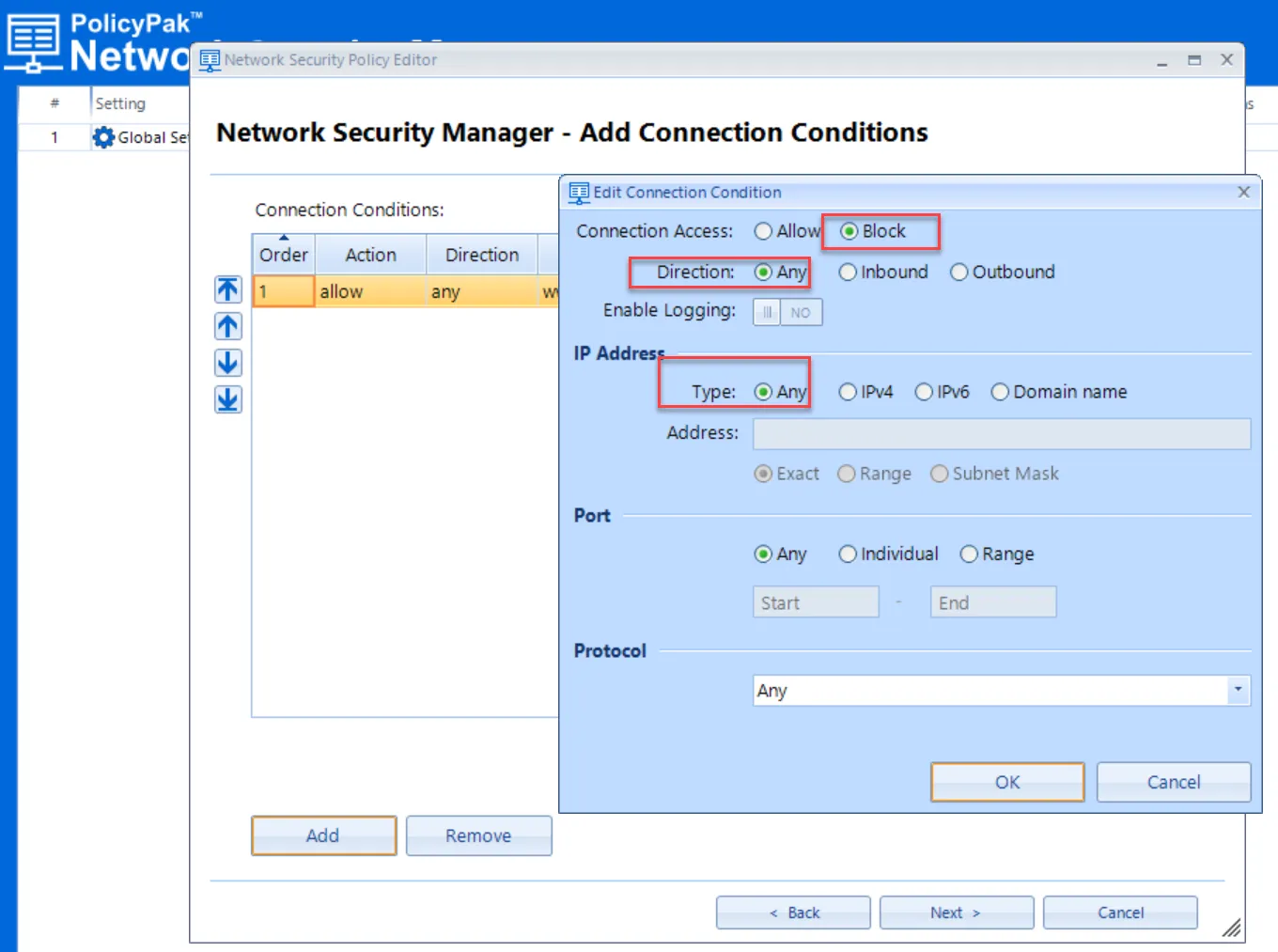
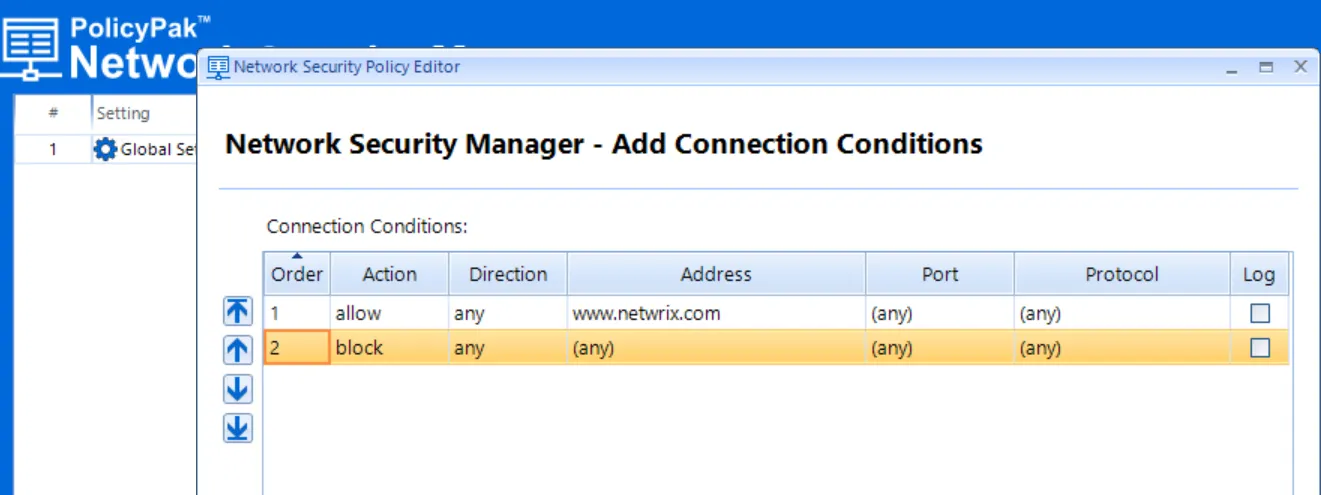
Results should look like this.
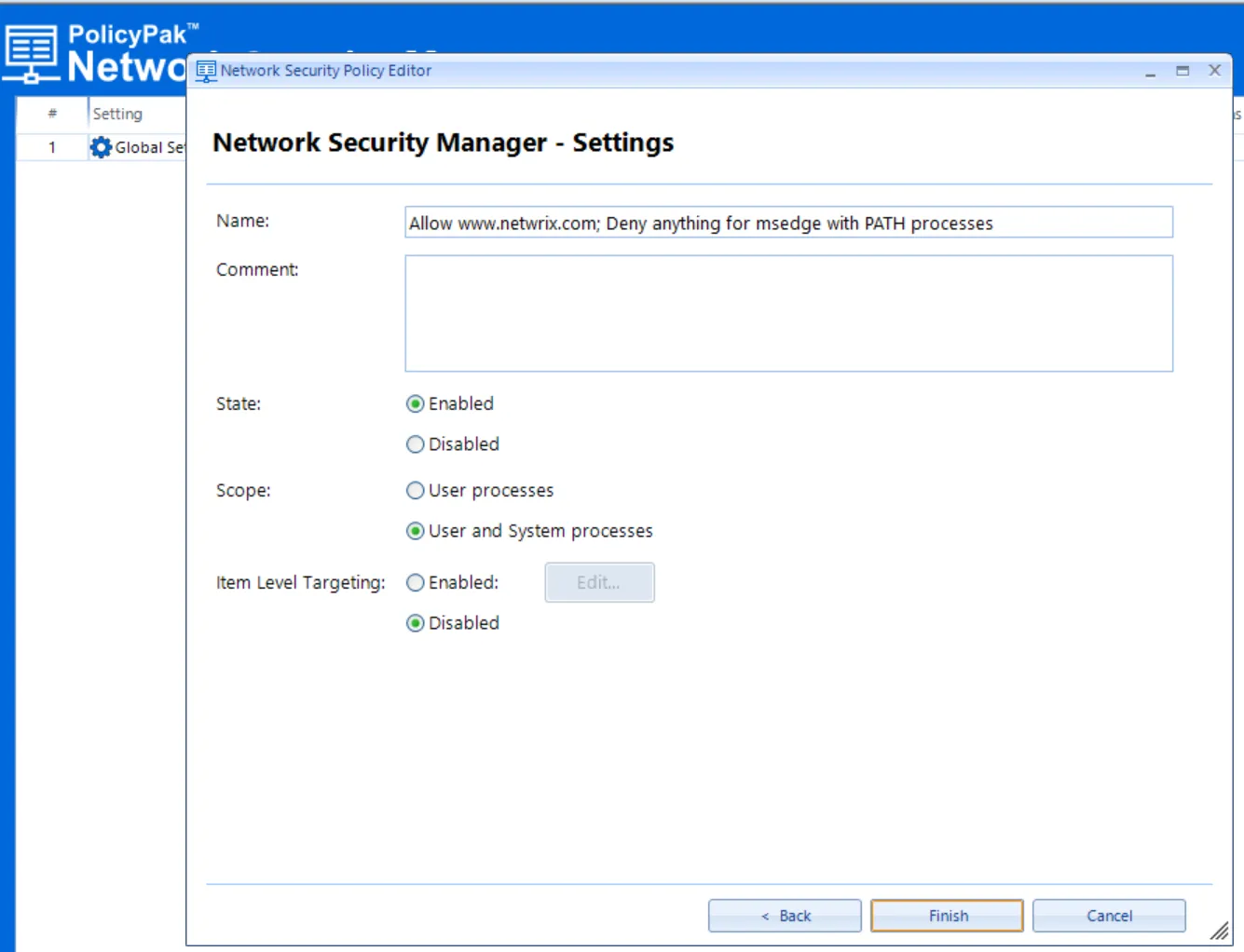
Click Next to continue. Accept the defaults on the final Wizard page and click Finish.
Testing your Policy Out
On your endpoint which has the PolicyPak client-side extension (CSE) installed and licensed, run GPupdate or reboot the machine to acquire the policies.
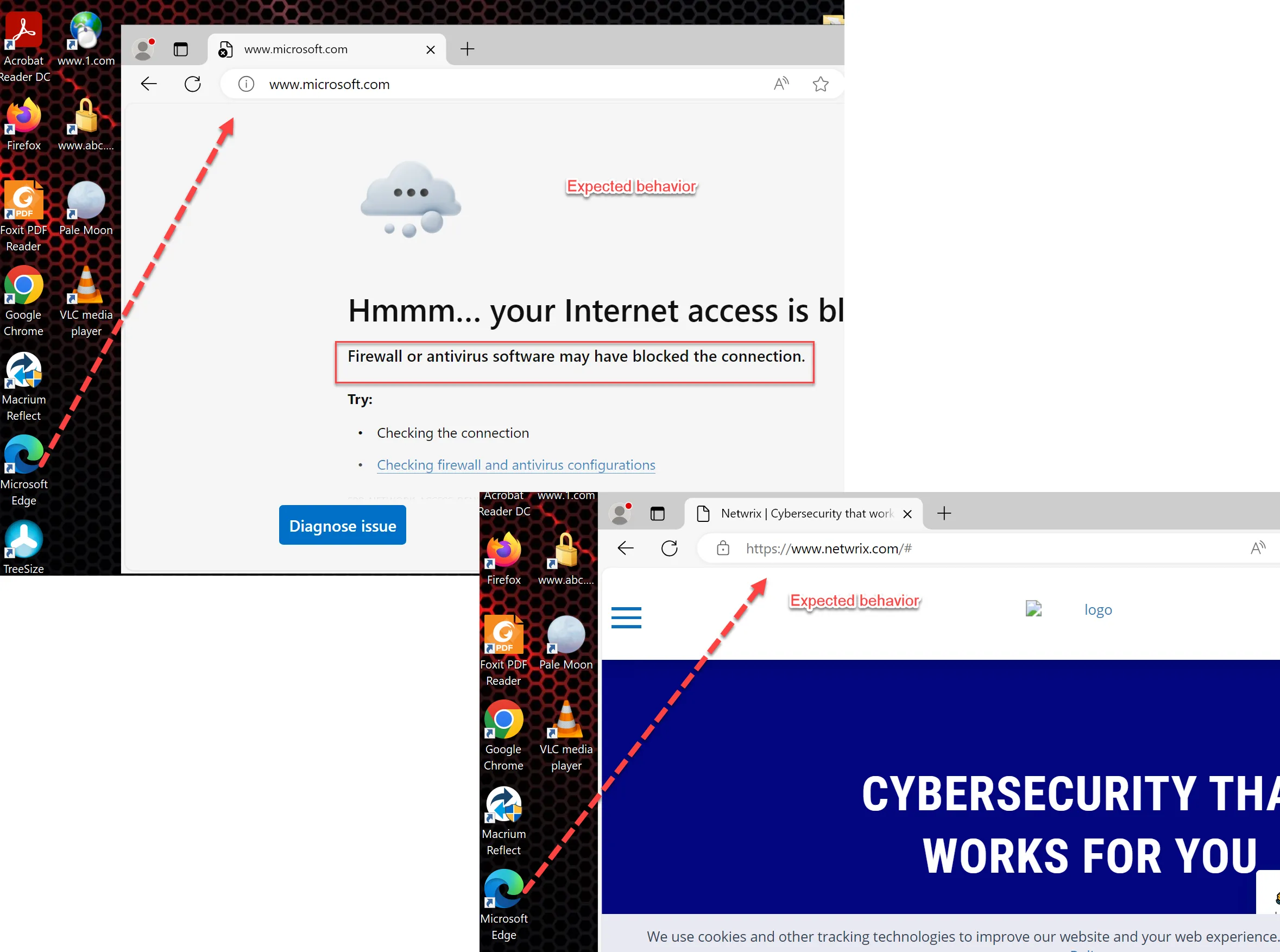
When Edge launches, end users can't go to any network location, like Microsoft.com, but can reach only the specific network location you specified, www.Netwrix.com.
Auditing Events
See the PolicyPak Network Security Manager - Auditing Events topic for additional information.
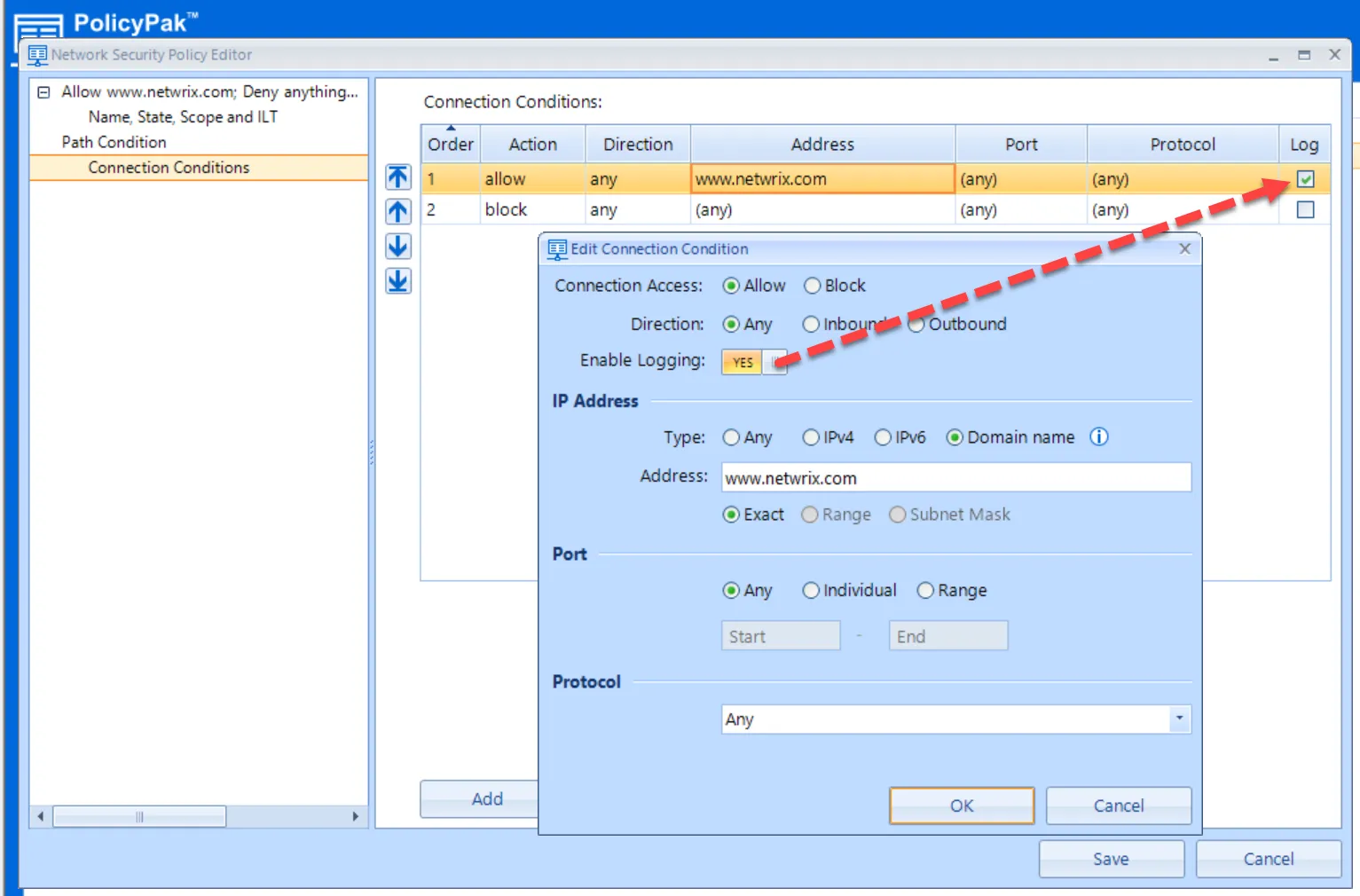
Auditing Events can be useful if you want to determine if your rules are working. You can enable each rule individually, as shown here.
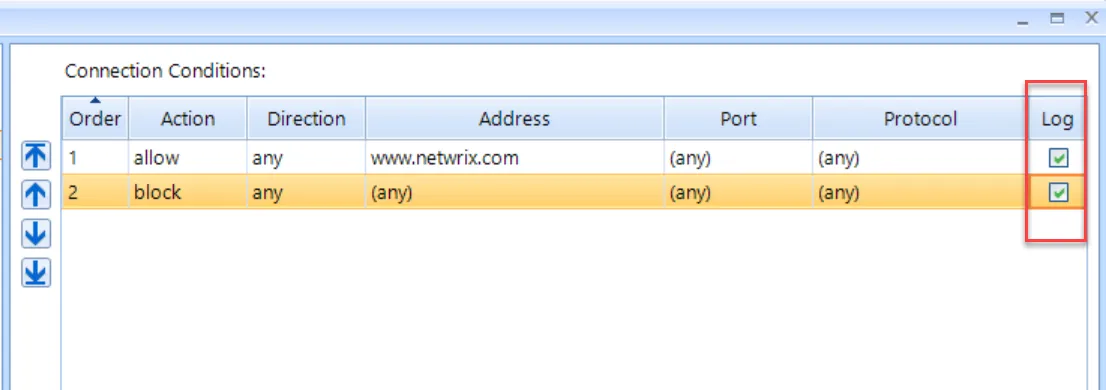
In this example, both rules are set to Log.
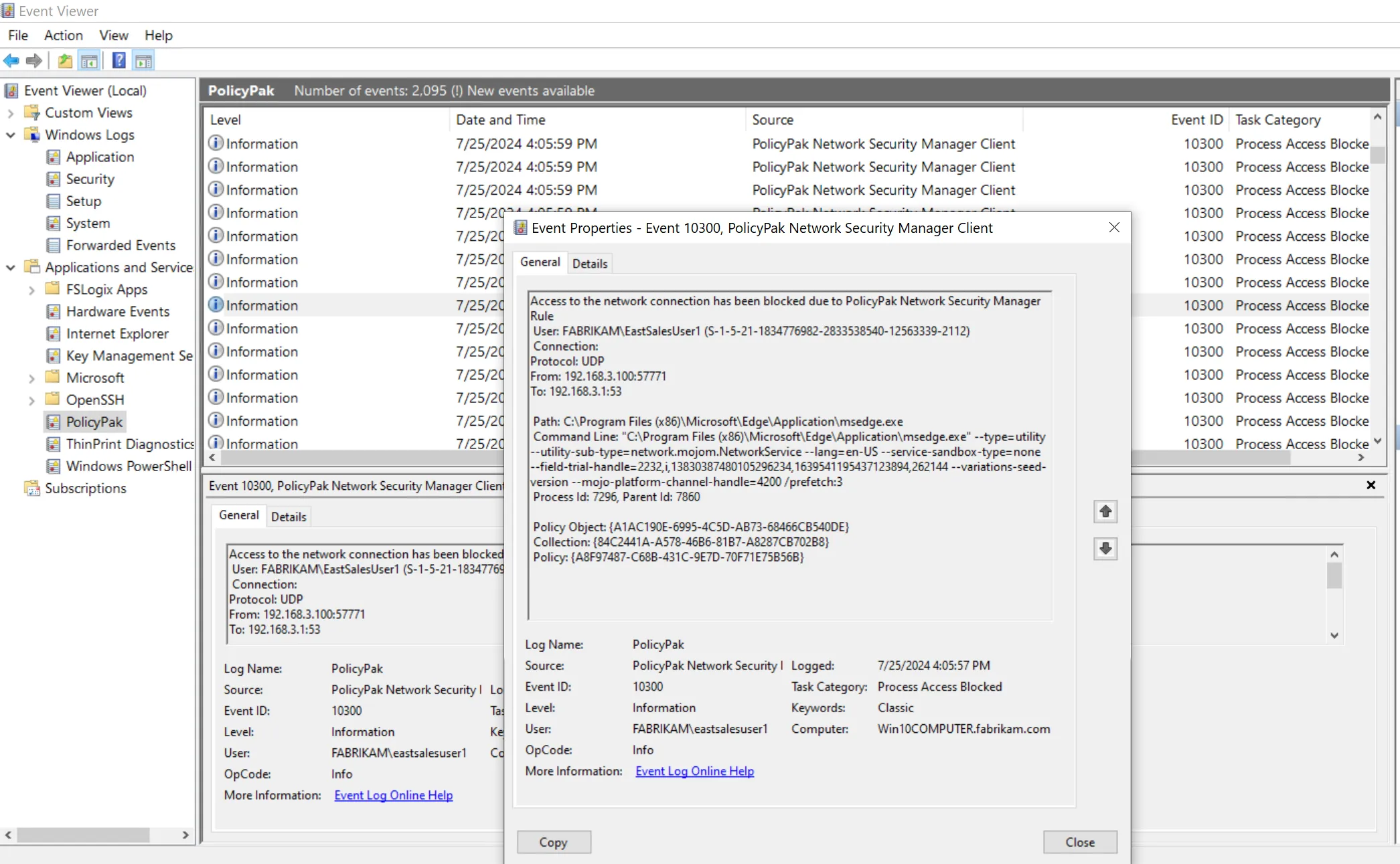
The results can be noisy depending on the application. In this case, whenever Edge runs, you get many Blocked events, as shown here.
You may want to audit for blocks for a while, then switch to auditing only successes later to reduce the noise.
Additional Topics & References
Because Network Security Manager uses the same basic UI as PolicyPak Least Privilege Manager, the following topics describe Simple rules:
The following How-To videos cover additional PolicyPak Network Security Manager topics:
- Understanding Applications & Ports: PolicyPak Network Security Manager - Applications and Ports
- Deeper Dive into Customizations & Notifications: PolicyPak Network Security Manager - Global settings