Security Settings Manager
Before reading this section, please ensure you have read the Installation Quick Start, which will help you learn to do the following:
- Install the Admin MSI on your GPMC machine
- Install the CSE on a test Windows machine
- Set up a computer in Trial mode or Licensed mode
- Set up a common OU structure
Optionally, if you don't want to use Group Policy, read the section in Appendix A: Using PolicyPak with MDM and UEM Tools to deploy your directives.
Netwrix PolicyPak Security Settings Manager enables administrators to harness the power of Microsoft's existing security settings and deliver those settings without Group Policy (via Microsoft Endpoint Manager [SCCM], KACE, or PolicyPak Cloud). The supported Microsoft security settings can be seen below. Red lines indicate these items are not supported by PolicyPak.
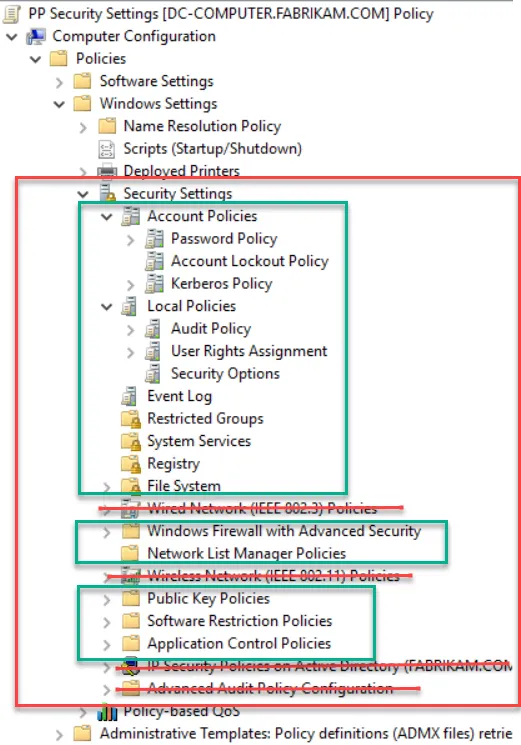
The following items are NOT supported by PolicyPak Security Settings Manager:
- IP Security
- Wired network (IEEE 802.3) policies
- Wireless network (IEEE 802.11) policies
- Advanced audit policies
Moving Parts
PolicyPak Security Settings Manager has the following components:
- A management station — To start, create a standard Group Policy Object (GPO), editing it with the security settings you want (Computer Configuration > Policies | Security). Then use the PolicyPak > PolicyPak Security Settings Manager node.
- The PolicyPak client-side extension (CSE) — This runs on the client (target) machine. It is the same CSE for all PolicyPak products. There isn't anything separate to install, and the PolicyPak CSE must be present in order to accept PolicyPak Security Settings Manager directives when using Microsoft Endpoint Manager (SCCM and Intune), KACE, similar utilities, or PolicyPak Cloud.
- Endpoints — Endpoints must be licensed for PolicyPak Security Settings Manager using one of the licensing methods.
- PolicyPak Exporter (optional) — This is a free utility that lets you take PolicyPak Admin Templates Manager and other PolicyPak products' XML files and wrap them into a portable MSI file for deployment using Microsoft Endpoint Manager (SCCM and Intune), a mobile device management service, or your own systems management software.