Using Item-Level Targeting with Policies and Collections
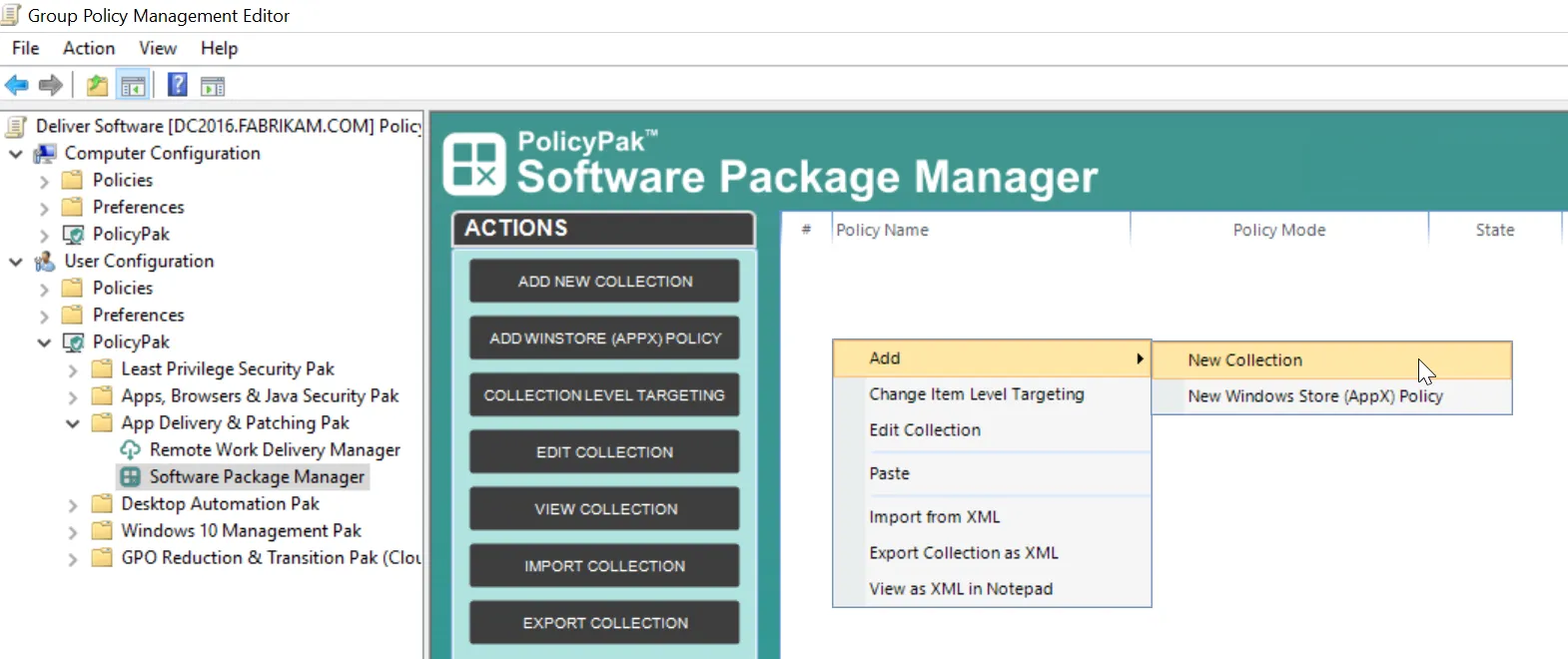
Item-Level Targeting is used in Microsoft Group Policy Preferences and other areas of Netwrix PolicyPak to target or filter where specific items will apply. With PolicyPak Software Package Manager, Item-Level Targeting can be placed on collections, as well as policies within collections. To do this, select Add > New Collection.
A collection enables you to group together PolicyPak Software Package Manager policies so they can act together. For instance, you might create a collection for only East Sales users, and another for HR Users.
Below you can see the two collections we have created. These collections can hold other collections or policies. Next we will apply Item-Level Targeting for a collection.
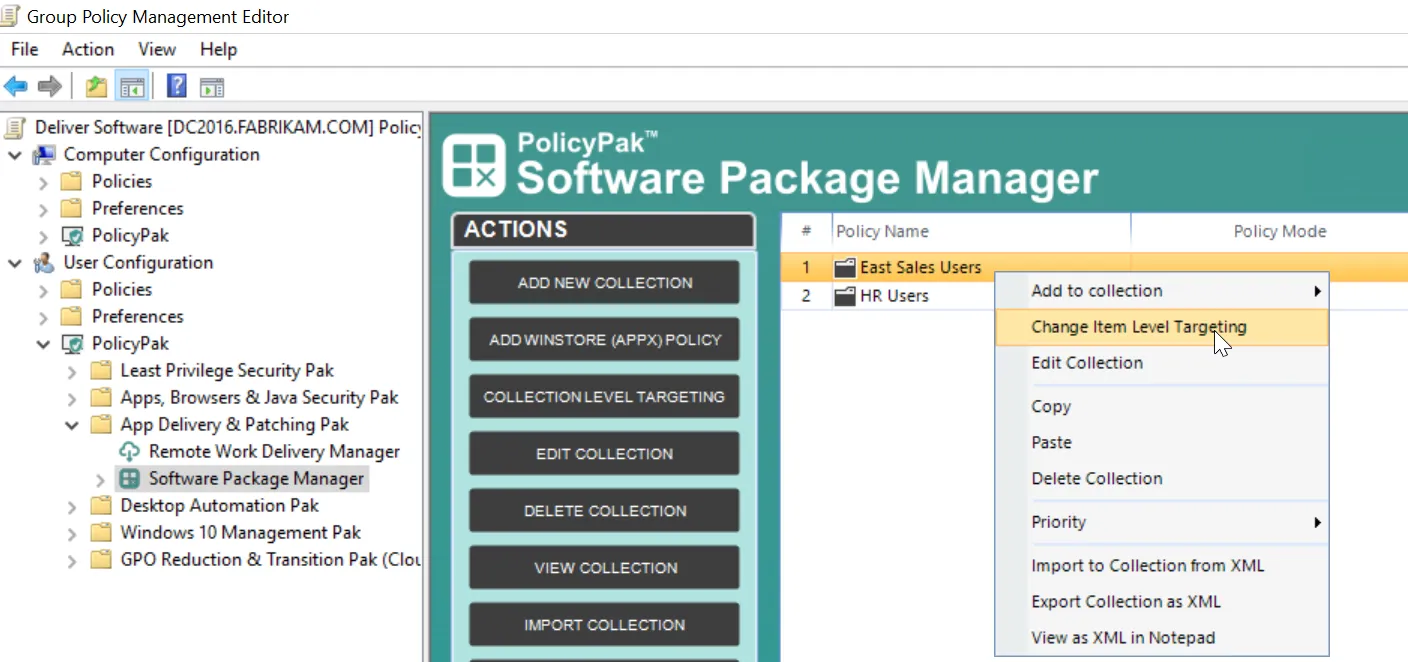
To change the Item-Level Targeting, right-click any PolicyPak Software Package Manager policy, and select Edit Item Level Targeting.
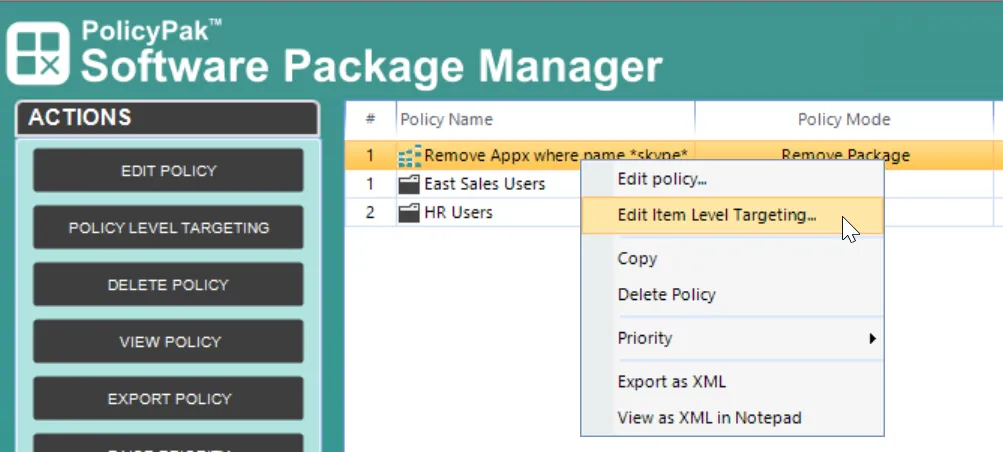
The Edit Item Level Targeting menu item brings up the Targeting Editor. You can select any combination of characteristics you want to test for. Administrators familiar with Group Policy Preferences' Item-Level Targeting will be at home in this interface, as it is functionally equivalent.
You can apply one or more targeting items to a policy, which enables targeting items to be joined logically. You can also add targeting collections, which group together targeting items in much the same way parentheses are used in an equation. In this way, you can create a complex determination about where a policy will be applied. Collections may be set to And, Or, Is, or Is Not.
When targeting policies and collections for PolicyPak Software Package Manager, it is a good idea to target portable computers and mobile user security groups. You can also require that users not be on the corporate LAN.
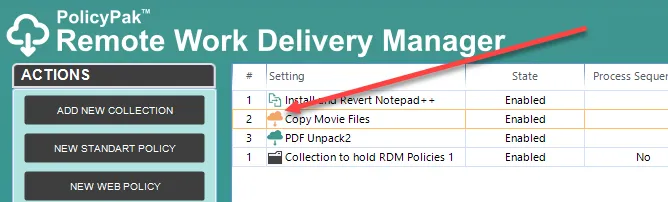
In this example, the Pak would only apply to Windows 10 machines when the machine is portable and not on the corporate LAN subnet, and the user is in the FABRIKAM\Traveling Sales Users group.