How can I best install PolicyPak Cloud for remote clients over a slow link/internet connection?
To enroll your client machine with the Netwrix PolicyPak Cloud service to manage the policies, you must install the PolicyPak Cloud-Client.MSI (PPC MSI).
During the installation process, thePolicyPak Client-Side Extension.MSI (CSE) is pulled down and installed automatically.
However, clients with slow internet connections may want to deploy CSE as an offline installer option to avoid the long delays during the installation, or just as a precautionary step to avoid a failed installation due to timeout errors during the process.
CSE is available for download within the Customer Portal only. Go to https://portal.policypak.com and download Latest Bits. You'll find the PolicyPak Client-Side Extension folder in the archive.
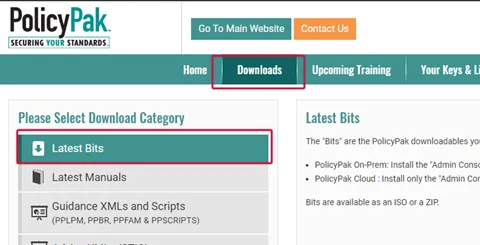
Follow these steps to install both MSIs:
Step 1 – Download the CSE from the Customer Portal and install it on the client machines.
Step 2 – Download the PPC MSI from the Cloud Portal and install it on the client machines.
This advice is best suited for computers located in very remote areas where you have a slow internet connection. For those with a moderately good/stable connection, the usual method is recommended.
Remember, Usually the latest CSE is in sync with PPC Service. However, you may have a preference for an older version of CSE. In these special cases please reach out to PolicyPak Support for a download link.
For more details about setting up machines for VDI environments please check the following topics.
How to install the PolicyPak Cloud Client for use in an Azure Virtual Desktop image