Solution Methods
Based on the edition you purchase, you are entitled to use one or more solution methods. The usual solutions are the following:
- Active Directory/GPO Method - Create GPOs and make PolicyPak directives using the Group Policy infrastructure you already have.
- MDM Method - Create PolicyPak directives and export them for use with your own MDM system.
- Cloud Method - Create PolicyPak directives in the PolicyPak Cloud service.
- Cloud Hybrid Method - Use your MDM or RMM solution to pre-install the required PolicyPak Cloud client to get bootstrapped into PolicyPak Cloud.
- Unified Endpoint Management Method - Create PolicyPak directives andexport them for use with your own endpoint management system, like SCCM.
- Virtualization - Use PolicyPak alongside your VDI and other virtualized infrastructure.
The following sections explain the advantages and disadvantages of the methods listed above and the details of where PolicyPak data is stored.
Active Directory/GPO Method
The most popular method of using PolicyPak is via Group Policy.
Note: For more information on this topic, please see this video:Knowledge Base > Group Policy
When you use the Group Policy method, you are 100% in control of your data because it is all contained within your Active Directory.The image below shows what PolicyPak looks like whenusing Group Policy.
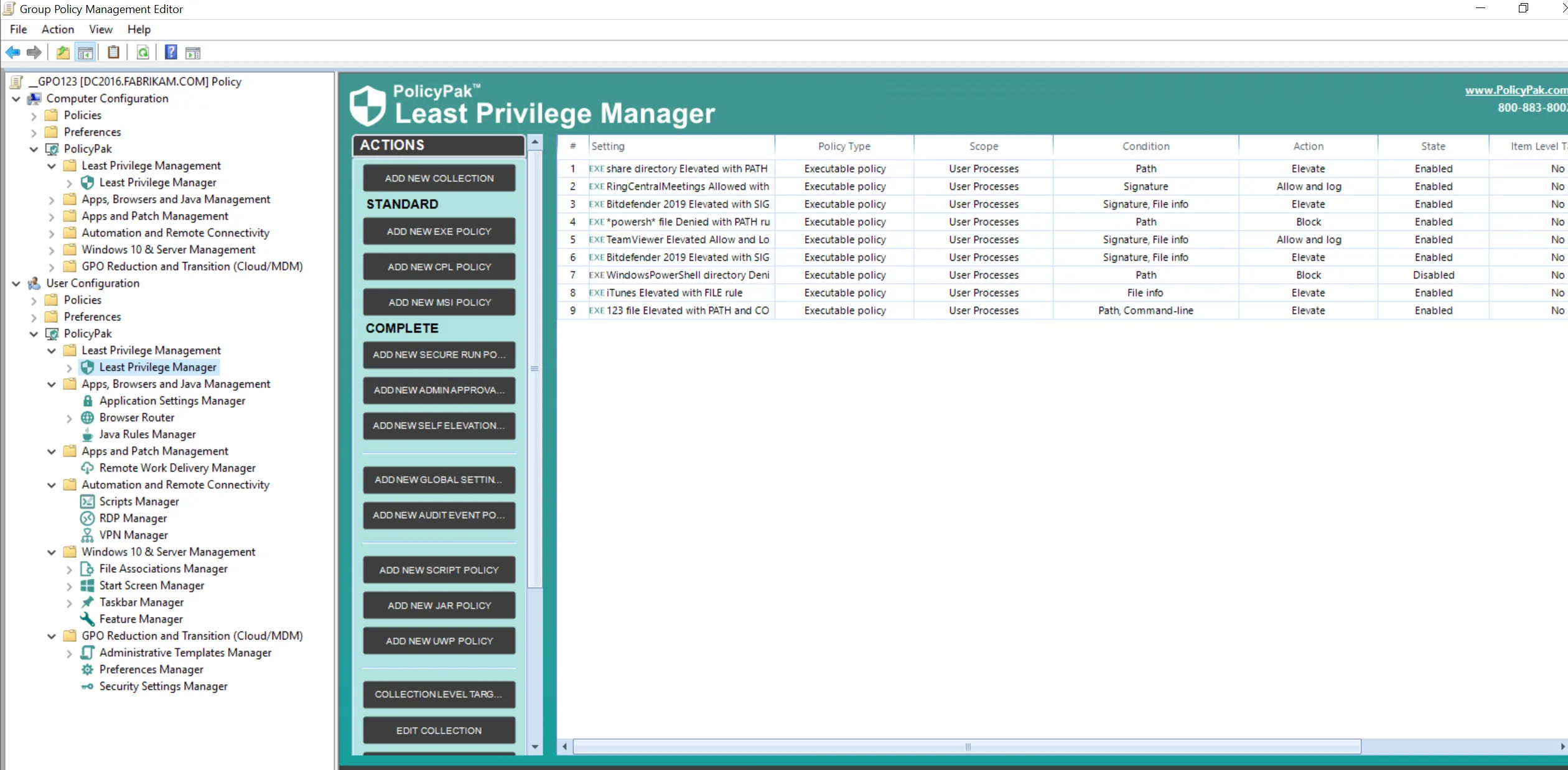
Group Policy is automatically stored in Active Directory on all domain controllers (DCs), so you don't have to install anything on any DCs or extend the Active Directory schema. Because GPOs are stored on DCs of any type, you do not need to install any server components, upgrade any servers or domain controllers to any specific version of Windows Server, or buy any server-side infrastructure. Additionally, PolicyPak works in any domain mode.
To be clear, every client computer or Terminal Services (RDS)/Citrix machine that you want to manage with PolicyPak must have the PolicyPak client-side extension (CSE) installed. Moreover, every management machine that you wish to use to create PolicyPak directives must have the PolicyPak admin console on it, enabling you to create PolicyPak policies within GPOs. Below you can see how PolicyPak works with Group Policy.
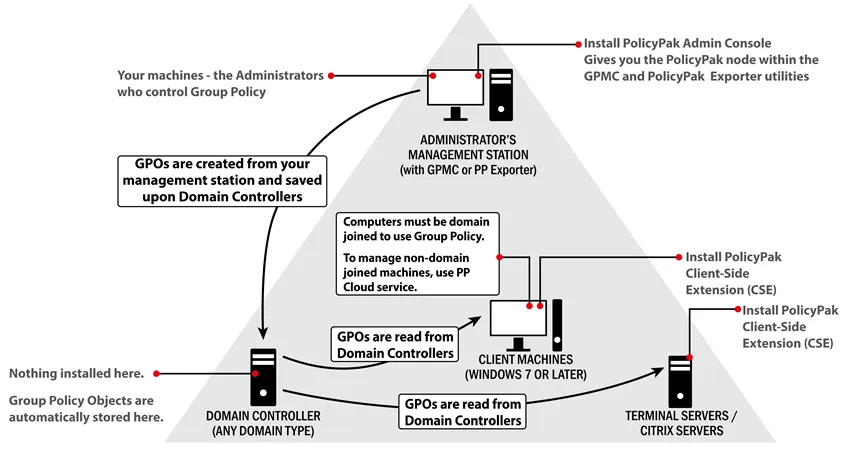
When using Group Policy to deploy PolicyPak directives, PolicyPak will leverage Group Policy to the fullest extent possible. That is, PolicyPak honors (at a minimum) the following normal Group Policy/GPMC constructs:
- Inheritance and Group Policy precedence (site, domain, and OU)
- Block inheritance
- Enforced (no override)
- Link/unlink
- Disable
- Deleted links and deleted OUs
- Loopback policy processing
- Backup and restore
- Terminal Services (RDS)/Citrix/Xenapp environments
- RSOP reporting and GPMC settings reports
Additionally, PolicyPak is tested on, and compatible with, several popular Group Policy change management products. These third-party utilities help administrators create a change management process around Group Policy creation and perform offline editing of live GPOs. Below is a table of utilities and the corresponding URLs to PolicyPak videos of compatible Group Policy management products.
URLs to Group Policy management videos.
| Product Name | Video link to PolicyPak and the Group Policy Management Product |
|---|---|
| Microsoft AGPM (Advanced Group Policy Management) | PolicyPak and AGPM |
| Quest GPO Administrator | PolicyPak and Quest's GPOADmin Tool |
| Quest Active Administrator | PolicyPak and Quest (ScriptLogic) ActiveAdministrator |
| NetIQ Group Policy Administrator | PolicyPak Integrates with NetIQ GPA |
MDM Method
You can use PolicyPak with your mobile device management (MDM) service of choice, such as Microsoft Endpoint Manager (SCCM and Intune), MobileIron, or VMware Workspace ONE.
Note: For more information on this topic, please see this video:Video Learning Center > Started with MDM.
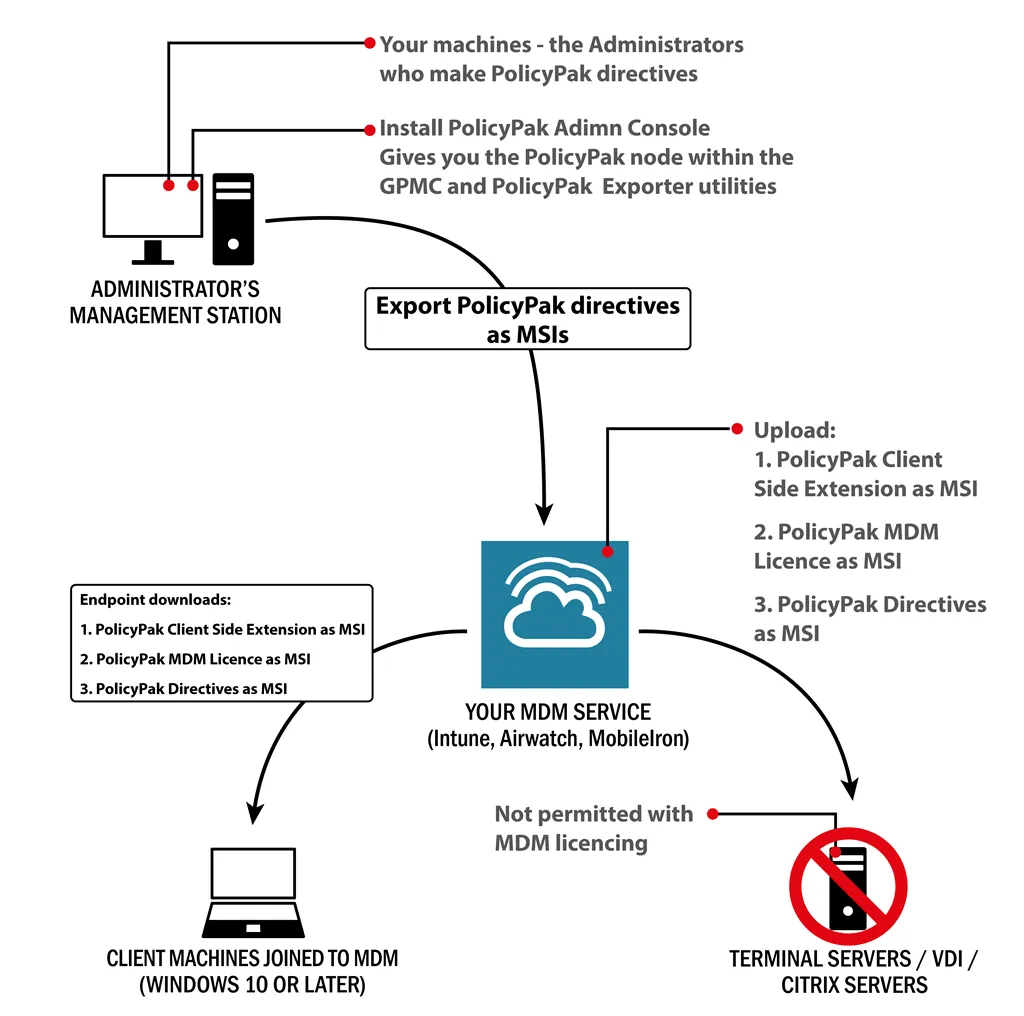
To get started, create directives using the PolicyPak MMC, follow these steps:
Step 1 – Snap-in inside the Group Policy editor (or our included PolicyPak exporter).
Step 2 – Wrap up the directives into one or more MSI files.
Step 3 – Upload your finished MSI files into your MDM service. Below is a diagram of the process.
Below is an example of an uploaded PolicyPak MSI file containing XML directives along with the MDM service deploying the PolicyPak CSE and license files.
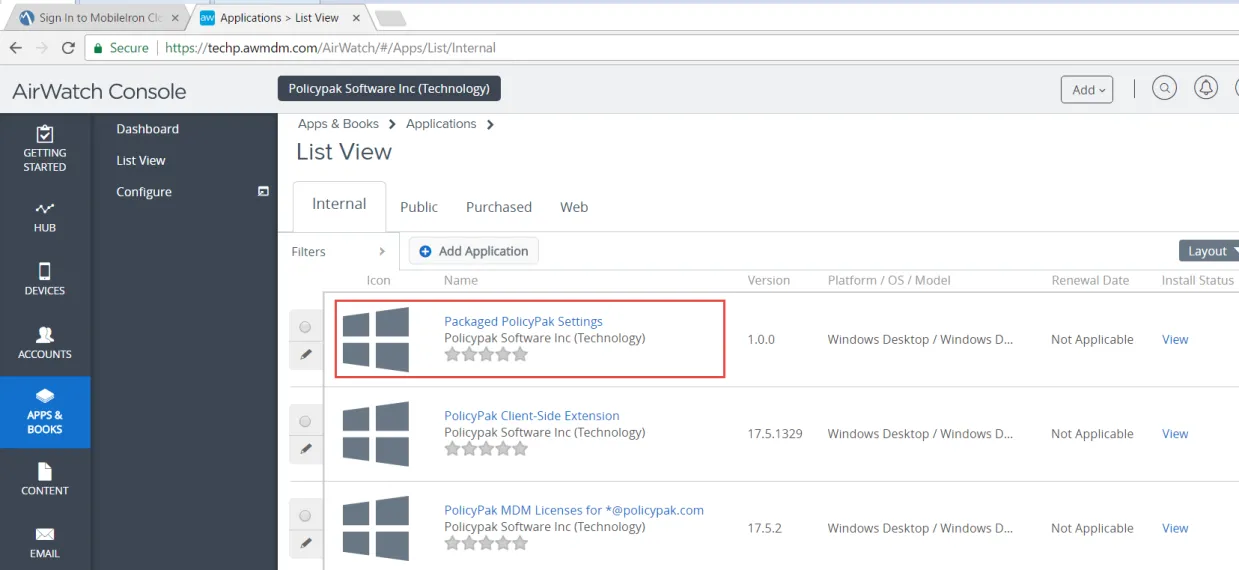
If you plan to use PolicyPak with your MDM service, you can find more information about the PolicyPak exporter in this topic: Using PolicyPak with MDM and UEM ToolsUsing with MDM and UEM Tools.
Cloud Method
You can use the PolicyPak Cloud service to create Microsoft Group Policy and PolicyPak directives and deliver them through the Internet.
For a video overview of PolicyPak Cloud, see PolicyPak Cloud: QuickStart.
The diagram below shows how PolicyPak Cloud works to deliver directives. Computers can be domain-joined or non-domain-joined. When you are a PolicyPak SaaS customer, the Cloud method is the only method available to you.
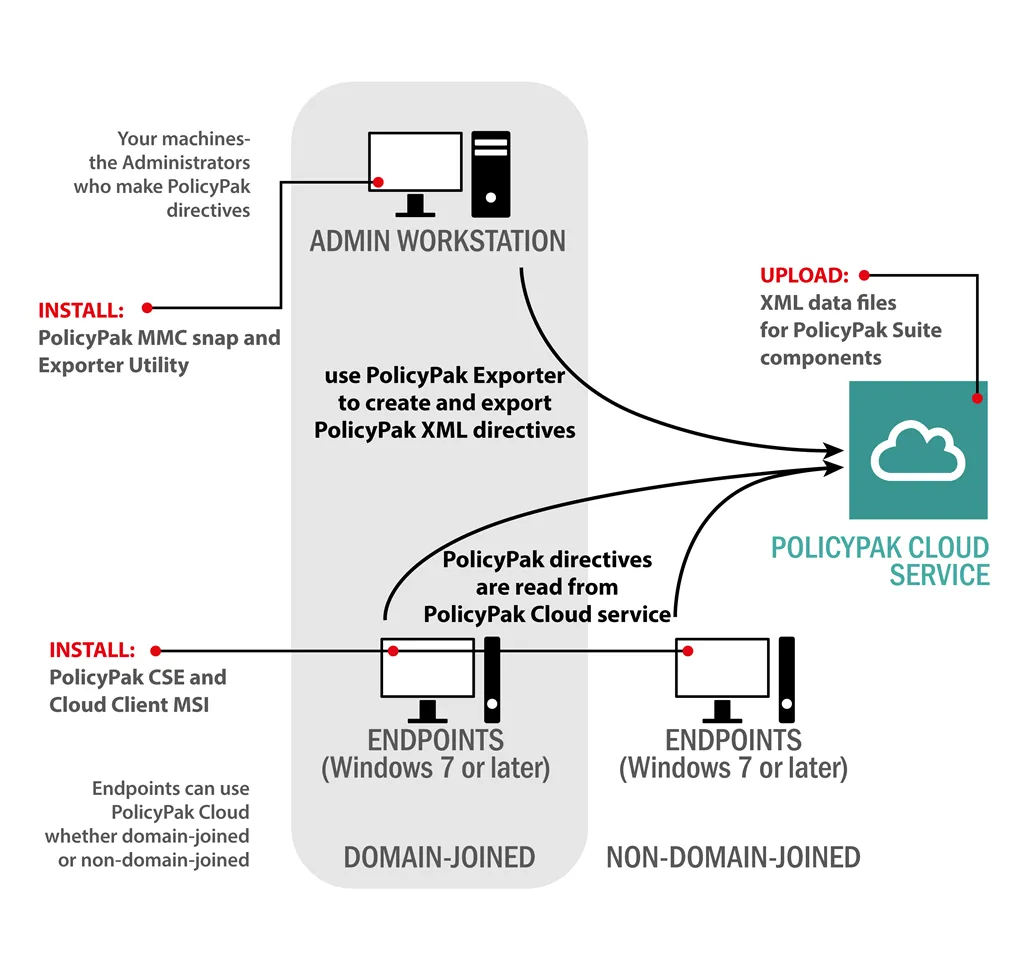
For a more detailed coverage of PolicyPak Cloud see the quick start topic: PolicyPak Setup, Download, Install, and Verify.
Cloud Hybrid Method
The PolicyPak Cloud service requires that the PolicyPak Cloud client get installed on the endpoint. Once this is done, it claims a license. Then, PolicyPak performs the work. Some customers may want to bootstrap the installation of the PolicyPak Cloud client using an RMM or MDM tool they already have hooked into the client. More details on how to do this can be found in the quick start topic: Setup, Download, Install, and Verify
For a video overview of using PolicyPak with an MDM or RMM tool to bootstrap the PolicyPak Cloud installer, see: PolicyPak Cloud + MDM Services: Install Cloud Client + automatically join PPC Groups and get policy..
Unified Endpoint Management Method
PolicyPak can use SCCM, or any other management system that deploys MSI files, instead of using Group Policy.
For a video overview of using PolicyPak with SCCM and similar tools (such as KACE) visit: https://www.policypak.com/video/deploying-endpointpolicymanager-directives-without-group-policy-endpointpolicymanager-exporter-utility.html
Below we can see what PolicyPak would look like using a tool like SCCM.
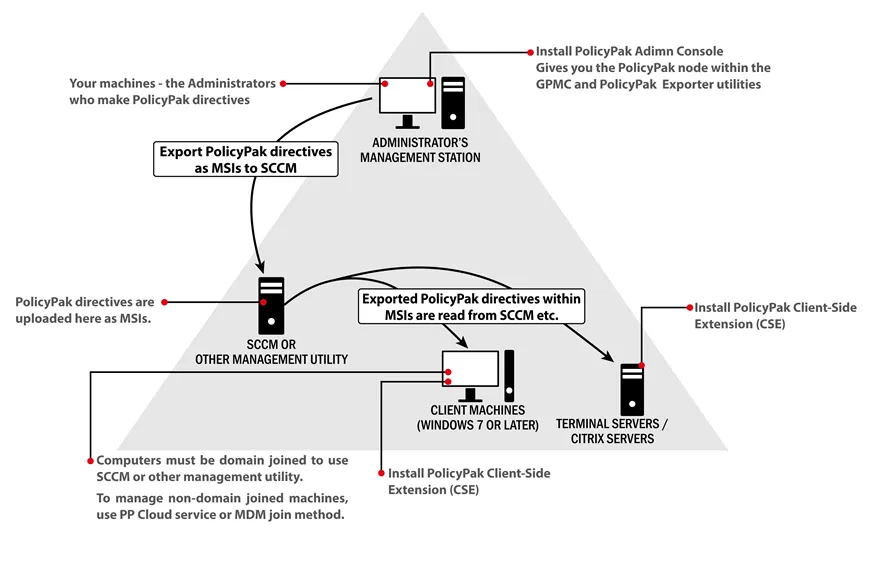
We provide the PolicyPak Exporter Tool. This topic is not discussed in this section but you can get more information here: Using PolicyPak with MDM and UEM Tools.
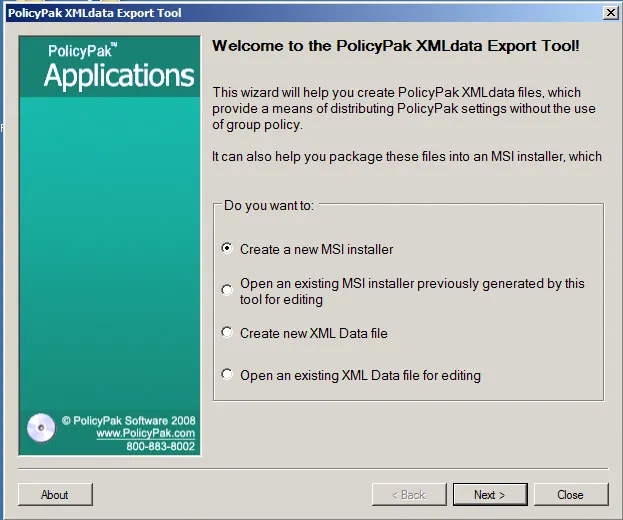
The job of PolicyPak Exporter Tool is to enable you to make PolicyPak directives and wrap them in an MSI file that you can then deploy using whatever technique you wish.
Virtualization
PolicyPak can be used with many virtualization tools like Citrix, Windows Virtual Dekstop, Cameyo, and others. PolicyPak Enterprise and Professional customers can use PolicyPak with nearly any virtualized technology, like VDI or session-based computing systems. However, each session needs to be accounted for.
To learn more about Citrix and WVD multi-session Windows licensing scenarios, https://www.policypak.com/purchasing/vdi-licensing-scenarios/.
PolicyPak SaaS customers can use PolicyPak with full VDI solutions where the whole machine is shared, like VMware Horizon, but not shared solutions, like Windows Virtual Desktop or Windows RDSH, because the total number of sessions cannot be accounted for. Full VDI single-session desktops are licensed in the same manner as physical desktops. From a licensing perspective, there is no difference between the two. If there's a computer account in Active Directory and it's active, it counts your PolicyPak licensing. In this case, you may use it with PolicyPak SaaS/Cloud.
For more answers about licensing PolicyPak with virtualized systems, see: Knowledge Base > All Things Licensing.