Upload XML Data File
Video: For an overview of this section, see the following video: PolicyPak Cloud: General Tips about On-Prem to PP Cloud Export.
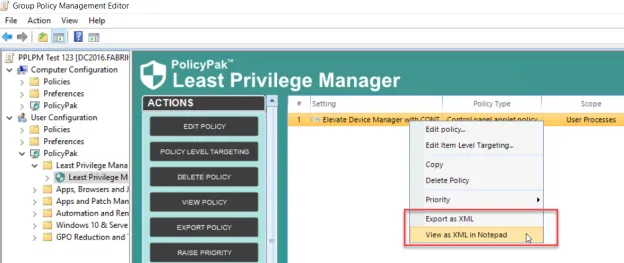
You can use the Upload XML Data File action to create XML data files when you have used an on-prem MMC editor, have exported the policy, and are ready to use the policy in PolicyPak Cloud. Most on-prem editors have an Export as XML option, which will create an XML file you can save. Otherwise, you can select View as XML in Notepad. Once you have the XML file in either format, you're ready for the next step.
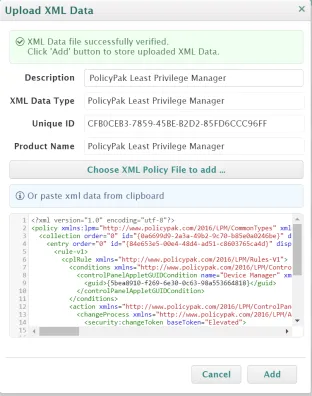
Using the "Upload XML Data File" action in PolicyPak cloud, you can then click on "Choose XML Policy File to add..." and select an XML file. Or you can paste in valid formatted text from PolicyPak or Microsoft Group Policy Preferences.

Then you can edit the description and click Add to save your policy as an XML data file within PolicyPak Cloud.
Video: We recommend you watch the following video to understand how to export all the various Microsoft Group Policy settings for import into PolicyPak Cloud: PolicyPakCloud: How to deploy Microsoft Group Policy Settings using PolicyPak Cloud.
Video: We recommend you watch the following video to understand how to export PolicyPak settings to PolicyPak Cloud: PolicyPakCloud: How to deploy PolicyPak specific settings (using in-cloud editors and exporting from on-prem).
Remember, after XML data files are uploaded, they do not automatically enforce any settings on users' PCs. In order for settings to be enforced, those XML files should be linked to appropriate computer groups with computers assigned.