Setup, Download, Install, and Verify
In this section and the next section, you'll learn some more concepts, get a feel for Netwrix PolicyPak Cloud, and be able to ensure that everything works the way you might expect. The goals of the PolicyPak Cloud Quick Start are to help you do the following:
- Set up your first test client
- Download the PolicyPak Cloud MSI from PolicyPak Cloud
- Manually install the PolicyPak Cloud client-side extension (CSE) (for just a handful of client [target] computers)
- Verify PolicyPak Cloud is working
Setting up Your First Test Client
The Quick Start allows you to immediately see that PolicyPak Cloud is working with a test client computer. Your account has some pre-configured policies linked to the special All group (explained later). The policies will perform the actions shown in the table below.
| Policy Name | Applicable Component | Actions | Requirements |
|---|---|---|---|
| PPAM: WinZip 14 and Later (Example) | Application Settings Manager | If WinZip 14.5 is installed, uses PolicyPak Application Settings Manager to manage the password settings. | WinZip 14.5, downloadable at https://www.oldapps.com/winzip.php |
| PPATM: Screen Saver Items Collection (Example) | Admin Templates Manager | Changes the screen saver to "Ribbons" and makes the timeout 17 minutes | Windows 10 |
| PPLPM: Run Process Monitor Elevated (Example) | Least Privilege Manager | Overcomes the UAC prompt received when trying to run Process Monitor without local admin rights. | ProcMon, downloadable at https://docs.microsoft.com/en-us/sysinternals/downloads/procmon |
| PPPrefs: Shortcut to policypak.com on All Desktops | Group Policy Preferences: Shortcuts | Puts a shortcut to www.policypak.com with a lock icon on the destop | Windows 10 |
| PPSEC: Rename Guest Account (Example) | Group Policy Security | Renames the guest account to PPGUEST | Windows 10 |
| PPBR: PP to IE, Mozilla to FF, GPanswers to Chrome, Block Facebook (Example) | Browser Router | Makes routes from browser to browser | Firefox ESR, downloadable at https://www.mozilla.org/en-US/firefox/enterprise/ Chrome, downloadable at https://www.google.com/chrome/ |
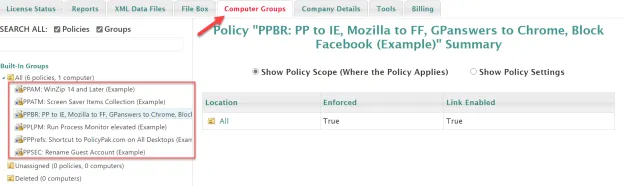
After you log on you can see the pre-configured examples within the Computer Groups tab.
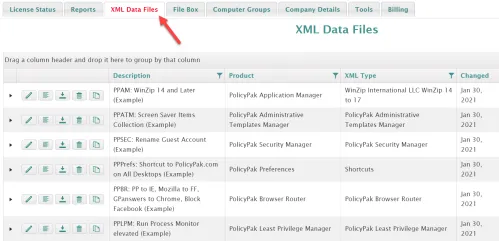
You can also see the pre-configured examples within the XML Data Files tab.
Note that the PolicyPak Cloud client requires .Net Framework 4.0 or later to be installed first. You can download and install.Net Framework 4.5 for Windows from Microsoft here: http://www.microsoft.com/en-us/download/details.aspx?id=30653.
Downloading the PolicyPak Cloud MSI
Each PolicyPak Cloud customer has their own specific PolicyPak Cloud client that must be downloaded. This is how your PCs join your PolicyPak Cloud instance. You can find the client installer within the Company Details tab.
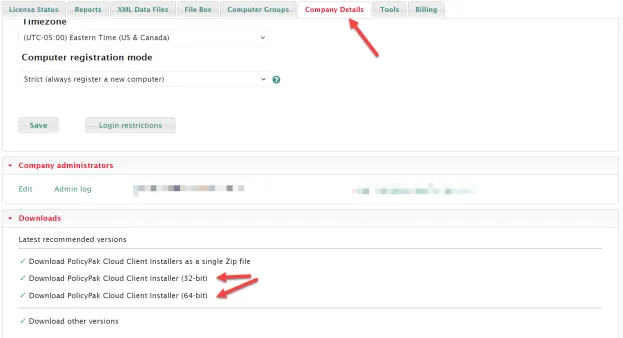
Select the PolicyPak Cloud client that makes sense for you (32-bit or 64-bit) and keep it handy for the next steps.
Manually Installing the PolicyPak Cloud CSE
You downloaded the PolicyPak Cloud client for your company from the PolicyPak Cloud service. Now, you need to install the PolicyPak Cloud client to join PolicyPak Cloud. To do this, run the PolicyPak Cloud MS.
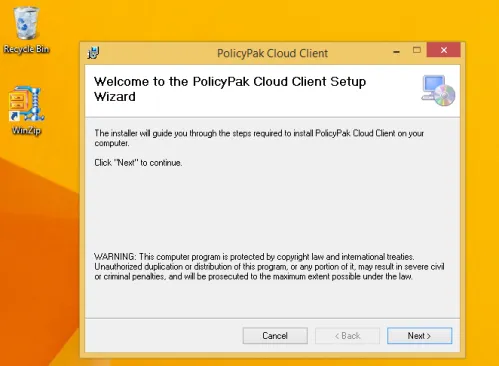
A window displays indicating hte installation is completed. The computer will join PolicyPak Cloud and will be part of the special built-in groups named All and Unassigned.

The PolicyPak Cloud client then immediately downloads any PolicyPak XML directives for the computer's groups. All directives should be downloaded and active within 10 seconds after the PolicyPak Cloud MSI is installed and the computer has joined PolicyPak Cloud.