PolicyPak and MobileIron MDM
PolicyPak and MobileIron MDM for a video overview of PolicyPak and MobileIron.
Step 1 – To use MobileIron with PolicyPak, go to the Apps section within MobileIron, and click In-House to add an application. Next, add the PolicyPak CSE MSI file, PolicyPak license MSI file, and the PolicyPak settings MSI file.
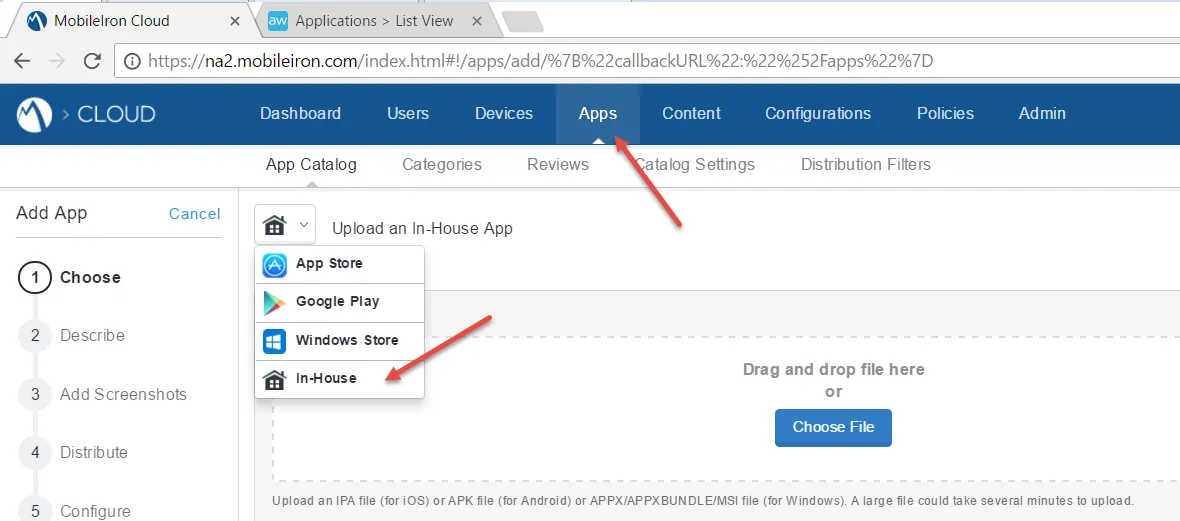
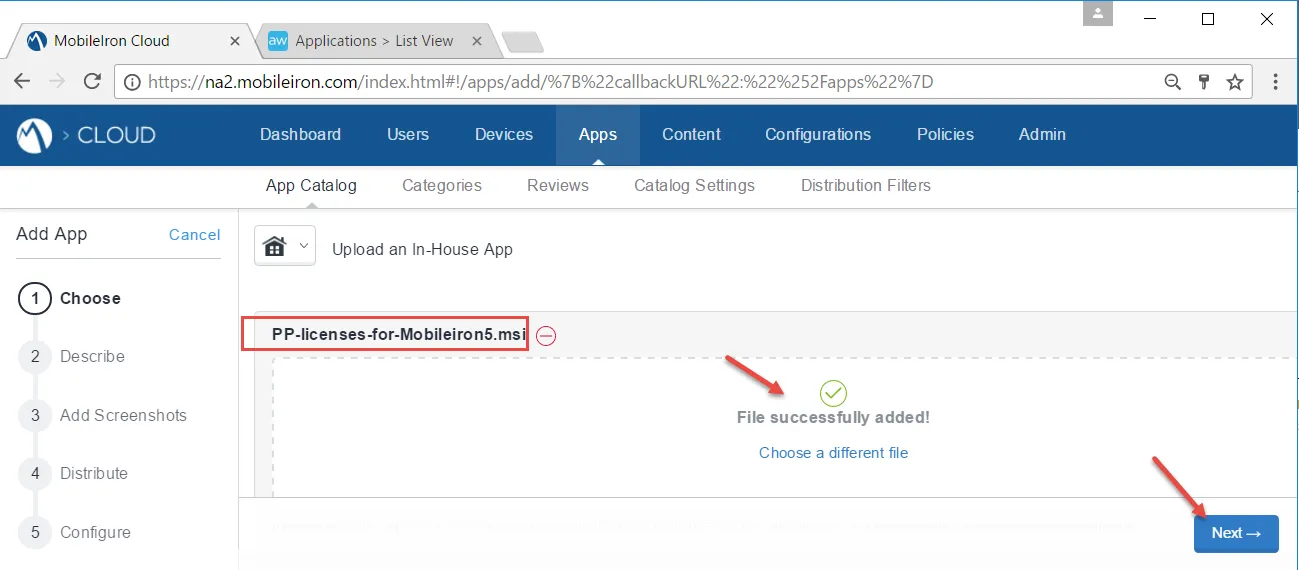
Step 2 – Once uploaded, click Next.
Sometimes MobileIron will ask you for the MSI product code of each MSI you upload. This is not a PolicyPak problem but rather a MobileIron idiosyncrasy.
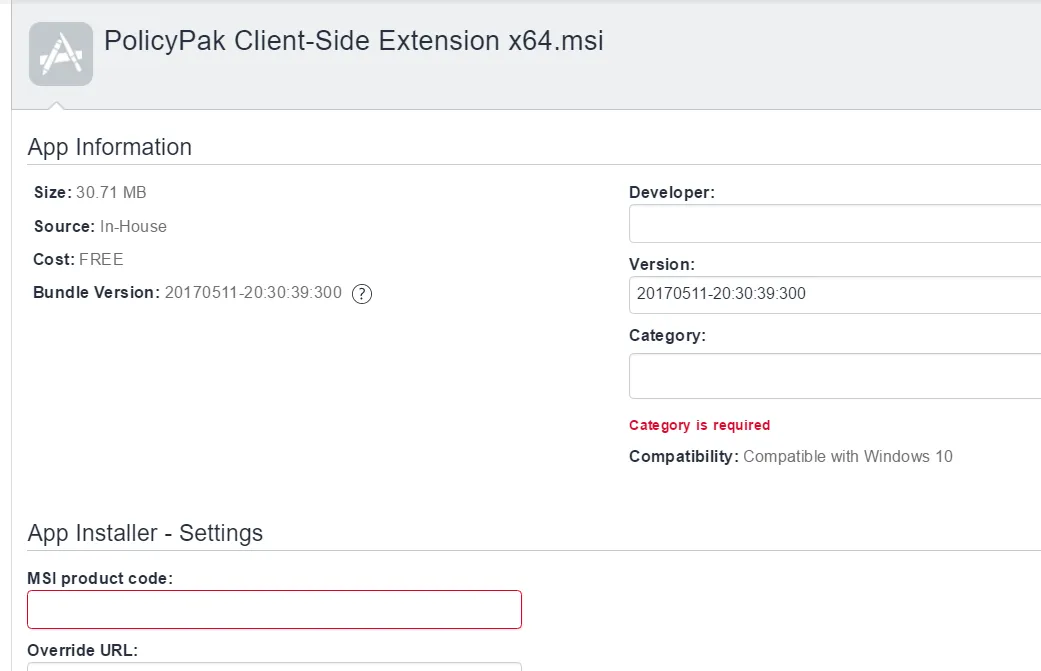
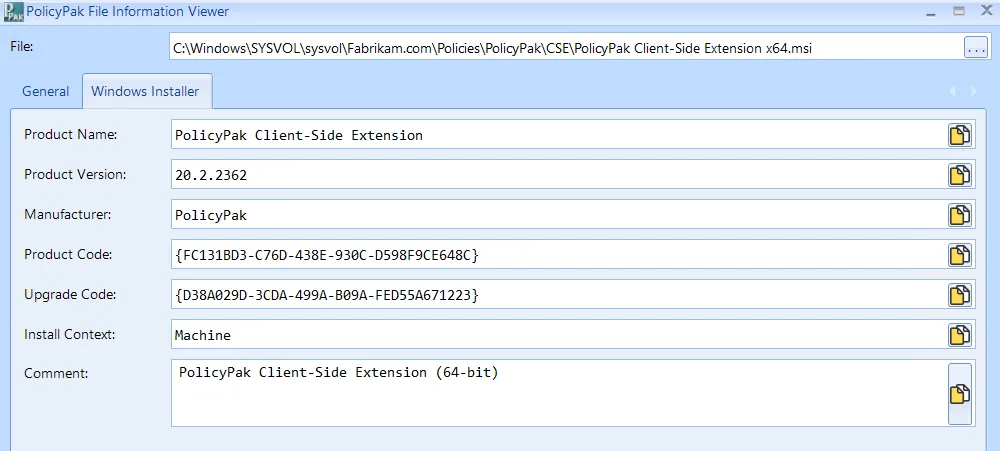
Step 3 – To overcome this, PolicyPak has provided a utility in the PolicyPak download (in the PolicyPak Extras folder) called PolicyPak File Information Viewer, which you can use to quickly get this information.
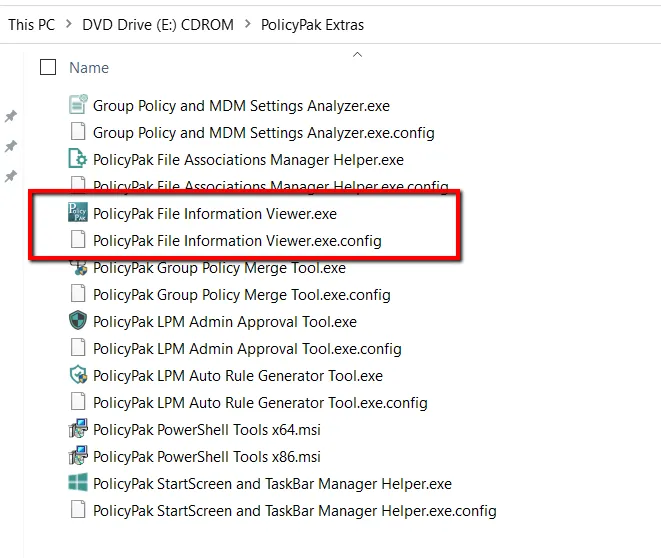
Step 4 – Once the PolicyPak File Information Viewer is run, you can open an MSI (e.g., the PolicyPak CSE MSI) and quickly output the MSI product code to copy. Once you have copied the product code, you can paste it into MobileIron.
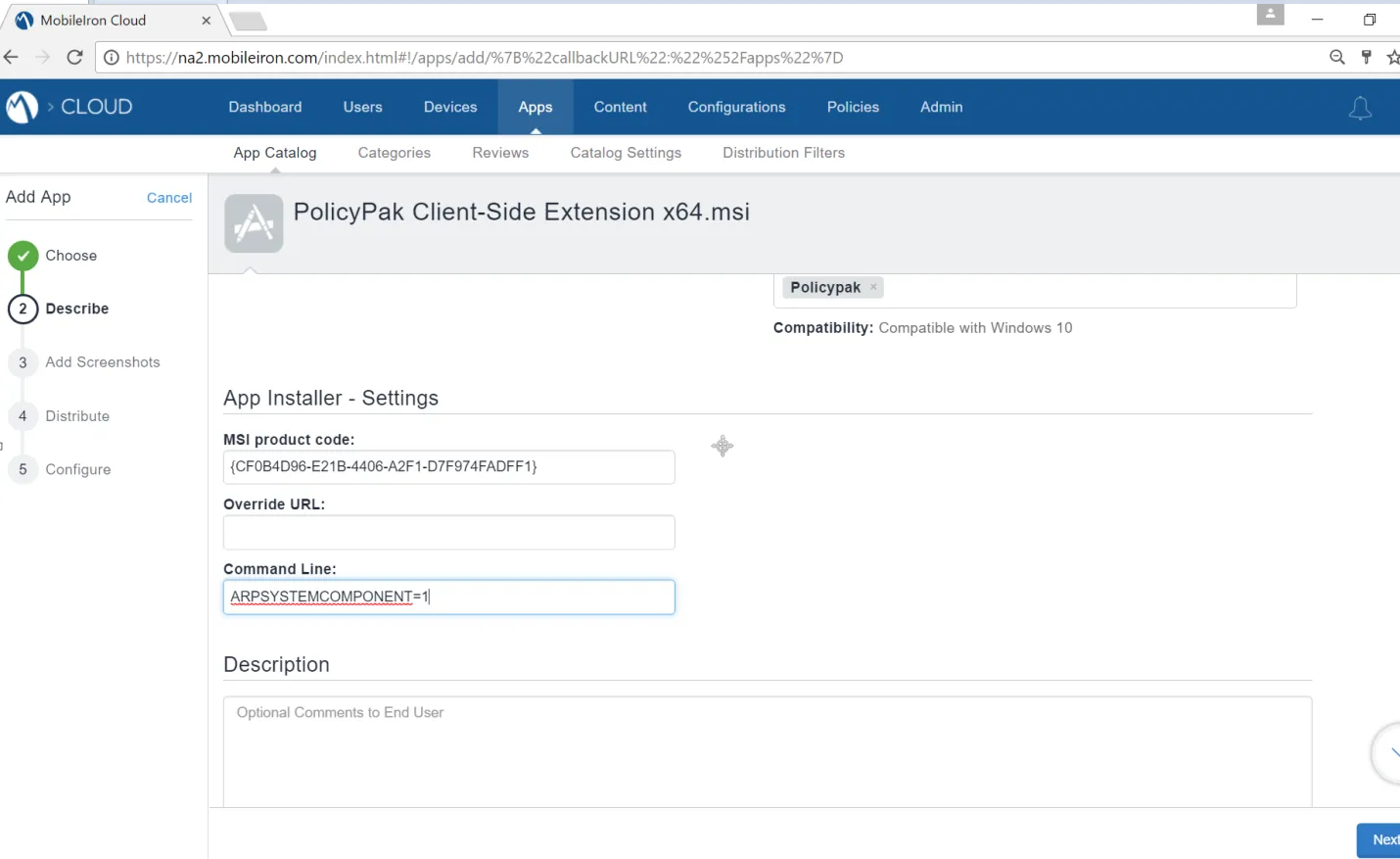
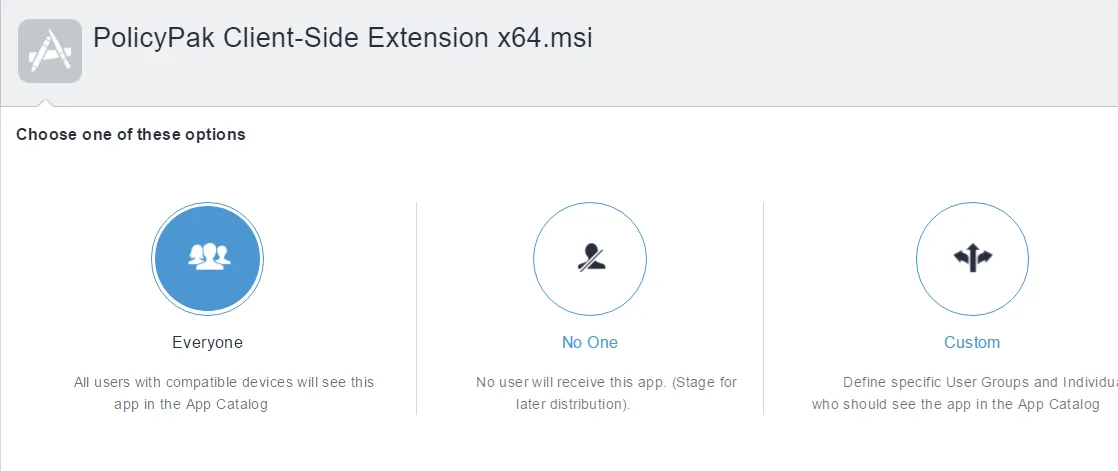
Additionally, each MSI must be assigned to a category and a location must be selected for the installation.
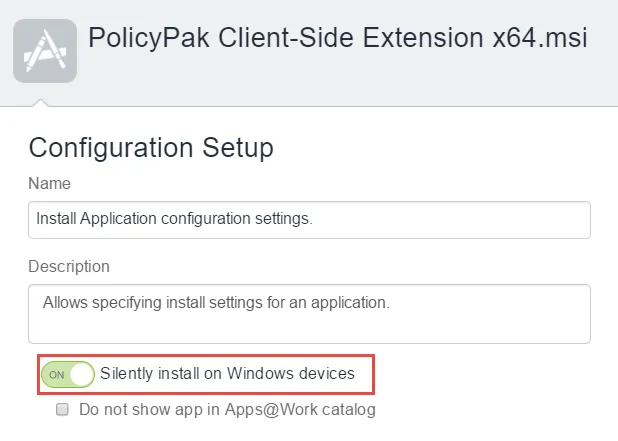
Step 5 – At this point, you must specify to install the application MSIs silently. That is done by clicking Install Application configuration settings.
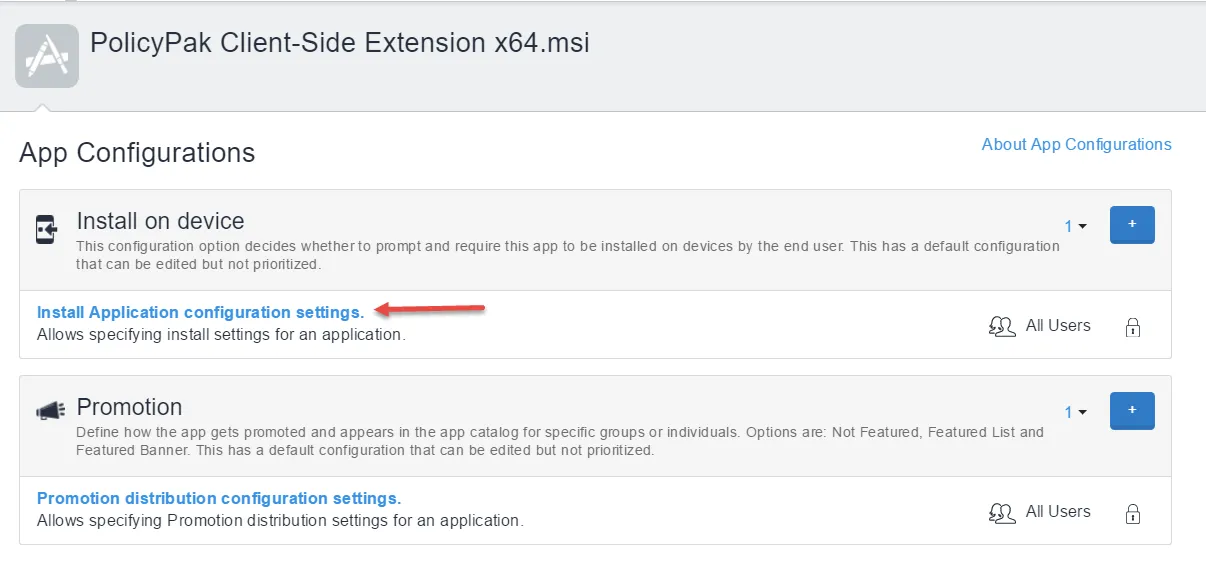
Step 6 – Once you've clicked on Install Application configuration settings, turn on the option Silently install on Windows devices.
Step 7 – As a test, on an example client, perform your MDM enrollment to your MobileIron service.
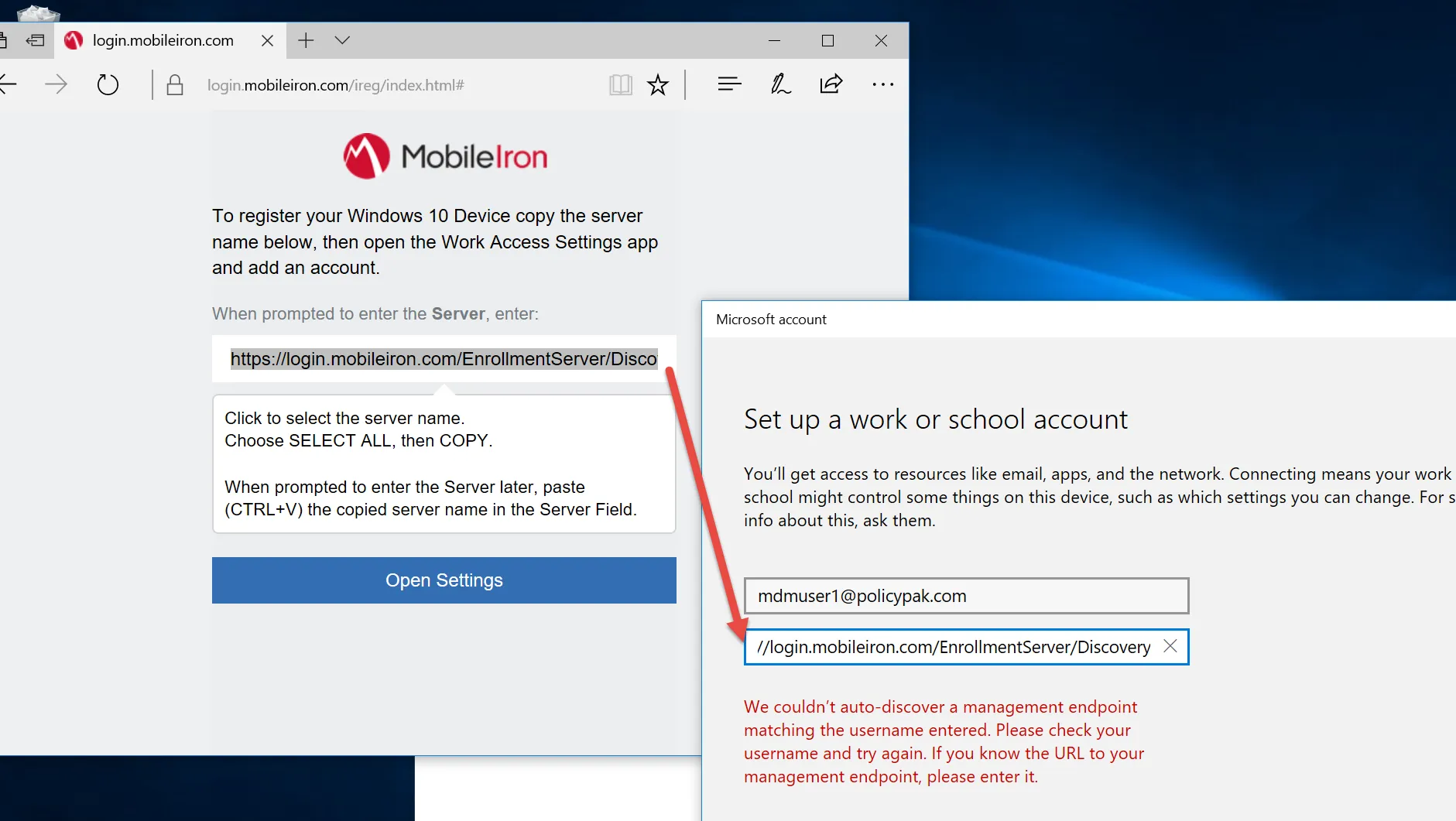
Be sure the computer is MDM-joined and in the correct group (if any). If the MSIs do not download as expected, see Troubleshooting.