Using PolicyPak with any MDM Service
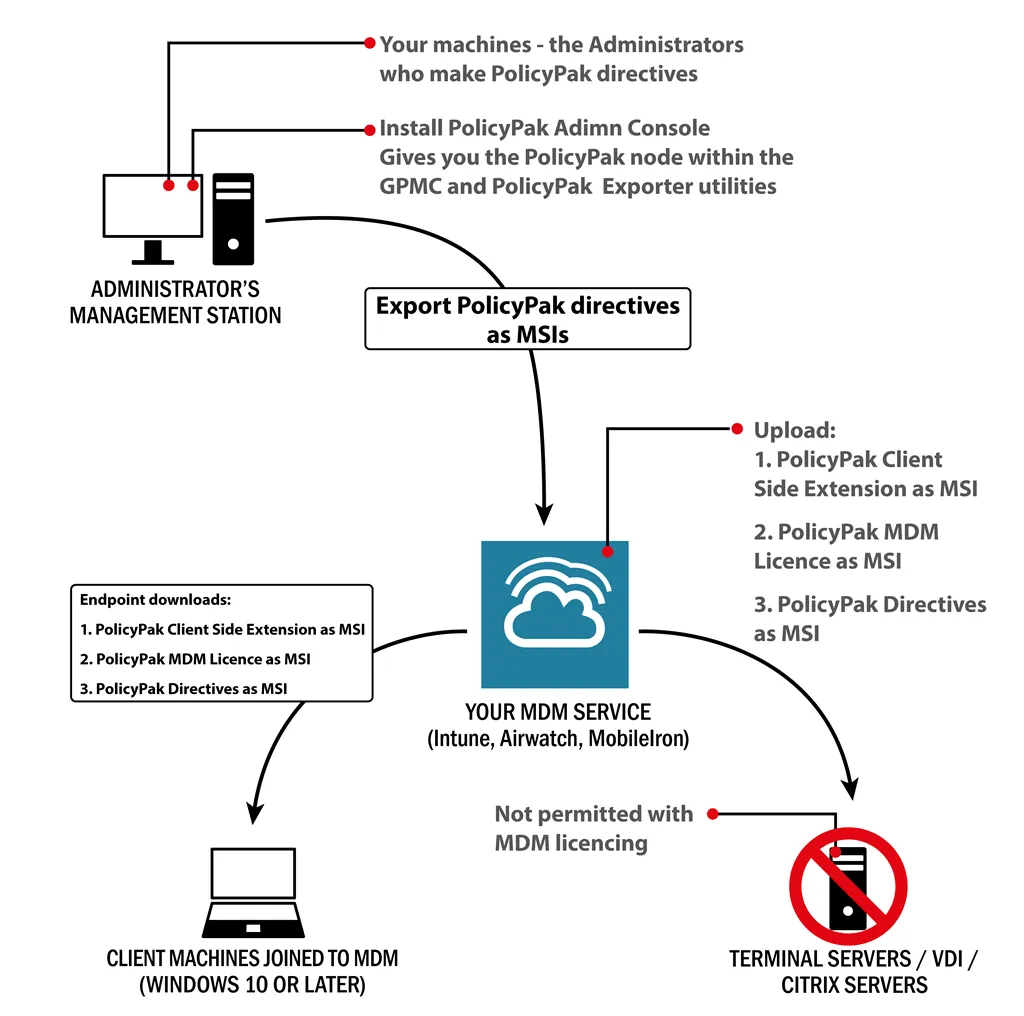
You can use PolicyPak with any MDM service you already have, like Intune, VMware Workspace ONE (formerly Airwatch), MobileIron, etc. Below we see a systems hierarchical breakdown when using PolicyPak with any MDM system.
Deploying Real Group Policy (and Extra PolicyPak Settings) Overviewa video overview of PolicyPak and MDM.
The ultimate goal is to upload the following PolicyPak items to your MDM service and then have them downloaded:
- PolicyPak MSI client
- PolicyPak MDM license MSI
- PolicyPak example MSI (or your own MSIs)
However, we strongly recommend you first verify that the license and MSI files are working perfectly before actually performing all these steps. Therefore, our recommendation would be as follows:
On one machine proceed in the following manner:
Step 1 – Join MDM.
Step 2 – Install PolicyPak MSI by hand.
Step 3 – Install PolicyPak licenses MSI by hand.
Step 4 – Install PolicyPak example policies MSI by hand.
This will ensure all the correct parts are working in concert before you attempt to use an MDM service to deliver these components.
See PolicyPak and MDM walk before you run a video of this process.
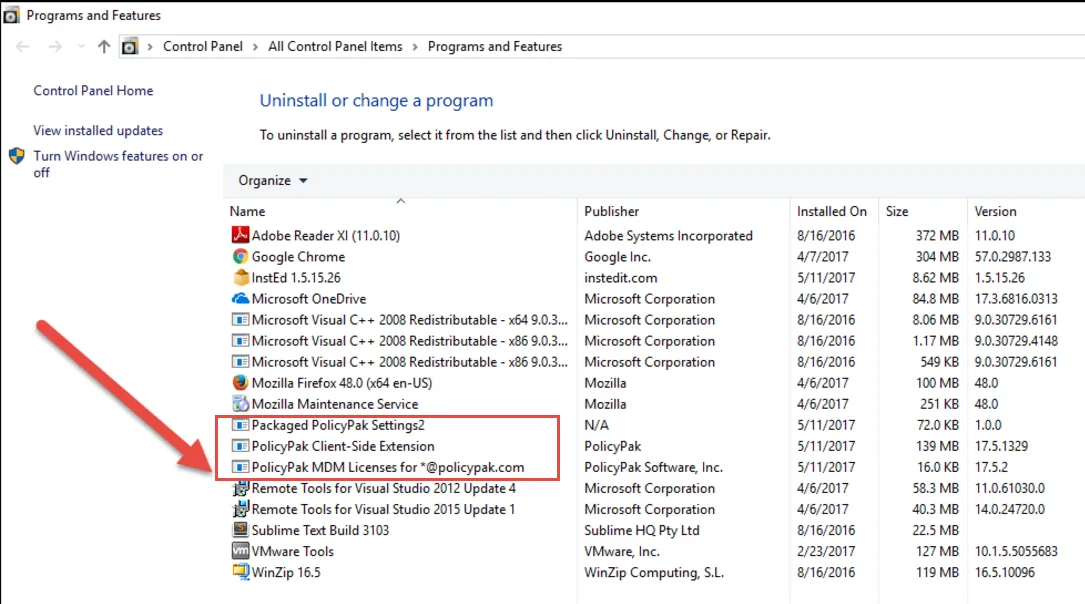
Once you've completed these procedures, you're ready to actually perform the steps needed to get the files deployed using your MDM service. The ultimate result and goal will be that the PolicyPak MSI client, the PolicyPak MDM license MSI, and the PolicyPak examples (or your own wrapped up examples) are downloaded from your MDM service and installed on the system.
Optionally, you can view or hide these components by using the Add/Remove Programs applet in the Control Panel. An example of a final deployment would look something like this:
The typical command you want your MDM service to run for each component would be something like this:
msiexec /i "PolicyPak Client-side extension x64.msi" /qn ARPSYSTEMCOMPONENT=1
msiexec /i "endpointpolicymanager-Exported-Settings.msi" /qn ARPSYSTEMCOMPONENT=1
msiexec /i "Fabrikam-License1.msi" /qn ARPSYSTEMCOMPONENT=1
It should be noted that:
- The
/qnflag runs the MSI silently. - The
/ARPSYSTEMCOMPONENT=1is optional and will hide the deployed MSI from Add/Remove Programs so users or admins won't see it installed or try to remove it.
The name of the actual license file you get might be somewhat different.
The next three sections discuss a few setup tips and tricks for Microsoft Intune MDM, MobileIron MDM, and VMware Workspace ONE MDM. The setup steps may vary a little from what is listed in the next few sections, but they are the basic steps for each of the major services.