PolicyPak and VMware Workspace ONE MDM
See PolicyPakand Workspace One (Airwatch) MDM: Deploy Group Policy and PolicyPak superpowers today for a video overview of PolicyPak and VMware Workspace ONE MDM
Step 1 – To use VMware Workspace ONE (formerly known as AirWatch) with PolicyPak, use the Apps & Books section, and click Add Application to add the PolicyPak CSE MSI file, PolicyPak license MSI file, and PolicyPak settings MSI file.
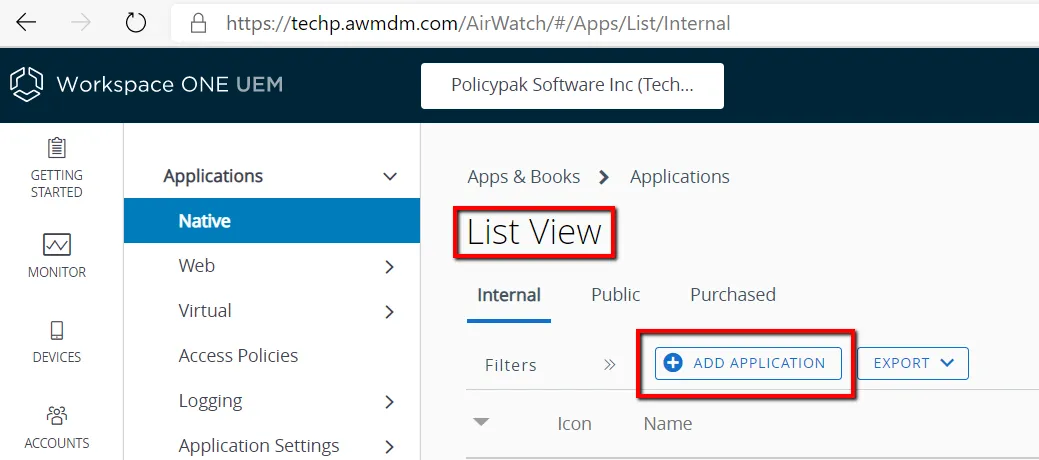
Step 2 – Choose the designated MSI file. In the example below we are installing the PolicyPak CSE.
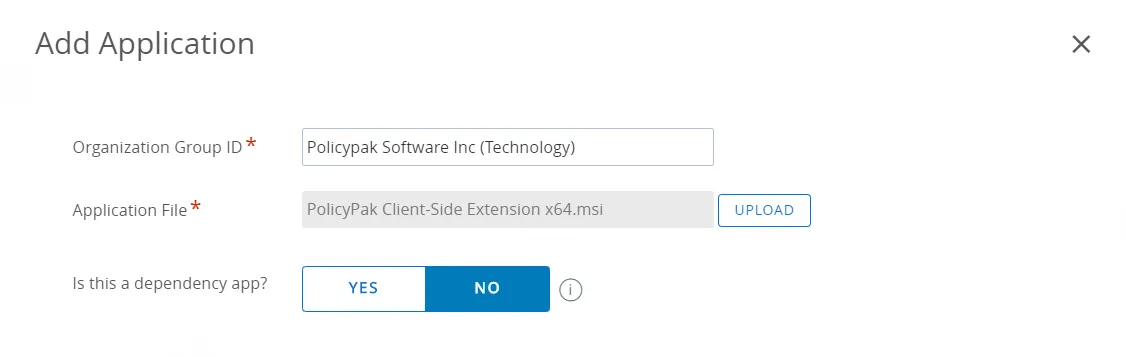
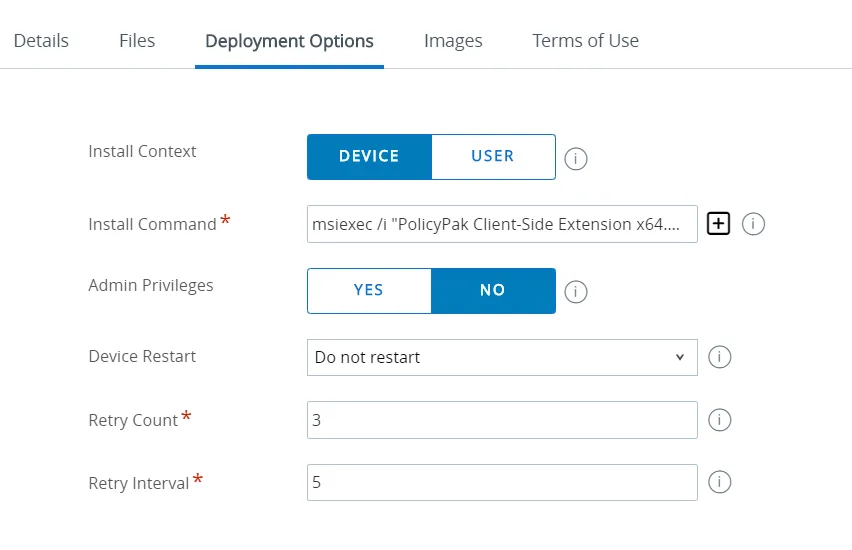
Step 3 – The Add Application Wizard should be run three times (not shown) in order to import each file. As you do, specify the following deployment options:
- Install Context should be set to Device.
- Install Command should have
/ARPSYSTEMCOMPONENT=1added at the end of its field if you want to hide the MSI from the Control Panel. - App Delivery Method should be set to Auto so it becomes a forced installation .
- Assignment Groups can be All Devices or Targeted, depending on what you need.
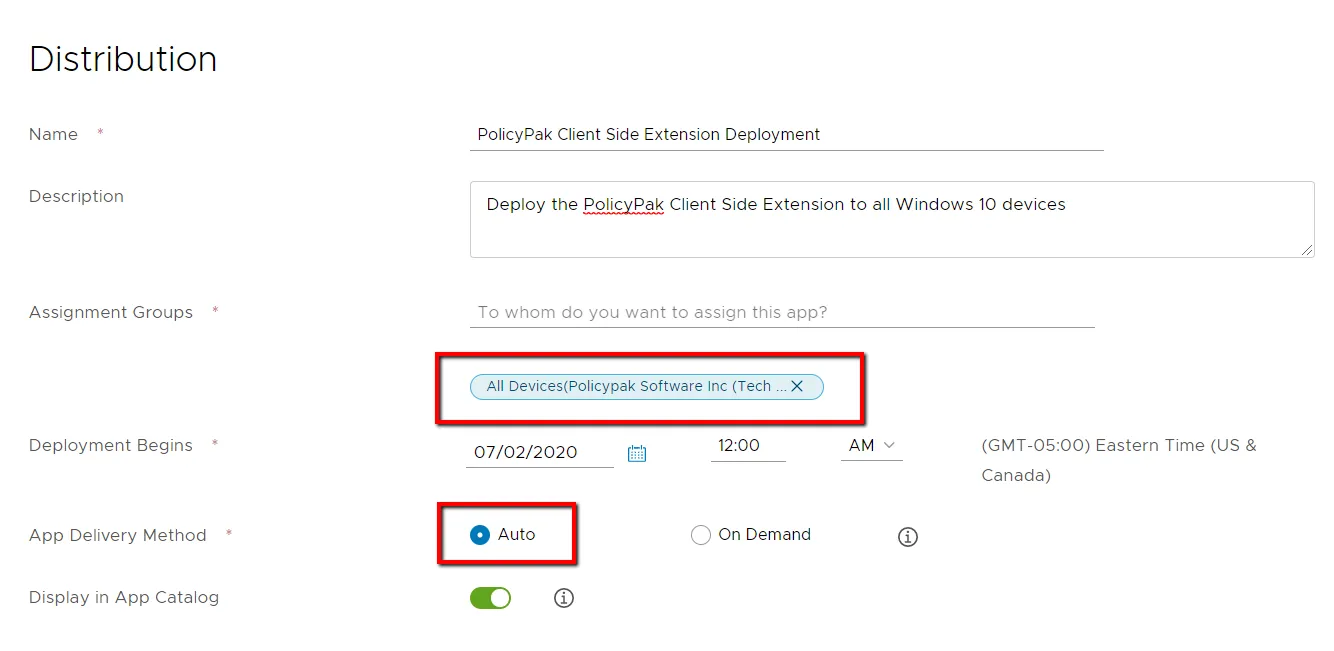
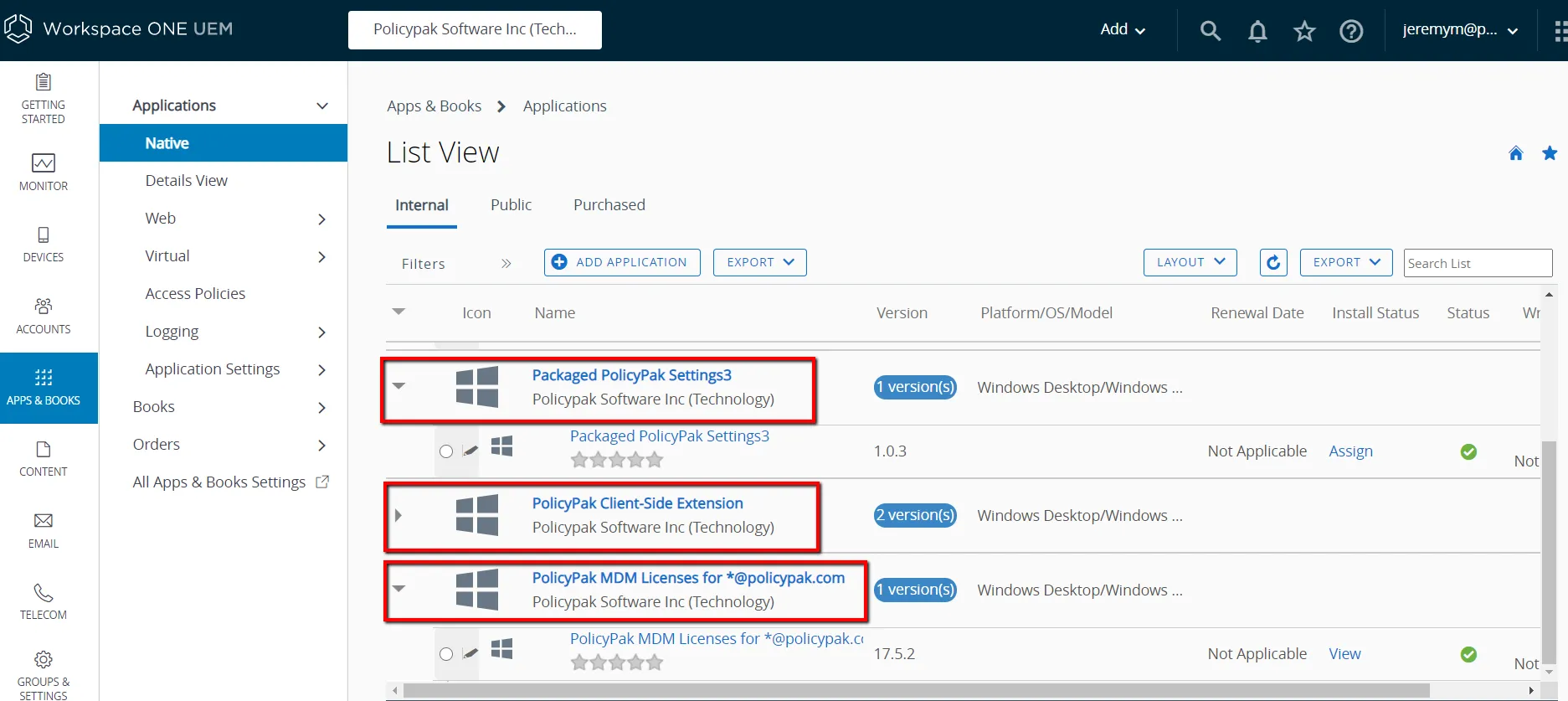
This is the final result in VMware Workspace ONE:
Step 4 – As a test, on an example client, perform your MDM enrollment to your VMware Workspace ONE service.