How do I configure the MMC snap-in to open GPOs in Netwrix Auditor?
For a video overview of this process see PolicyPak and Netwrix Auditor - Setup Steps
Only the latest PolicyPak MMC console supports the PolicyPak → Netwrix Auditor. Make sure to use the PolicyPak download and install the latest MMC console.
Initial Setup for Netwrix Auditor
Step 1 – In Netwrix Auditor, determine where you Report Manager URL is. The item is found in Netwrix Auditor under Settings > Audit Database > Report Manager UR.
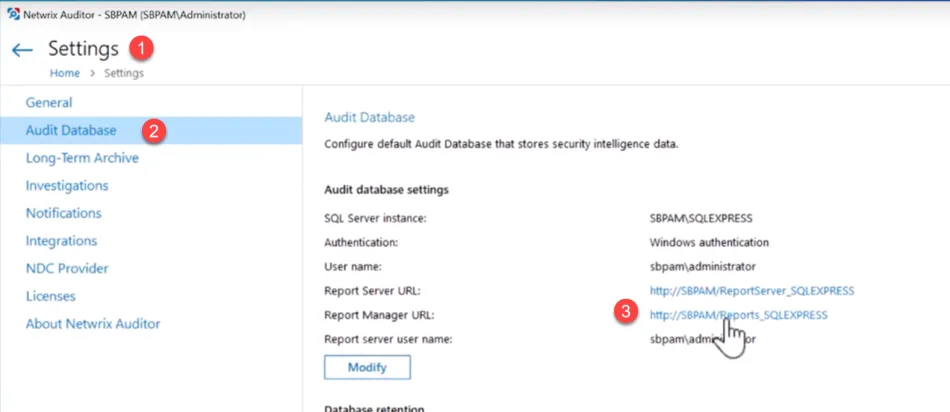
Step 2 – Click on the link to open up Report Manager in SQL Server Reporting Services (SSRS).
Step 3 – Create a new SSRS Folder and give it any name you like.
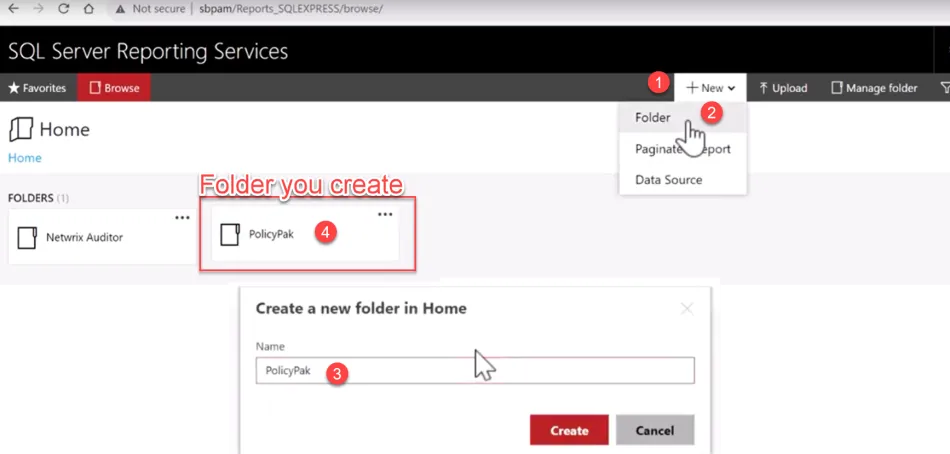
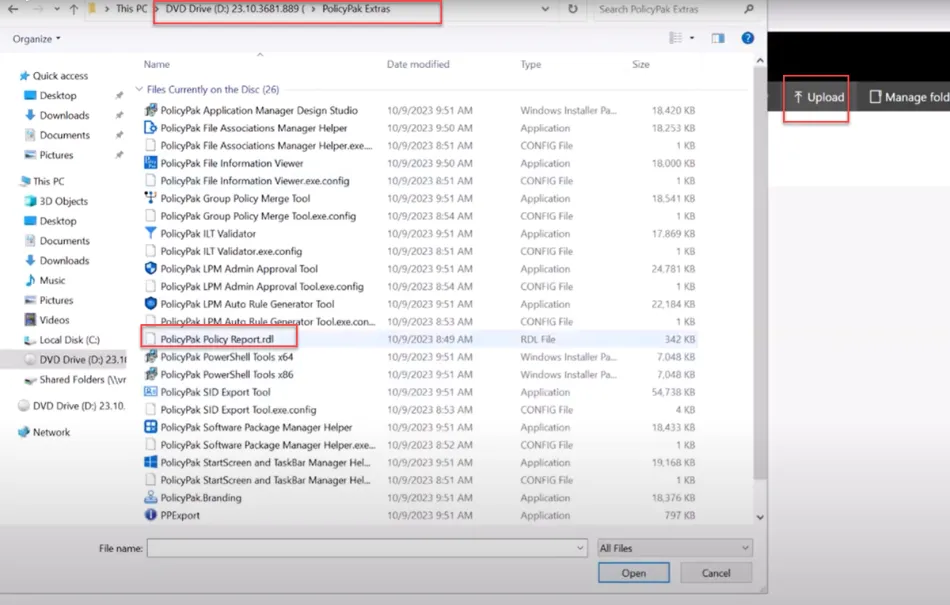
Step 4 – Enter the folder you just created then upload the .RDL file provided from the
PolicyPak Extras Folder.
Step 5 – The result after the upload is shown below..
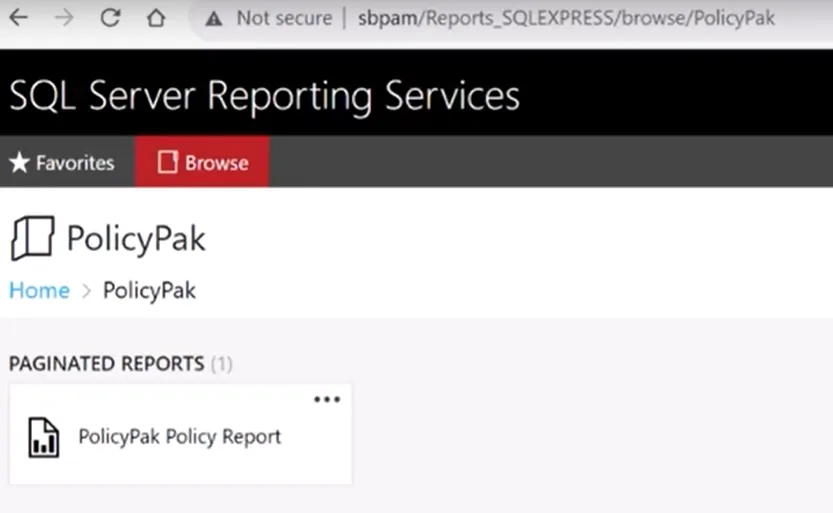
Step 6 – Click the report to get the reference string you'll use in future steps. This will contain the Netwrix Auditor server, up to and including the specific URL which expresses just before the report name.
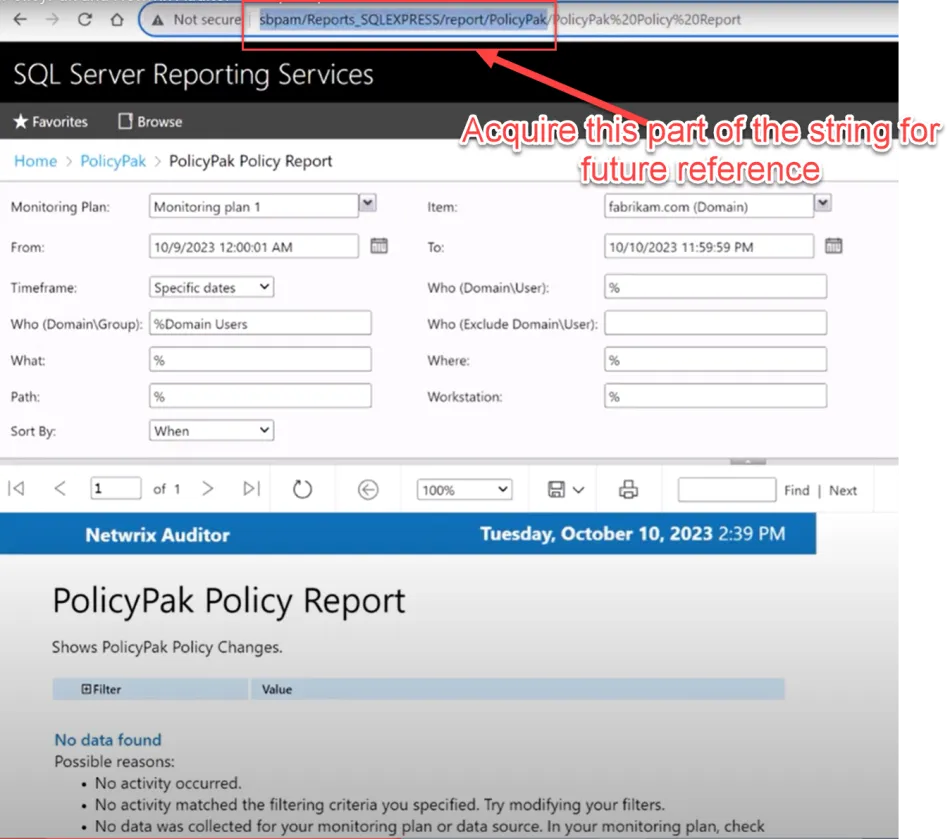
As an example, the string should look like this: http://NetwrixAuditorServer/Reports_SQLEXPRESS/report/PolicyPak
Step 7 – Keep this string handy in Notepad or similar for thenext steps.
Using the PolicyPak MMC to Call Netwrix Auditor
Step 1 – Use the latest PolicyPak MMC to configure your management machine to use Netwrix Auditor . Left click on the Netwrix PolicyPak node, then right-click to Open in Netwrix Auditor. Input the string you collected earlier.
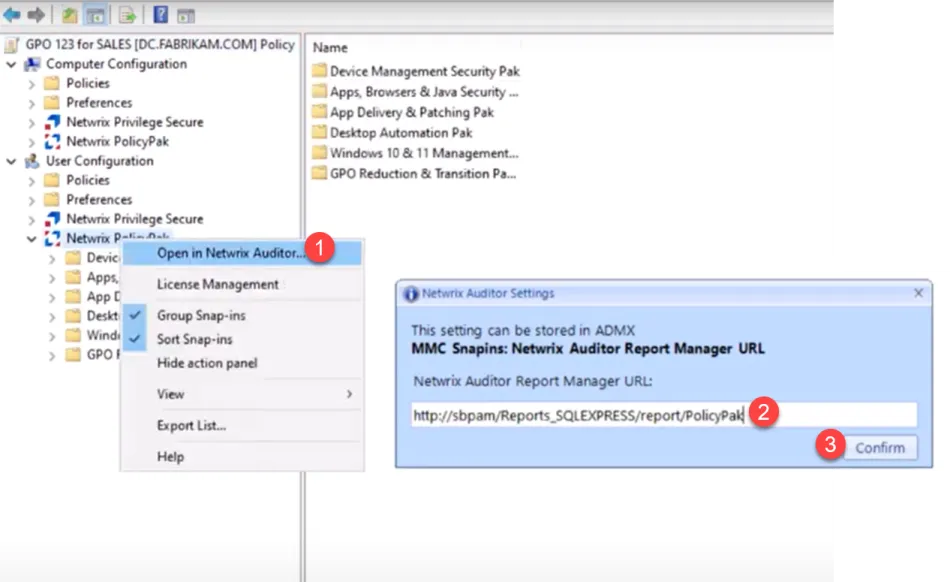
Optional Configuration: Use PolicyPak ADMX to configure the value automatically
Step 1 – If you have many PolicyPak administrators using the MMC snap-in and you
wish to mass-configure this value, you may do so via the PolicyPak ADMX Files.
Always use the latest PolicyPak ADMX files, are available in the PolicyPak download.
Please see Troubleshooting with ADMX files to begin using, or update the PolicyPak ADMX settings
Step 2 – After the ADMX files are in place, create a Group Policy Object and target it for
your MMC management stations.
PolicyPak CSE will ignore this policy because it is exclusively regarding the MMC snap-in.
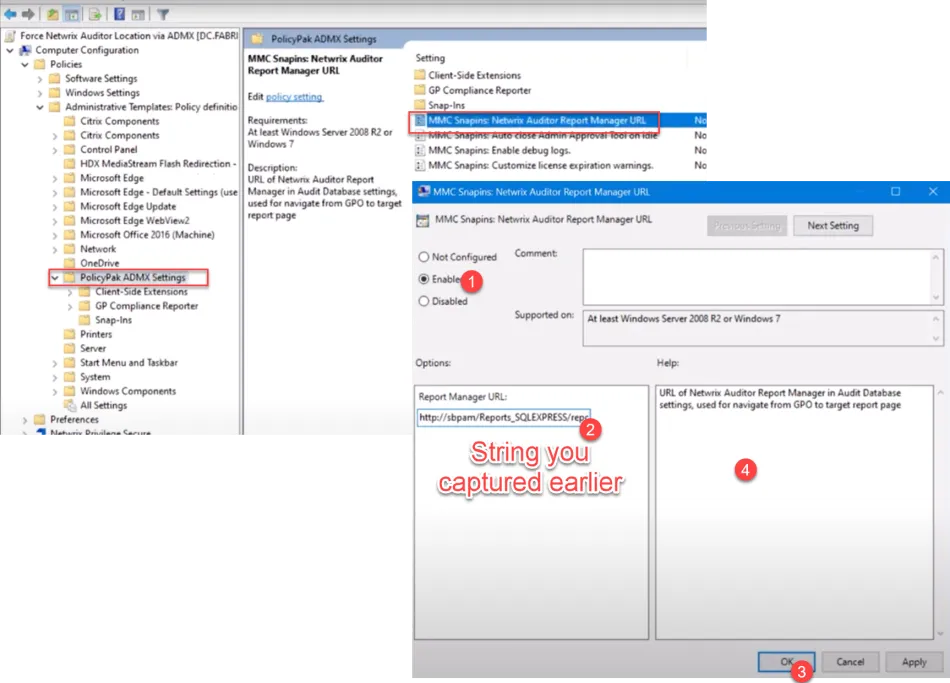
Step 3 – Going forward, the ADMX setting will command the MMC snap-in and it will be unconfigurable.