How does PolicyPak perform Folder Redirection or OneDrive Known Folder Move (KFM) with PolicyPak Group Policy, PolicyPakMDM or PolicyPak Cloud?
Netwrix PolicyPak as a product DOESN'T perform Folder Redirection or OneDrive Known Folder Move.
PolicyPak CAN, however, deliver the Group Policy or registry settings required to perform these operations.
These operations are just built into Windows and OneDrive, and THEY do the work… PolicyPak just delivers the SETTINGS.
Folder Redirection and PolicyPak:
For Folder Redirection, use Group Policy Preferences to deliver the following settings that you are interested in.
HKEY_CURRENT_USER\Software\Microsoft\Windows\CurrentVersion\Explorer\User Shell Folders
Name: AppData
Type: REG_EXPAND_SZ
Data: %USERPROFILE%\Application Data
Name: Desktop
Type: REG_EXPAND_SZ
Data: %USERPROFILE%\Desktop
Name: Personal
Type: REG_EXPAND_SZ
Data: %USERPROFILE%\My Documents
Name: My Pictures
Type: REG_EXPAND_SZ
Data: %USERPROFILE%\My Documents\My Pictures
Name: Start Menu
Type: REG_EXPAND_SZ
Data: %USERPROFILE%\Start Menu
For more details see this article:
https://support.microsoft.com/en-us/help/242557/registry-settings-for-folder-redirection-in-windows
For OneDrive Known Folder Move (KFM) and PolicyPak
Step 1 – Read this first: https://docs.microsoft.com/en-us/onedrive/redirect-known-folders then use the OneDrive Group Policy settings to perform the work.
Full, step by step and expert advice in this area can be found in the MDM book at http://www.mdmandgpanswers.com/book in the OneDrive chapter.
The latest OneDrive ADMX files are always just installed alongside the OneDrive client.
Step 2 – So, we suggest that on a single, solitary machine, go to https://onedrive.live.com/about/download/ find the download (or reinstall) for Windows 10.
Remember, Even if you think you have it, just… re-download and reinstall it, just so I know you're using the latest OneDrive client version.
Step 3 – Then, once done, on a Windows 10 machine, you'll look for the files in
%localappdata%\Microsoft\OneDrive\BuildNumber\adm (yes, adm and not ADMX for some reason.)
Step 4 – Then you can use then with your Central Store and PolicyPak Admin Templates Manager and/or PolicyPak Cloud.
Video tip for adding ADMX files to your Central Store: https://www.youtube.com/watch?v=Op7hAvc5a0M
Video tip for adding ADMX files to your PolicyPak Cloud:PolicyPakCloud: Upload and use your own ADMX files to PolicyPak Cloud
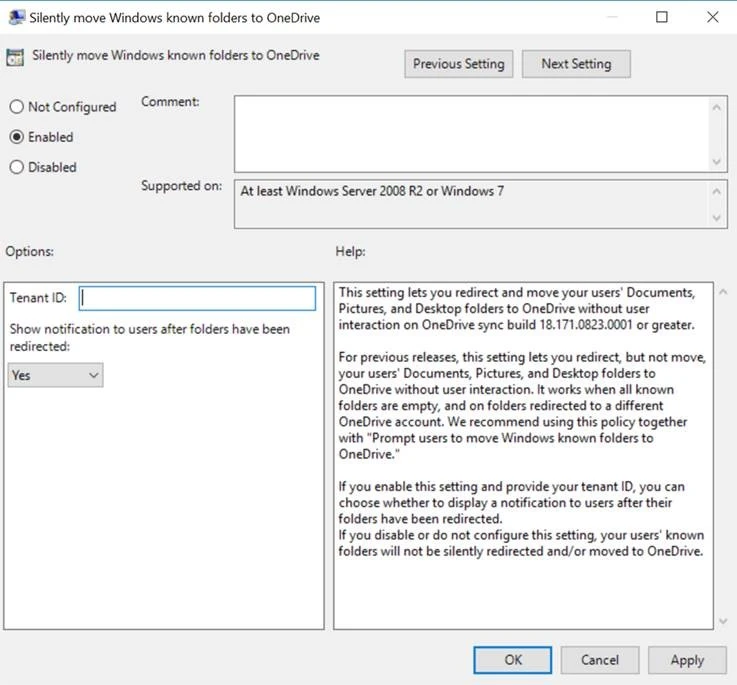
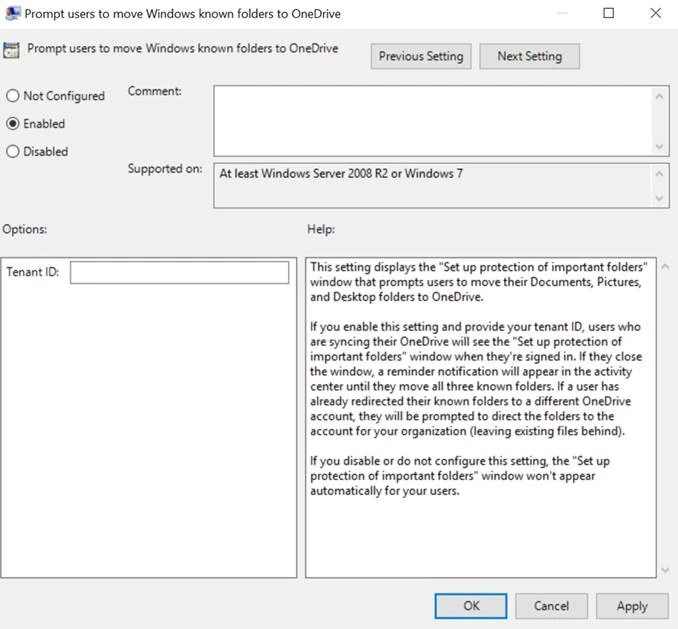
The policy settings you might want to use are…
and / or