Getting Started
To help get you started, this topic points you towards videos that will get you on the road and working with Netwrix PolicyPak quickly.
Choose Your Deployment Method
Select the deployment method that matches your environment:
- Cloud - For PolicyPak Cloud deployments
- Group Policy - For traditional Active Directory environments
- MDM - For mobile device management and modern management
- Misc - General getting started information and support resources
Quick Resources
- Support and Resources - Fast support options and important resources
- General Getting Started Information - Basic concepts, tips, and FAQs
The Portal and Downloads
In order to get the latest PolicyPak downloads, you need access to the PolicyPak Customer Portal (shown in Figure 1). You can only get access to the portal from a PolicyPak sales associate.
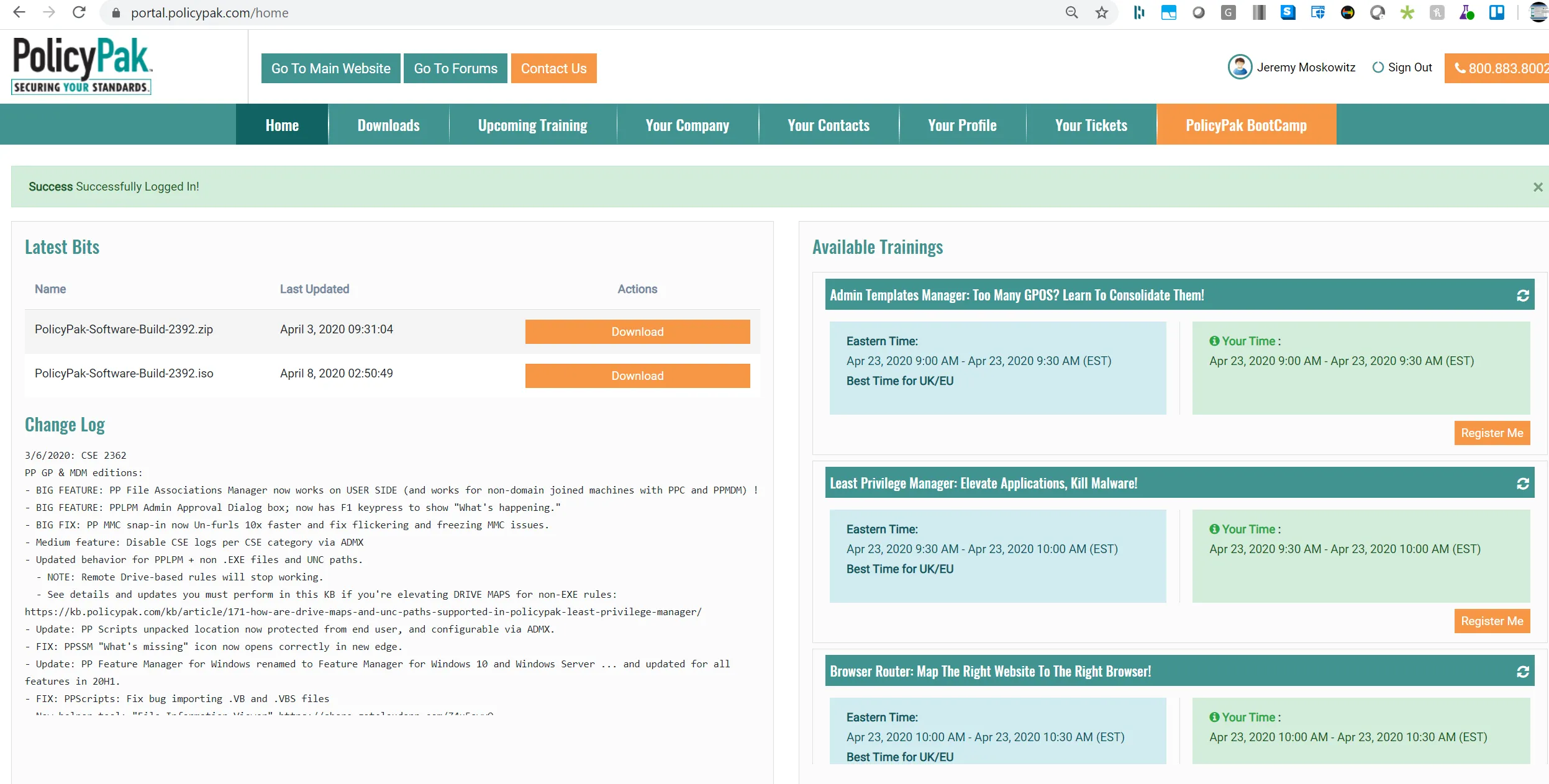
Figure 1. Inside the PolicyPak Customer Portal.
Video: For an overview on how to use the PolicyPak Customer Portal and understand subscriptions, please watch the following video: https://www.policypak.com/video/endpointpolicymanager-portal-how-to-download-endpointpolicymanager-and-get-free-training.html
Go to the Download section and select "Download Everything (Bits, Paks, Manuals but not Advice)," and you will get a ZIP file with manuals. You will also receive the following:
- A ZIP file containing all pre-configured AppSets for PolicyPak Application Settings Manager
- An ISO or ZIP file with the PolicyPak installation files and licensing utility
The PolicyPak installation files are delivered as both ZIP and ISO so you can use PolicyPak in virtual environments (which can easily mount ISO files) or burn a CD of the contents.
You may also want to utilize the free 7-Zip program to open ZIP or ISO downloads and extract the files. Download 7-Zip from http://www.7-zip.org/. In Figure 2, you can see the list of files and directories that are inside the PolicyPak ZIP or ISO download.
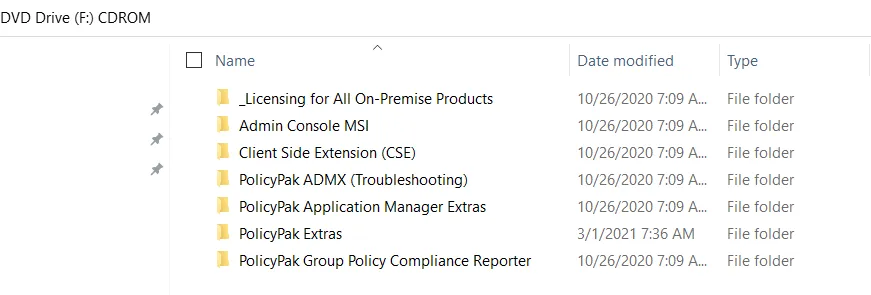
Figure 2. The folders that are inside the download.
Following is a description of what each folder contains and where it should be installed.
Licensing for All On-Premise Products
The licensing for All On-Premise Products contains the licensing utility needed to request and implement PolicyPak license keys. We will be discussing the utility (LT.exe) later.
Admin Console MSI for all On-Premise Products
The Admin Console MSI for all On-Premise Products is installed on your management stations (wherever you have the GPMC) or in the location where you wish to create PolicyPak directives. This installation also has the PolicyPak Exporter and Group Policy Object (GPO) touch utility (both are explained later). Once this is installed, you'll see a PolicyPak node whenever you edit a GPO. You can choose between a 32-bit and a 64-bit file.
Client-Side Extension (CSE) for All On-Premise Products
The Client-Side Extension (CSE) for All On-Premise Products is installed on every client machine (Windows 7 and later, Terminal Services (RDS), and Citrix). You can choose between a 32-bit and a 64-bit file.
PolicyPak ADMX (Troubleshooting)
PolicyPak ADMX (Troubleshooting) is meant to be used in conjunction with minor configuration changes or working with tech support. These are ADMX files that can be placed in your local or central Group Policy store to provide configurable options.
PolicyPak Application Manager Extras
PolicyPak Application Manager Extras contains the PolicyPak DesignStudio installer, which is used to create your own AppSets for PolicyPak Application Settings Manager.
PolicyPak Extras
PolicyPak Extras contains some miscellaneous utilities and helper tools.
PolicyPak Group Policy Compliance Reporter
PolicyPak Group Policy Compliance Reporter contains the PolicyPak Group Policy Compliance Reporter console and PolicyPak Group Policy Compliance Reporter server (optional) for Group Policy reporting. Note that the Compliance Reporter must be specifically licensed.
Get Licensed
With the exception of PolicyPak Cloud (which is self licensed), PolicyPak requires the endpoint to be licensed to work with the components you wish to use. Therefore, for PolicyPak to work after you download everything from the portal, you need to do the following:
Step 1 – Request a license and send that key to Sales for processing. You can watch a video on how to request a license at the following link: How to Request Licenses from PolicyPak by Creating a "License Request Key".
Step 2 – Receive a license and install it. You can watch a video on how to install the license you receive at the following link:How to install UNIVERSAL licenses for NEW Customers (via GPO, SCCM or MDM).
Get Started with the GPO Method
Most customers want to use PolicyPak with Group Policy. You can watch the getting started video on how to install and run some initial tests at the following link: PolicyPak with Group Policy Method: Getting Started.
GetStarted with the PolicyPak Cloud Method
If you want to get started right away with PolicyPak Cloud, watch this video for a quick overview: PolicyPak Cloud: QuickStart.
Get Started with Your MDM Provider or UEM Tool
Getting started with your mobile device management (MDM) provider or UEM tool takes a few more steps than is covered in one video. In this case, instead of a single video, we recommend you watch each of the videos at the links below in order to get prepared to use PolicyPak with your MDM provider.
- For video overviews of using PolicyPak with an MDM service see: Getting Started with MDM > Video Learning Center.
- For video overviews of using PolicyPak with a UEM tool like SCCM see: Getting Started with PolicyPak (Misc) > Knowledge Base.