Step 2: Prepare an endpoint machine to receive PolicyPak policies
During your trial period you will want to experience the power of PolicyPak performing operations upon an example endpoint or two. It is recommended you use machines which are not critical and/or ones you can rollback. A best practice in this situation is to use virtual machies.
PolicyPak endpoints require that the PolicyPak Client Side Extension must be installed in order to receive PolicyPak policies. You will perform that step in a moment.
After you have identified a machine or two that you wish to perform PolicyPak operations upon, you need to get them licensed:
- You DON’T need a license file from us to get started on a few example endpoints.
- You ONLY need a license file from us to get started if you wish to enable groups of endpoint computers at a time (whole domain, multiple OUs, all computers in an MDM service.).
Therefore, if you wish to trial your whole domain, multiple domains, one or multiple OUS and/or all computers within an MDM environment, you will need to contact Netwrix Sales to help you with a broader trial.
To get an endpoint computer to act licensed, simply rename a computer to have COMPUTER in the name. When the computer has the word COMPUTER in the name, PolicyPak will act fully licensed on this computer.
Here are the two methods of how to rename a computer in Windows to have Computer in the name.
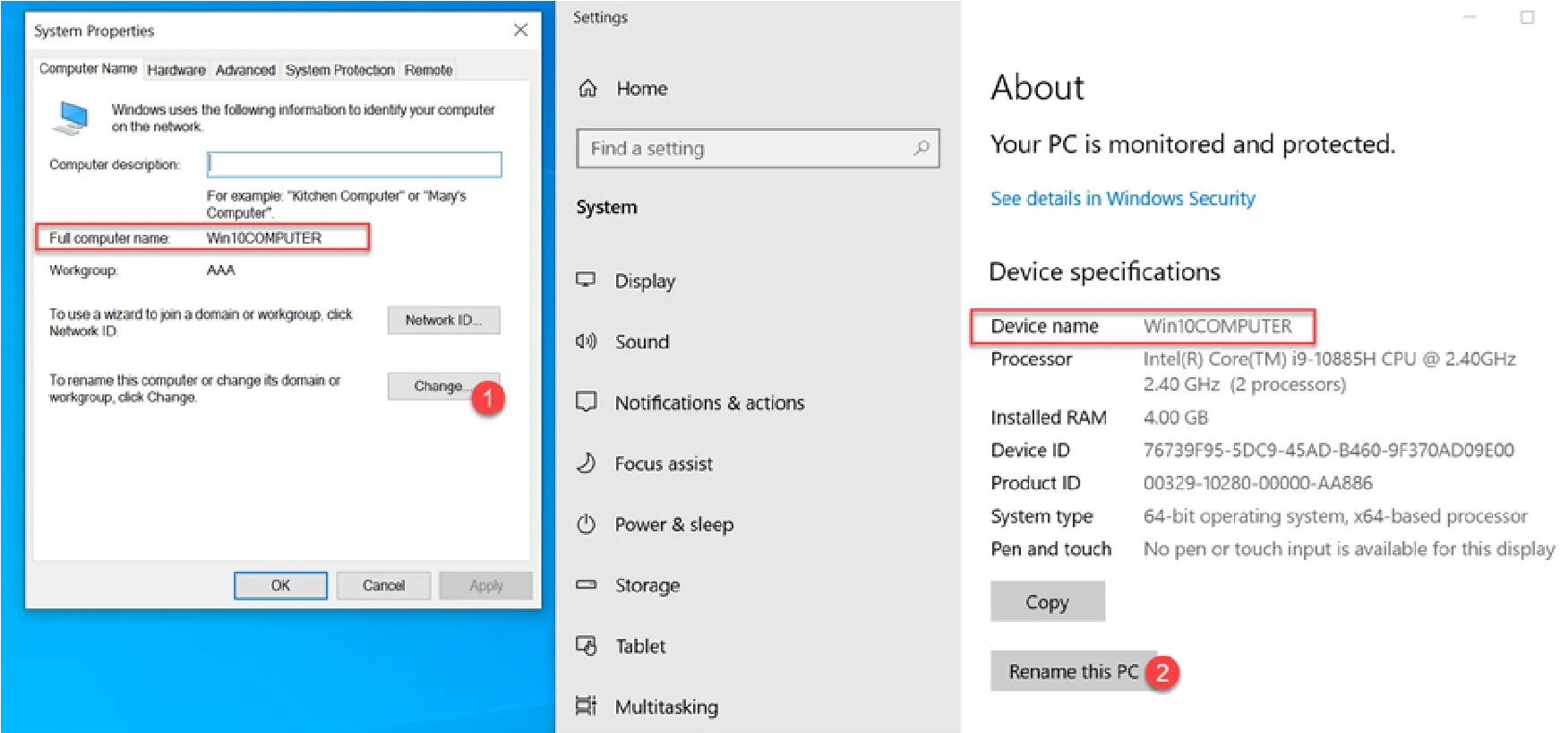
After the example computer is renamed and rebooted, you are ready to install the PolicyPak CSE (Client Side Extension.)
Locate the PolicyPak Build folder and the Client Side Extension (CSE) folder.
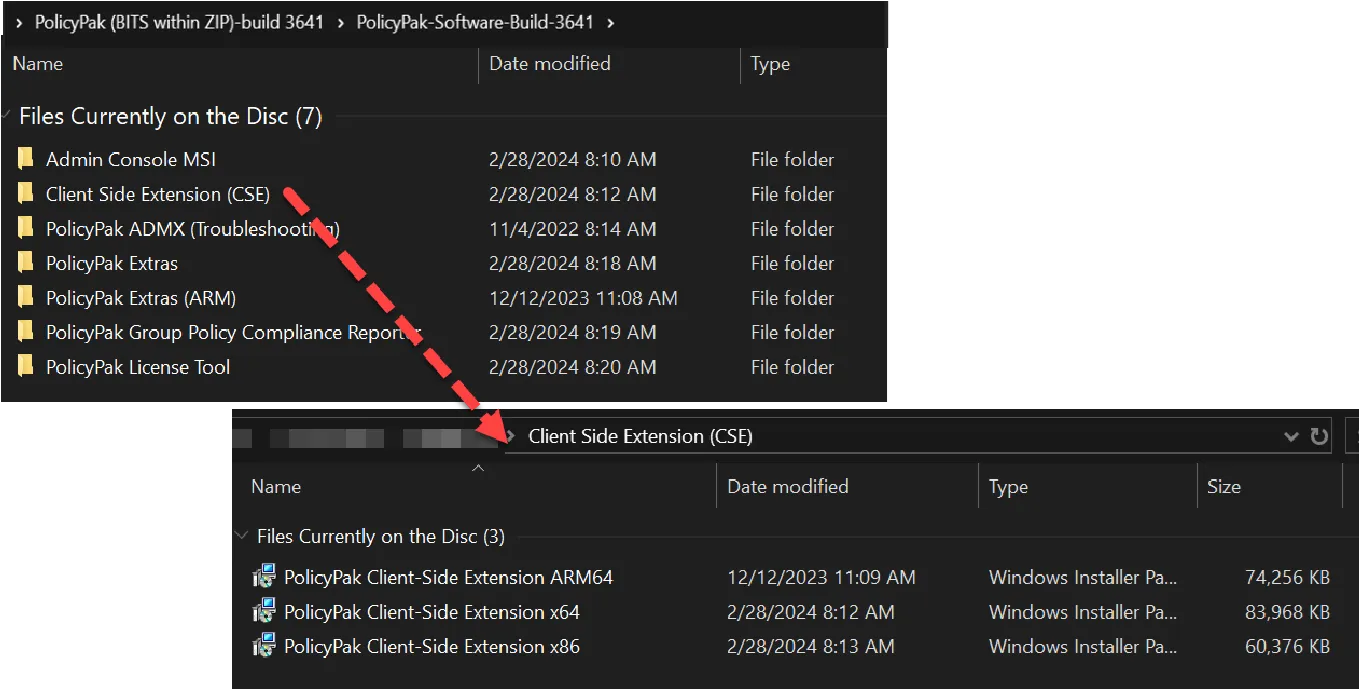
Next, install the PolicyPak CSE on the endpoint. Use x64 for 64 bit and x86 for 32 bit machines.
See the PolicyPak ARM Support Supportability Statement topic about PolicyPak Support on Arm processors.
After the PolicyPak CSE is installed, you can test verify that the license is valid because you renamed the computer to have COMPUTER in the name. Open a new command prompt and type the command ppupdate. You should see something similar to the output shown here.
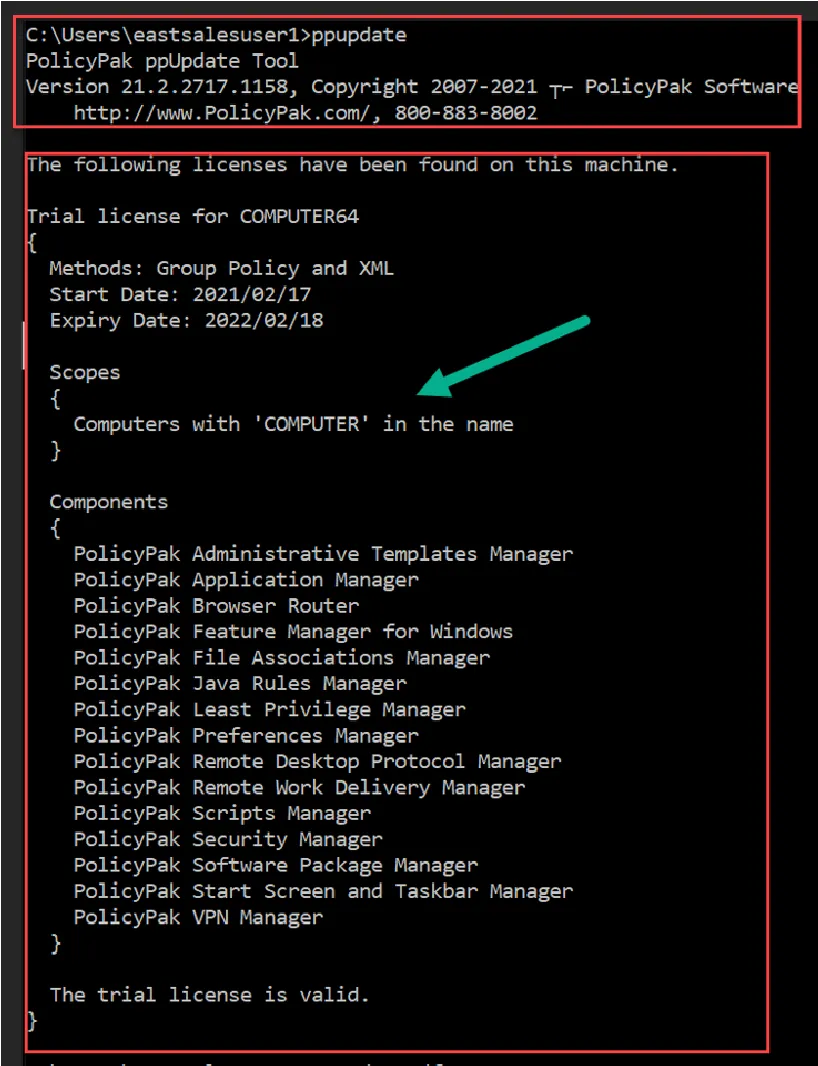
The important points to look for are:
- Verify you see the words “The trial license is valid.”
- Verify you see the Expiry date is in the future.
- Verify you see all the Components of PolicyPak listed.
The trial expires 90 days after the build of PolicyPak was created - NOT 90 days after you perform the installation. Therefore, be aware of your Expiration date since it could be sooner than expected.
See the How can I tell how a machine is licensed (by GPO, MDM, or XML file), and also know for what components it is licensed? topic for further details on validating licensing. See also the Testing and Troubleshooting By Renaming an endpoint Computer topic for further details showing what happens when you rename a computer and how PolicyPak reacts.