Troubleshooting with ADMX or Registry Entries
PolicyPak GPCR has the ability to provide extended logging if something unexpected happens. There are two ways to turn on extended logging: downloadable REG files and ADMX files. You would use the downloadable REG files when you want to enable extended logging on just one machine, and you would use the ADMX/ADML files to enable extended logging on multiple machines. The downloadable REG files are found on our website at: PolicyPak GP Compliance Reporter > Knowledge Base. The ADMX files are in the download of PolicyPak GPCR, as shown in Figure 77.
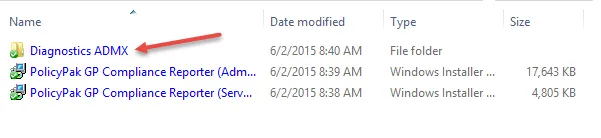
Figure 77. Downloaded ADMX files.
GPCR Downloadable REG Files
You can use the downloadable REG files when directed by the PolicyPak Technical Team. In this case, you would typically be troubleshooting the following:
- Endpoint
- PolicyPak GPCR client (admin console)
- PolicyPak GPCR server
To troubleshoot these items, you would download the REG files from our website and, as an administrator, install the files to enable them. When enabled correctly, the component will create a diagnostics folder, and logs will be placed inside it. In Figure 78 you can see the enhanced logging enabled for the endpoint.
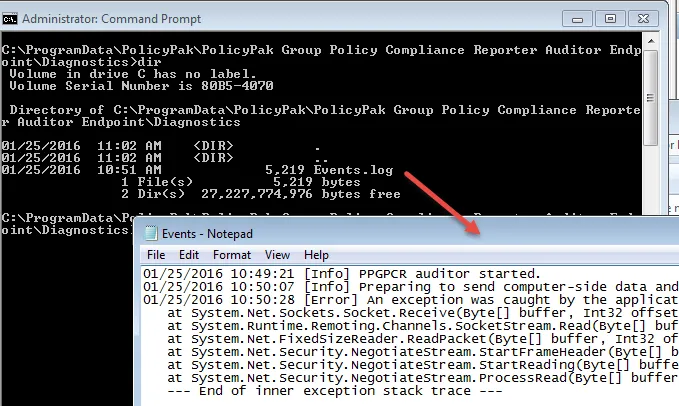
Figure 78. Enhanced logging enabled.
ADMX/ADML files
You can enable diagnostics for the PolicyPak GPCR family of products using the
ADMX/ADML files. First, copy the PolicyDefinitions folder into \\<DC>\sysvol\<domain>\Policies or
C:\Windows. Then, create and link a GPO. The new policies are at Computer Configuration | Policies
| Administrative Templates | PolicyPak, as shown in Figure 79.
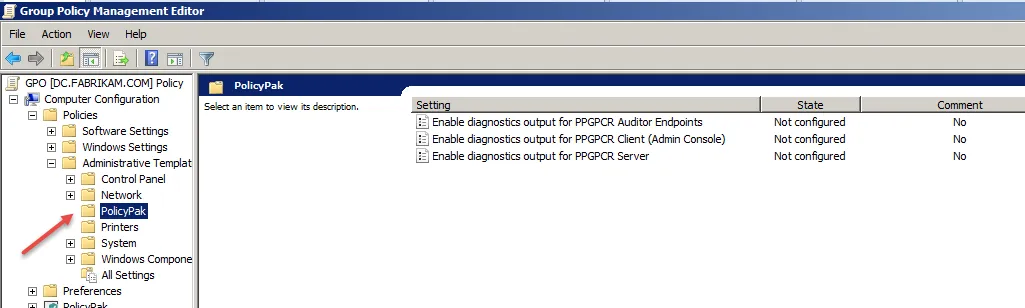
Figure 79. The available GPCR policy settings.
GPCR Registry Entries
You do not need to use the downloadable REG items or the ADMX/ADML files if you do not want to. Instead, you can manually enable diagnostics using Table 4. Note that there are other registry settings that are not enabled by Group Policy. For the PolicyPak GPCR client (admin console) the following is not enabled by Group Policy:
Key: HKEY_CURRENT_USER\Software\PolicyPak\PPGPCR
Values: DataDirectory, SnapshotsToKeep, SingleInstance, UseServer, ServerAddress,
ServerPort
For the PolicyPak GPCR server the following is not enabled by Group Policy:
Key:
HKEY_LOCAL_MACHINE\SOFTWARE\Wow6432Node\PolicyPak\PolicyPak Group Policy Compliance Reporter Server
Values: DataDirectory
You can use this value if you wish to change the location of the file-based database used for the PolicyPak GPCR server. The target location specified must have network service granted full control. This is normally set up during the installation, but if you change the folder, you have to do it yourself.
Table 4: Settings to enable diagnostics.
| Problem Area | Group Policy ADMX Item to Enable | Setting | Location of Log Files |
|---|---|---|---|
| Endpoint | Enable diagnostics output for PolicyPak GPCR auditor | Key: HKEY_LOCAL_MACHINE\Software\Wow6432Node\Policies\PolicyPak\PPGPCR Auditor Endpoint Values: EnableDiagnostics, DiagnosticsPath | %ProgramData%\PolicyPak\PolicyPak Group Policy Compliance Reporter Auditor Endpoint\Diagnostics |
| PolicyPak GPCR client (admin console) | Enable diagnostics output for PolicyPak GPCR | Key: HKEY_LOCAL_MACHINE\Software\Wow6432Node\Policies\PolicyPak\PPGPCR Client Values: EnableDiagnostics, DiagnosticsPath | %LOCALAPPDATA%\PolicyPak\PolicyPak Group Policy Compliance Reporter\Diagnostics |
| PolicyPak GPCR server | Enable diagnostics output for PolicyPak GPCR server | Key: HKEY_LOCAL_MACHINE\Software\Wow6432Node\Policies\PolicyPak\PPGPCR Server Values: EnableDiagnostics, DiagnosticsPath | %ProgramData%\PolicyPak\PolicyPak Group Policy Compliance Reporter Server\Diagnostics |
| Endpoint (to downgrade Auditor to older GPRESULT /X method from WMI Method) | None (yet) | Key: HKEY_LOCAL_MACHINE\Software\Policies\\PolicyPak\PPGPCR Auditor Endpoint Value: UseGPResultBasedAuditor = 1 |