Installation and Uninstallation
We recommend that installation of the GPCR Server Edition be on a server (Server 2008 R2 or higher). However, PolicyPak GPCR in push mode doesn't need to be installed on a server at all, and could be installed on any machine (Windows 7 or higher). To start the installation, find the PolicyPak GP Compliance Reporter (Server).msi file, as shown in Figure 36.

Figure 36. GPCR server MSI.
Step 1 – To install PolicyPak GP Compliance Reporter, click on the MSI file and start the wizard (Figure 37).
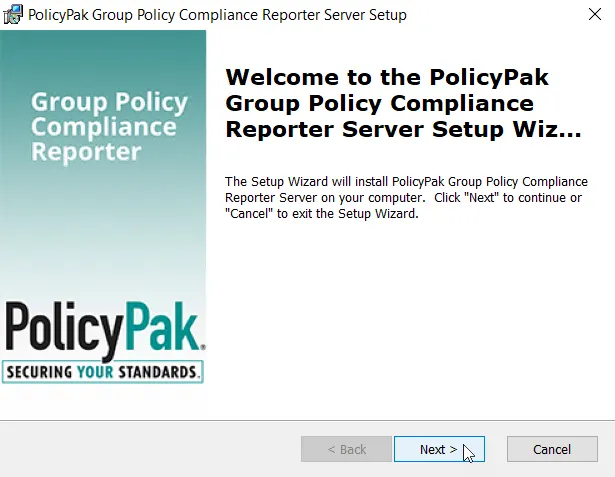
Figure 37. The PolicyPak Group Policy Compliance Reporter Server Setup Wizard.
Step 2 – Next, choose the domain group that will have rights to the PolicyPak GPCR server as shown in Figure 38.
To see a video on Compliance Reporter and specific group membership requirements, see the following link: Enhanced Security for Server.
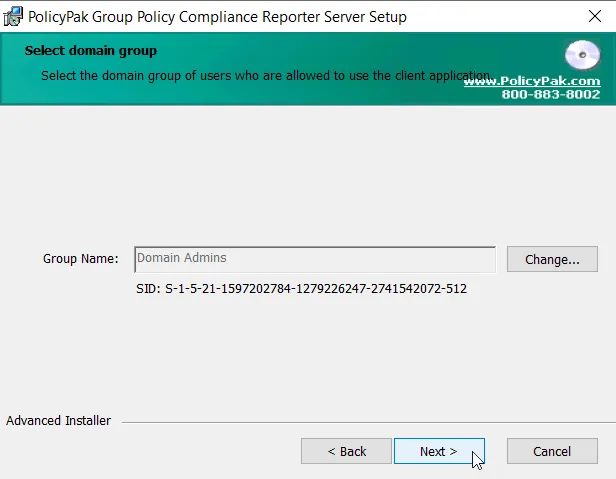
Figure 38. Choosing the domain group that will have access to the GPCR server.
Step 3 – Then select which type of database you want to use (see Figure 39). You can choose Microsoft SQL Server Compact if you only expect a small amount of data for processing and testing. However, in most cases, Microsoft SQL Server is recommended.
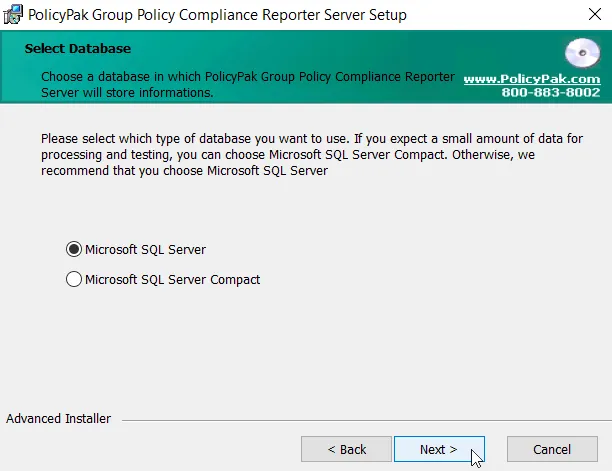
Figure 39. Selecting the type of database.
Step 4 – Once the installation process is complete, close the wizard.
If you need to uninstall PolicyPak GPCR Server, use Add/Remove Programs and uninstall PolicyPak. Then, remove
C:\ProgramData\PolicyPak\PolicyPak Group Policy Compliance Reporter Server and all subfolders.
Additionally, remove the PolicyPak Group Policy Compliance Reporter (endpoint) license
from the Group Policy Object (GPO).