Upgrading Tips
Netwrix PolicyPak consists of several pieces of software. These include the following:
-
PolicyPak Client-Side Extension (CSE), which is on every client machine you want PolicyPak to do work on.
-
PolicyPak GPMC snap-in, which provides the PolicyPak node within the GPMC (for editing policies)
-
PolicyPak helper tools:
- PolicyPak Exporter and PolicyPak GPOTouch utilities
- PolicyPak Admin Approval (for PolicyPak Least Privilege Manager)
- PolicyPak DesignStudio, which enables you to create and update PolicyPak Application Settings Manager AppSets
-
PolicyPak AppSets (pre-configured or created by you) for PolicyPak Application Settings Manager
Always remember that the PolicyPak CSE acts as part of the operating system. As such, you should perform small-scale tests for major builds. After you do this, roll out the CSE in a controlled manner after you confirm success for all applications and scenarios.
You should familiarize yourself with the idea of rings, which is a Microsoft concept dealing with controlled rollouts. PolicyPak aligns with this ring philosophy and as such, getting familiar with those concepts is well advised. This idea is applicable for all delivery methods: Group Policy, MDM, SCCM, or Cloud. This manual will examine the concept of rings. See the Using Rings to Test and Update the PolicyPak Client-Side Extension and/or Cloud Client (And How to Stay Supported) topic for additional information
In general, the best route to take for upgrading from any previous version is the following:
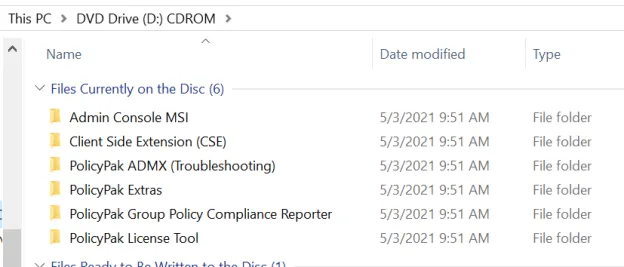
Step 1 – Update the GPMC on your Admin Console machines to get the latest MMC editor. You'll use the Admin Console MSI folder for this.
Step 2 – The Admin Console will auto-update the tools that are automatically installed alongside the Admin Console installation, such as PolicyPak Admin Approval Tool and PolicyPak Exporter.
Step 3 – If you're using any other PolicyPak Extras tools, be sure to update and distribute those to your admin team. Sometimes the latest helper tool must match what is expected in the MMC editor.
Step 4 – Update the PolicyPak ADMX (troubleshooting) files. (Video tip: Troubleshooting with ADMX files)
Step 5 – Roll out the CSE in a controlled fashion to your endpoints using the ring methodology.
Do not attempt to roll out the CSE to 100% of your computer population at once. If PolicyPak fails to operate in an expected manner and locks up, or otherwise makes your machine inaccessible or unavailable, we cannot be responsible since you were directed to roll out the CSE to endpoint machines gradually.
If you're using PolicyPak with Group Policy Objects (GPOs), you should also be making backups from time to time. Inside the GPMC, find the Group Policy Objects node, right-click, select Backup, and then follow the prompts. For additional information on how to preform a Group Policy backup, see the PolicyPak: Backup and Restore Options to Recover from nearly any problem and PolicyPak Application Settings Manager: Backup, Restore, Export, Import video demos.