Users Tab for Host
The Users tab shows information about the local users on the selected resource.
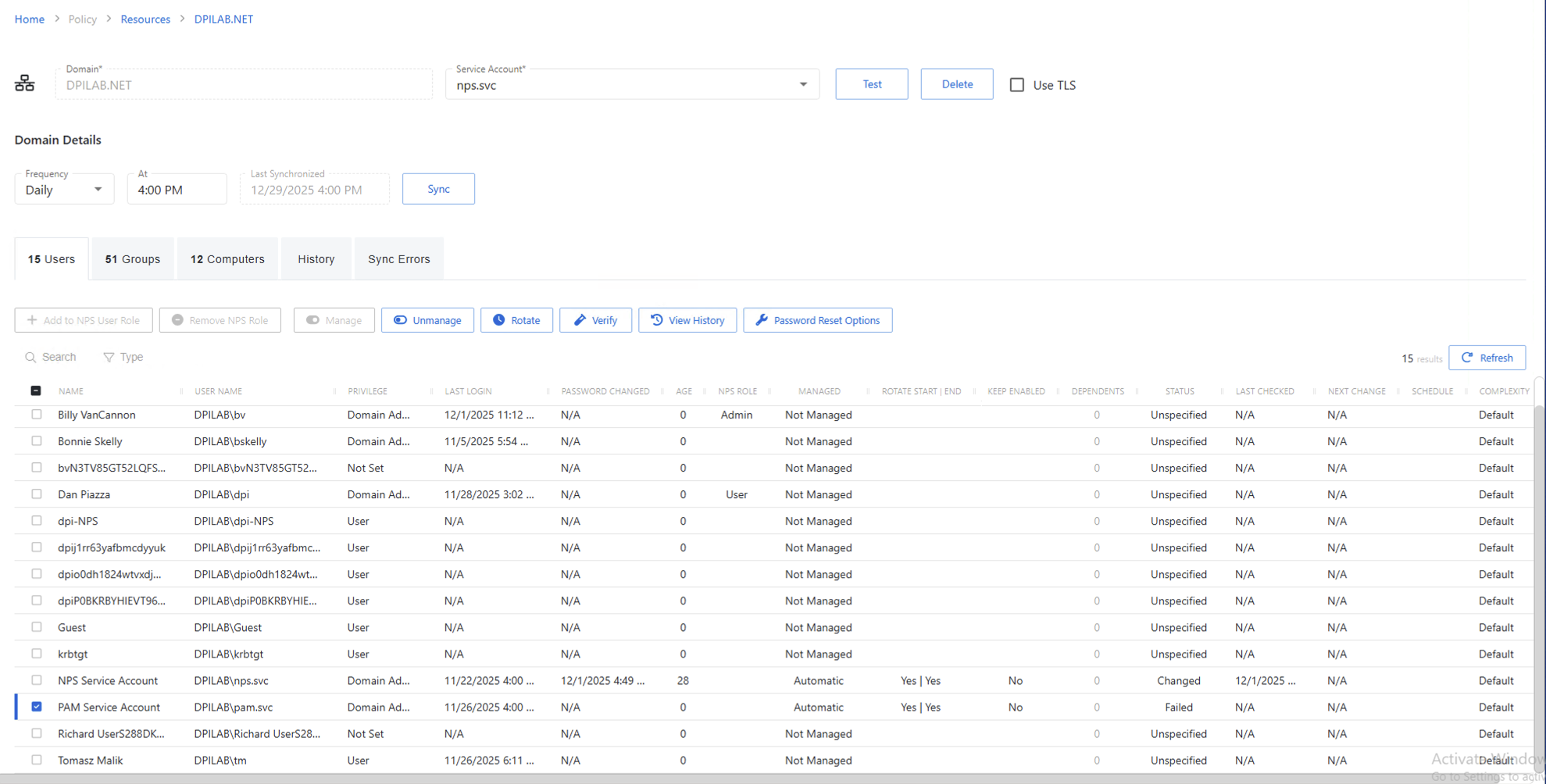
The Users tab has the following features:
- Search — Searches the table or list for matches to the search string. When matches are found, the table or list is filtered to the matching results.
- Filter — Provides options to filter results based on a chosen criterion: Managed and Not Onboarded
- Manage — Set the selected account to be managed by Privilege Secure. This button is only available when the account Managed Type is Standard or Internal. For an Internal account, a pop up window displays.. Password rotation can be set to automatic or manual for managed accounts.
- Unmanage — Remove the account from being managed by Privilege Secure
- Schedule Rotation — Add the credential rotation task to the queue. This button is only available when the Method is Automatic managed.
- Verify — Checks that the credentials for the selected account match the credentials set by Privilege Secure
- View History — Opens the Password History window to displays the password history for the account
- Password Reset Options — Customize password rotation options including rotation before and/or after a session. Additionally, when managed account credentials are relased via a credential-based access policy, the default is to disable the managed account. However, there is an option here to keep the account enabled. This option is only available for managed accounts.
- Refresh — Reload the information displayed
The table has the following columns:
-
Checkbox — Check to select one or more items
-
Name — Displays the name of the account
-
User Name — Displays the sAMAccountName for the account
-
Privilege — Level of privilege the account has on the resource
-
Last Login — Date timestamp for the last time the user logged into the application
-
Password Changed — Date timestamp for the last time the password was rotated
-
Age — Number of days since the last credential rotation or from when the password was first created
-
Managed — Indicates if the account is managed by Privilege Secure. See the Credentials Page topic for additional information.
-
Rotate Start | End — Indicates if the account have a password rotation on session start, end, both, or neither
-
Keep Enabled - No means if the credentials are released via a credential-based Access Policy, then the account is disabled. Yes means the account stays enabled. No is the default.
-
Dependents — Number of scheduled tasks or Windows services using this account.
-
Status — Indicates if the account credentials have been verified by Privilege Secure. See the Platforms Page topic for additional information on configuring a verification schedule.
-
Unspecified — Verification check has not run
-
Verified — Confirmed the credentials match the value stored in Privilege Secure
-
Mismatch — Credentials don't match the value stored in Privilege Secure. This status only appears when the Reset on Mismatch option isn't enabled.
-
Changed — Credentials were successfully updated to match the value stored in Privilege Secure. This status only appears when the Reset on Mismatch option is enabled.
-
Failed — Attempt to update the credentials to match the value stored in Privilege Secure was unsuccessful. This status only appears when the Reset on Mismatch option is enabled.
-
Last Checked — Date timestamp of the last verification check
-
Next Change — Date timestamp for the next credential password rotation
-
Schedule — Shows the schedule policy used to change the password of a manged account, the credential rotation. See the Schedule Policies Page topic for additional information.
-
Complexity — Indicates the password complexity policy used for the account. See the Password Complexity Page topic for additional information.