Resource Groups Page
The Resources Groups page is accessible from the Navigation pane under Resources. It shows all configured resource groups and their details. Resources can be organized into groups to make it easier to manage common settings across them.
Affinity groups By default, Action Services and Host Scan Services simply use the next available service. Resource groups may be created and then assigned preferred Action or Host scan servers. They will become the first choice, but if being used, then NPS will revert to the next available. Netwrix refers to this as "Affinity groups" The most common use case would be to group by geographical area and assign the physically closest Action and Host Scan services, but there is no restriction on the groupings.
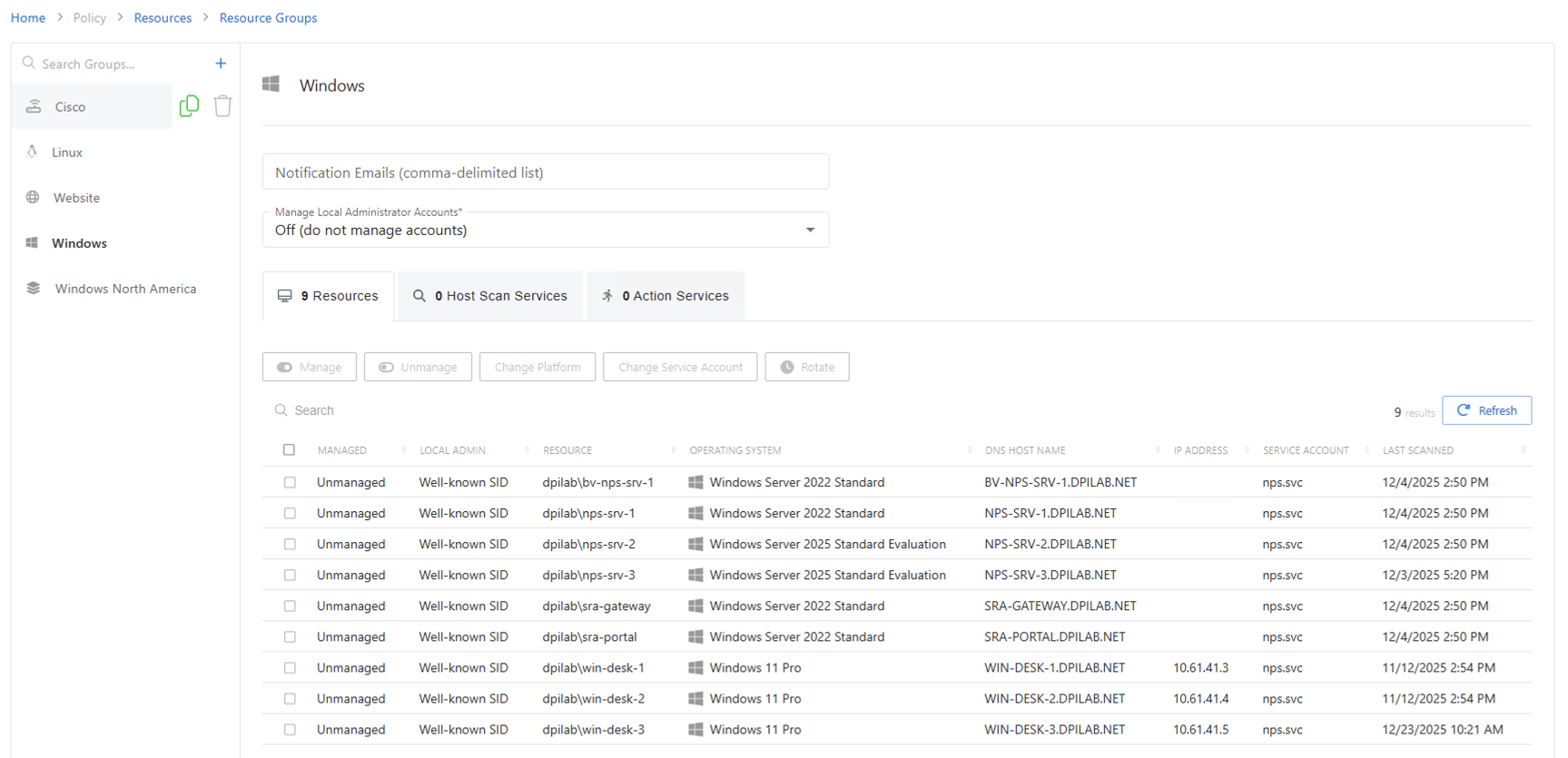
The pane on the left side of the page displays a list of the configured resource groups. This pane has the following features:
- Search — Searches the table or list for matches to the search string. When matches are found, the table or list is filtered to the matching results.
- Blue + button — Create a resource group. See the Add a Resource Group topic for additional information.
- Copy icon — Duplicates the resource group. Icon appears when group is hovered over.
- Trashcan icon — Deletes the resource group. Icon appears when group is hovered over. A confirmation window will display.
Default Resource Groups
The following resource groups are available by default, and resources are automatically added to these groups:
- Cisco — Contains all resources with Cisco assigned as the Platform. This value is determined during initial onboarding of the resource, or can be configured manually on the Resource after it has been onboarded.
- Linux — Contains all resources with Linux assigned as the Platform. This value is determined during initial onboarding of the resource, or can be configured manually on the Resource after it has been onboarded.
- Website — Contains all resources with Website assigned as the Platform. This value is assigned to any Website resource upon being added.
- Windows — Contains all resources with Windows assigned as the Platform. This value is determined during initial onboarding of the resource, or can be configured manually on the Resource after it has been onboarded.
The following resource group details display for all groups.
-
Notification Emails — Displays a comma-delimited list email recipients to notify of events on the resources in the selected group
-
Manage Local Administrator Accounts — Indicates whether or not local Administrator accounts on resources in this group should be automatically managed when the resource is on-boarded. The account to be managed will correspond with the Built-in Account field on the resource's platform. See the Platforms Page topic for additional information.
- Off (Do Not Manage Accounts) — Do not manage any Local Administrator accounts on the resources in the selected group
- On (Manage All Accounts) — Manage all Local Administrator accounts on the resources in the selected group
- Per Individual Resource — Set whether the Local Administrator accounts will be managed on a per resource basis
User-added Group Details
The following resource group details display at the top of the main pane for groups that are user-created (not default)
-
Name — Displays the name of the group
-
Map to OU checkbox — Indicates if the group is mapped to an OU. The following settings are enabled when checked:
- Sync Now button — Maps the specified OU to the group. A confirmation dialog is displayed to allow the user the option to either Sync Now or Cancel.
- OU FQDN — Displays the fully qualified domain name of the OU if mapping is enabled
- Include Child OUs checkbox — Indicates if child OUs of the specified OU are included in the mapping
- Auto-Onboard checkbox — Indicates if Privilege Secure automatically manages any resources found in the OU
If any of these settings are modified, Save and Cancel buttons are displayed. Click Save to commit the modifications. Click Cancel to discard the modifications.