Role Management Page
The Role Management page is accessible from the Navigation pane under Users & Group. It provides details on all available roles for Privilege Secure users. There are default roles, and custom roles can be created.
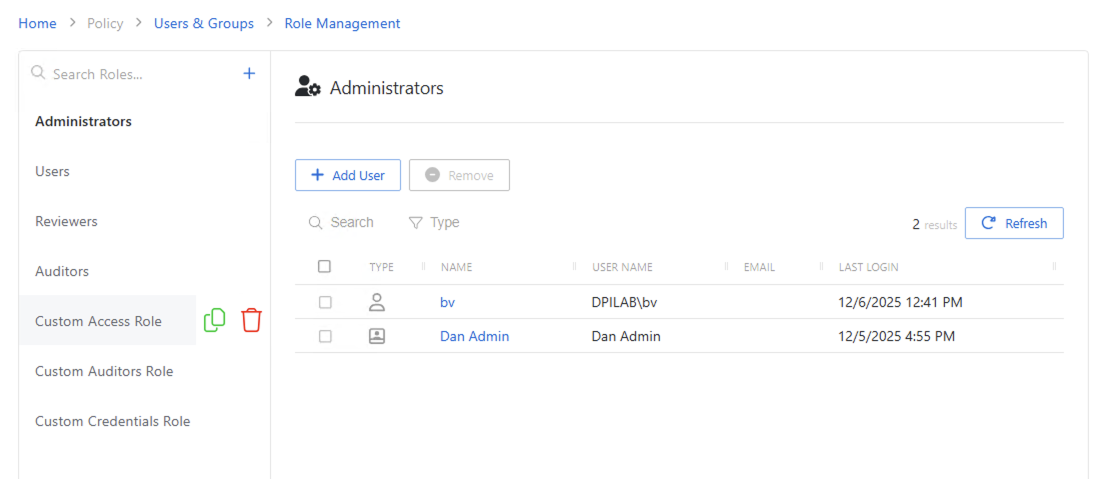
The pane on the left side of the page displays a list of the configured roles. This pane has the following features:
- Search — Searches the table or list for matches to the search string. When matches are found, the table or list is filtered to the matching results.
- Blue + button — Create a new role. See the Add Custom Role for additional information.
- Copy icon — Clones a role and adds a new entry to the Role list
- Trashcan icon — Deletes the access policy. Icon appears when policy is hovered over. A confirmation window will display.
Default Role Permissions
The default roles provide users with the following permissions:
- Administrator — Grants access to all Privilege Secure Console configuration options
- User — Creates sessions based on assigned access policy. This role is automatically assigned when a user is onboarded.
- Reviewer — Grants ability to review access entitlement. See the Access Certification Page topic for additional information.
- Auditor - Grants the ability to view recordings of historical sessions by users or resources. There are also custom auditor roles. One way to orgnize might be to make the built-in auditor role capabile of viewing historical sessions of all users and all resources. Then create custom auditor roles to enable viewing of only certain users and/or resources.
- Custom Roles: There are three variants of customized roles: custom access policies, custom credential policies, and custom auditor policies. Custom roles enable fine-grained configuration and access controls beyond the built-in roles.
- Approver: This role is not assigned the way the other roles are assigned. Instead, when a Connection profile is created, workflows can be built that assign other users the ability to approve or deny that session. See Add Approval Workflow. Up to three levels of approvals can be required.
The default Administrator, User, Reviewer, and Auditor roles cannot be copied, deleted, or modified. Only custom roles can be copied, deleted, or modified.
When a default role (Administrator, User, or Reviewer) is selected, the selected role details display at the top of the main pane with the following features:
-
Name — Name of the access policy
-
Search — Searches the table or list for matches to the search string. When matches are found, the table or list is filtered to the matching results.
-
Filter — Provides options to filter results based on a chosen criterion: User, Group, Application, Collection, and Local User
-
Add User — The Add options change based on the selected role:
-
Administrator — Opens the Add Administrators window. See the Add Administrators Window topic for additional information.
-
Users — Opens a list of available user types to add
- New Domain Users — Opens the Add Users and Groups window. See the Add Users & Groups Window topic for additional information.
- New Application User — Opens the Add Application page. See the Add Application for additional information.
- New Local User — Opens the Add Local User page. See Add Local User topic for additional information.
-
Reviewers — Opens the Add Reviewers window. See the Add Reviewers Window topic for additional information.
-
Auditors- Opens the Auditors Permissions and Users window. See the Add Auditor Permissions and Auditors Window topic for additional information.
-
-
Remove — Removes console access from the selected account
-
Refresh — Reload the information displayed
The table has the following columns:
- Checkbox — Check to select one or more items
- Type — Icon indicates the type of object
- Name — Displays the name of the account. Click the link to view additional details. See the User, Group, & Application Details Page topic for additional information.
- User Name — Displays the sAMAccountName for the account
- Email — Displays the associated email address, if available
- Last Login — Date timestamp for the last time the user logged into the application
The table columns can be resized and sorted in ascending or descending order.