Host Scan Service Install
The NPS Host Scan Service is installed on the application server as part of Privilege Secure install. It can also be installed on additional servers. This provides the option to run host scans from different locations within an organization.
The NPS Host Scan Service installer is in the Extras folder of the ZIP file downloaded from the Netwrix Customer portal. See the Install Components & Methods topic for additional information.
Before you begin, the NPS Proxy Service must be registered with a corresponding application server on the server you are installing the Host Scan Service before installation. See the Proxy Service Install topic for installation instructions.
Additionally, The Action Service must be installed on the same server that you plan to add the Host Scan service. This is because the Host Scan service relies on the Action Service Worker. See Action Service Install
To install the NPS Host Scan Service on another server.
Step 1 – ensure that you have configured the Antivirus exclusions according to the following Netwrix knowledge base article: Exclusions for Antivirus (AV) & Endpoint Software
Step 2 – Move the NPS.HostScanService.msi installation package to the desktop of the remote server.
Step 3 – Open the NPS.HostScanService.msi and the Netwrix Privilege Secure Host Scan Service Setup wizard opens. Click Next.
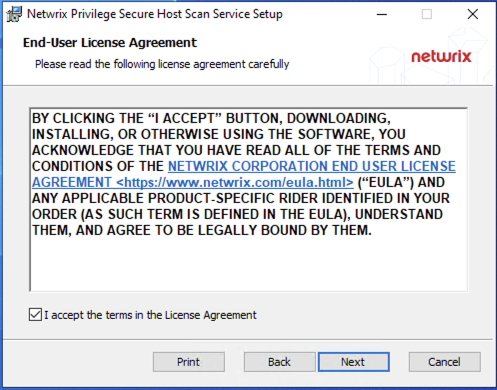
Step 4 – Read the End User License Agreement and accept the license terms.
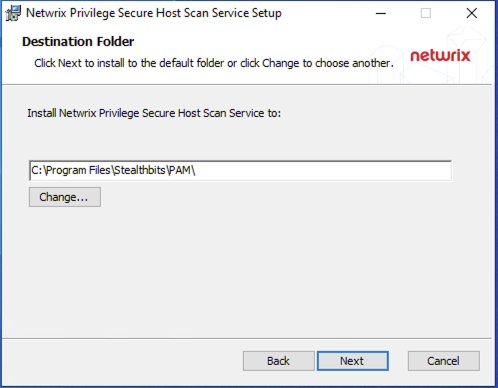
Step 4 – Enter the destination folder for installation and click OK. (Default usually easiest)
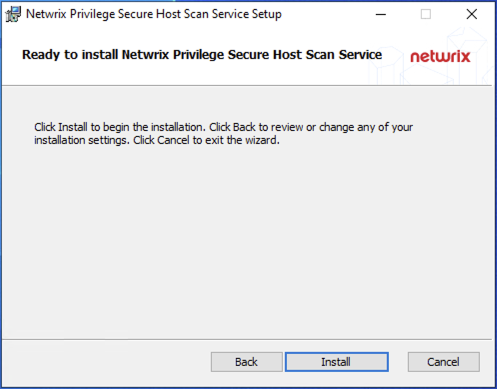
Step 7 – Click Install to begin the installation. The setup wizard displays the installation progress.
Step 8 – When the installation is complete, click Close to exit the installer.
The Privilege Secure Host Scan Service is now installed on a remote server.
Register the Remote Host Scan Service with Privilege Secure
If the Host Scan Service is installed on a remote machine, it must be configured to register with the Privilege Secure server. This configuration is done by supplying the Privilege Secure server and credentials in a command line utility.
To configure the key exchange.
Step 1 – On the application server, run cmd as Administrator.
Step 2 – Enter the following commands to export the encryption keys for the secondary:
Encryption Key Export
cd C:\Program Files\Stealthbits\PAM\KeyTools
.\SbPAM.RotateKey.exe export -n keys.exp
Step 3 – Take note of the password for the export file.
Step 4 – Copy the export file to "C:\Program Files\Stealthbits\PAM\KeyTools" on the remote server.
Step 5 – On the remote server, run cmd as Administrator.
Step 6 – Enter the following commands to import the encryption keys:
Encryption Key Import
cd C:\Program Files\Stealthbits\PAM\KeyTools
.\SbPAM.RotateKey.exe import -n keys.exp
Step 7 – Enter the password you got from the exporting the keys in the applicaiotn server when prompted.
Step 8 – Delete the export file from both the primary and secondary servers.
Delete the "keys.exp" file from both servers and the temporary password wherever you may have saved it.
The key exchange is now configured.
To configure the Host Scan Service.
Step 1 – Open a command prompt as an administrator.
Step 2 – Change the directory path to the location of the Privilege Secure Host Scan Service. The default path is:
C:\Program Files\Stealthbits\PAM\HostScanService\
Step 3 – Run the following command to automatically register the achost scan service. Enter the Admin password when prompted:
- The
[PrivilegeSecureServer]parameter is the Host Name, IP, FQDN, or URL - The default
[Port]parameter is 6500 - The [admin] should be an NPS administrator in "DOMAIN\username" format
NPS.HostScanService.msi –register -u admin [PrivilegeSecureServer:Port]
- For installations without a trusted https certificate on the Privilege Secure server, the
-Iparameter must be added:
NPS.HostScanService.msi –register -u admin -I [PrivilegeSecureServer:Port]
- The command prompt shows if the configuration was successful.
Step 4 – Exit the command prompt.
The remote Host Scan Service is now registered with Privilege Secure.