Linux Platform Policy Configuration
The Linux menu displays the configuration options for Linux platforms.
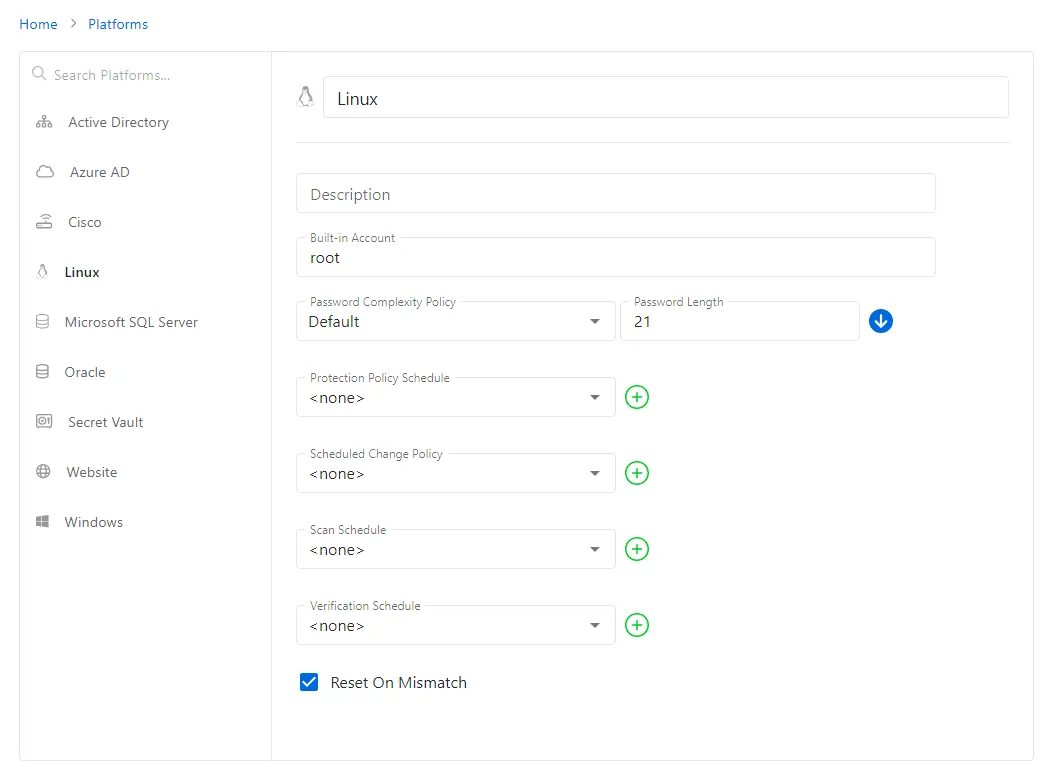
Details for the selected platform display on the right side of the page. The following are the configuration options for a Linux Platform.
- Name — Displays the name of the policy
- Description — Description of the policy
- Built-in Account — The built-in administrator account for the resources on the selected platform. If you need multiple built-in administrator accounts, create a copy of the platform. For Windows platforms, the built-in account is defined via the well-known SID (S-1-5-21*-500). This feature informs Netwrix Privilege Secure which accounts to discover and onboard for a given platform during its discovery process.
- Password Complexity Policy — The password complexity rules for managed accounts created on the resources defined by the selected platform. See the Password Complexity Page topic for additional information.
- Password Length — The number of characters required by the selected password policy
- Arrow icon — Show or Hide password policy details. Click the icon to display the password complexity requirements of the selected password policy.
- Protection Policy Schedule — How often the Protection Policy runs. See the Protection Policies Page topic for additional information.
- Scheduled Change Policy — How often Privilege Secure changes the credentials for a managed account (credential rotation). See the Credentials Dashboard and Schedule Policies Page topic for additional information.
- Scan Schedule — How often to perform a host scan on the resources defined by the selected platform (local users, groups, windows services and scheduled tasks). You can also run this scan ad-hoc from the Resources Page.
- Verification Schedule — How often to verify the credentials for managed accounts on the resources defined by the selected platform. See the Credentials Dashboard topic for additional information on managed accounts.
- Reset on Mismatch — When selected, this option will force a password rotation if the password verification step finds that the existing password for an account doesn't match what Privilege Secure expects.
If you modify any of these settings, Save, and Cancel buttons appear. Click Save to commit the modifications. Click Cancel to discard the modifications.