Adding a VMware vCenter Website to Browser Extension
Overview
This article describes how to add a VMware vCenter web application (website) to the Netwrix Privilege Secure for Access Management Browser Extension for quick and easy session provisioning.
Instructions
-
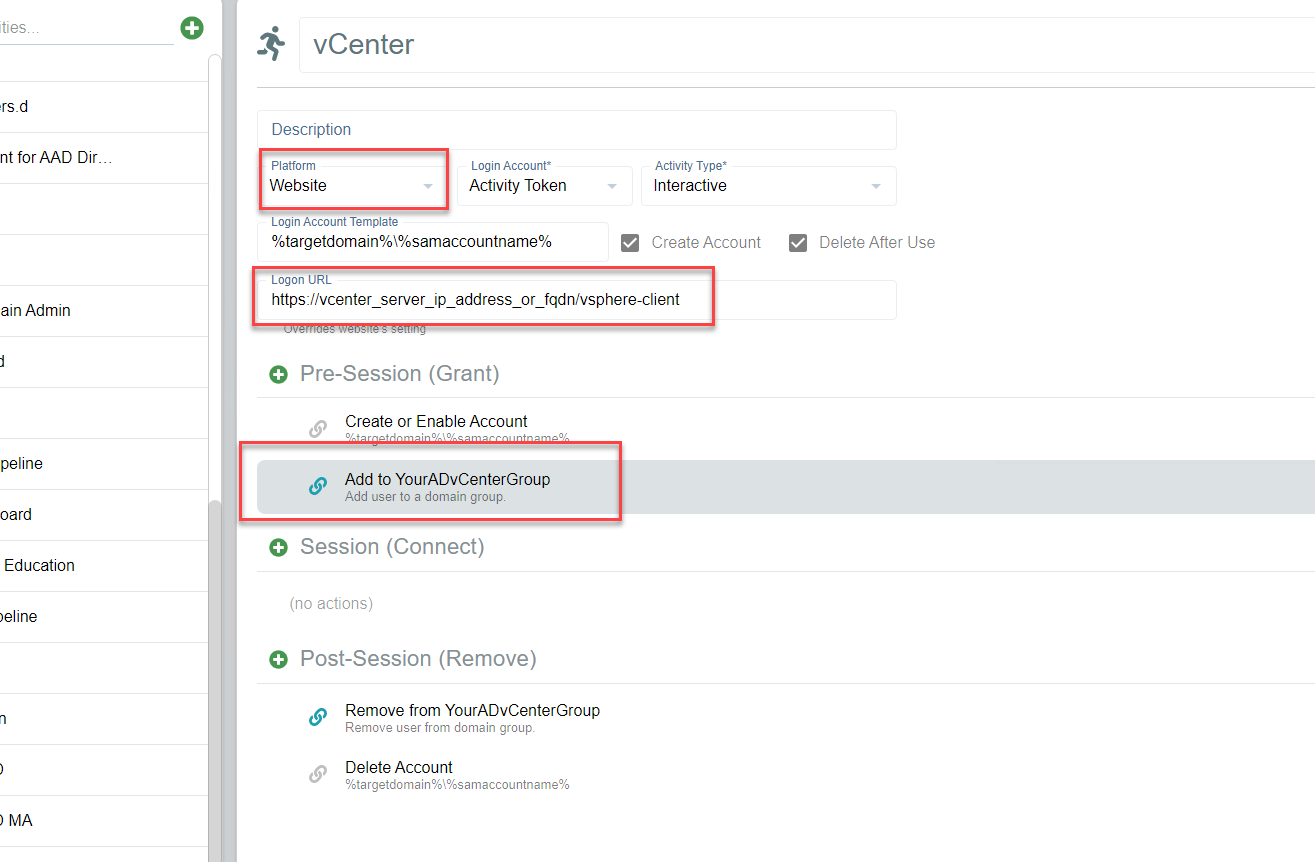
Create a VMware vCenter website Activity. Enter the URL normally used to log in to vCenter and any Active Directory (AD) group that gives the account permission to log in.
NOTE: This example is for an Activity Token. Managed Account and Requester workflows are also supported.
-
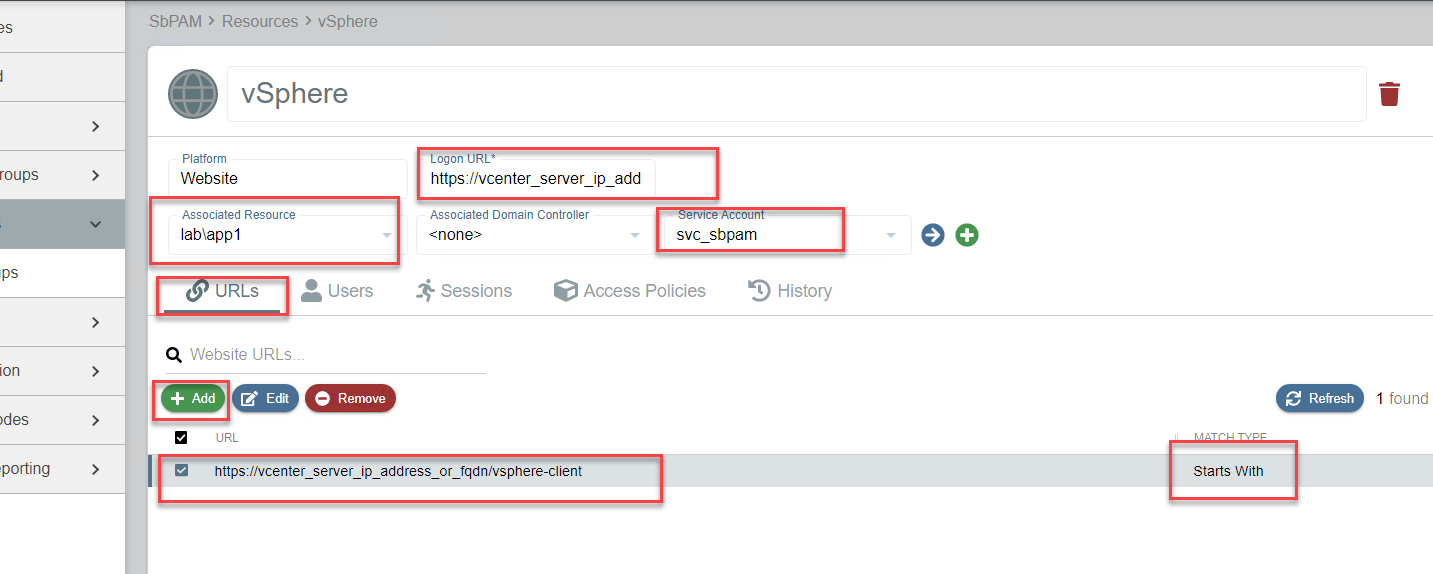
Create a Website Resource. Enter the URL for vCenter and, if possible, choose a resource that is in the same AD domain as the vSphere host. This ensures that when an account is created and group permissions are granted to it, this happens on a Domain Controller (DC) close to where vSphere would normally authenticate to. This prevents needing to wait for permissions to replicate when logging in to vSphere.
-
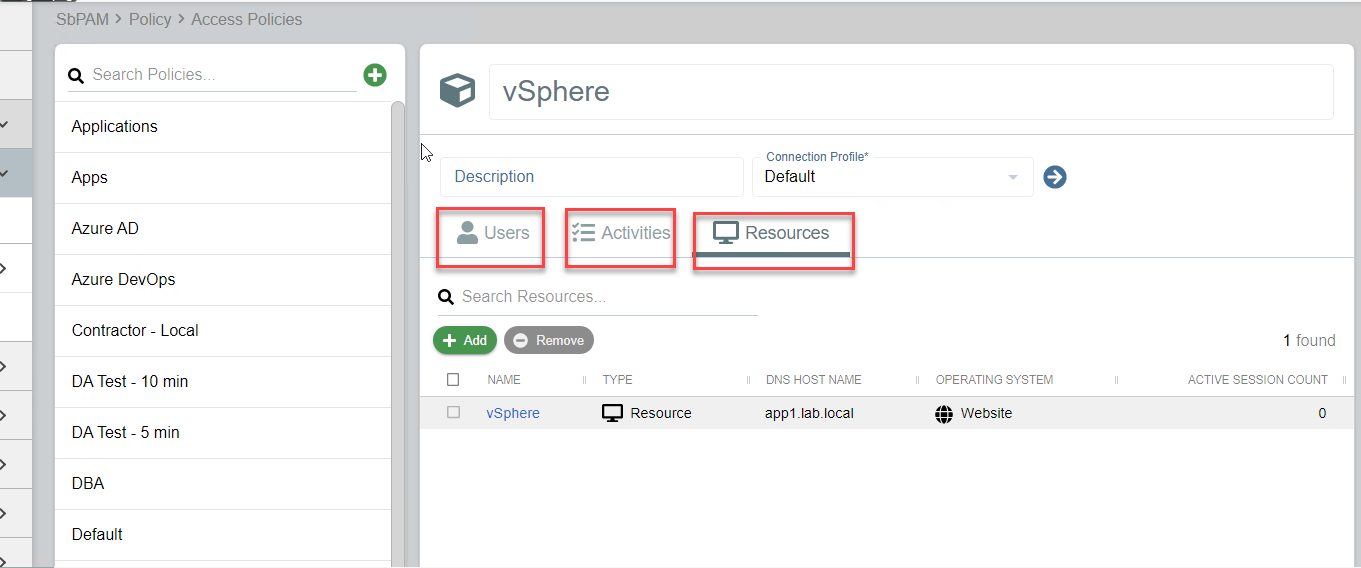
Create an Access Policy that links a user to the vSphere Activity and the Website Resource. There should now be a vSphere activity in the Privilege Secure Browser Extension, with the ability to select it to create a session (click once) and then launch vSphere (click again).