Invoking Desktop SSH Client Automatically
Overview
This article describes how to register a URL handler on your desktop using sbpam-url so that a local SSH client is invoked automatically for sessions.
Instructions
IMPORTANT: Do not move the command file after registering it. The registry entry points to the file's original location and breaks if the file is moved.
-
To register a URL handler on your desktop, locate
sbpam-url.exein the Extras folder of the full Netwrix Privilege Secure for Access Management download and copy it to a permanent folder on your file system.- For example,
C:\Tools\sbpam-url\. Avoid temporary or user-managed locations such asDesktoporDownloads.
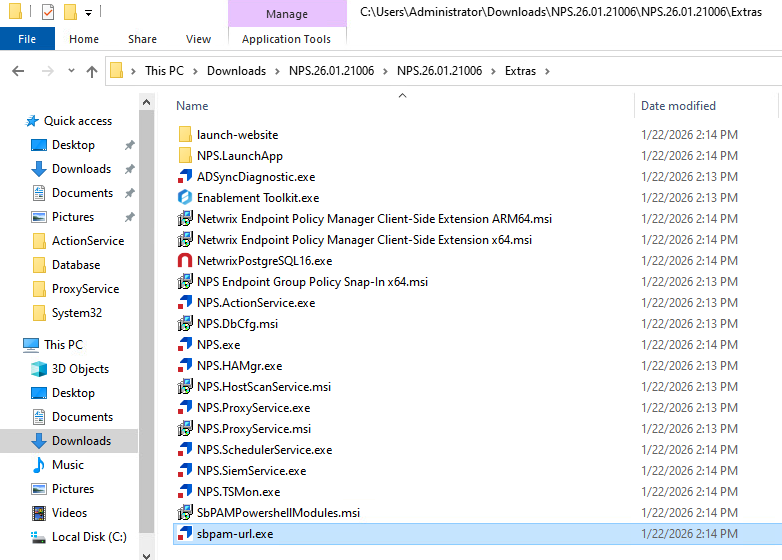
NOTE: The Extras folder also includes batch files with known configurations for popular SSH clients. For information about the full Privilege Secure for Access Management package and its contents, see Privilege Secure Components.
- For example,
-
Ensure that your preferred SSH app (for example, PuTTY) is installed and note its installation location.
-
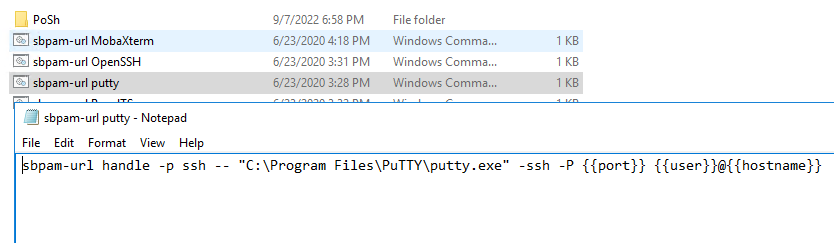
Right-click the Windows command file corresponding to the application you want to register. Ensure that it is configured with the correct installation directory you noted in the previous step. If it is not, edit the file with the correct path and save it.
-
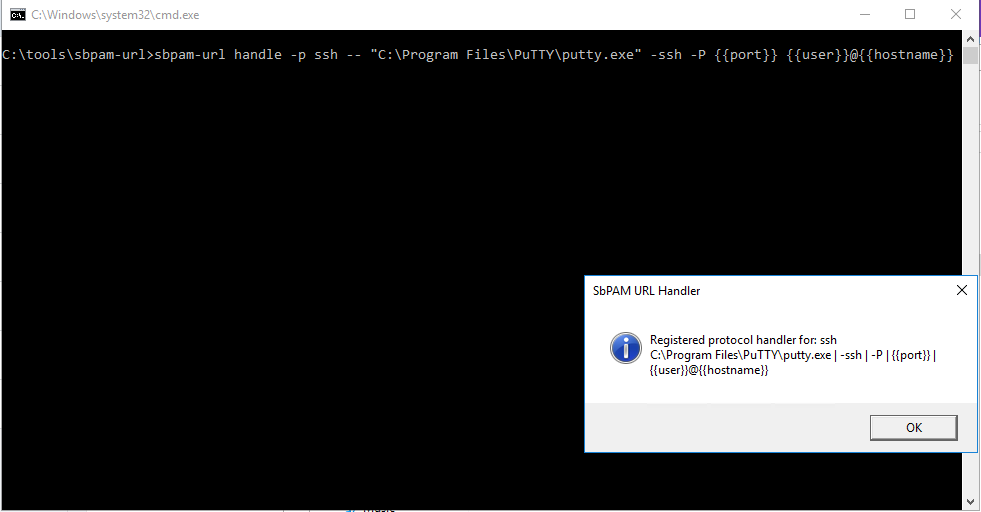
Double-click the command file you previously opened to execute it. The command file modifies the registry and registers the application to the URL handler. Your registered SSH client is now invoked automatically when starting SSH sessions from the Privilege Secure user interface.
-
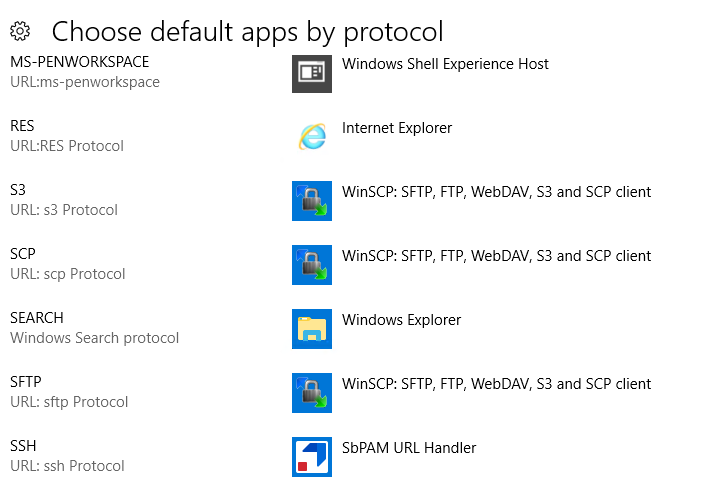
Ensure that your SSH handler is indicated in Windows' Choose default apps by protocol settings as Netwrix Privilege Secure URL Handler.
-
If none of these built-in command files are successful, see Registering and Using the sbpam-url SSH Protocol Handler for the provided options.