Configure Microsoft Graph directory synchronization
Configure a dedicated Microsoft Entra app registration so that Netwrix Privilege Secure for Discovery (NPS-D) can read users, groups, devices, domains, and relationships through Microsoft Graph.
This procedure applies to NPS-D 25.12.0 and later. Complete the integration prerequisites before you start.
Create an app registration
- Open the Microsoft Entra admin center.
- Go to Identity > Applications > App registrations > New registration.
- Enter a name such as
NPSD-<environment>-Graph-Sync. - Select Accounts in this organizational directory only.
- Leave Redirect URI empty, and select Register.
- Record the Application (client) ID and Directory (tenant) ID in the approved implementation record.
- Assign at least two accountable application owners.
Add Microsoft Graph application permissions
-
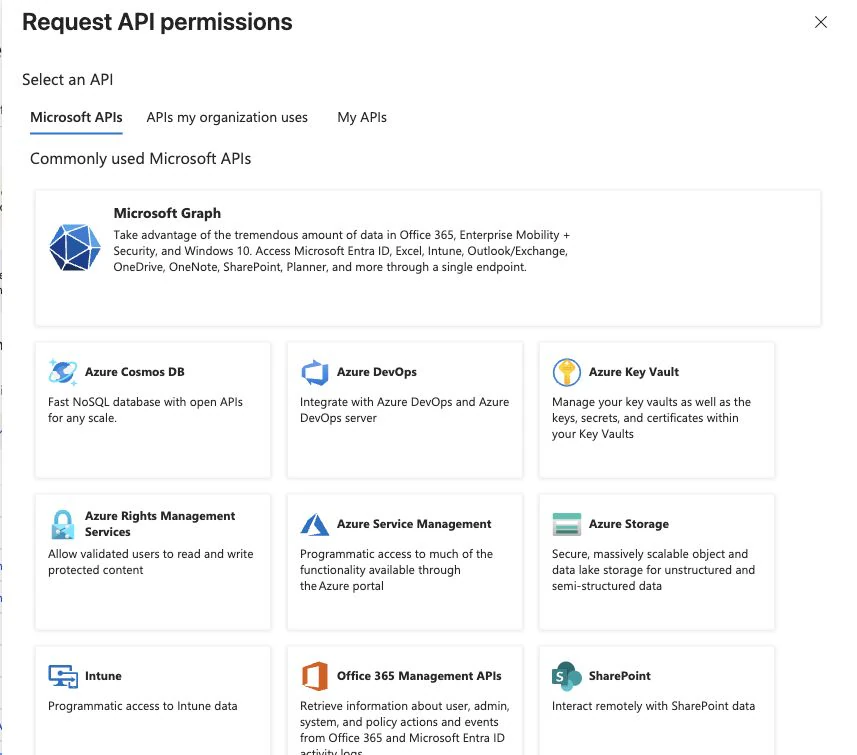
Open API permissions > Add a permission > Microsoft Graph.
-
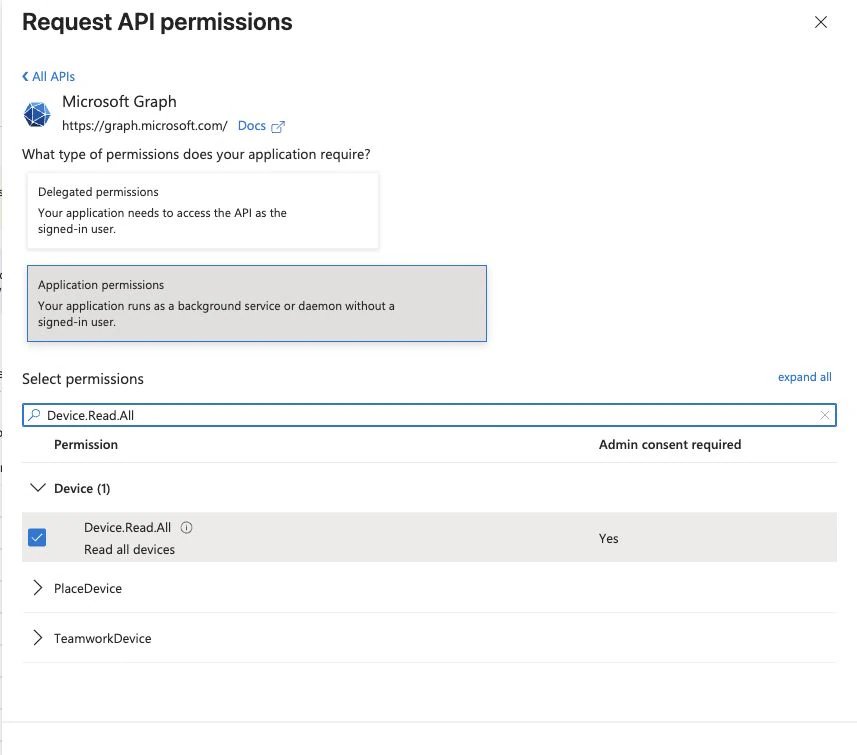
Select Application permissions. Don't select delegated permissions.
-
Add the permissions that apply to the deployment.
Permission Requirement Purpose Directory.Read.AllRequired Reads directory, user, group, domain, and membership data that the NPS-D synchronization flow uses Device.Read.AllRequired Reads device inventory, device relationships, and device delta changes Member.Read.HiddenConditional Reads hidden group memberships when the deployment requires complete hidden-membership synchronization 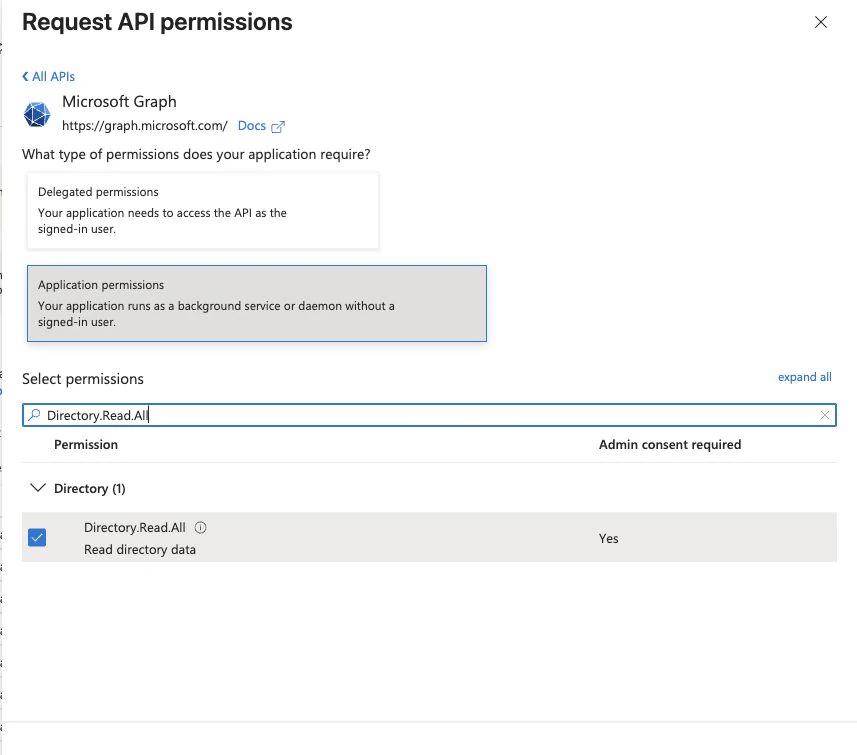
-
Select Grant admin consent for
<tenant>. -
Verify that Microsoft Entra shows granted status for each required application permission.
For NPS-D 26.06, don't grant Graph write permissions or delegated permissions. Endpoint operations don't require User.ReadWrite.All or Group.ReadWrite.All because they act on the managed endpoint, not on the Microsoft Entra directory object.
Create and protect the client credential
- Open Certificates & secrets > Client secrets > New client secret.
- Enter the approved description and lifetime.
- Create the credential during the controlled change window.
- Copy the secret Value, not the Secret ID, directly to the approved secret manager.
- Record the credential owner and rotation date without recording the secret value in deployment evidence.

Don't include the generated value in screenshots, tickets, chat, or video.
Add the Microsoft Entra ID source in NPS-D
-
In NPS-D, open Configure > Server > Domain Configuration.
-
Select Add Domain > Entra ID.
-
Complete the configuration.
NPS-D field Value Name Enter a stable descriptive name, normally the tenant's default domain or environment label. Client Id Enter the application or client ID from the Graph app registration. Tenant Id Enter the directory or tenant ID from Microsoft Entra. Client Secret Retrieve and enter the active credential value from the approved secret manager. Scan Mode Keep disabled until you deliberately commission the selected inventory path. Protect Mode Keep disabled until you separately commission a supported write path. Scan and Protect accounts Enter dedicated least-privilege identities from the approved endpoint-management design.
NPS-D 26.06 requires the Scan and Protect account fields in the Microsoft Entra form even when the related modes are disabled. Enter only approved, dedicated account values. If a deployment that relies only on endpoint detection and response (EDR) doesn't have approved direct Windows accounts, contact Netwrix Support for the supported value convention for the exact installed release before you save the source.
- Select Test Connection.
- Save the source.
- Monitor the complete synchronization.
In NPS-D 26.06, a successful connection test confirms token acquisition and the presence of Device.Read.All. It doesn't call every Microsoft Graph endpoint, validate every permission, or prove that users, groups, devices, and relationships can synchronize successfully.
Validate the full import
For an Entra-native deployment, complete the following checks before you configure SAML. For a hybrid deployment, also complete the correlation checks in Configure endpoint operations.
- Confirm that user, group, and device synchronization completes without an error.
- Confirm that the pilot user exists in Configure > Users and Groups.
- Confirm that the synchronized
sAMAccountNameanddomain_fqdnproduce the expected user principal name. - Confirm that the pilot user has a direct or group-derived NPS-D role.
- Confirm that required group memberships are present, including hidden memberships when you use the optional permission.
- Complete one full synchronization and at least one later delta cycle.
- Confirm that distributable evidence contains no credential or sensitive customer identifier.
NPS-D synchronizes the general Microsoft Entra groups that Microsoft Graph returns. The flow isn't limited to Microsoft 365 groups. Plan the initial import as tenant-wide because the NPS-D 26.06 Microsoft Entra configuration doesn't provide an object-scope filter.
After the import passes these checks, configure SAML SSO.