Authenticate Using an API Key in Postman
Overview
Postman is free to download at postman.com/downloads. Use these instructions to authenticate against the Privilege Secure Discovery API using an API key and store the resulting JWT token as a global variable.
Refer to the NPS-D API documentation for a full list of available endpoints and usage. For Postman-specific authentication steps, see Authenticate Using Postman.
Prerequisites
You need:
- A valid userId
- An API Key generated for that user
Instructions
-
Open Postman.
-
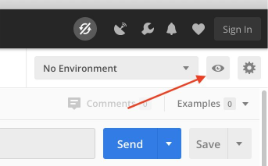
Click the eye icon in the upper-right corner.
-
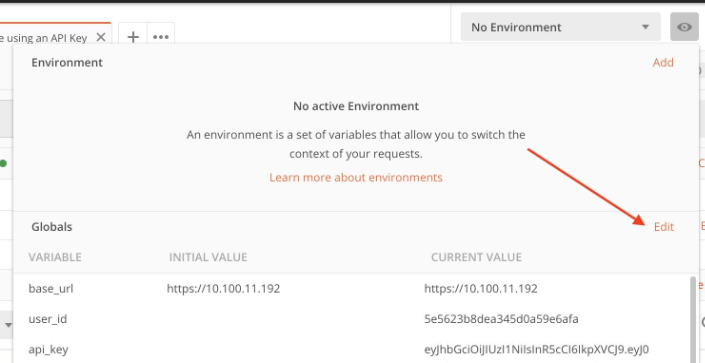
Click Edit next to Globals.
-
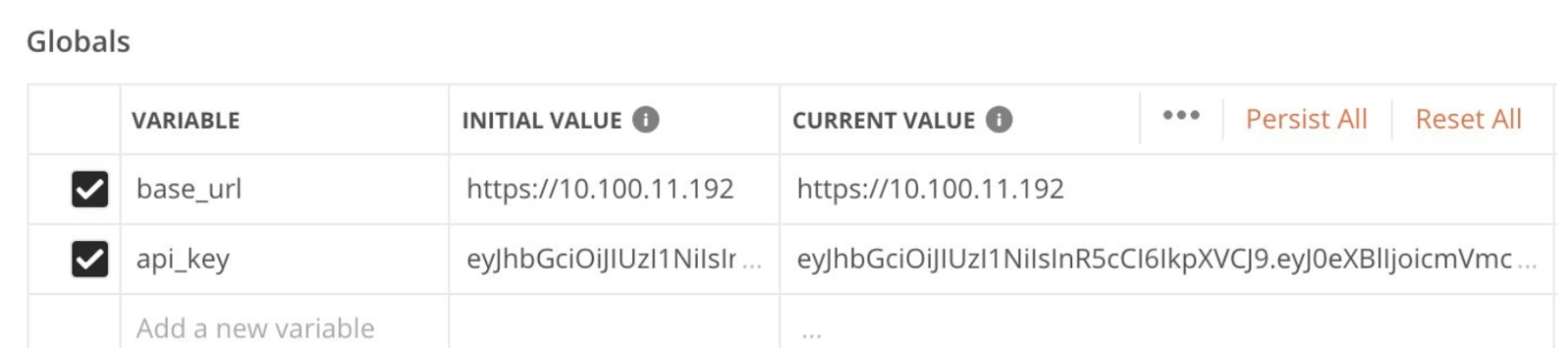
Add the following variables:
-
api_key
- Initial Value: your API key
- Current Value: your API key
-
(Optional) base_url
- Enter the SecureONE environment URL if required.
-
-
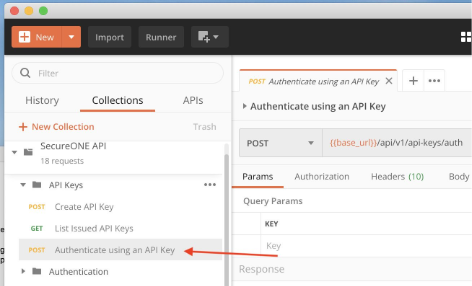
Navigate to the SecureONE API collection, expand API Keys, and select Authenticate using an API key.
-
Click the Body tab and enter the userId associated with the API key.
NOTE:
{{api_key}}automatically pulls from the global variable.
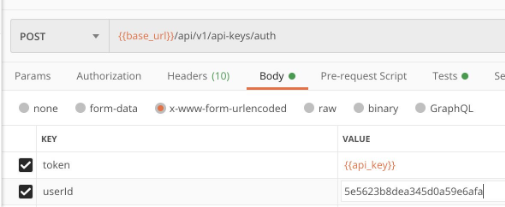
-
Click the Tests tab.
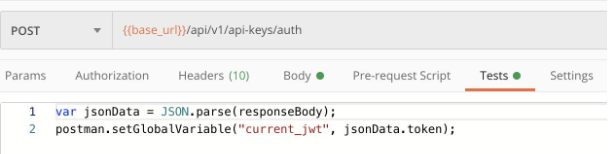
Paste the following:
var jsonData = JSON.parse(responseBody);postman.setGlobalVariable("current_jwt", jsonData.token); -
Click Save, or use Save As to store it separately.
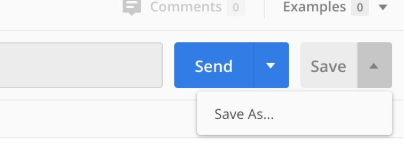
-
Click Send and verify the response appears at the bottom. You should receive a token in the response.
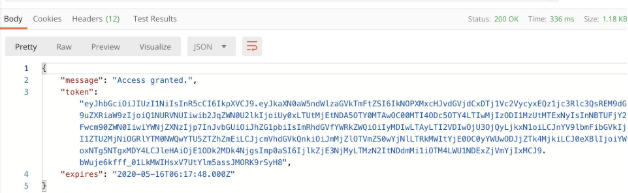
-
You can now send GET and POST requests using the stored
current_jwttoken.
IMPORTANT: The authentication token expires every 8 hours. Re-run the Authenticate using an API key request to refresh it.